Uniconnect AI – System Update Documentation
Overview
The System Update module in Uniconnect AI enables administrators to manage platform updates efficiently. It provides visibility into the current version, available updates, and the update process through both the interface and CLI execution.
Key functions:
- Display current system version and component versions.
- Check for new updates.
- Apply updates via CLI with real-time status feedback.
- Maintain transparency of update progress and results.
Version Information
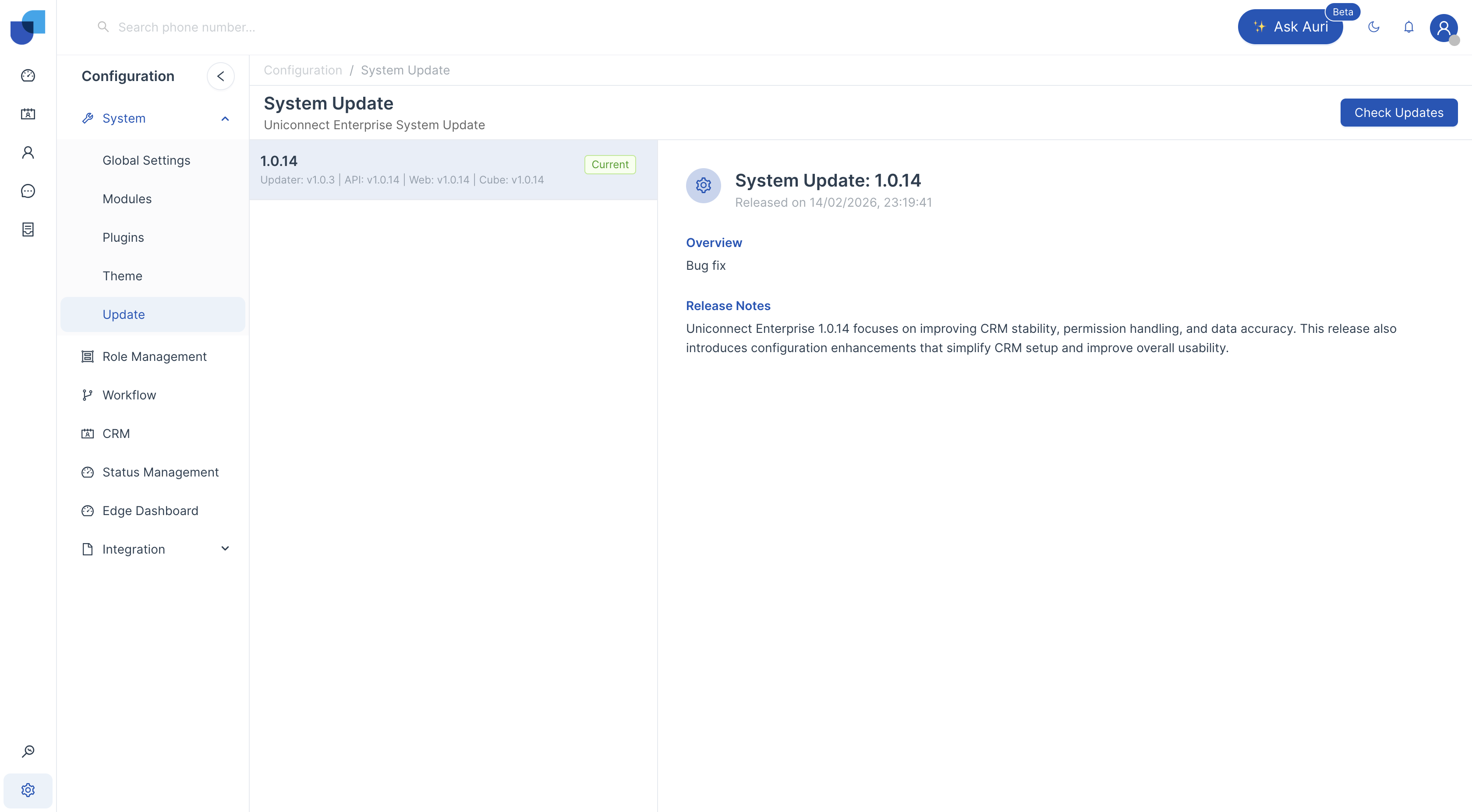
The update screen displays the following version details:
- System Version: Current installed release (e.g.,
1.0.88) - Updater: Internal update handler (e.g.,
v1.0.6) - API: Backend API version (e.g.,
v1.0.74) - Web: Web interface version (e.g.,
v1.0.68) - Cube: Core processing engine version (e.g.,
v1.0.44)
This breakdown ensures administrators can track individual components alongside the overall system version.
Main Features
1. View Current Version
- The dashboard prominently displays the current system version.
- Component versions (Updater, API, Web, Cube) are listed for clarity.
2. Check for Updates
- Clicking Check Updates queries the update server.
- If a newer version is available, details of the next release are shown.
- Administrators can review before applying.
Note: Updates must be applied sequentially.
Users can only update to the next immediate version from the current version. Skipping versions is not supported.
3. Apply Update
- Selecting Update initiates the process.
- A CLI window runs automatically, displaying:
- Download progress
- Installation steps
- Success or error messages
4. Status Feedback
- The CLI provides real-time logs of the update process.
- Once complete, the interface reflects the new version as Current.
User Workflow
- Navigate to Configuration -> System → Update in the sidebar.
- Review the Current Version and component details.
- Click Check Updates to see if a new release is available.
- If available, click Update.
- Monitor the CLI output for progress and completion.
- Confirm the new version is displayed as Current.
Beta Releases
In addition to stable releases, Uniconnect AI may provide Beta versions. These are early releases intended for testing and feedback.
Characteristics of Beta Releases:
- Experimental Features: Includes new functionality that is not yet fully validated.
- Limited Testing: Features may not have undergone complete regression or performance testing.
- Potential Instability: Beta builds may contain bugs, incomplete workflows, or compatibility issues.
- Feedback-Oriented: Designed to gather input from administrators and users before final release.
Recommendations:
- Use Beta releases only in non-production environments.
- Avoid deploying Beta builds on mission-critical systems.
- Report issues and feedback to the support team to improve stability for future stable releases.
Benefits
- Transparency: Clear visibility of versions and update status.
- Control: Administrators decide when to apply updates.
- Reliability: CLI logs ensure traceability of the update process.
- Consistency: All components updated in sync with the system release.
- Flexibility: Option to test Beta features before they are officially released.
- Sequential Integrity: Ensures updates are applied in order, preventing skipped versions and reducing risk of incompatibility.