AURI – User Guide
What is AURI?
AURI is an AI-powered assistant available across the system that allows you to interact with your data using natural language.
Instead of navigating through multiple modules, you can simply ask AURI questions to retrieve information, generate summaries, and analyze data.
Getting Started
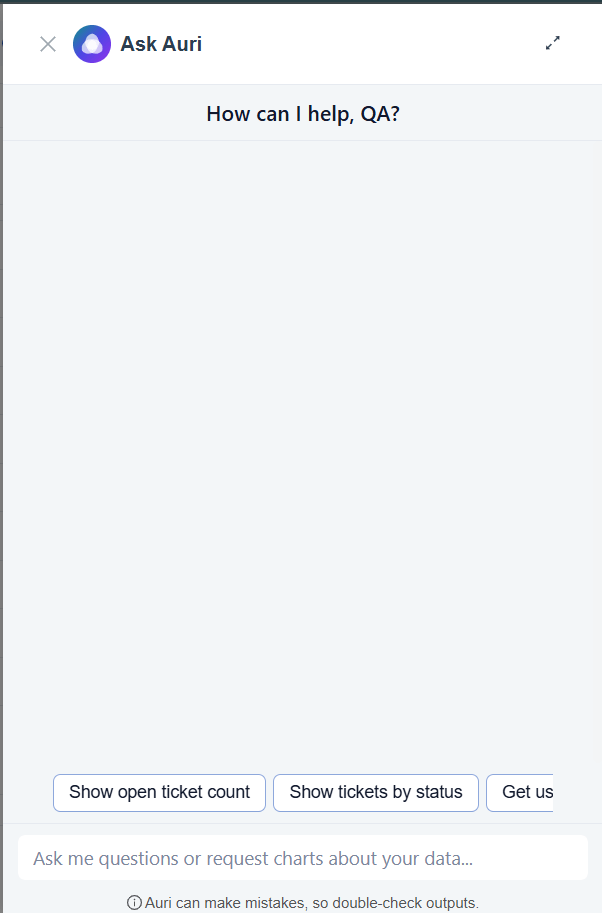
How to Access AURI
- Open the AURI chat panel from the system interface
- Type your question in the chat input box
- Press Enter to submit your query

Note: If you cannot see AURI, your access may be restricted. Refer Role Management for more info
What You Can Do with AURI
1. Ask Questions About Your Data
You can retrieve information from any module you have access to.
Examples:
- Show all open deals
- List today's calls
- What campaigns are active?
2. Get Summaries
AURI can summarize large amounts of data into simple insights.
Examples:
- Summarize recent customer interactions
- Give me an overview of this month’s performance
3. Perform Analytics
You can analyze system data directly through chat.
Examples:
- How many leads were created this week?
- Compare this month’s sales with last month
- Which campaign performed best?
4. View Results in Different Formats
AURI automatically selects the best format to display results.
You can also request a format manually.
Supported Formats:
- Tables
- Pie charts
- Text summaries
Example:
- Show this as a pie chart
5. Export Data
You can export analytics results for offline use.
Available Formats:
- CSV (for raw data)
- PDF (for formatted reports)
Viewing Analytics Results
Charts
- Displayed directly in the chat
- Used for visual insights (e.g., distribution, comparisons)
Tables
- Show detailed structured data
- Include columns and rows for clarity
Summaries
- Provide quick explanations of the results
- Highlight key insights
Exporting Results
Export as CSV
- Available for table data
- Useful for external analysis
Export as PDF
- Includes charts and tables
- Suitable for sharing and presentations
To Export:
- Run an analytics query
- Click the export option in the chat
- Select CSV or PDF
Permissions & Access
AURI Access
Controls whether you can use AURI.
- If disabled:
- AURI chat is hidden
- You cannot view or use AURI
Conversation Visibility
Which conversations you can see:
Own
- View only your conversations
Group
- View conversations within your user group
All
- View all conversations in the system
Important Notes on Permissions
- AURI only shows data you are allowed to access
- Results are filtered based on:
- Your role
- Module permissions
- Data-level access
Tips for Best Results
-
Be specific in your questions
Example: “Leads created this week” instead of “Leads” -
Ask follow-up questions to refine results
Example: “Break this down by campaign” -
Request formats if needed
Example: “Show as table”
Troubleshooting
AURI is not visible
- Check if AURI Access is enabled
- Contact your administrator
Missing data in results
- You may not have permission to view that data
Incorrect or unclear results
- Try rephrasing your question
- Be more specific
Summary
AURI helps you:
- Quickly access data
- Analyze information
- Generate insights
- Export results
All through a simple chat interface