Group Management
Groups in Uniconnect AI
In Uniconnect AI, Groups allow you to organize users into sets so they can manage and access shared records more efficiently. Groups are commonly used for activities such as voice campaign and to view shared records within CRM.
Users who belong to a group can access records that are shared with that group and perform actions on those records based on their permissions.
Who can Access This?
Access to Group Management is managed through Role Management
Configuration -> Role Management
Learn More (link to Role Management)
Navigation Path
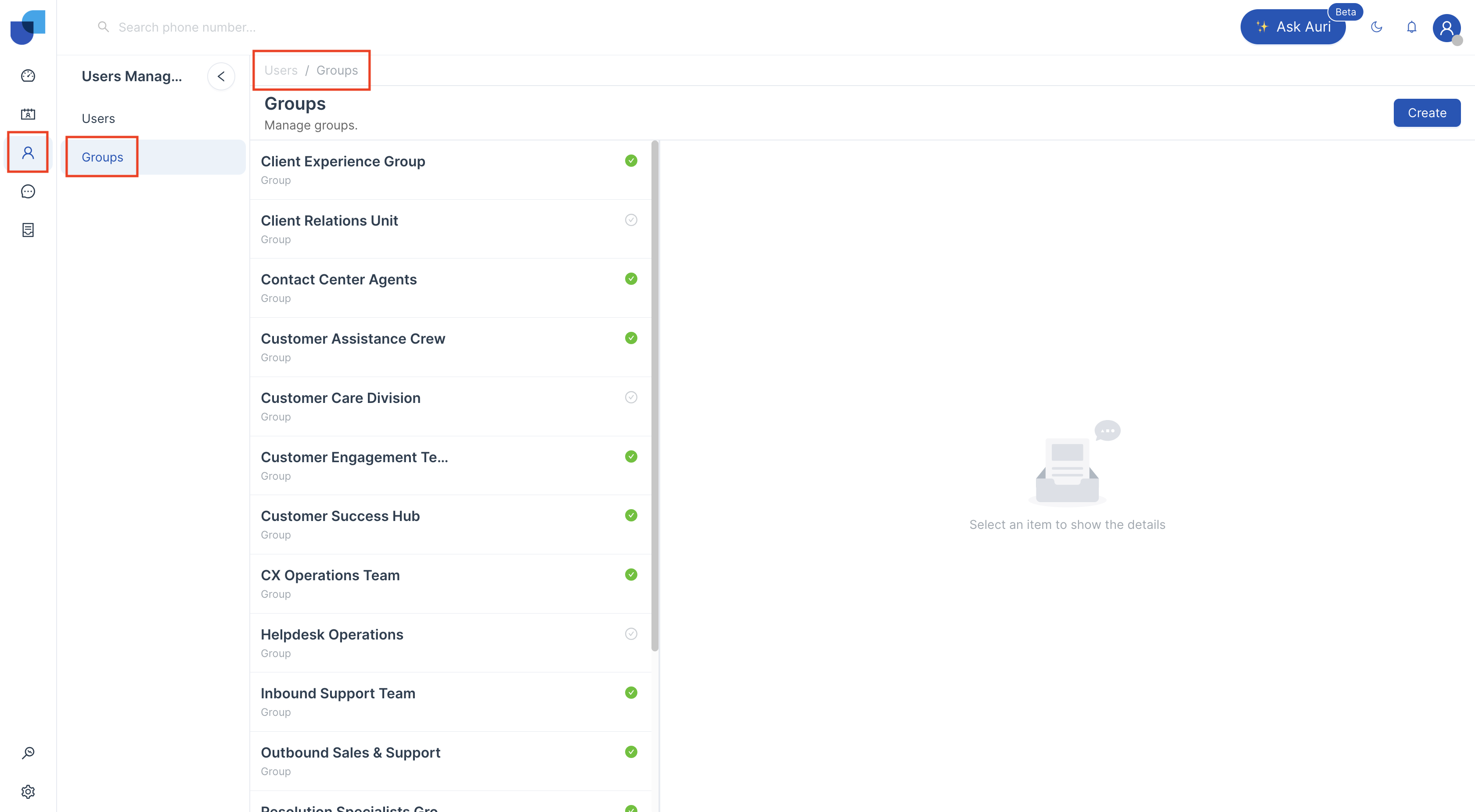
To Access Groups,
-
Login to Uniconnect AI
-
Click Users > Groups
Create a Group
You can create groups to organize users and share records among them.
Steps
- Go to Users → Groups.
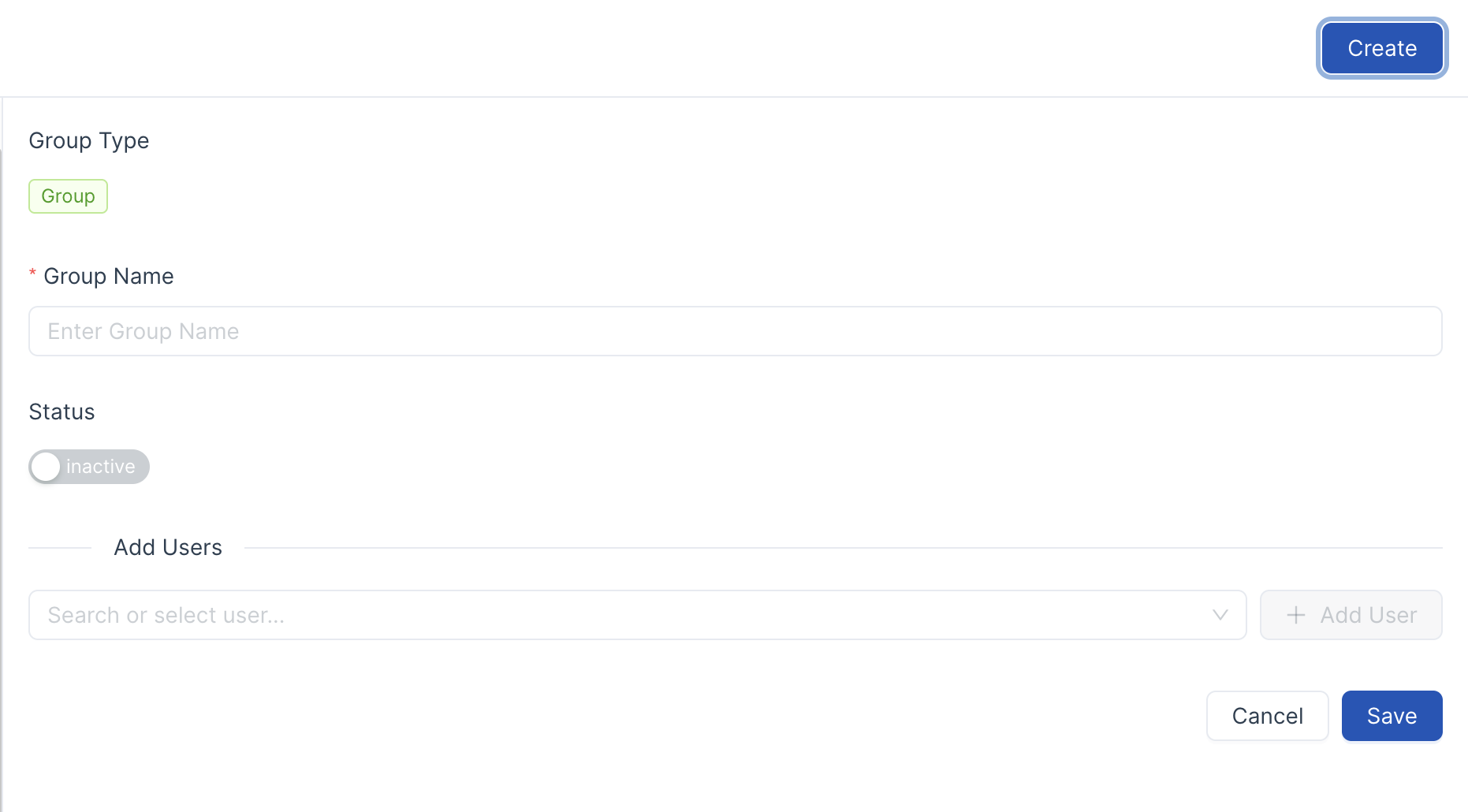
- In the Groups section, click Create.
- In the New Group page:
- Under Group Details, enter the Group Name.
- Select the status(Active/Inactive) for the group. You can add users.
- Click Save.
NOTE: Only Groups can be created directly in Uniconnect AI.
Ring Groups and Queues must be created via Voice Provider (Ex:3CX), after which they will automatically sync with Uniconnect.
Assign Users to a Group
Users can belong to multiple groups. Their access to records depends on role permissions.
Steps
- Go to Users → Groups.
- Select the Group to which you want to add members.
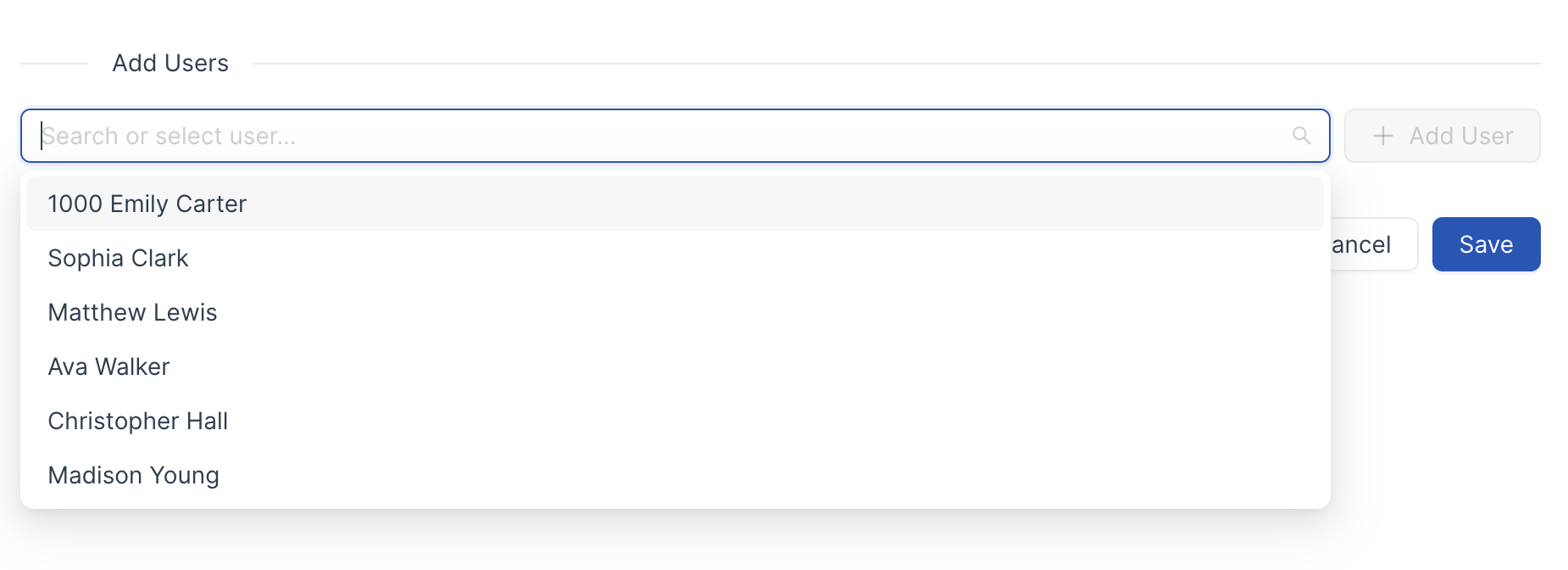
- Click Add Users > Select a user from dropdown
- Click Add User
- Click Save.
NOTE: System Owners cannot be added to the Group
Delete a Group
If a group is no longer required, it can be removed.
Steps
- Go to Users → Groups.
- On the Groups page, locate the group you want to delete.
- Click Delete next to the group name.
NOTE: Ring Groups and Queues cannot be deleted
Share Records with Groups
In Uniconnect AI, records are always owned by individual users, not by groups. However, records can be shared with groups by configuring relationships with CRM. (link to CRM)
After creating relationships, members of the group can access records according to their role permissions.
Important Notes
- The record owner has full rights to their records.
- Records cannot be owned by groups, but they can be shared with groups.
- Users must have CRM Module-level permissions in their profile to access shared records.
Example:
If a user does not have permission to access the Tickets module, they will not be able to view tickets even if the records are assigned to their group.
Learn More (link to Role Management)