Workflow Manager Overview
The Workflow Manager in Uniconnect AI is the central hub for managing workflow automation. It provides a dashboard view of all configured workflows, options to create new ones, and tools to maintain or delete workflows. This guide walks you through the Workflow Manager step by step.
Access the Workflow Manager
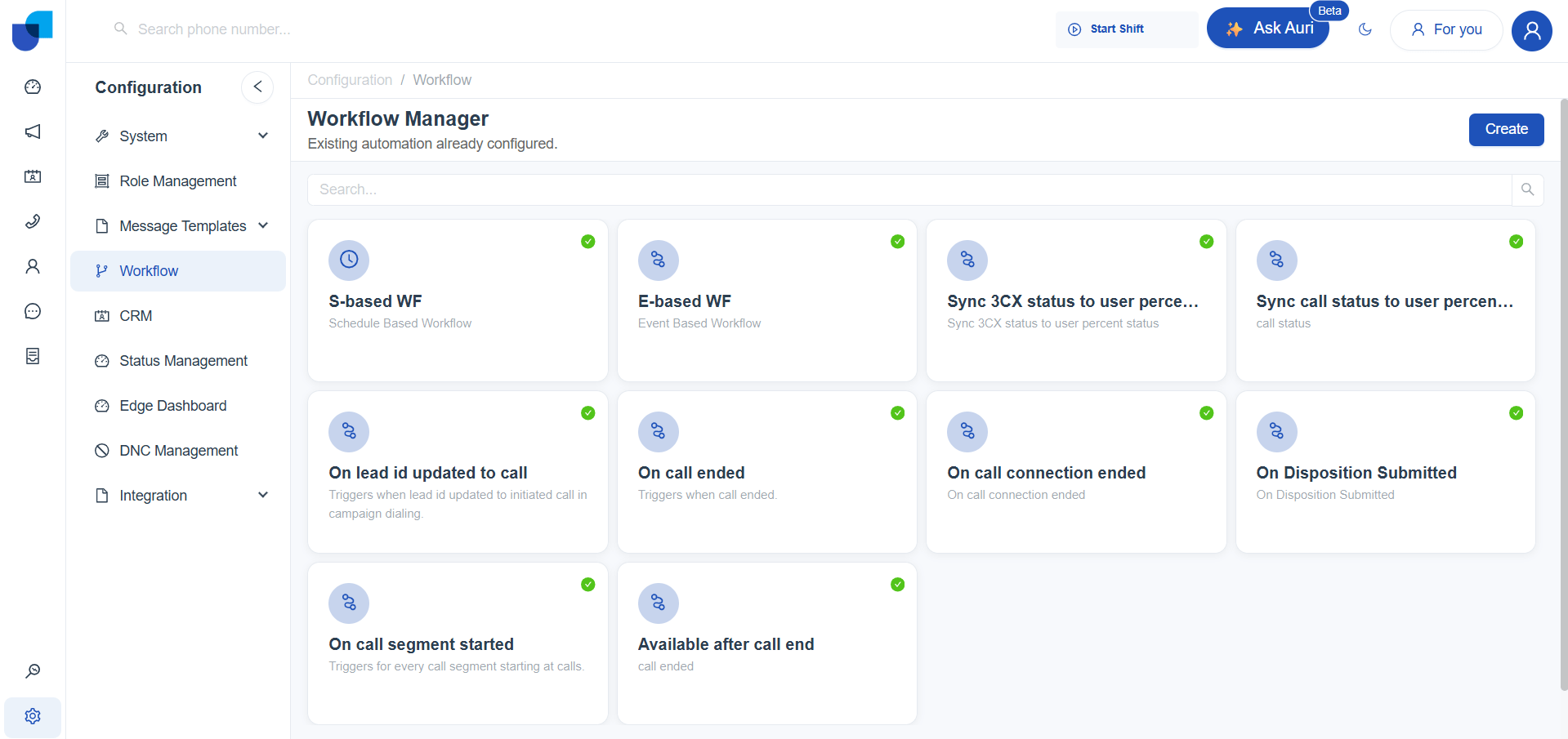
- From the left navigation menu, go to Configuration > Workflow.
- The Workflow Manager dashboard will open, displaying all existing workflows as cards.
Note: Access to the Workflow Manager interface is restricted to users who have been granted workflow permissions through both the Module Configuration(link to Module Configuration) and Role Management. (link to Role Management)
Understand the Workflow Manager
Each workflow is shown as a card with:
- Title: Workflow name.
- Description: Short explanation of its purpose (e.g., Triggers when call ends).
- Trigger Type: Event-based or Schedule-based.
- Status Indicator: A green checkmark shows the workflow is active.
Examples of workflows you may see:
- On Call Ended: Updates CRM records when a call ends.
- On Disposition Submitted: Executes actions when a disposition is logged.
- Sync 3CX Status: Synchronizes telephony status with user presence.


Create a New Workflow
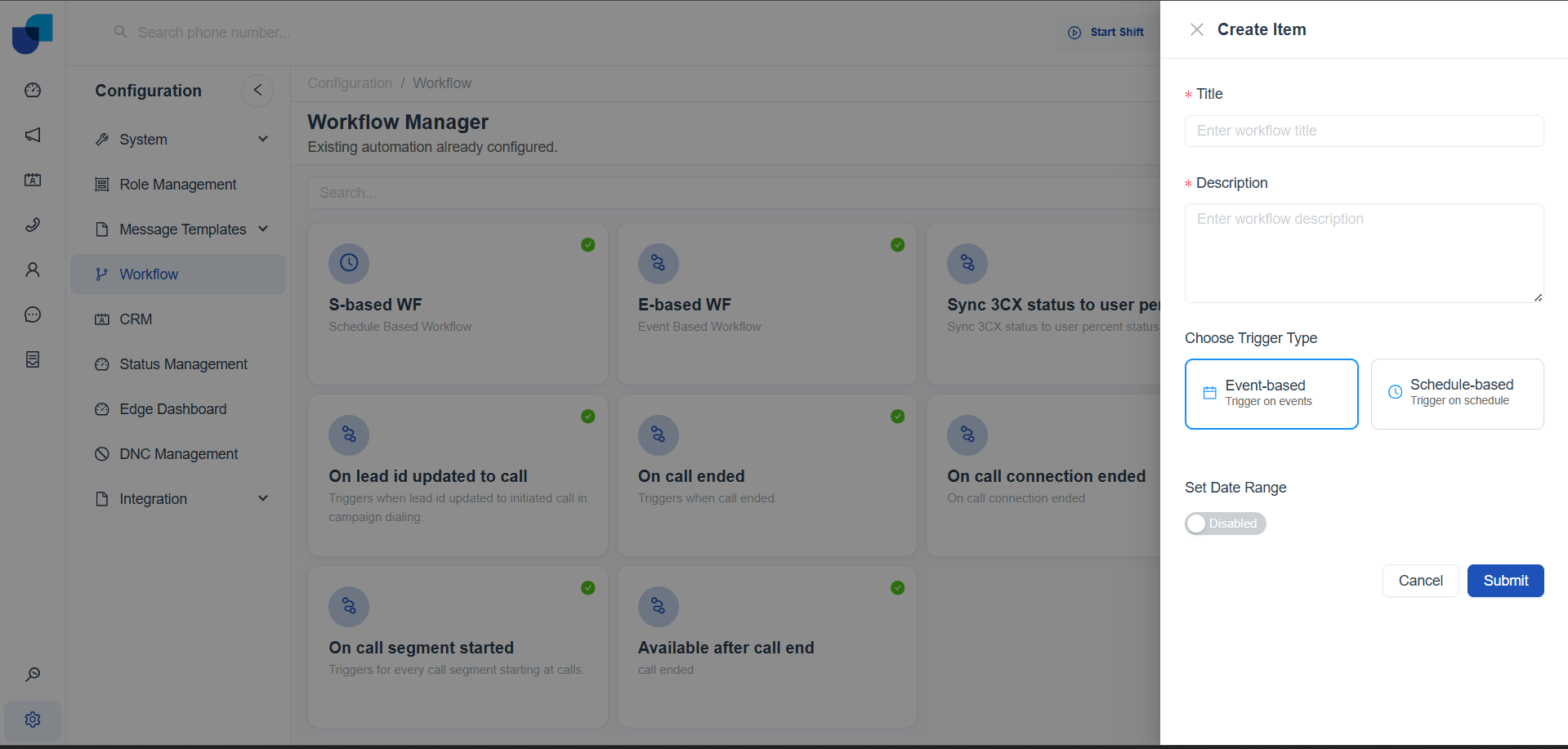
- Click the Create button at the top right of the dashboard.
- Fill in the workflow creation form:
- Title: Enter a descriptive name.
- Description: Explain what the workflow will do.
- Trigger Type:
- Event-based: Triggered by system events (e.g., call ended, lead updated).
- Schedule-based: Triggered at specific times or intervals.
- Set Date Range: Optional toggle to restrict workflow execution to a defined period.
- Click Submit to save and activate the workflow, or Cancel to discard changes.
Manage Workflow Details
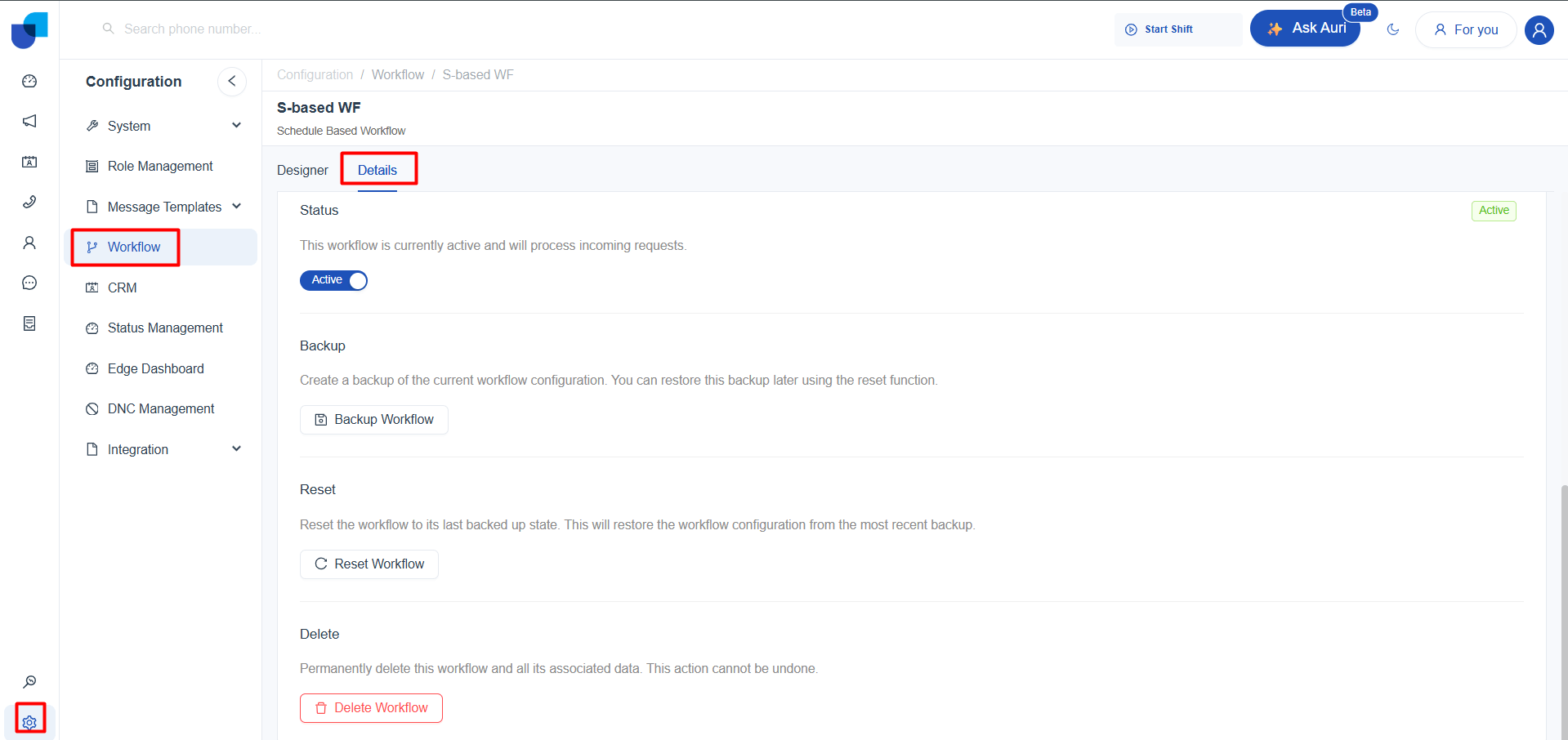
Open any workflow and go to the Details tab. Here you can:
- Status: Toggle workflows between Active and Inactive.
- Backup: Save the current configuration for later restoration.
- Reset: Restore the workflow to its last backup state.
- Delete: Permanently remove the workflow and all associated data (irreversible).
Choose the Right Workflow Type
- Event-based workflows: Best for real-time automation.
Example: When a call ends, automatically update the lead status and notify the sales team. - Schedule-based workflows: Best for recurring automation.
Example: Run a nightly sync at midnight to update CRM records.
Best Practices
- Always backup workflows before making major changes.
- Use event-based workflows for immediate actions (e.g., call updates).
- Use schedule-based workflows for recurring tasks (e.g., daily reports).
- Delete workflows only when certain they are no longer needed, as deletion is permanent.
Key Takeaway
The Workflow Manager provides a single, unified interface to oversee all automation in Uniconnect. By combining event-based and schedule-based triggers, organizations can achieve both real-time responsiveness and scheduled automation, while maintaining control through backup and reset options.