Building Workflow Logic
Workflow logic is the backbone of automation within the system. It defines how triggers, conditions, and actions interact to automate business processes efficiently and consistently.
A well-designed workflow ensures:
- Reduced manual intervention
- Faster response times
- Consistent data handling
- Improved operational accuracy
Combining Triggers, Conditions, and Actions
Every workflow consists of three core components:
Trigger (When it starts)
The trigger defines when the workflow executes.
Common trigger types:
- Record creation (e.g., new organization, new lead)
- Record update (e.g., ticket status changed)
- Time-based events (e.g., scheduled jobs)
- User actions (e.g., call completed)
Examples:
- New organization created
- Ticket updated
Condition (Rules to evaluate)
Conditions determine whether the workflow should proceed.
They can be:
- Single condition (Industry = Finance)
- Multiple conditions (AND / OR)
- Nested conditions (advanced logic)
Examples:
- Industry = Finance
- Resolution code = Hardware Issue
Action (What happens next)
Actions define the outcome of the workflow.
Common actions:
- Assign records (user/group)
- Update fields
- Send notifications (email/SMS)
- Trigger another workflow
- Create related records
Examples:
- Assign to Finance Account Manager group
- Trigger warranty follow-up workflow
Workflow Execution Flow
Trigger -> Condition -> Action
Flow Explanation:
- Trigger event occurs
- Condition is evaluated
- If TRUE → action executes
- If FALSE → workflow stops or follows alternate path
Example Workflows
Example 1: Auto-Update Lead Status on Qualification
Scenario
When a lead meets qualification criteria, the system automatically updates its status.
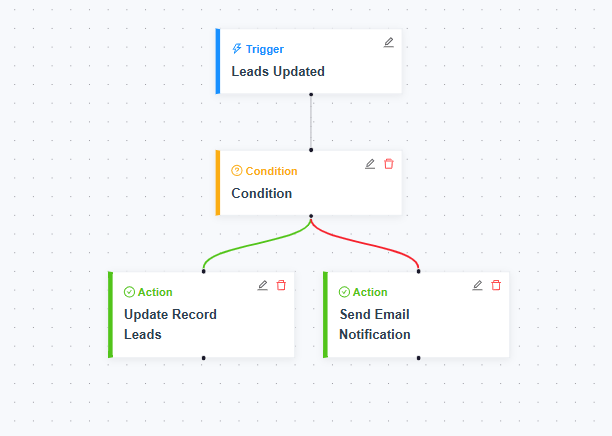
Configuration Steps
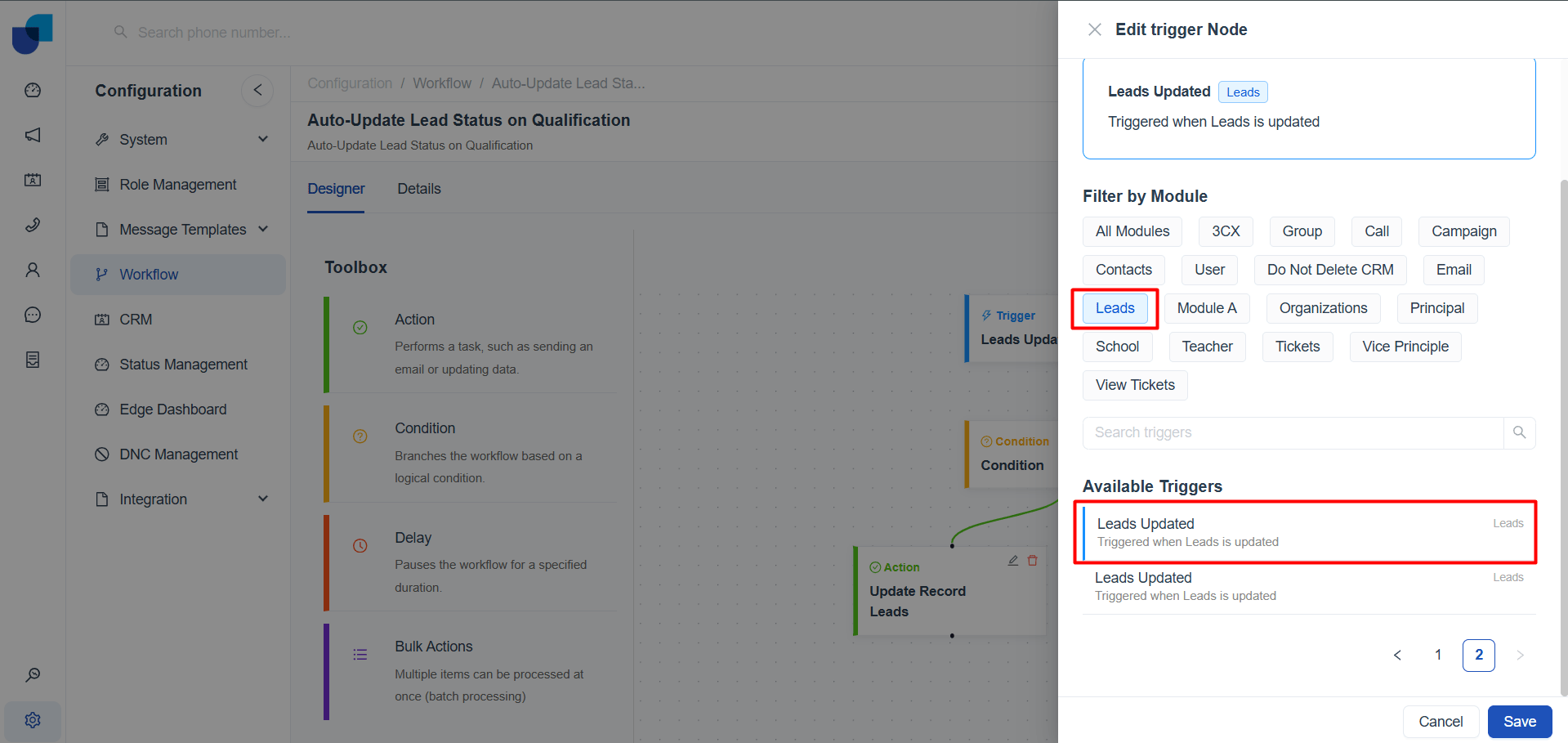
Trigger
- Module: Leads
- Event: Lead updated
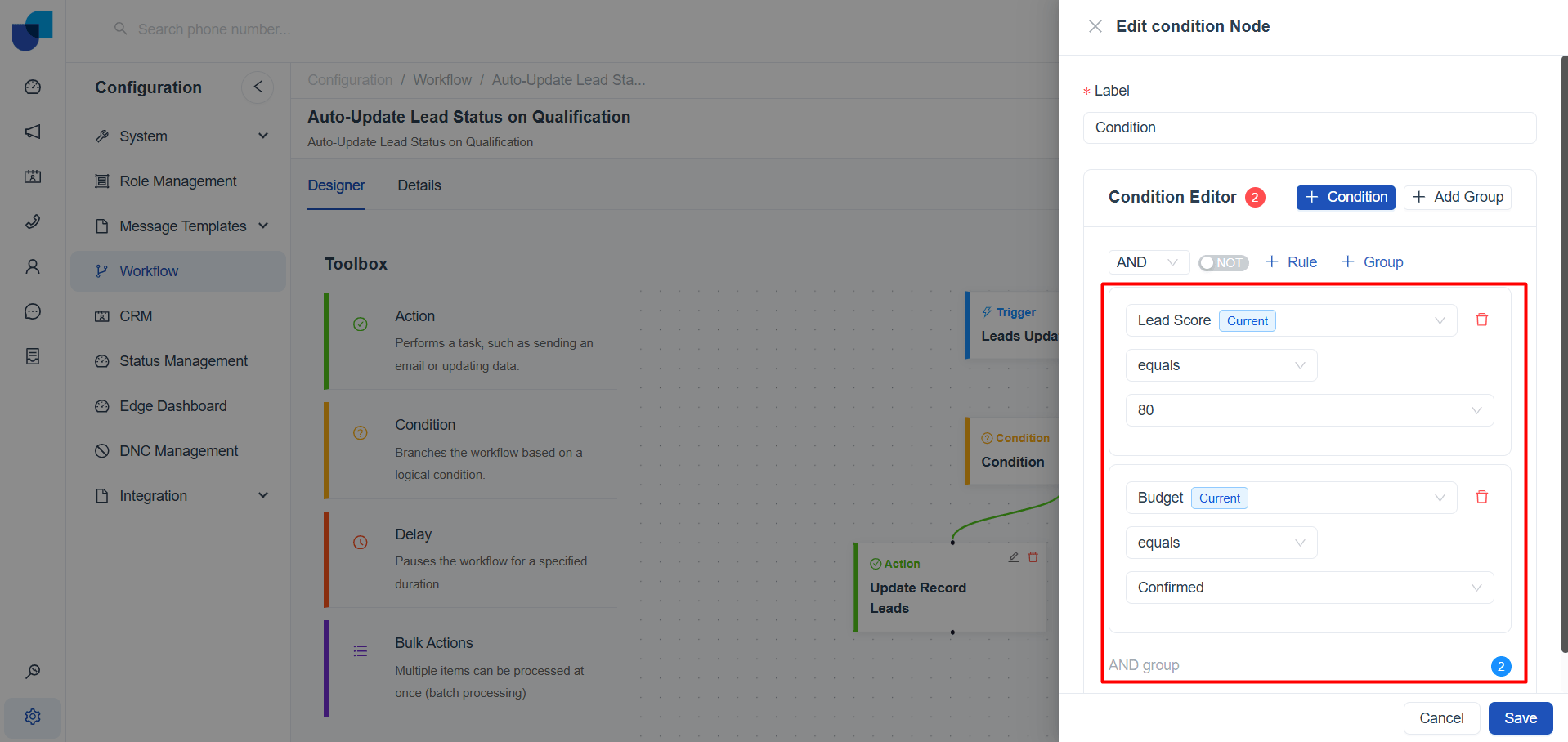
Condition
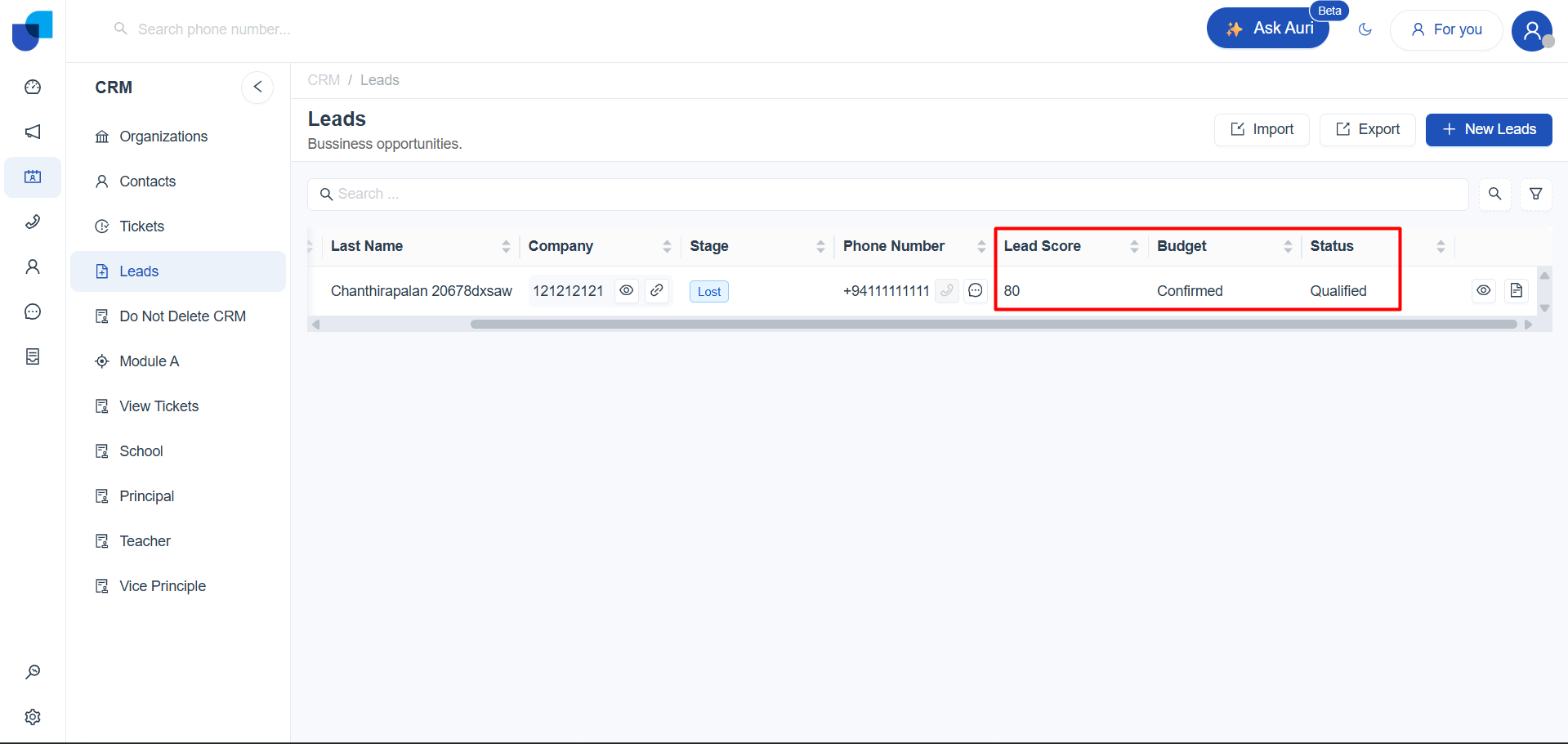
- Lead Score = 80
- AND Budget = Confirmed
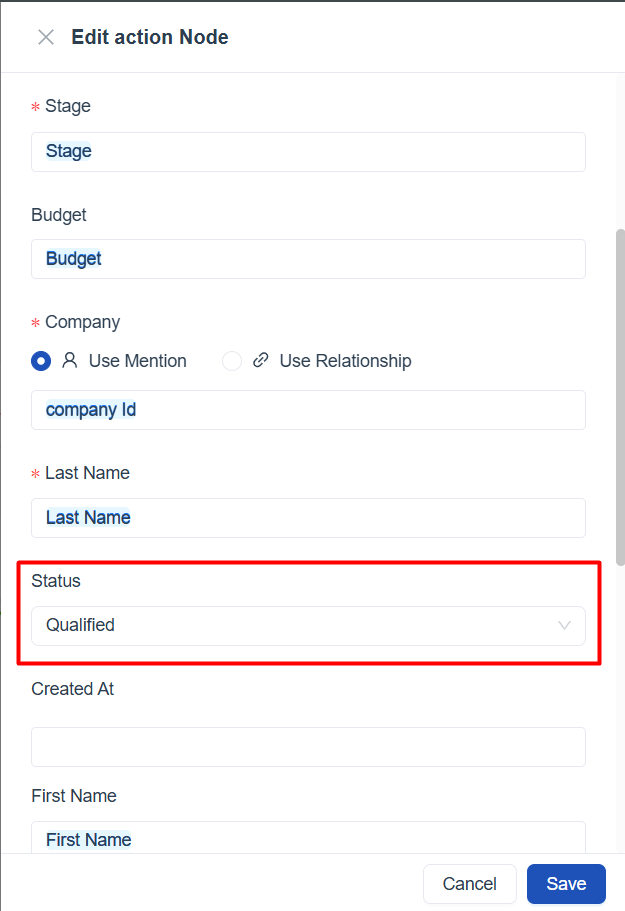
Actions
- Yes: Update Lead Status → "Qualified"
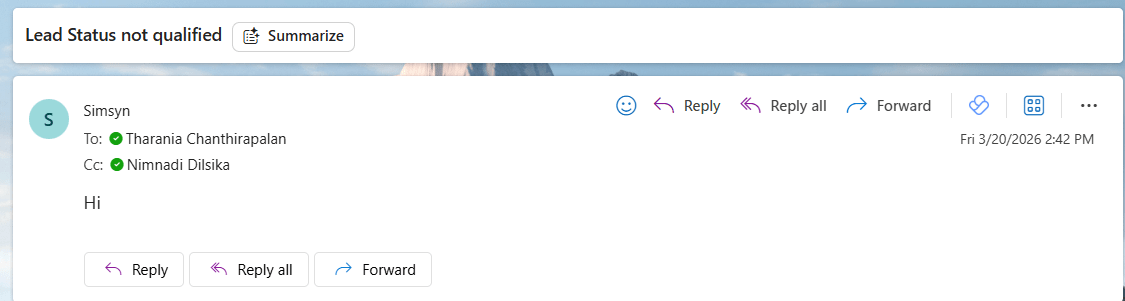
- No : Send Email Notification
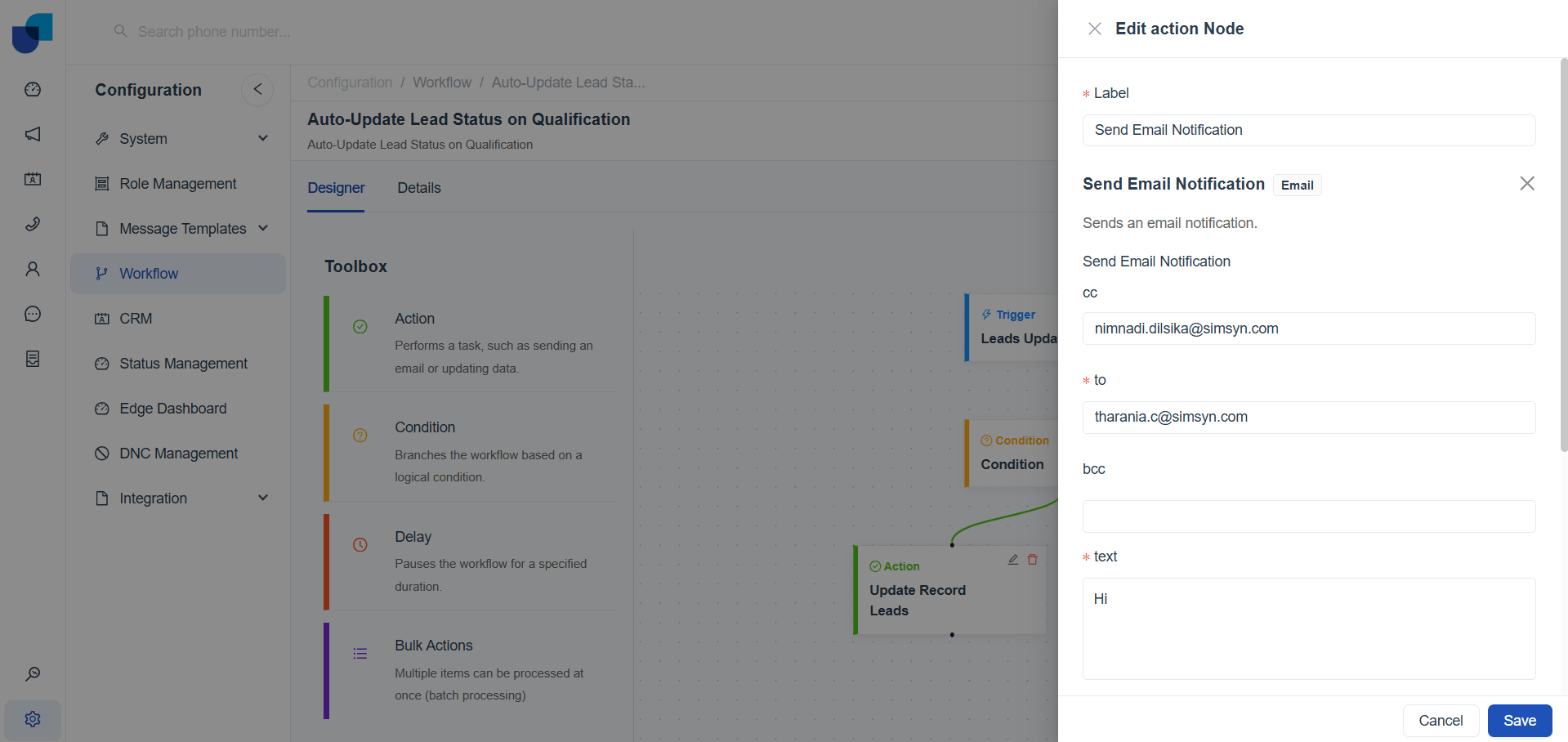
Outcome
- Yes: Update Lead Status → "Qualified"
- No : Send Email Notification
To better understand how Event-Based Triggers work, refer Trigger Types (Link to Trigger Types)
Example 2: Daily Reminder for Unconfirmed Leads
Scenario
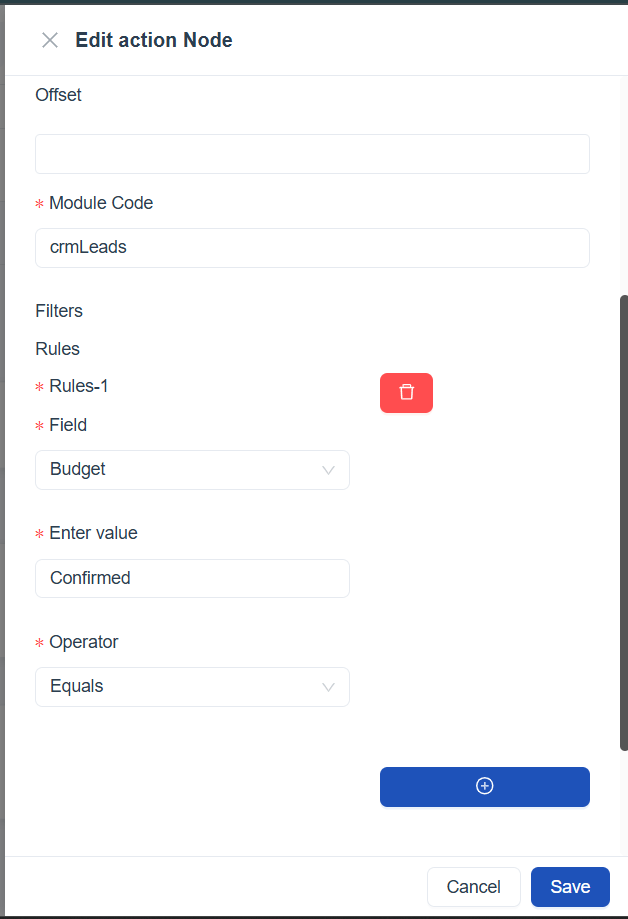
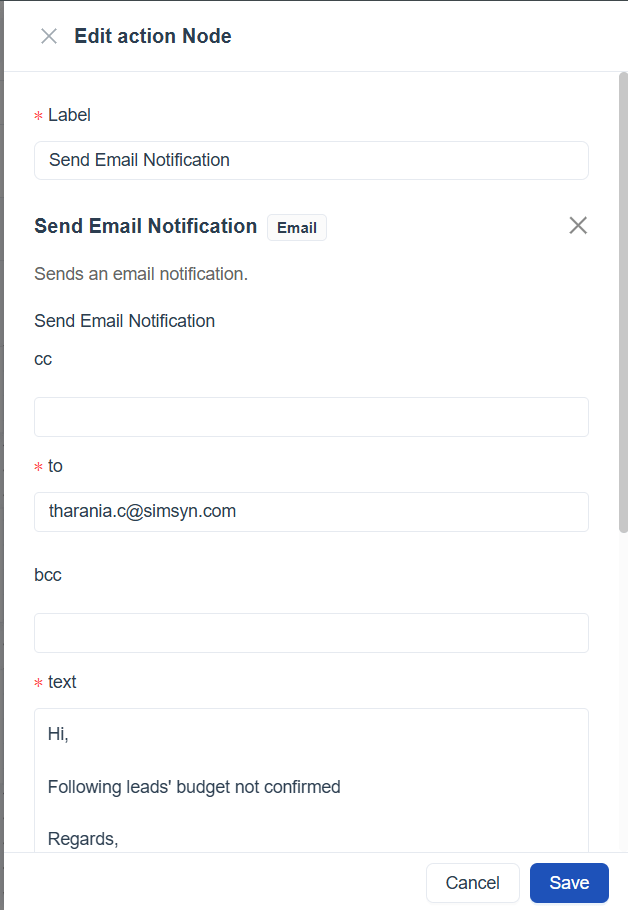
At midnight, the system identifies leads' budget that has not been confirmed and send an email to the sales manager
Configuration Steps
Trigger
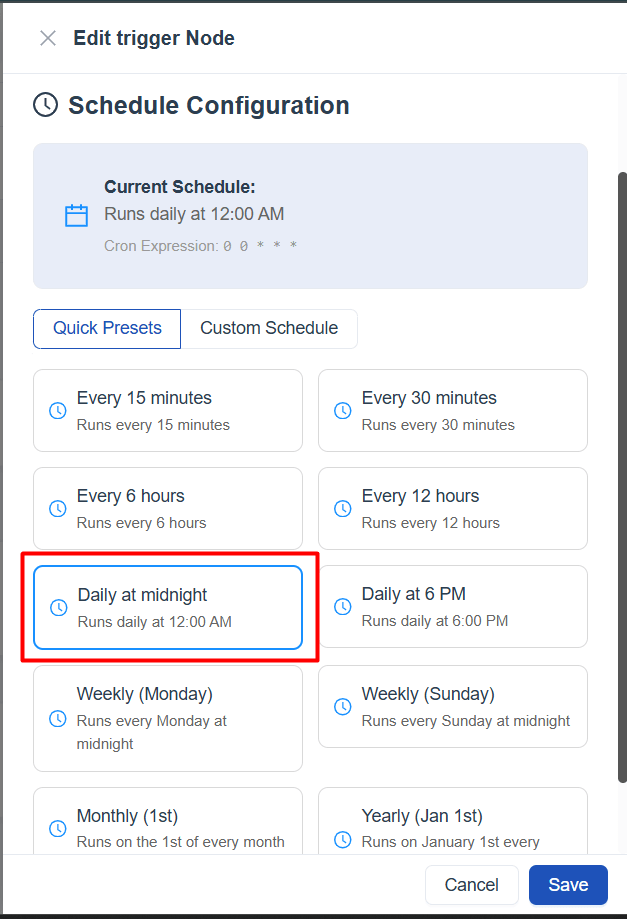
- Type: Time-based
- Schedule: Daily at 00:00
Condition
- Budget ≠ Confirmed
Actions
- Send email to sales manager
Outcome
- Send Email Notification
To better understand how Schedule-Based Triggers work, refer Trigger Types (Link to Trigger Types)
Best Practices for Workflow Design
1. Keep Workflows Simple
- Avoid overly complex logic
- Split large workflows into smaller ones
2. Use Clear Naming
- Use descriptive names
- Finance Org Assignment
- Hardware Warranty Follow-up
3. Avoid Redundant Triggers
- Do not duplicate workflows for the same event
- Consolidate logic where possible
4. Optimize Conditions
- Filter early and precisely
- Avoid broad conditions
5. Prevent Infinite Loops
- Avoid workflows triggering themselves
- Use flags or additional checks
6. Test Before Activation
- Validate trigger behavior
- Verify condition logic
- Confirm action execution
7. Monitor and Optimize
- Track execution performance
- Identify failures or redundancies
- Continuously improve workflows
Refer Monitoring and Managing Workflows(Link to Monitoring and Managing)
8. Maintain Documentation
Include:
- Workflow name
- Purpose
- Trigger
- Conditions
- Actions
- Owner
Summary
Workflow logic is built using:
- Triggers → define when it starts
- Conditions → control execution
- Actions → define outcomes
Effective workflow design helps:
- Automate repetitive tasks
- Improve efficiency
- Ensure consistency
- Enhance customer experience