Trigger Types
Triggers are the starting point of any workflow in Uniconnect. They define when and how automation begins. Uniconnect supports two main trigger types:
Event-Based Triggers
Event-based triggers start a workflow when a specific action or change occurs in the system. They are ideal for real-time automation, ensuring immediate responses to user or system activity.
The following event-based triggers are available by default in Uniconnect. Each trigger belongs to a module and initiates automation when the specified event occurs.
| Module | Available Triggers | Purpose / Explanation |
|---|---|---|
| Call | Call Started | Triggered when a call begins. Useful for logging call start times or initiating call monitoring. |
| Call Connection Ended | Triggered when the call connection drops or ends. Helps track connection issues or update call logs. | |
| Call Ended | Triggered when a call finishes. Commonly used to update lead status, log outcomes, or send follow-up emails. | |
| Call Segment Started | Triggered at the beginning of each call segment. Useful for tracking multi-segment calls or agent performance. | |
| Call Segment Ended | Triggered when a call segment ends. Can be used to record segment details or update CRM records. | |
| Disposition Submitted | Triggered when an agent submits a call disposition. Automates CRM updates and reporting based on call outcomes. | |
| Group | Add User to Group | Triggered when a user is added to a group. Useful for assigning permissions or notifying managers. |
| Group Created | Triggered when a new group is created. Automates setup tasks or sends notifications to admins. | |
| Group Deleted | Triggered when a group is removed. Helps clean up related records or notify stakeholders. | |
| Group Updated | Triggered when group details are modified. Useful for syncing changes across systems. | |
| Remove User from Group | Triggered when a user is removed from a group. Can revoke permissions or update access logs. | |
| User | Create User | Triggered when a new user is created. Automates onboarding workflows or sends welcome emails. |
| Delete User | Triggered when a user is deleted. Useful for revoking access and cleaning up records. | |
| Update User Details | Triggered when user details are updated. Ensures CRM and HR systems remain consistent. | |
| User Login | Triggered when a user logs in. Can track activity or send login alerts. | |
| User Logout | Triggered when a user logs out. Useful for session tracking or security monitoring. | |
| Session Started | Triggered when a user session begins. Automates session logging or resource allocation. | |
| Shift Started | Triggered when a user starts a shift. Useful for workforce management and reporting. | |
| Shift Ended | Triggered when a user ends a shift. Automates shift closure tasks or reporting. | |
| Shift Continued | Triggered when a shift is resumed. Helps track extended work sessions. | |
| User All Session Ended | Triggered when all sessions for a user end. Useful for cleanup or security checks. | |
| Email Received | Triggered when an email is received. Automates CRM updates, ticket creation, or notifications. | |
| CRM Module | CRM Module Created | Triggered when a new record is created. Automates onboarding or alerts relevant teams. |
| CRM Module Created or Updated | Triggered when a record is created or updated. Ensures CRM data stays consistent. | |
| CRM Module Deleted | Triggered when a record is deleted. Useful for archiving or notifying stakeholders. | |
| CRM Module Updated | Triggered when a record is modified. Keeps CRM and reporting aligned. |
Use Cases
- Automatically notify a sales manager when a high-value lead call ends.
- Update CRM records instantly when a disposition is logged.
- Trigger follow-up communication when a customer shows interest.
Schedule-Based Triggers
Schedule-based triggers start workflows at defined times or intervals. They are ideal for recurring automation, ensuring tasks run consistently without manual intervention.
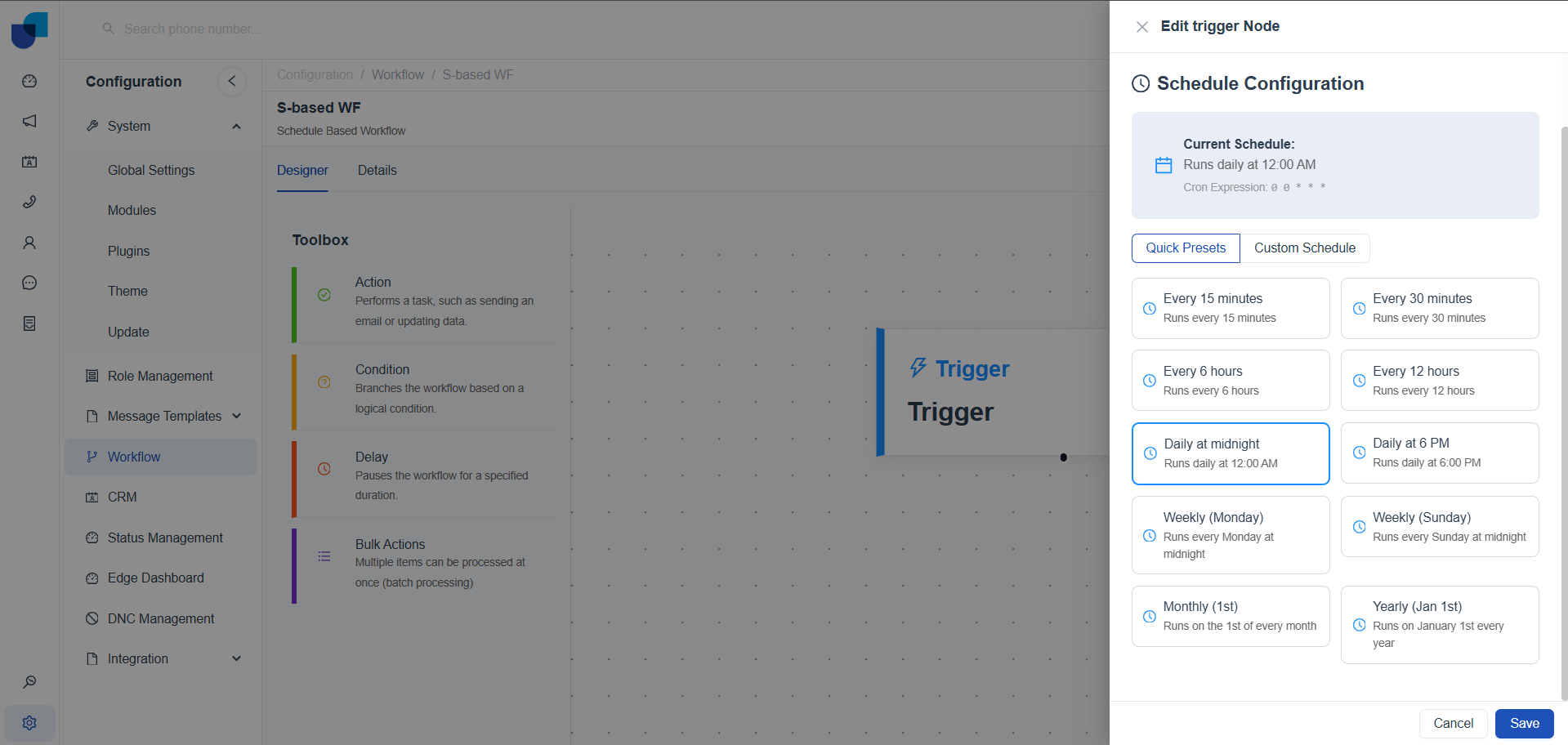
Quick Presets
- Every 15 minutes: Useful for frequent syncs or monitoring.
- Daily at midnight: Common for daily reports or nightly data sync.
- Weekly (Monday): Ideal for weekly campaign summaries.
- Monthly (1st): Automates monthly billing or reporting.
- Yearly (Jan 1st): Runs annual processes such as archiving or compliance checks.
Custom Schedules
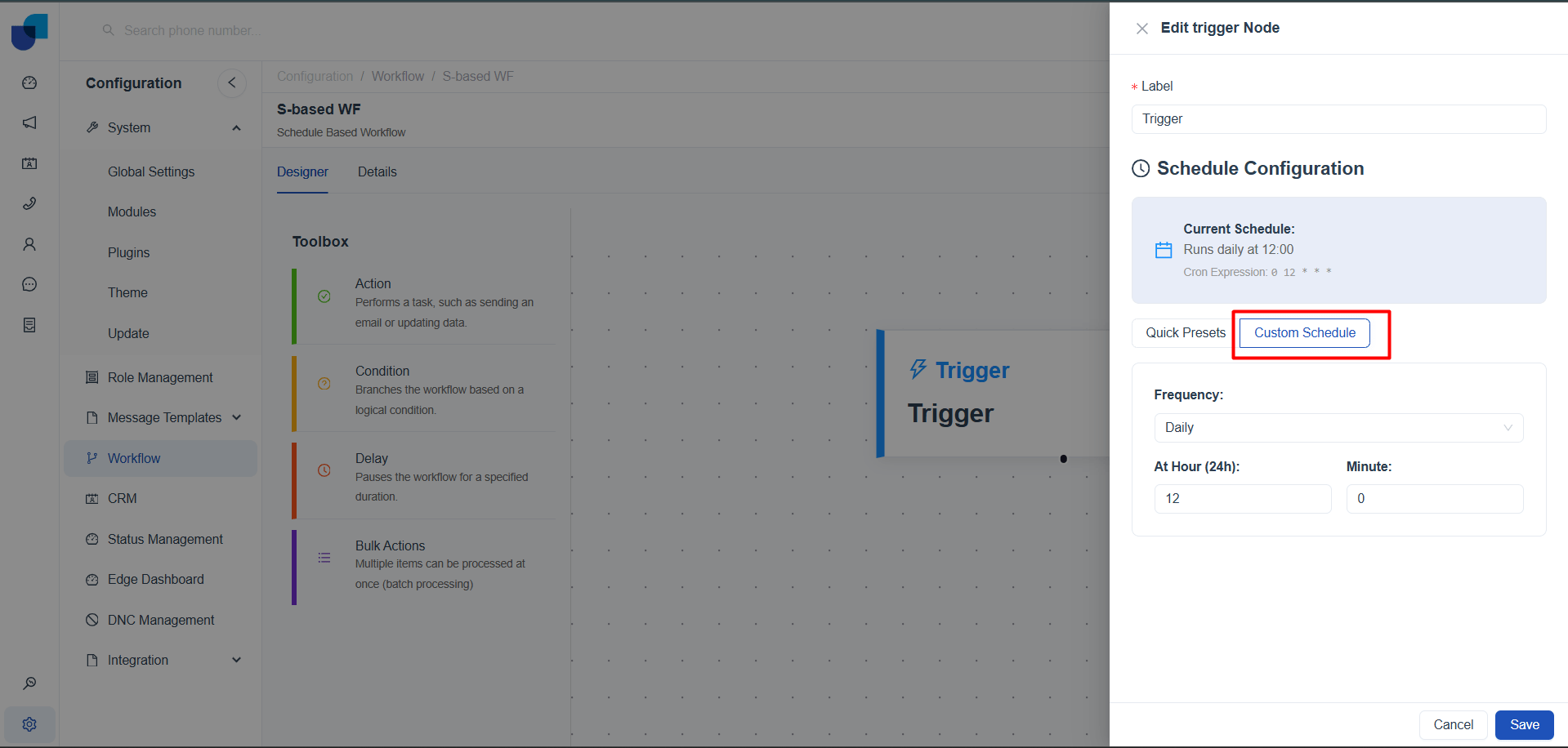
Administrators can define custom schedules using cron expressions for precise control.
Example: 0 12 * * * runs the workflow daily at 12:00 PM.
Use Cases
- Sync call logs with CRM every night at midnight.
- Generate weekly performance reports every Monday.
- Run monthly lead cleanup on the 1st of each month.
Choosing the Right Trigger
-
Use Event-based triggers when workflows must respond immediately to user or system actions.
Example: Send a thank-you email right after a call ends. -
Use Schedule-based triggers when workflows should run at fixed intervals.
Example: Perform a nightly sync of call data to CRM.
Key Takeaway
Triggers are the foundation of workflow automation in Uniconnect. By selecting the right trigger type—event-based for real-time responsiveness or schedule-based for recurring tasks—organizations can ensure their workflows run exactly when needed.