Getting Started with the CRM Module
Welcome to the CRM Module setup.
This guide will help you quickly prepare and start using the CRM module within UNICONNECT.AI™. By completing a few simple configuration steps, you will be able to organize customer information, manage leads, track interactions, and communicate with customers directly from the platform.
The setup process is simple and only requires enabling the CRM modules and configuring them based on your business needs. Once the configuration is completed, your team can immediately begin managing customer data and interactions.

Follow the steps below to set up and start using the CRM module.
Step 1: Enable the CRM Module
The first step is to enable the CRM module from the Module Configuration section.
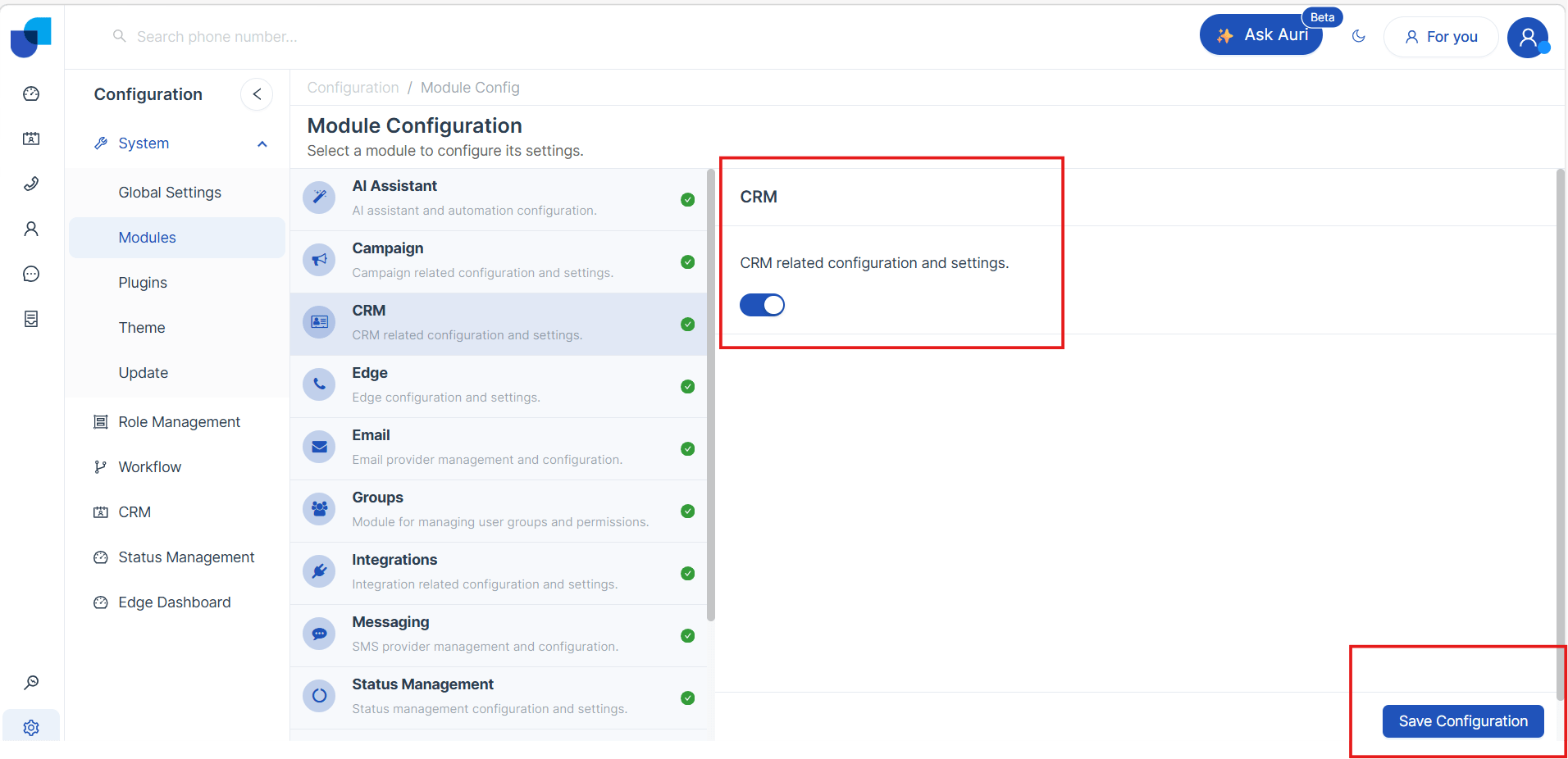
the user who have access to Module Configuration can navigate and activate the CRM-related modules. This include CRM modules such as Contacts, Organizations, Leads, Opportunities, Tickets, Default module and other customized modules.
Once enabled, these modules become available in the system and can be configured based on the organization’s requirements .
Step 2: Configure the CRM Module
After enabling the modules, the next step is to configure them.
In this stage, administrators can:
- Create or modify CRM modules by CRM Configurations
- Add custom fields to store specific information
- Organize fields into logical sections
- Define relationships between modules (for example, Organization → Contact → Lead)
This configuration allows businesses to structure their customer data according to their industry requirements.
Example Relationships
-
A Lead can be connected to an Organization.
One organization may have several leads associated with it. For example, multiple people from the same company can appear as separate leads in the system. -
A Contact can be linked with multiple Opportunities, and an opportunity can also involve more than one contact.
For example, several contacts from a company may be involved in the same sales opportunity. -
A Ticket is usually connected to a single customer record.
However, a customer can have multiple tickets created for different issues or support requests. -
A Customer Profile can be connected to one specific Customer ID.
This means each customer profile represents one unique customer in the system and is not shared with other customers.
This CRM relationship configuration ensures that all customer interactions remain connected and easy to track.
Step 3: Start Using the CRM Module
Once the configuration is completed, the CRM module is ready to use.
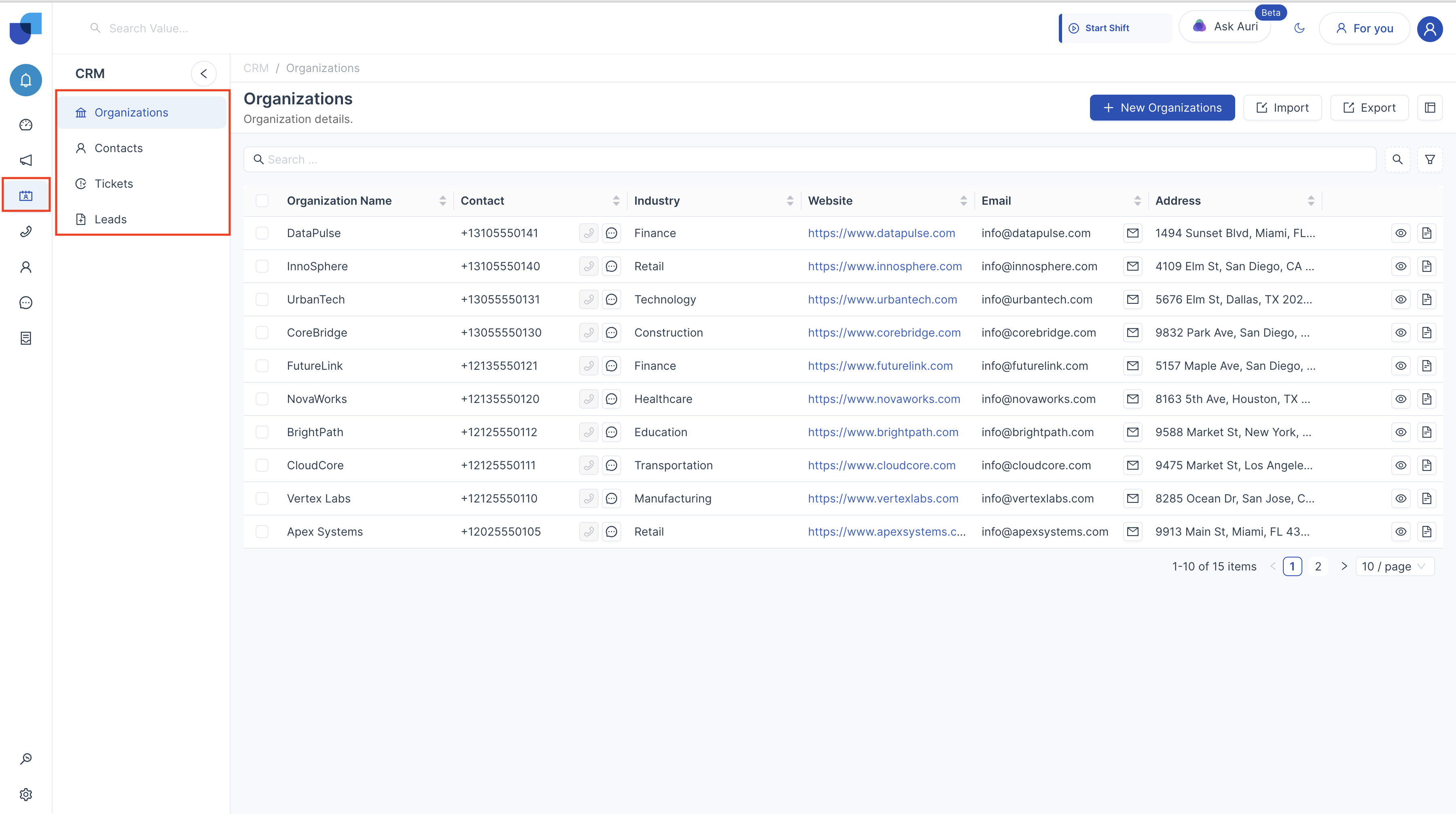
Users can now:
- Create and manage Leads
- Store and maintain Customer Information
- Track Opportunities and interactions
- Manage customer relational details
All customer related details becomes centralized, making it easier for teams to manage and access information.
Customer Communication Options
The CRM module also provides quick communication tools that allow users to interact with leads and customers directly from the system.
Users can:
- Send SMS messages to leads or customers
- Send Email communications
- Make a Quick Call directly from the system using the integrated Telephony
These features help businesses respond faster and maintain effective communication with customers.
CRM Insights through Reports and Dashboards
All CRM activities and customer data can be analyzed through the Reports and Dashboards available in the platform.
Users Can:
- Monitor sales and lead performance
- Track customer engagement
- Analyze business activities
- Make informed business decisions
See Also
Sample Business Case Implementation
CRM Module Configuration
Module Relationships Management
Reports & Dashboards