CRM Modules Overview
The CRM system provides a set of default modules designed to manage customer information, sales activities, and support operations. These modules work together to maintain relationship between organizations, contacts, leads, and service requests.
The main default CRM modules include:
- Organization
- Contact
- Ticket
- Lead
In addition to these default modules, the system also allows administrators to create Custom CRM Modules to support additional business processes.
1. Organization Module
The Organization Module is used to manage company or business information such as clients, partners, or vendors.
Organizations act as the central reference point for related contacts, leads, and service tickets.
Create Organization
Users can create a new organization to store company-related information.
Steps
- Navigate to the Organization Module.
- Click Create Organization.
- Enter the organization details.
- Click Save to create the record.
Default Fields
| Field Name | Field Type | Description |
|---|---|---|
| Organization Name | Short Text | Name of the organization |
| Organization email address | ||
| Contact | Phone Number | Primary contact number |
| Industry | Enum | Industry type (IT, Retail, Finance, etc.) |
| Address | Long Text | Physical or mailing address |
Organization Table View
The Table View displays all organizations in a structured list format.
Users can:
- Search organizations
- Apply filters
- Sort records
- Export organization data
Example Columns
| Column | Description |
|---|---|
| Organization Name | Name of the company |
| Company email | |
| Contact | Phone number |
| Industry | Business industry |
| Address | Organization address |
Organization Detail View
The Detail View displays the complete information of a selected organization.
From this view users can:
- View organization details
- Edit organization information
- See related contacts
- View associated leads or tickets
Organization Summary
The Organization Module helps maintain a structured database of companies interacting with the business.
It acts as the core entity linking contacts, leads, and support activities.
2. Contact Module
The Contact Module is used to manage individual people associated with organizations.
It works as a digital contact directory for employees, clients, or partners.
Create Contact
Steps
- Navigate to the Contact Module.
- Click Create Contact.
- Enter contact information.
- Link the contact to an organization.
- Click Save.
Default Fields
| Field Name | Field Type | Description |
|---|---|---|
| First Name | Short Text | Contact's first name |
| Last Name | Short Text | Contact's last name |
| Contact email | ||
| Mobile Number | Phone Number | Primary phone number |
| Home Mobile Number | Phone Number | Personal phone |
| Office Mobile Number | Phone Number | Office contact number |
| Organization | Relationship | Linked organization |
Contact Table View
The Table View displays all contacts in a list format.
Users can:
- Search contacts
- Filter by organization
- Sort contacts
- Export contact lists
Example Columns
| Column | Description |
|---|---|
| Name | Contact full name |
| Email address | |
| Mobile Number | Primary phone |
| Organization | Linked company |
Contact Detail View
The Detail View shows all information related to a selected contact.
Users can:
- View contact information
- Edit contact details
- Access the related organization
- Review associated tickets or leads
Contact Summary
The Contact Module helps maintain structured records of individuals associated with organizations, enabling efficient communication and relationship management.
3. Ticket Module
The Ticket Module manages customer service requests, issues, and inquiries.
It allows support teams to track problems from creation until resolution.
Create Ticket
Steps
- Navigate to the Ticket Module.
- Click Create Ticket.
- Enter ticket details.
- Assign the ticket to a responsible user.
- Click Save.
Default Fields
| Field Name | Field Type | Description |
|---|---|---|
| Subject | Short Text | Title of the ticket |
| Assigned To | Relationship (User Module) | Responsible user |
| Contact | Relationship (Contact Module) | Related contact |
| Description | Long Text | Detailed issue description |
| Priority | Enum | High, Medium, Low |
| Status | Enum | Open, In Progress, Waiting, Closed |
Ticket Table View
The Table View provides a list of all tickets in the system.
Users can:
- Filter tickets by status
- Filter by priority
- Search tickets
- Sort tickets
Example Columns
| Column | Description |
|---|---|
| Subject | Ticket title |
| Assigned To | Responsible user |
| Contact | Linked contact |
| Priority | Priority level |
| Status | Current ticket status |
Ticket Detail View
The Detail View provides full visibility into a specific ticket.
Users can:
- View issue details
- Update ticket status
- Reassign the ticket
- Track ticket progress
Ticket Summary
The Ticket Module helps support teams manage service requests efficiently while maintaining full visibility of the issue lifecycle.
4. Lead Module
The Lead Module tracks potential customers who may become future clients.
Leads represent early-stage opportunities in the sales pipeline.
Create Lead
Steps
- Navigate to the Lead Module.
- Click Create Lead.
- Enter lead details.
- Assign the lead to an employee.
- Click Save.
Default Fields
| Field Name | Field Type | Description |
|---|---|---|
| First Name | Short Text | Lead first name |
| Last Name | Short Text | Lead last name |
| Company | Relationship (Organization Module) | Associated company |
| Stage | Enum | Lead stage (New, Qualified, Won, Lost) |
| Phone Number | Phone Number | Lead contact number |
| Employee | Relationship (User Module) | Assigned employee |
Lead Table View
The Table View displays all leads in a list format.
Users can:
- Search leads
- Filter by stage
- Filter by employee
- Sort lead records
Example Columns
| Column | Description |
|---|---|
| Lead Name | Lead full name |
| Company | Associated organization |
| Stage | Lead stage |
| Phone Number | Contact number |
| Employee | Assigned user |
Lead Detail View
The Detail View shows complete information about the selected lead.
Users can:
- View lead information
- Update the lead stage
- Edit lead details
- Access related organization information
Lead Summary
The Lead Module allows businesses to track potential customers, manage sales opportunities, and monitor the progress of leads through the sales pipeline.
Custom CRM Modules
In addition to the default CRM modules, the system allows administrators to create Custom CRM Modules to support specific business requirements.
Custom modules can be used to manage specialized data such as:
- Assets
- Properties
- Projects
- Contracts
- Campaigns
- Vendors
- Service Plans
Custom Module Creation
Administrators can create custom modules through the CRM Configuration Module.
During creation, administrators can:
- Define the module name
- Add custom fields
- Configure relationships with other CRM modules
- Set access permissions
Custom Module Usage
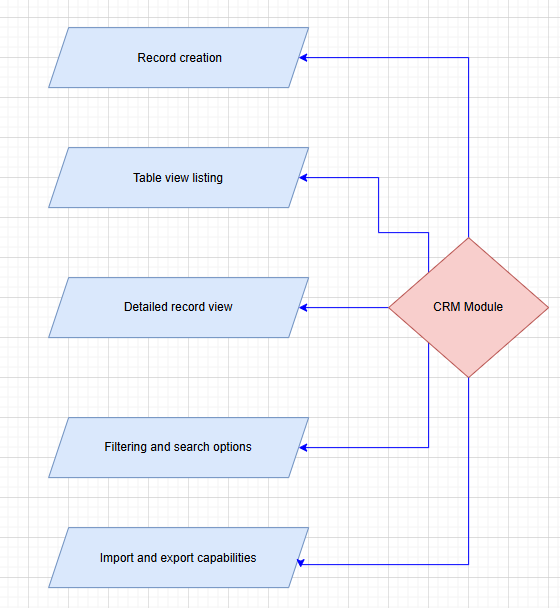
Once created, custom modules behave similarly to default modules and provide:
- Records creation
- Table view listing
- Detailed record view
- Filtering and search options
- Import and export capabilities
Records Creation
The Create Form is used to add a new record to the selected CRM module. It provides a structured interface where users can enter the required information related to the record.
The form contains multiple input fields such as text fields, dropdowns, relationship fields, and other configurable field types depending on the module configuration. Users must complete the mandatory fields before saving the record.
Once the required information is entered, the record can be saved to store it in the system, making it available for viewing, editing, and linking with other related records within the CRM.
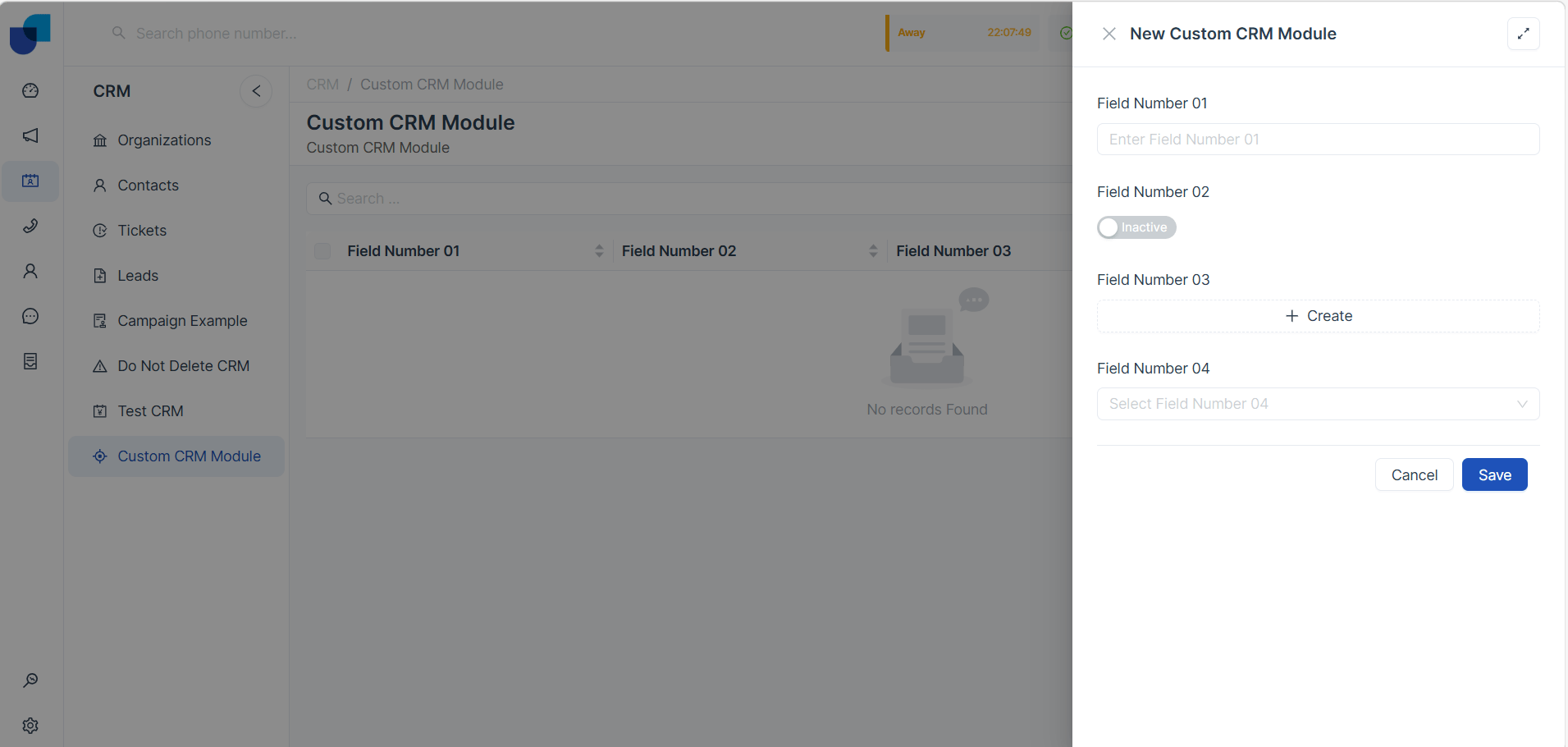
Table view listing
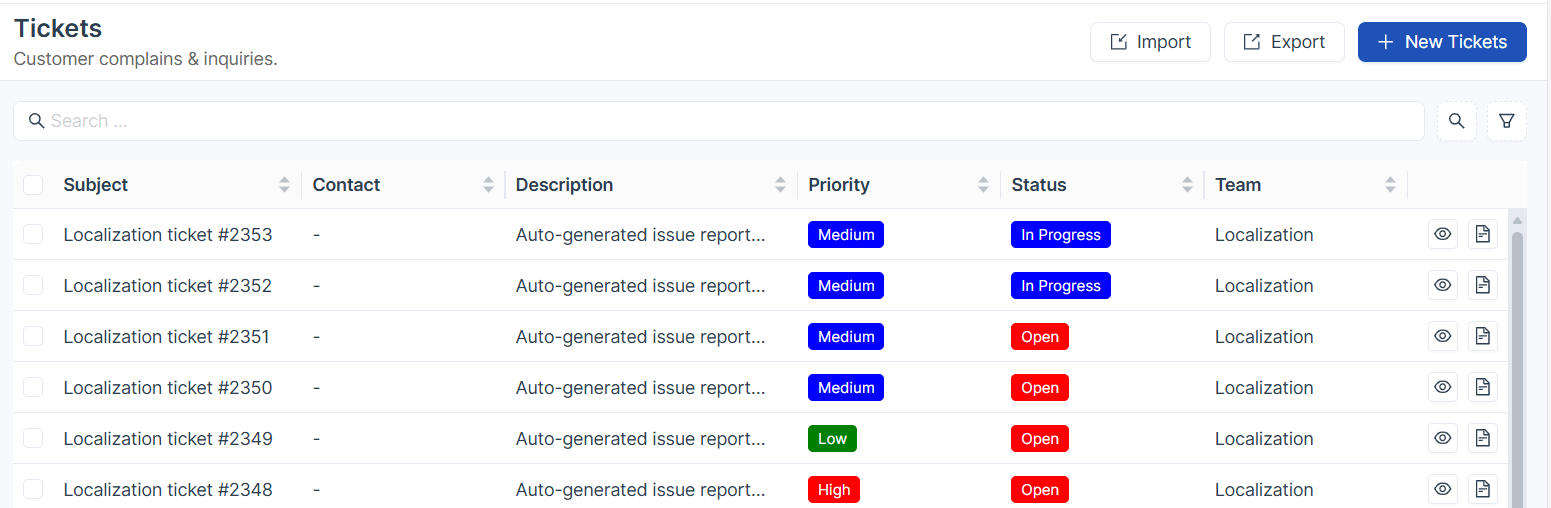
The Table View displays all records of the selected module in a tabular format, allowing users to easily view and manage multiple records at once.
Each row represents a record, while columns display key information such as Subject, Contact, Description, Priority, Status, and Team. Users can quickly identify the status and priority of records through visual labels.
The table also provides features such as search, filtering, sorting, and quick actions. Users can search for specific records, sort columns to organize data, and use action icons to view or open individual records for more details.
Detailed record view
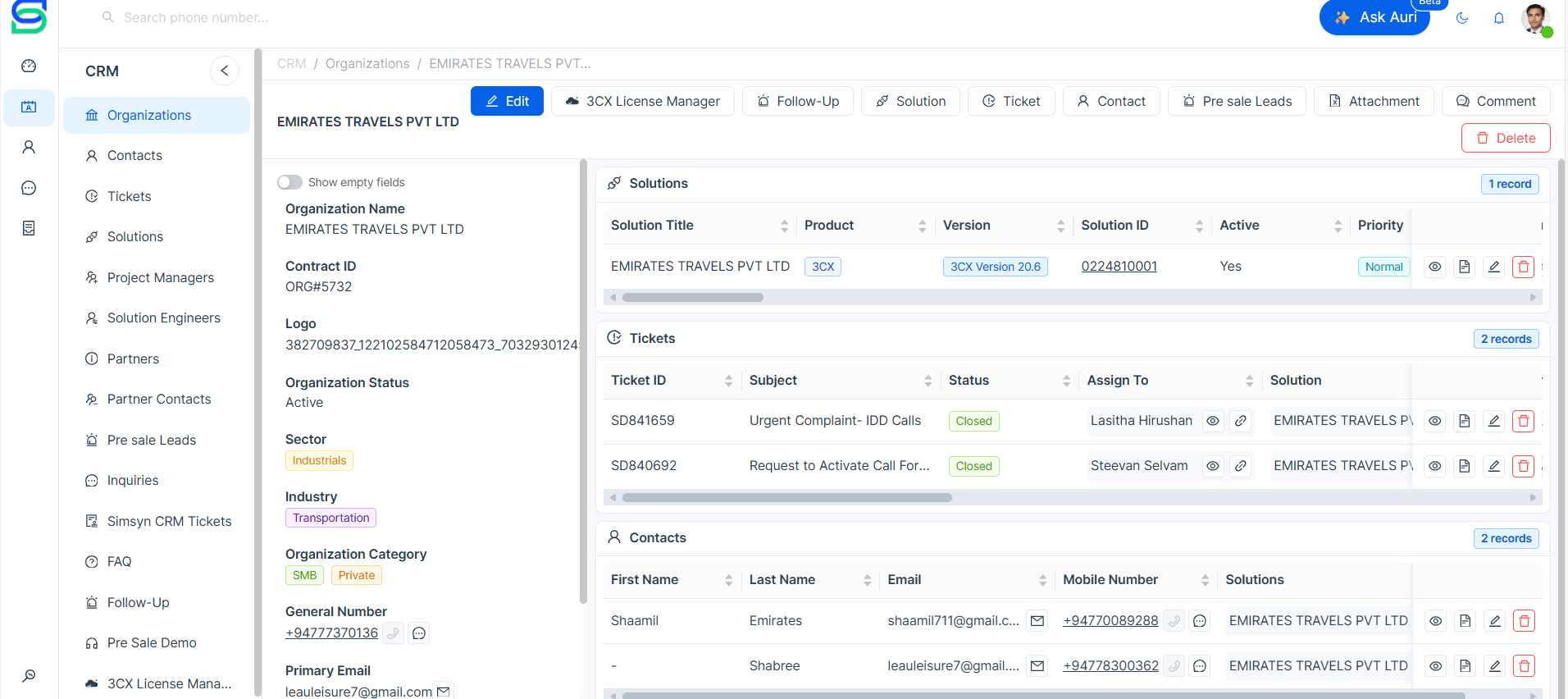
The Detail View displays the complete information of a selected record in the CRM module. It provides a structured layout where users can view all field values and manage related records connected to that record.
The left section of the page shows the primary information fields of the record, such as Organization Name, Contract ID, Status, Sector, Industry, Category, and contact information. These fields provide the core details required to understand and manage the record.
At the top of the detail view, users can perform actions such as Edit, Delete, create Follow-Ups, add Tickets, Contacts, Leads, Attachments, or Comments related to the record.
Relationship Sections
Below the main record details, the system displays relationship sections. These sections show records from other modules that are linked to the current record.
Each relationship appears as a separate table, allowing users to view and manage associated information without leaving the current record.
Here is your content converted into Markdown (.md) format so you can directly use it in documentation, GitHub, or a CRM manual.
Search and Filtering Options
The CRM Table View provides both search and advanced filtering capabilities to help users quickly locate specific records within a module.
Search
The Search bar located at the top of the table allows users to quickly find records by entering keywords or specific values.
As the user types, the system automatically filters and displays matching records. This enables users to locate information quickly without manually browsing through large lists of records.
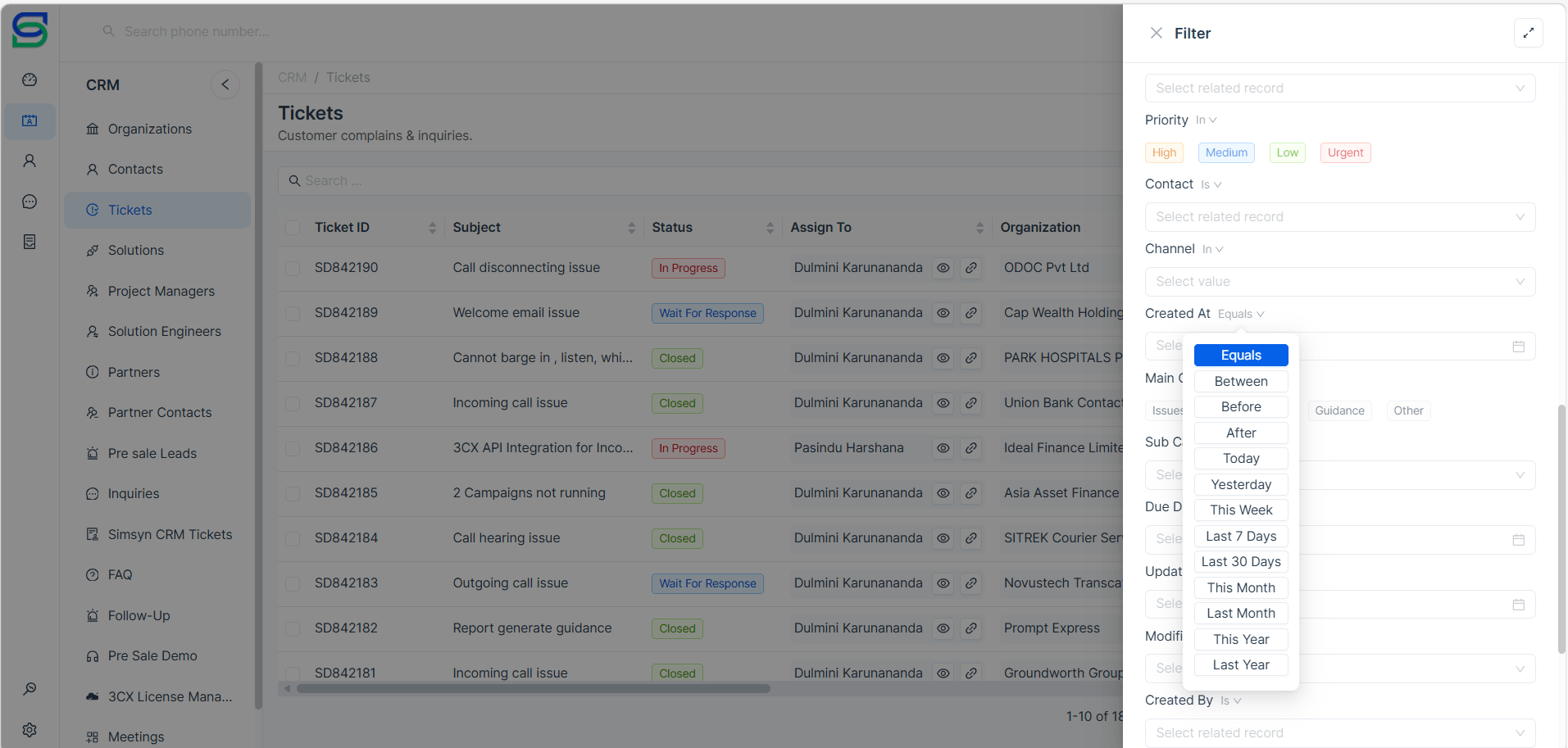
Filters
The Filter panel provides advanced filtering options that allow users to narrow down records based on specific field values and conditions.
Users can apply different filter conditions depending on the field type, such as:
- Contains
- Equals
- Not Equals
- Is / Is Not
- In
Date-based Filters
Users can also apply date-based filters, including:
- Before
- After
- Between
- Today
- This Week
- Last 30 Days
- And other available date conditions.
Supported Fields for Filtering
Filters can be applied to various fields including:
- Organization Name
- Contract ID
- Status
- Sector
- Industry
- Category
- Phone Number
- Other configured fields in the module.
Multi-Value Filtering
For fields that support multiple selections (such as Enumeration fields), users can choose several values to refine the results further.
Combined Filtering
By combining multiple filter conditions, users can efficiently identify the exact records they need, making it easier to manage and analyze large volumes of CRM data.
If you want, I can also give you a more professional GitBook / technical documentation style .md version that looks even cleaner for a CRM user manual.
| Field Type | Filter Options | Explanation |
|---|---|---|
| Text | Equals / Not Equals / Contains | Used to filter records based on text values. Equals finds exact matches, Not Equals excludes a specific value, and Contains finds records that include the entered keyword within the text. |
| Boolean | Equals / Not Equals | Used for fields with true/false values. Equals returns records that match the selected value, while Not Equals returns records with the opposite value. |
| Rich Text | Equals / Not Equals / Contains | Works similar to text fields but for formatted content. Users can filter records that exactly match or contain specific text within rich text content. |
| JSON | Equals / Not Equals / Contains | Used for structured JSON data fields. Allows filtering based on exact values or checking whether specific text or elements exist within the JSON structure. |
| Number | Equals / Not Equals / Contains | Filters numeric values. Equals finds records with the exact number, Not Equals excludes it, and Contains helps match numbers that include a certain sequence. |
| Equals / Not Equals / Contains | Filters records based on email addresses. Equals finds a specific email, Not Equals excludes it, and Contains helps search by partial email text (e.g., domain). | |
| Date | Equals / Between / Before / After / Today / Yesterday / This Week / Last 7 Days / Last 30 Days / This Month / Last Month / This Year / Last Year | Used for filtering records by date. Options allow selecting exact dates, date ranges, past or future dates, or predefined periods such as current week, month, or year. |
| Enumeration | Equals / Not Equals / In | Used for dropdown or predefined list fields. Equals finds records with a selected value, Not Equals excludes a value, and In allows selecting multiple values to filter records that match any of them. |
| Relationship | Is / Is Not / Has Any (Not Null) / Has Not (Null) | Filters records based on relationships with other modules. Is finds records linked to a specific record, Is Not excludes that relationship, Has Any returns records that have a related record, and Has Not returns records without a relationship. |
| Phone Number | Equals / Not Equals / Contains | Used to filter records by phone numbers. Equals finds the exact number, Not Equals excludes it, and Contains allows partial number searches. |
| Media | Is / Is Not / Has Any (Not Null) / Has Not (Null) | Used for fields that store files or media. Is and Is Not check specific media values, while Has Any returns records containing files and Has Not returns records without media. |
| Sequence | Equals / Not Equals / Contains | Used for system-generated sequence numbers or IDs. Allows filtering records by exact sequence or partial sequence values. |
| URL | Equals / Not Equals / Contains | Used for website or link fields. Equals finds the exact URL, Not Equals excludes it, and Contains helps locate records containing part of the URL. |
Import and Export Capabilities
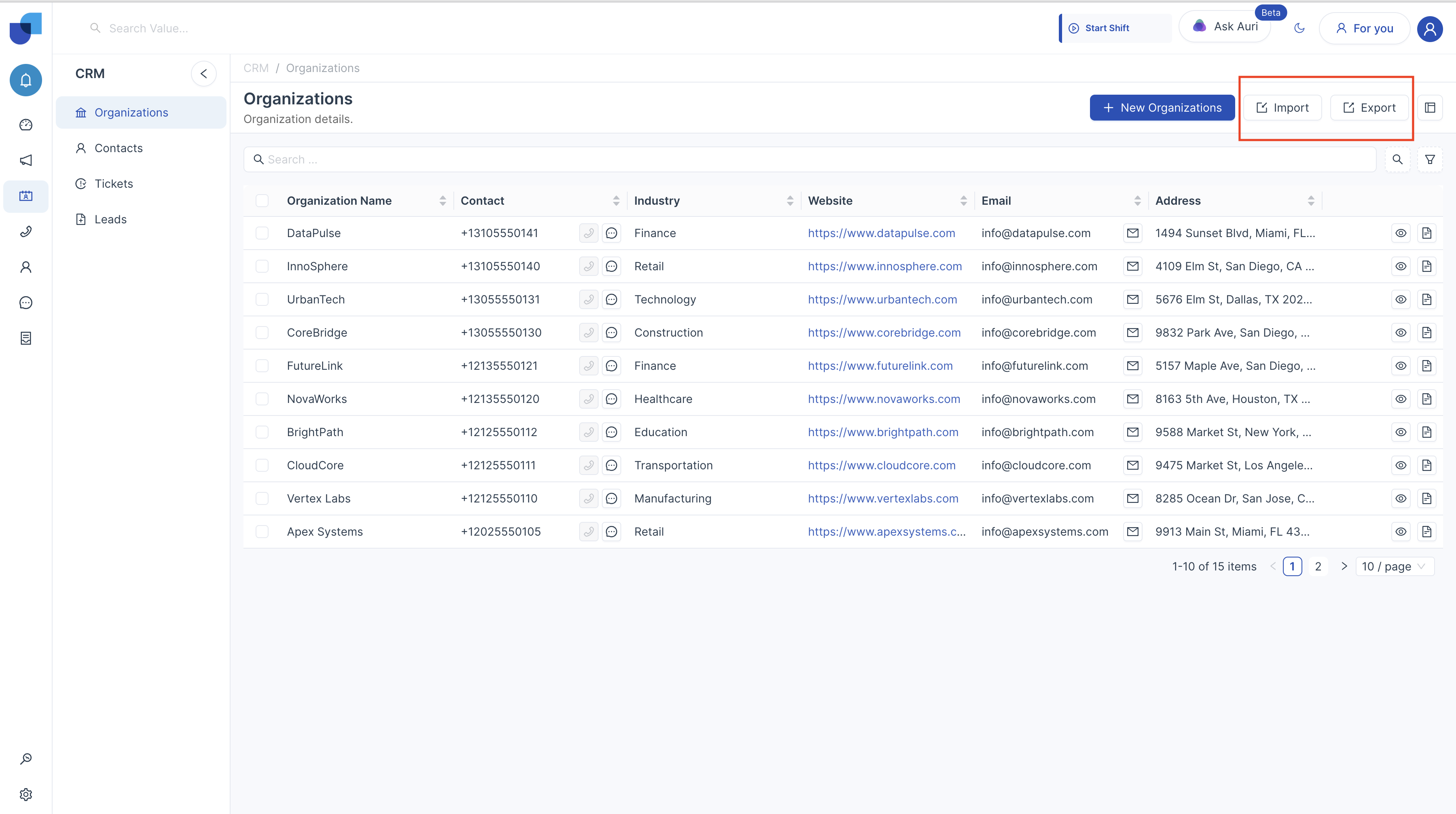
The CRM module provides Import and Export options to help users manage records efficiently and transfer data between systems.
Import :- allows users to upload records into the CRM using a CSV file. This feature is useful when adding multiple records at once or migrating data from another system. Users must ensure that the CSV file follows the required field format so that the data can be mapped correctly during the import process.
Export:- allows users to download existing CRM records from the system as a CSV file. This exported file can be used for data backup, reporting, analysis, or sharing information with other systems.
Custom Module Summary
Custom CRM modules allow organizations to extend the CRM system beyond the default functionality, enabling businesses to tailor the platform according to their operational workflows and data management requirements.