Dropdown Dependency
Dropdown Dependency is used to control the available options in one Dropdown (Enum field) based on the value selected in another Dropdown .
Key Points
- Both the Source Field and Target Field must be Enum (Dropdown ) fields.
- The Target Dropdown values are filtered dynamically based on the selection in the Source Field.
Example Scenario (Ticket Module)
In the Ticket Module, assume you have two Dropdown fields One is Issue Type and next one is Issue Category based on these field can configure the Dropdown Dependency;
Selected Order
Issue Type → Assign Department
Dependency Configuration
| Issue Type | Assign Department Options |
|---|---|
| System Error | L1 Support team, L2 Support team |
| Login Issue | L1 Support team |
| Performance Problem | L2 Support team, Development team |
Source Field: Issue Category
- Technical
- Assign Department
Target Field: Issue Type
You can configure a Dropdown dependency such that:
When Issue Category = Technical
The Issue Type Dropdown shows:
- System Error
- Login Issue
- Performance Problem
When Issue Category = Billing
The Assign Department Dropdown shows:
- L1 Support team
- L2 Support team
- Development team
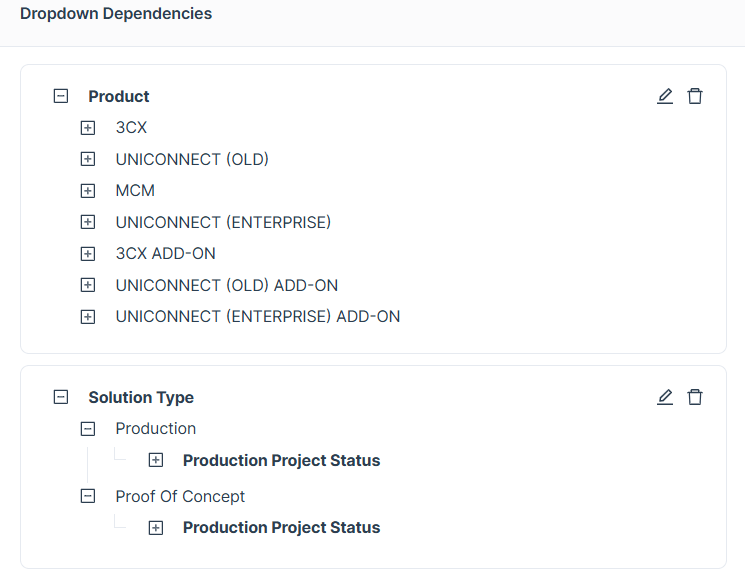
Configuring Dropdown Dependency in the CRM Module
Dropdown Dependency allows you to control the values displayed in one Dropdown field based on the selection made in another Dropdown field.
Follow the steps below to configure it:
Step 01: Select Fields
Select the Enum (Dropdown ) fields that you want to include in the dependency.
- You can select multiple fields, but they must be arranged in the correct order.
- After selecting each field, click the “Add Field to Order” button to define the dependency sequence.


Step 02: Define Field Values
Configure the dependency by selecting values for each field:
- Start with the first (source) field and choose a value.
- Continue selecting corresponding values for each subsequent field in order.
- For the last (target) field, you can select multiple values.
These values will appear in the Dropdown based on the selected conditions.

Step 03: Save Configuration
Once all field values are configured:
- Click the “Add into Schema” button to save the dependency.

Step 04: Verify in Create Form
To verify the configuration:
- Go to the Create Form of the module.
- Select values in the source field(s).
- The dependent Dropdown field will display filtered values based on your configuration.
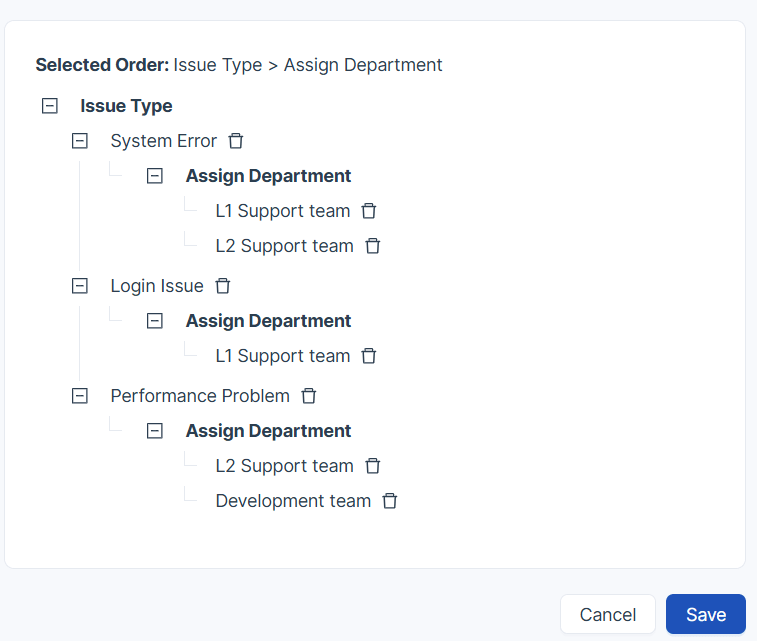
|
Behavior in Create Form
-
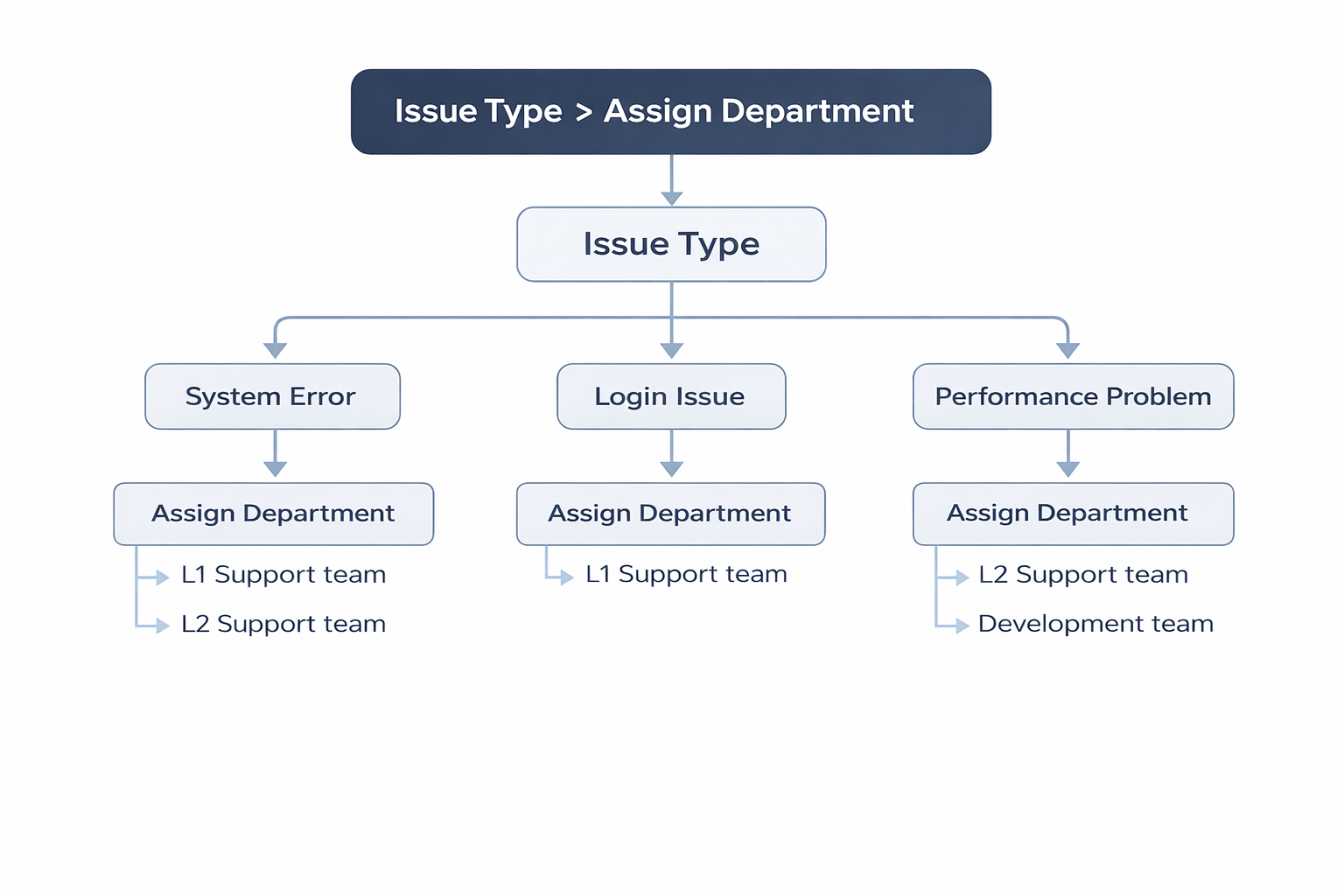
When the user selects System Error, the Assign Department Dropdown will show:
- L1 Support team
- L2 Support team
-
When the user selects Login Issue, the Dropdown will show:
- L1 Support team
-
When the user selects Performance Problem, the Dropdown will show:
- L2 Support team
- Development team
Key Benefits of Dropdown Dependency
Dropdown Dependency helps to:
- Show only relevant options to users
- Reduce data entry errors
- Improve form usability and efficiency
- Maintain data consistency across the system