Field Dependencies
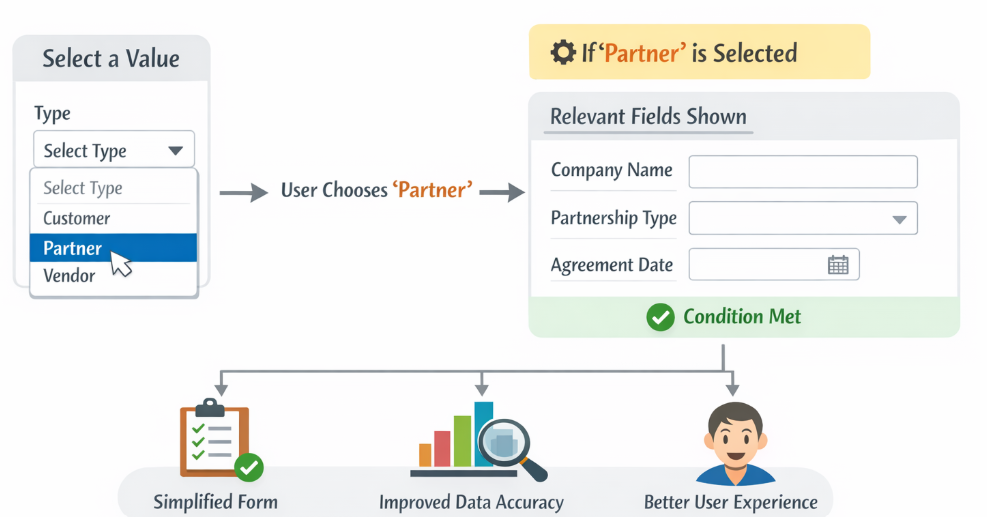
Field dependencies are used in CRM forms to create a dynamic and user-friendly data entry experience. This feature allows certain fields to appear or remain hidden based on the value selected in another field.
For example,
When a user selects a value from a dropdown field, the system can automatically display only the fields that are relevant to that selection. This helps guide users to enter the correct information without showing unnecessary fields.
By configuring field dependencies, the CRM module data creation form becomes more structured and efficient, ensuring that users only see and complete the fields that are applicable to the selected option. This improves data accuracy, simplifies the form, and enhances the overall user experience.
Configuring Field Dependencies in the CRM Module
Field Dependencies allow administrators to control how fields, sections, and relationships behave in the CRM Create Form. This ensures that users only see relevant fields based on their selections, making the form cleaner and improving data accuracy.
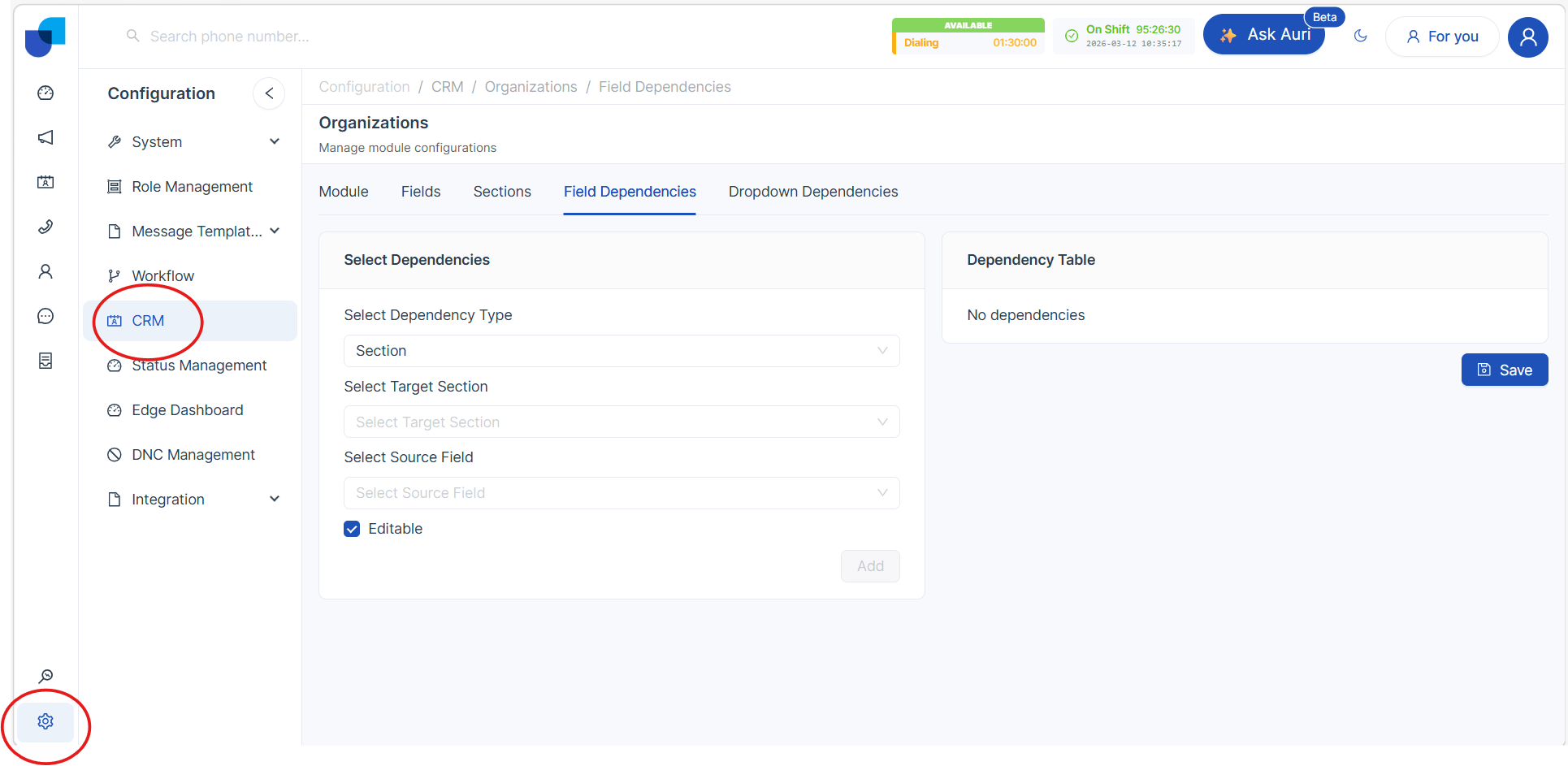
Step 1: Access CRM Configuration
- Click the Settings icon in the system.
- Select CRM Configuration from the settings menu.
Step 2: Select the CRM Module
- Choose the CRM Module where you want to configure the dependency.
- Click Field Configuration for the selected module.
Step 3: Select Dependency Type
In the Dependency Type section, you will see three available options:
- Field Dependency
- Section Dependency
- Relationship Dependency
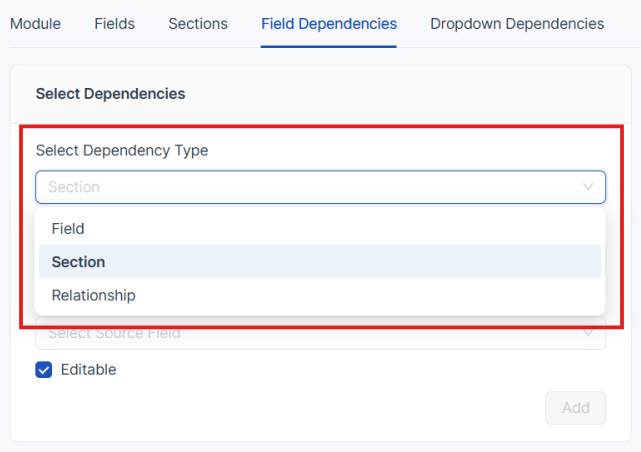
Choose the required type based on the configuration you need.
Field Dependency
Field Dependency allows a specific field to appear only when a certain value is selected in another field.
- The Source Field must be an Enum (Dropdown) field.
- The dependency is configured based on the selected value of that field.
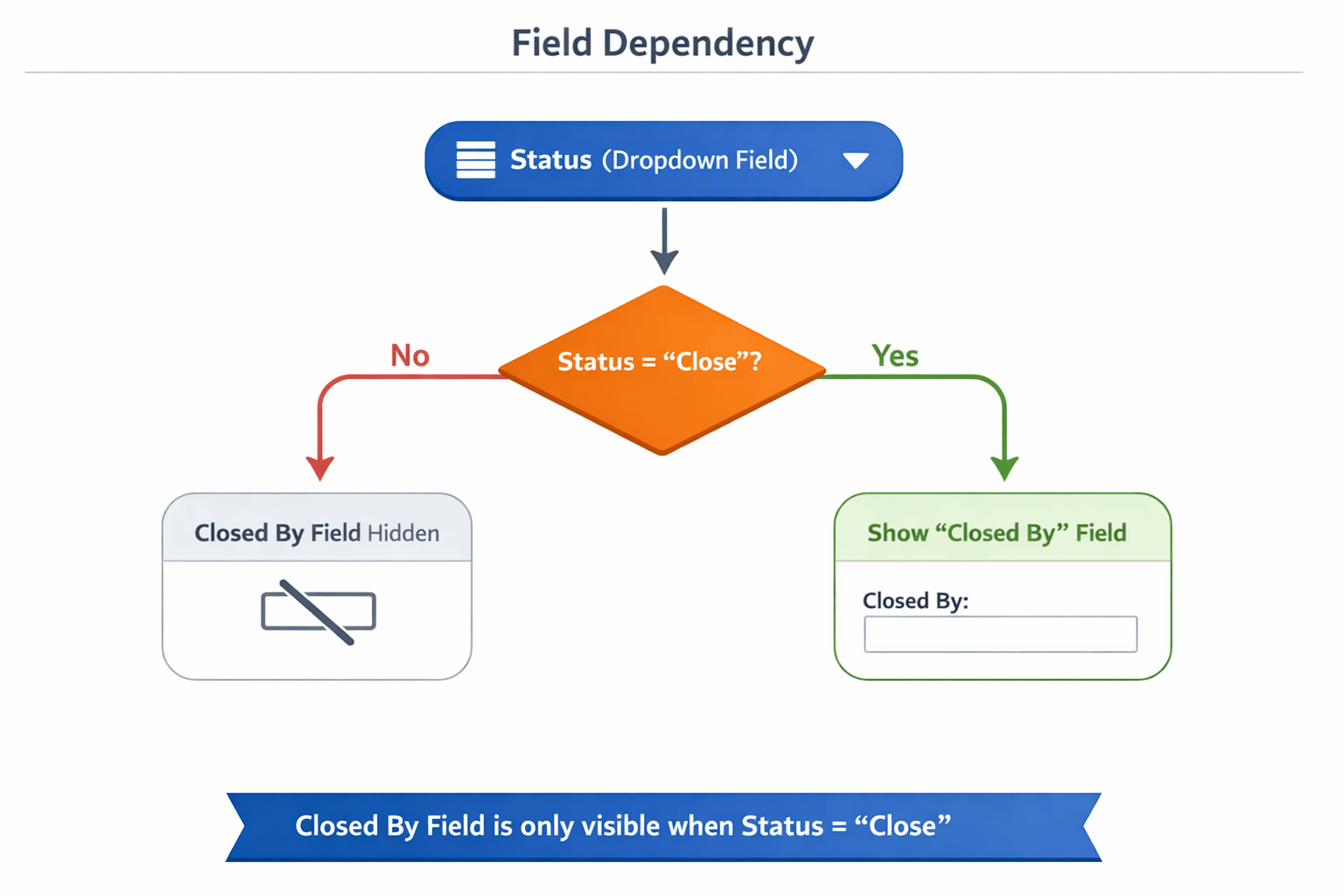
Example
Suppose you have an Enum field called Status with the following values:
- Open
- In Progress
- Close
You also have a field called Closed By, which is used to enter the name of the person responsible for closing the record.
A field dependency can be configured so that:
- The Closed By field becomes visible only when the Status is selected as "Close".
This ensures that users only see the field when it is relevant.
Section Dependency
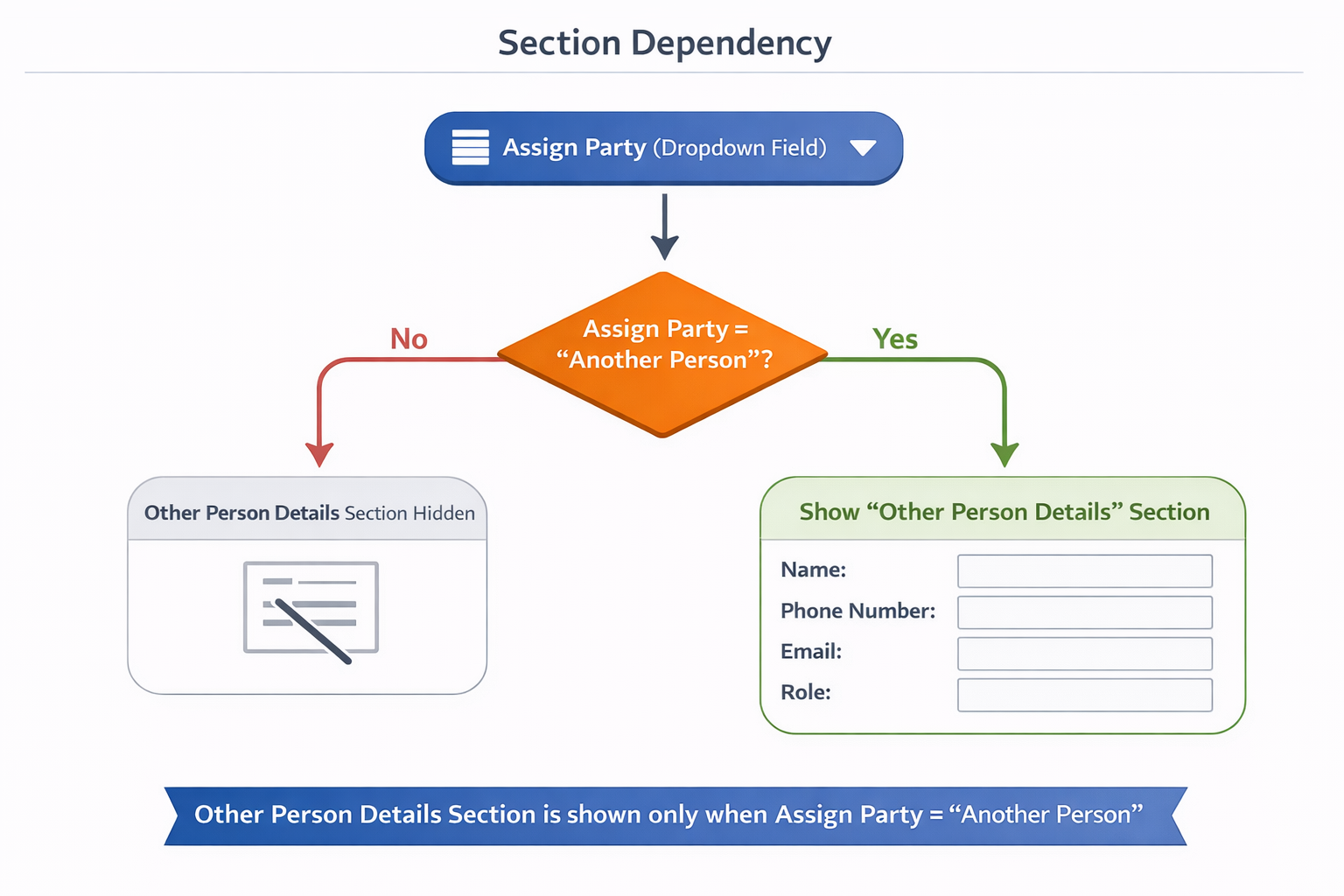
Section Dependency controls the visibility of an entire section in the CRM form based on the value selected in a source field.
- Sections are groups of multiple fields configured under the CRM Module Section Category.
- The Source Field must be an Enum field.
- The visibility of the section depends on the selected value.
Example
Assume there is a field called Assign Party with the following values:
- Owner
- Another Person
If the user selects Another Person, the system can automatically display a section called Other Person Details, which may include several fields such as:
- Name
- Phone Number
- Role
This allows multiple related fields to appear together when needed.
Relationship Dependency
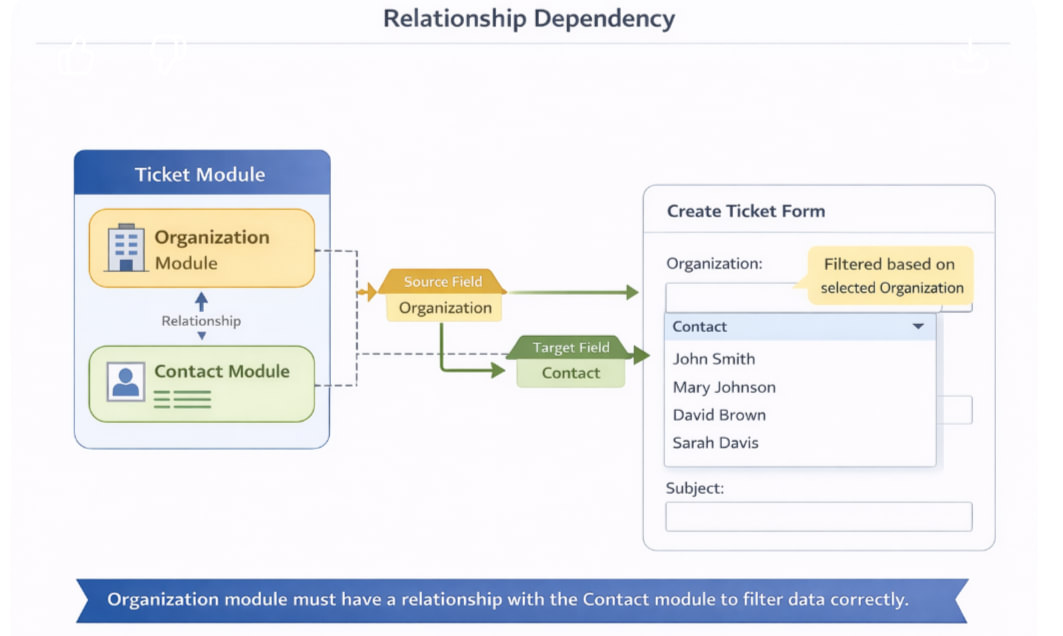
Relationship Dependency is used when filtering data between related modules.
In this type of dependency:
- The Source Field must be a Relationship Field.
- The Target Field will display filtered records based on the source selection.
Example
In the Ticket Module, there may be relationships with:
- Organization Module
- Contact Module
If you configure:
- Source Field: Organization
- Target Field: Contact
Then in the Create Form:
- The user must first select an Organization.
- The Contact dropdown will then display only the contacts related to the selected organization, instead of showing all contacts in the system.
Note: The Organization module must already have a direct relationship with the Contact module for this dependency to work correctly.
Step 5: Configuration of Target field and Source field
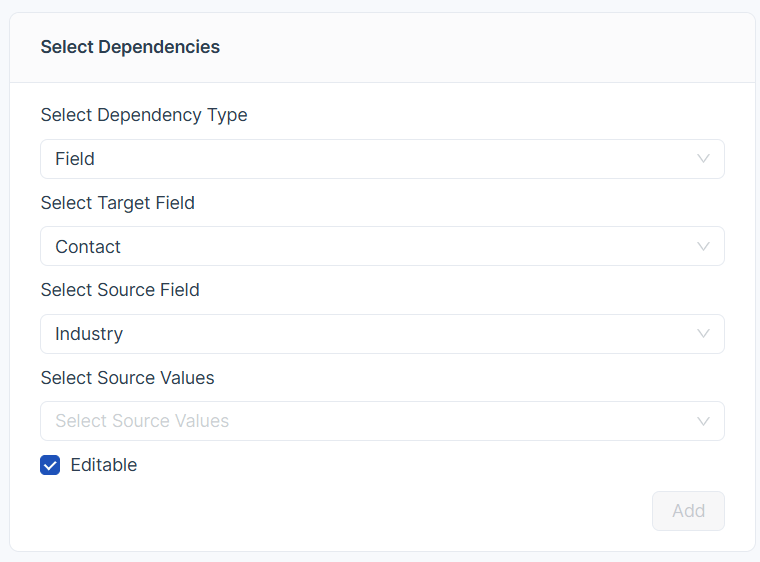
Select Source Field Choose the parent field that controls whether another field should be displayed. The selected value in this field determines if the dependent (target) field will appear.
Select Target Field Choose the dependent field that will be shown or hidden based on the value selected in the Source Field. This field is controlled by the dependency rule.
Step 4: Save and Verify the Configuration
- After configuring the dependency, click Add Dependency.
- Save the configuration.
- Navigate to the Create Form of the selected CRM module.
- Verify that the dependency works correctly based on the configured conditions.