Section Configuration
Section Configuration
The Section Configuration feature allows users to organize fields into structured groups within a module. This helps create a clean and user friendly layout for both Create Forms and Detail Views.
Overview
- When fields are created including default fields, they are initially listed under the Available Fields section.
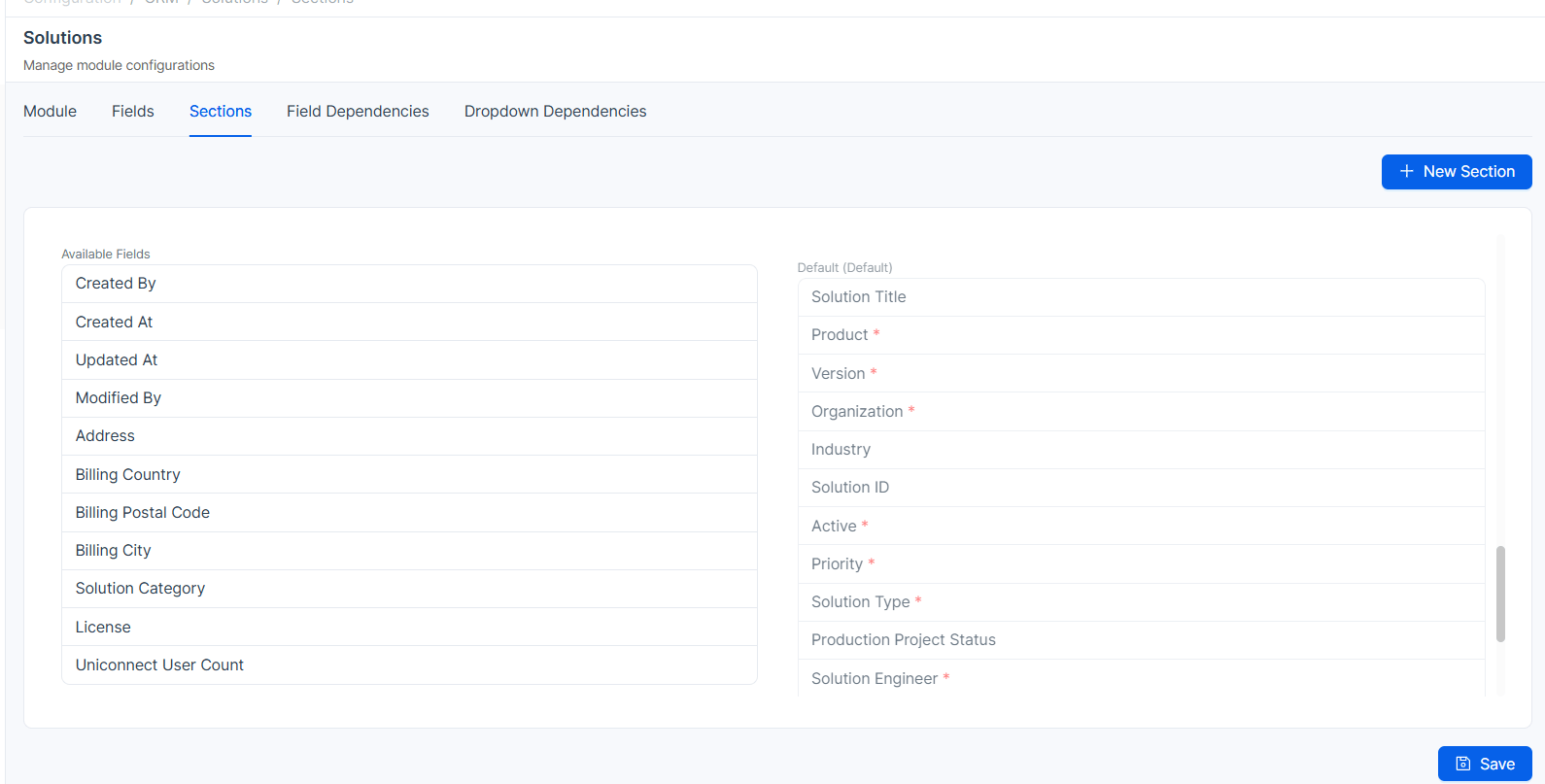
- Users can organize these fields Order and also the Sections by creating custom sections and assigning fields to them.
Purpose of Sections
Sections help in organizing data logically.
Example:
- A Contact Form may include:
- Basic Information Section → First Name, Last Name, Email, Phone Number
- Additional Information Section → Education Details, Job Details
This improves readability and usability, especially when handling large amounts of data.
Behavior in Create Form and Detail View
- Sections are reflected in both:
- Create Form
- Detail View
- In the Detail View, each section appears separately, similar to how related module data is displayed (e.g., Contact related with Ticket module).
Default Section
- A Default Section is available by default.
- It contains system-generated (default) fields.
Important Points:
- Fields in the default section:
- Appear in the Summary View
- Are displayed on the left-side panel in the Detail View
- Users can drag and drop fields from the default section into other sections if needed.
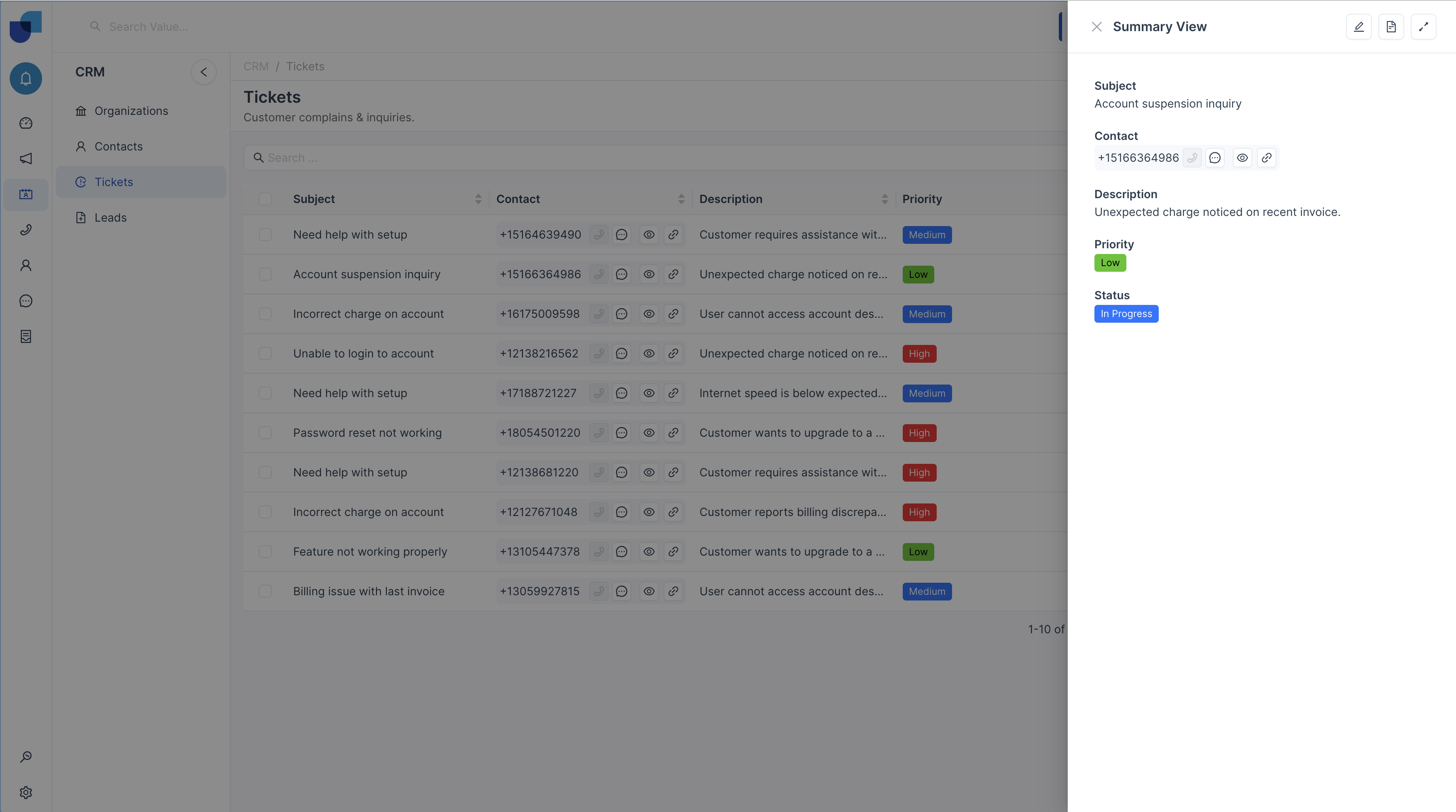
Drag and Drop Functionality
- Users can:
- Drag and drop fields between sections
- Arrange the order of sections
- This allows full customization of the form layout.
How to Create a Section
Follow the steps below to create and configure a section:
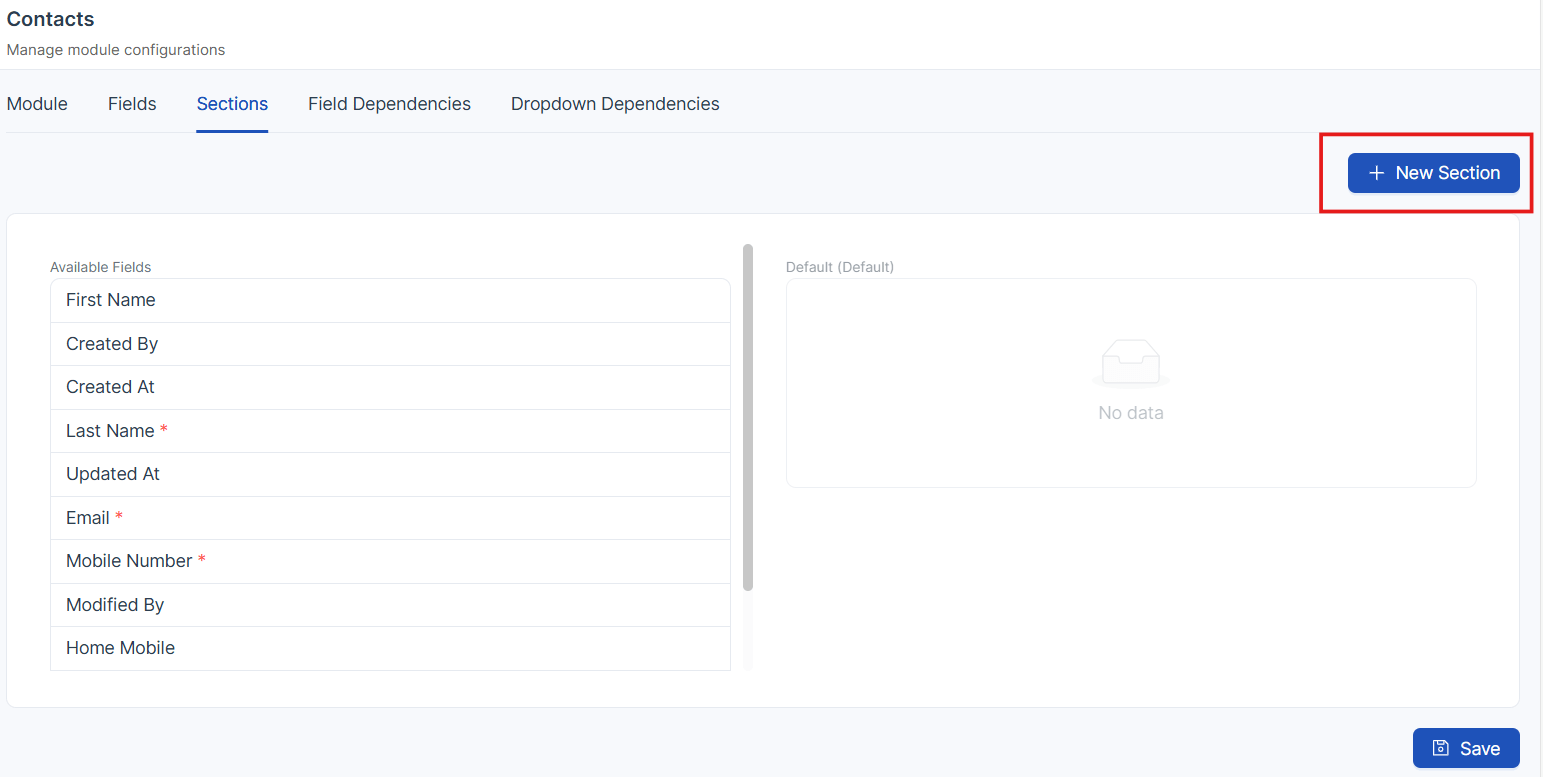
Step 01: Create a New Section
- Click on the New Section option.
Step 02: Enter Section Name
- Enter the Section Name.
- Click the Add button to create the section.

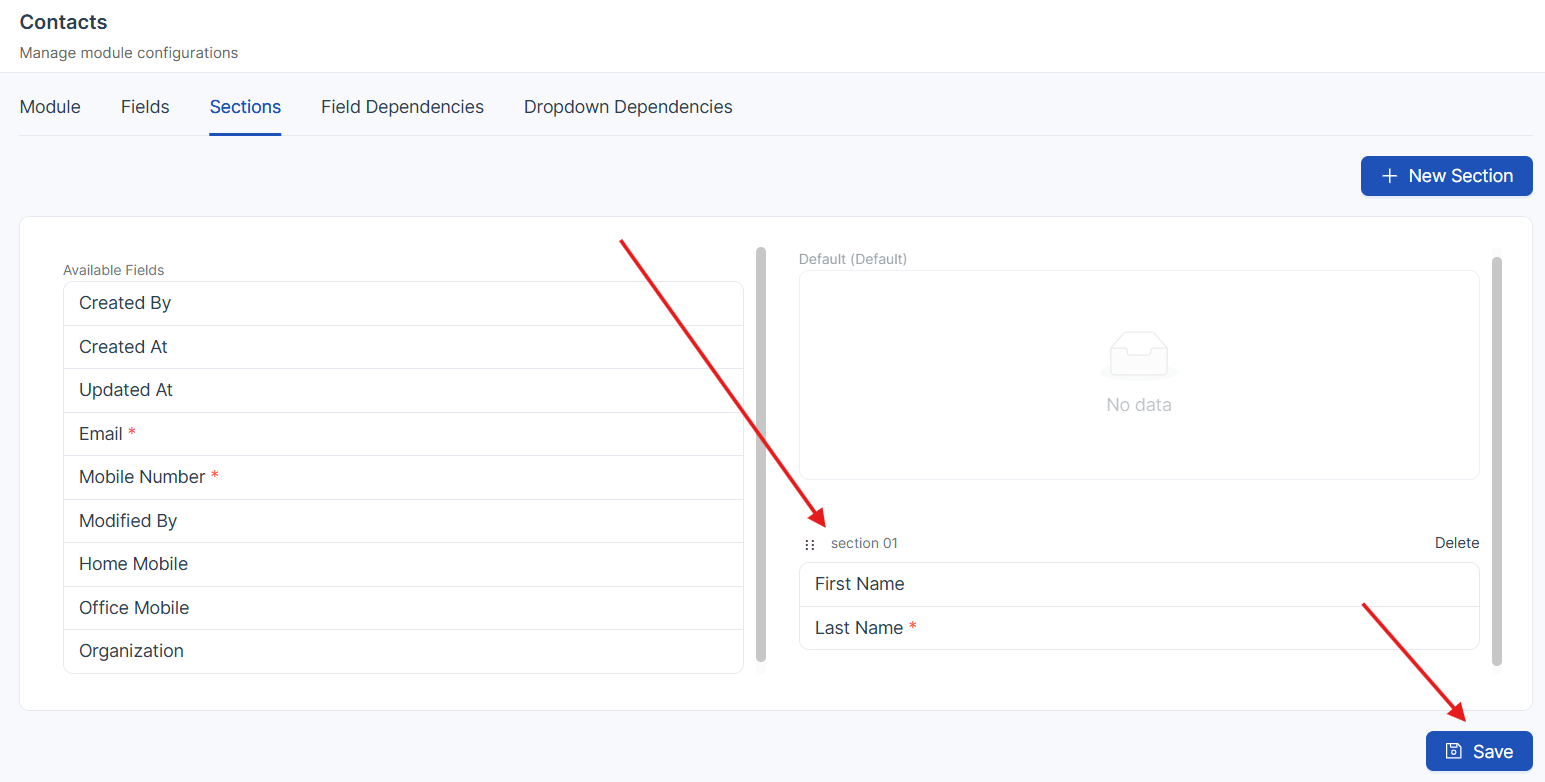
Step 03: Assign Fields
- Drag and drop the required fields into the created section.
- Click Save to apply the changes.
Important Behavior Rules
-
If at least one section is created:
- All fields must be assigned to a section to be visible.
-
Fields that remain in the Available Fields list:
- Will not appear in:
- Create Form
- CRM Module View
- Will not appear in:
Note: To ensure visibility, users must drag and drop all required fields into appropriate sections.