Overview
Workforce Management
Workforce Management shows who is working, what they are doing and whether they are keeping to the rules the contact center has set.
What Workforce Management Is
UNICONNECT AI tracks every agent through a shift and a presence status. A shift is the period an agent is at work. A status, such as Available, Lunch or After Call, says what the agent is doing right now. Workforce Management turns those two ideas into a supervisor's working screen, called the Workforce Monitor, and into the controls that sit behind it: custom statuses, time limits, break approvals, group membership, and the reports that summarize the day.
This documentation follows a Collections team. User B supervises the floor, and User A, on extension 1018, is one of the agents User B looks after.
Key Capabilities
- Custom statuses with limits Define the statuses agents can choose, set a color, decide whether a status can end a shift, and set an allowed time in minutes.
- Call handling per status Decide, status by status, whether the agent receives queue calls, external calls and calls on a mobile.
- One screen for the whole floor See every agent's shift, status, extension and groups, then filter by group, status, calls, requests or breaches.
- Requests and approvals Agents ask for breaks or raise a hand. Supervisors with the right permission approve or dismiss them.
- Supervisor controls Start a shift for an agent, change an agent's status and manage the groups and queues an agent belongs to.
- History and reporting Open an agent's shifts and status timeline, review active sessions, and run the Activity Summary, Activity and Login History reports.
The Workforce Screen
The Workforce Monitor is the main screen. Each row is one agent. The columns show the agent, the shift, the presence status, the phone, the groups, any open requests, and three action buttons.
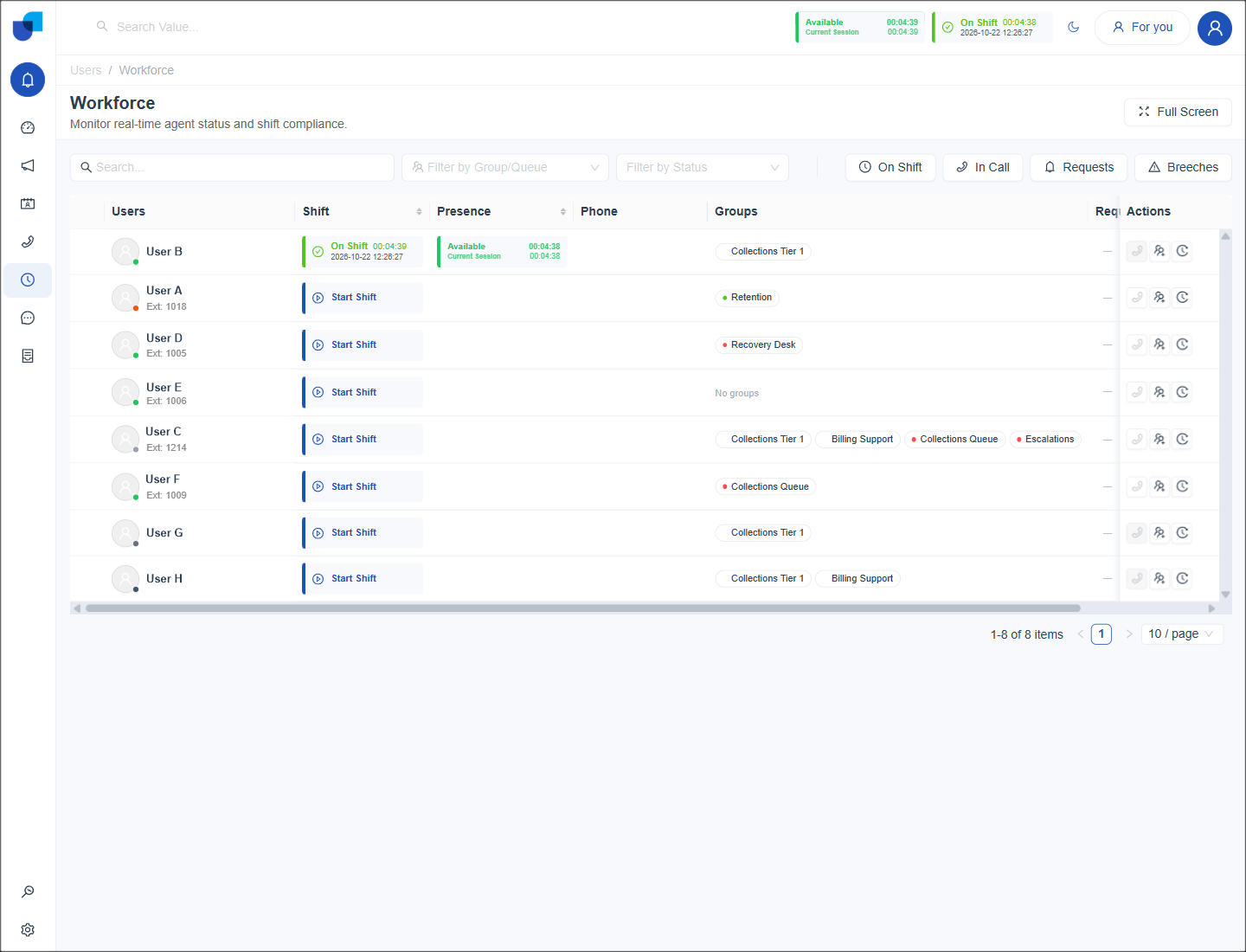
Figure 1. The Workforce Monitor, with one row for each agent and quick filters for On Shift, In Call, Requests and Breeches above the table.
Shifts, Statuses and Limits
| Concept | Meaning |
|---|---|
| Shift | The period an agent is working. It starts with Start Shift and ends with End Shift. Calls and many CRM actions depend on an active shift. |
| Status | What the agent is doing during the shift, for example Available, Away, Lunch or Tea Break. The Presence column shows it, with a running timer. |
| Status Limit | The allowed time in minutes for a status. An agent who stays longer appears under the Breeches filter. |
| Request Approval | A switch on a status. When it is on, the agent asks for the status and a supervisor approves it. |
| Group and Queue | The teams an agent belongs to. A group is a team in UNICONNECT AI. A queue is a call queue, shown with its number. |
Info: The Breeches filter on the Workforce Monitor lists the agents who have stayed in a status longer than its Status Limit. Statuses that are synchronized from the telephone system are covered in Status Management with 3CX, and this documentation covers the workforce side: limits, requests and shift control.
Who Does What
| Person | Typical tasks |
|---|---|
| Agent | Starts and ends a shift, changes status, requests a break and raises a hand. |
| Supervisor | Watches the Workforce Monitor, approves requests, dismisses raised hands, and starts a shift or changes a status for an agent when needed. |
| Administrator | Creates statuses, sets limits and call handling, manages groups, sets role permissions and reviews reports. |
Where to Find Things
| Task | Location |
|---|---|
| Watch agents and act on them | Workforce Monitor in the main menu |
| Create and edit statuses | Configuration → Status Management |
| Set who may approve, force or dismiss | Configuration → User Management → Roles |
| See connected sessions | Monitoring → Active Sessions |
| Run shift and login reports | Reports |