Overview
Edge Softphone
What Edge Softphone Does
Edge Softphone is the desktop softphone for contact center agents who work in Uniconnect AI with a 3CX PBX. It places a SIP phone on the agent's PC and ties it to the Uniconnect enterprise platform, so calls, presence, shifts, break approvals, KPIs and history stay in sync between the PC, 3CX and Uniconnect AI.
The app is named Uniconnect Edge in the Windows Start menu and the installer. It is a .NET 8 WPF application for Windows 10 (version 1809 or later, 64 bit). This guide describes Edge as it works with Uniconnect AI version 1.3.0. Edge hides buttons for features that the connected Uniconnect AI version does not support, such as Transfer or Raise Hand, so an agent on an earlier version sees fewer buttons than this guide shows.
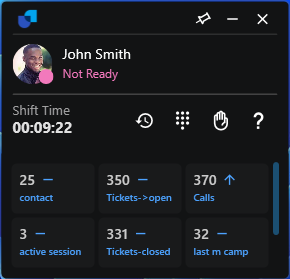
Figure 1. Edge in Normal mode with a shift started.
The Agent Day
Every working day in Edge follows the same pattern, and the pages in this guide build on it.
- Log in. The agent signs in with a Uniconnect or 3CX account, with a one time code if two factor authentication is on. See Getting Started.
- Start the shift. Starting the shift registers the SIP phone with 3CX and turns on presence, so the agent can now take calls.
- Work the shift. Handle inbound and outbound calls, change status, request supervisor approved breaks, raise a hand for help and watch the KPI cards.
- End the shift. Choose Shift End from the status menu. Closing the window alone does not end the shift.
The Capability Areas
Edge covers four areas of the agent's day. Each row names what the area includes and where it is explained.
| Area | What it includes | Pages |
|---|---|---|
| Telephony | SIP registration to 3CX, inbound and outbound calls on up to 6 lines, hold, mute, DTMF, blind and attended transfer, and multi party conference. | Calling, Call Monitoring |
| Agent workflow | Shift start, end and resume, status (presence) changes, break requests with supervisor approval and countdown, and raise hand. | Shift Handling, Break Approvals, Raise Hand, Status Changes |
| Insight | A real time KPI dashboard, searchable call history, and contact lookup with names and photos. | Edge Dashboard, Call History, Contacts |
| Operations | Settings synced with the enterprise, a log viewer with log upload, PBX ping, a telnet port test and automatic reconnect on a network change. | Settings, Diagnostics |
- Telephony runs only during a shift. SIP is not registered until the agent clicks Start Shift.
- Agent workflow is shared with the enterprise. A change made in Edge appears in Uniconnect AI and 3CX, and a change made by a supervisor appears in Edge within moments.
- Insight is read only. KPI cards, history and contact details come live from Uniconnect AI and cannot be edited in Edge.
- Operations settings follow the agent. They are saved per user in Uniconnect AI, so they apply on another PC too.
Two Window Modes
Edge runs in one of two layouts. The pin button in the window header switches between them.
| Mode | Look | When to use |
|---|---|---|
| Normal mode | A compact floating window with the avatar, status, shift timer, quick action buttons (History, Dial pad, Raise hand, Help) and KPI cards. | The default after login, on one monitor or several. |
| Docked mode | A slim bar docked to the top edge of the screen. It reserves desktop space, spans the full screen width and is about 65 px tall. | Keeping the phone always visible without covering work windows. |

Figure 2. Edge in Docked mode, a slim bar across the top of the screen.
Switching modes
- Log in. Edge opens in Normal mode.
- Click the pin icon to dock. The window becomes a bar across the top of the screen and reserves that space.
- Click the pin icon again to undock. Edge returns to the floating window. It also undocks by itself when the shift ends.
In Docked mode the dashboard shows the first three KPI cards inline. View all KPI cards expands the rest, and Collapse KPI Dashboard hides them again.
Docking requires the displays to be in Duplicate (or single display) mode. On an Extended multi monitor setup the pin button is disabled, and clicking it shows "Switch to Duplicate display mode, to use the docking feature."
System Tray
Closing the window with X does not quit Edge. It minimises to the system tray icon and the SIP registration stays active. Right click the tray icon for the menu.
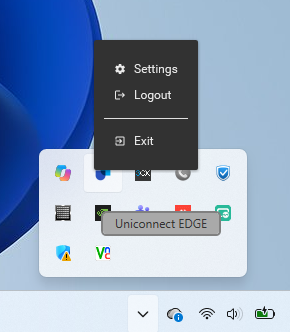
Figure 3. The system tray menu: Settings, Logout and Exit.
| Menu item | What it does |
|---|---|
| Settings | Opens the Settings window. |
| Logout | Signs the agent out of Edge. |
| Exit | Quits Edge completely and releases the SIP registration. |
Starting Edge a second time never opens a second copy. It brings the running instance to the front, so click the tray icon or start Edge again if the window seems to have disappeared.
The Example Used in This Guide
Priya handles inbound support for a telecom. She starts her shift, sets herself Available, and Edge docks to the top of her screen. A customer calls the support queue and Edge rings with the queue name and the customer's name and photo. She answers, puts the customer on hold to consult a colleague, performs an attended transfer to Tier 2, and the call appears in Call History with the status Answered.