Agent Availability & Controls
Introduction
The Agent Availability and Controls in the Uniconnect AI Edge application allows agents to manage their working status and control their shift activities. This functionality ensures that the system can accurately determine whether an agent is ready to handle calls and helps manage call routing effectively.
Agent Availability Status
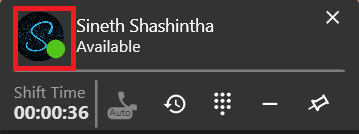
Agents can view their current availability status through their avatar icon displayed in the Edge application. The status is shown next to the avatar and reflects the agent’s current working state.
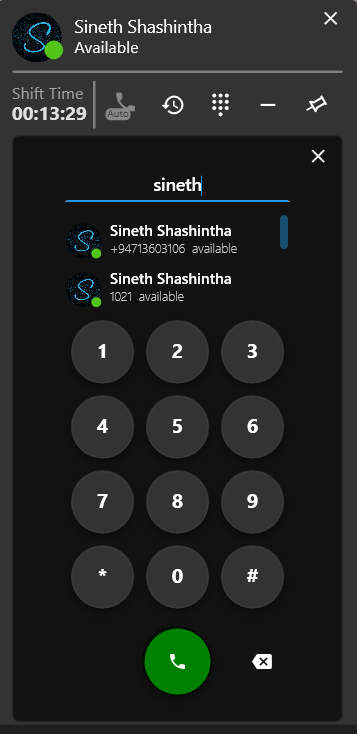
Agent / User status is also visible in other areas of the application. For example, when an agent searches for a contact using the dial pad search, the results list displays the availability status of each user. This allows agents to easily identify whether another user is available before initiating communication.
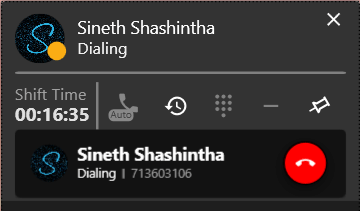
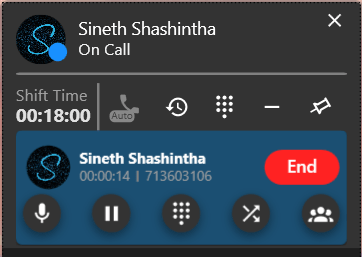
During call activities, the agent’s status automatically changes based on the current call state. For example, when an agent starts dialing a number, the status changes to Dialing, and once the call is connected, it changes to On Call.
The Uniconnect AI Edge applcation allows agents to monitor and manage their availability status while providing visibility of user presence. This functionality helps ensure that calls and interactions are routed to agents who are available to handle them.
Agents also have the ability to manually control their availability status when necessary.
How to change the availability status in Uniconnect AI Edge Application
-
Click on the user avatar icon in the Edge interface.
-
Select the desired status from the list to update the availability status.
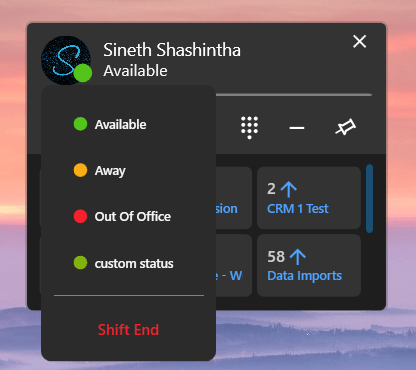
Common agent statuses include:
-
Available – The agent is available and ready to receive incoming calls.
-
Away – The agent can make outbound calls but will not receive inbound calls and will not be placed in call queues.
-
Out of Office – The agent is not available for any calls and is not included in call queues.
-
Dialing – Indicates that the agent is currently placing an outbound call.
-
On Call – Indicates that the agent is currently engaged in an active call.
By providing both automatic status updates and manual status control, the Agent Availability & Controls feature ensures that agents can manage their communication availability effectively while maintaining clear visibility of user presence within the Uniconnect AI Edge Application.
The agent status in the Edge application is synchronized with the Uniconnect AI platform. This synchronization ensures that the agent's availability is consistently reflected across both systems.
How to change availability status in Uniconnect AI Platform
- Login to the Uniconnect AI Platform
- Click on user profile icon
- Click on user status
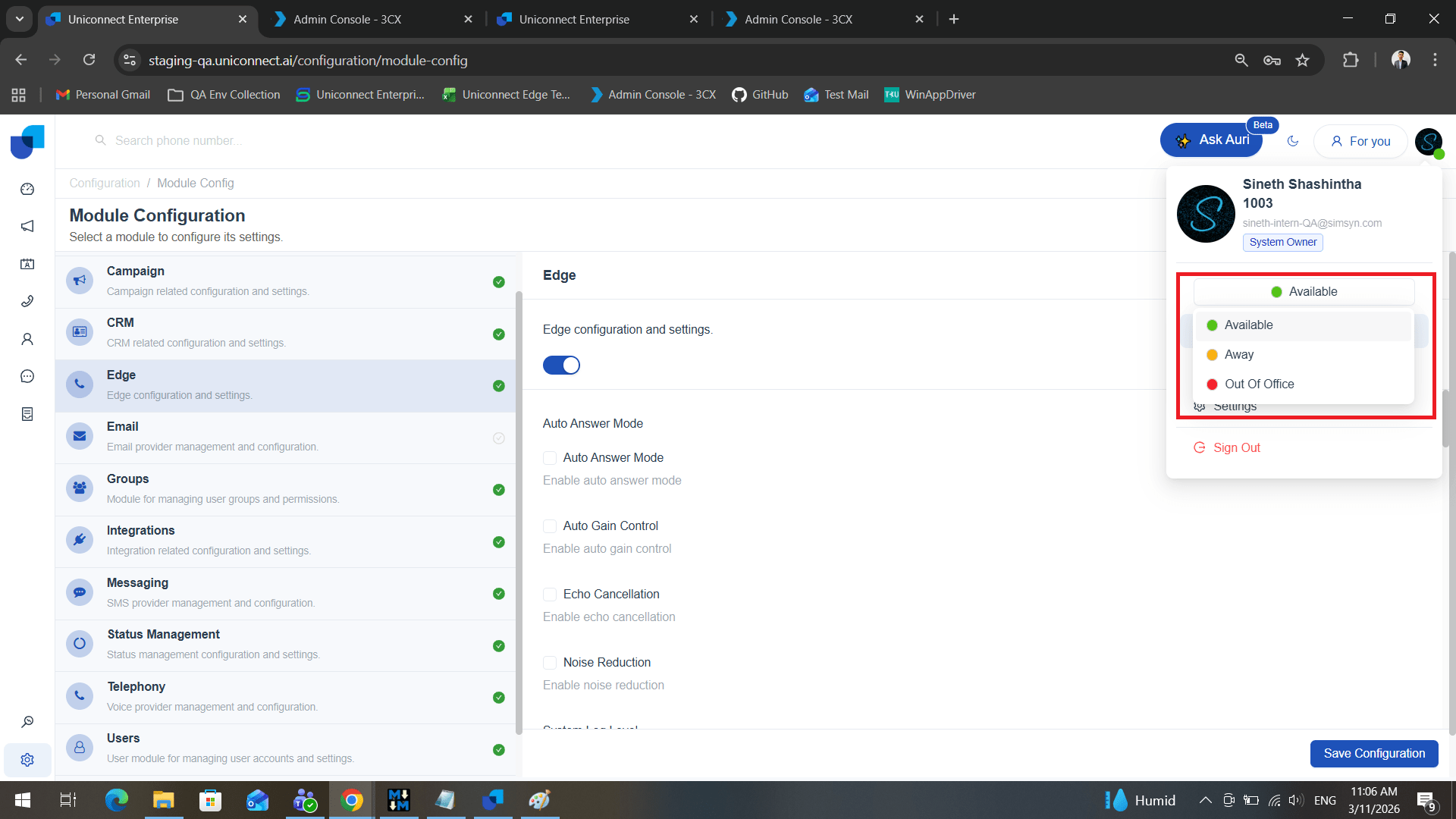
[!NOTE] When an agent changes their availability status in the Edge application, the updated status is automatically synchronized and reflected in the Uniconnect AI platform.
In the same way, if the agent’s status is updated from the Uniconnect AI platform, the change is automatically reflected in the Edge application.
How to creating Custom Agent Statuses in the Uniconnect AI Platform
The Uniconnect AI platform allows administrators to create custom statuses based on operational requirements.
Steps to create a new status:
- Log in to the Uniconnect AI platform.
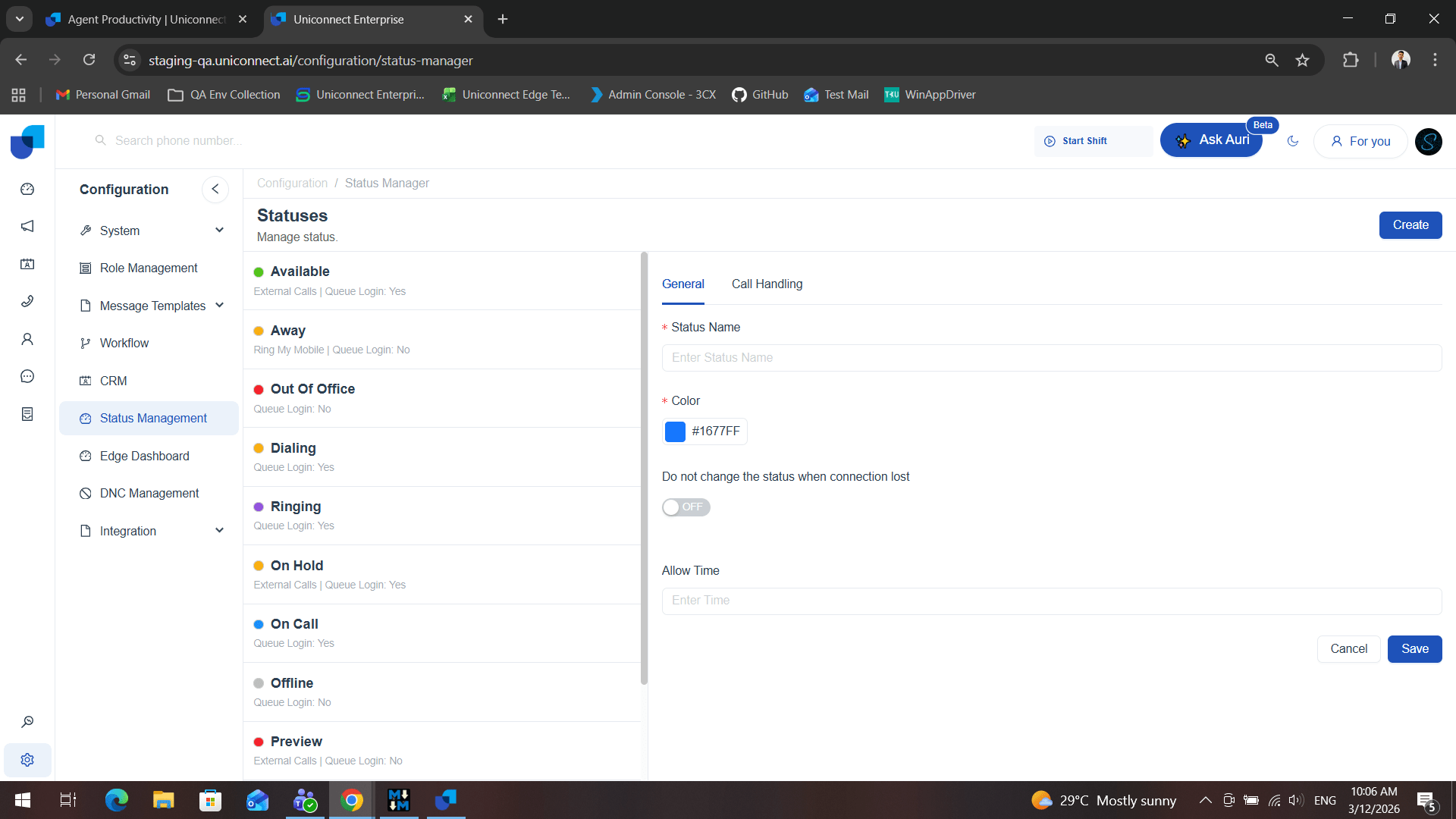
- Navigate to Configurations.
- Click on Status Management.
- Click Create.
- Fill in the General Settings and Call Handling configurations according to the desired agent behavior.
- Save the configuration.
Proper use of availability controls helps improve call distribution, agent productivity, and overall communication efficiency within the contact center environment.
Shift Management
Agents can manage their working hours using the Shift Start and End functionality within the Edge application.
Start Shift – When an agent starts their shift, the system begins tracking the shift duration.
End Shift – When the agent ends the shift, the system stops the shift timer.
The shift start and end times are recorded in system reports, allowing administrators and supervisors to monitor agent working hours.
Logging Out from the Edge Application
Agents can log out from the Edge application when they finish using the system.
Steps to log out:
- Right-click the Edge application icon in the taskbar hidden icons (system tray).
- Click Logout.
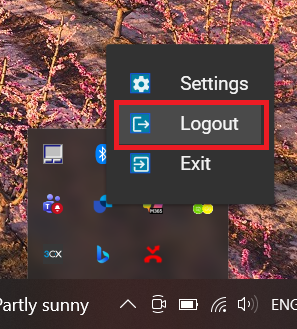
When an agent logs out, the application remains open but the user session is closed.
Exiting the Edge Application
If the agent wants to completely close the application:
- Right-click the Edge application icon in the taskbar hidden icons (system tray).
- Click Exit.
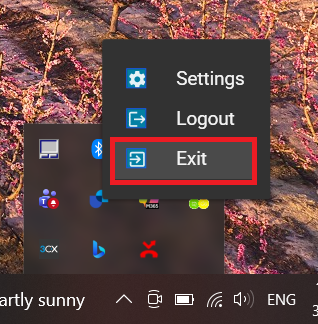
This action will fully close the Edge application.