Configurations
Introduction
The Configurations section describes the system requirements and setup steps necessary to properly use the Uniconnect AI Edge application. To enable calling functionality and ensure smooth communication, certain modules must be enabled and configured within the Uniconnect AI platform. In addition, some settings should be configured directly within the Edge application to establish the connection with the platform and configure audio devices for calls.
Proper configuration of both the platform side modules and the Edge application settings ensures that agents can successfully log in, connect to the system, and perform inbound and outbound call operations.
How to Enable the Edge Module
The Edge module must be enabled in the Uniconnect AI platform to allow agents to use the Edge application.
- Steps to enable the Edge module:
- Log in to the Uniconnect AI platform.
- Navigate to Configurations.
- Click on System.
- Select Modules.
- Select Edge.
- Enable the Edge configuration
- Click Save.
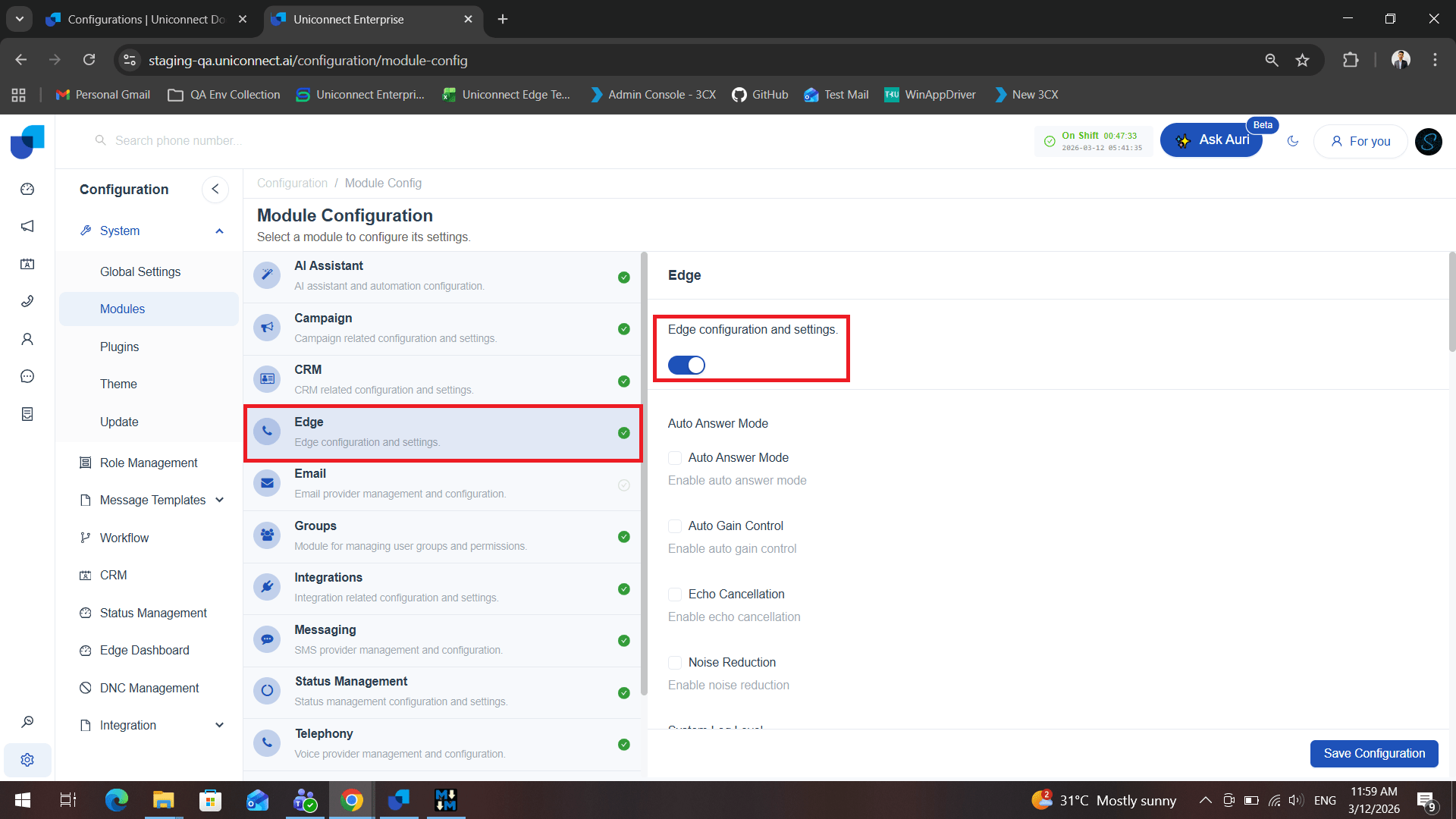
Once enabled, the Edge application will be able to connect with the Uniconnect AI platform.
How to Enable the Telephony Module
The Telephony module is responsible for enabling calling capabilities within the system. Without enabling this module, agents will not be able to make or receive calls through the Edge application.
Steps to enable the Telephony module:
- Log in to the Uniconnect AI platform.
- Navigate to Configurations.
- Click on System.
- Select Modules.
- Select Telephony.
- Enable the Telephony module.
- Select the desired telephony configurations.
- Click Save.
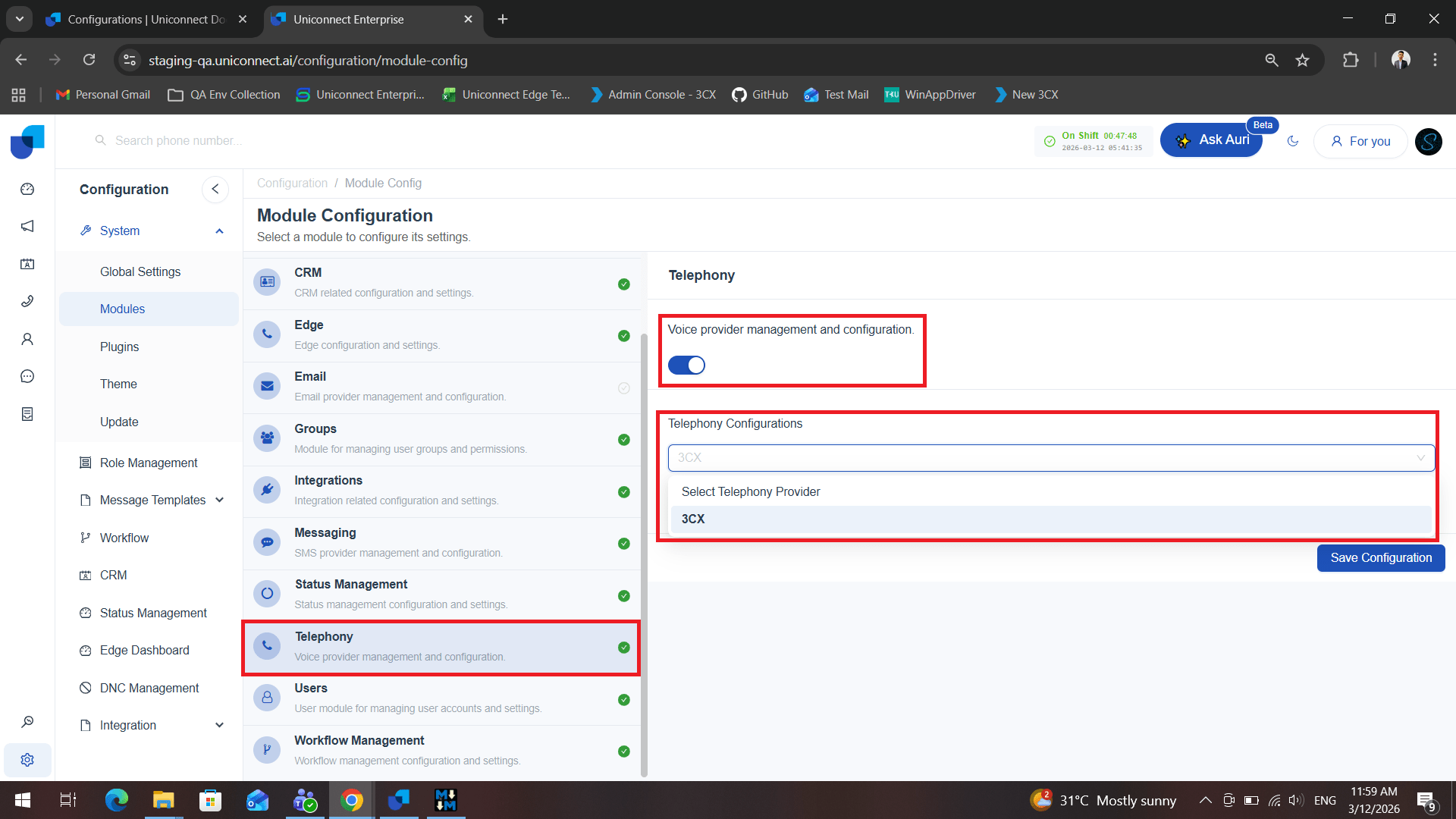
[!IMPORTANT] Both the Edge module and the Telephony module must be enabled and properly configured in order to use the calling features of the Uniconnect AI Edge application.
Telephony Plugin Configuration
After enabling the Telephony module and selecting a telephony provider, the selected telephony system must be configured in the Plugins section of the Uniconnect AI platform.
For an example, if 3CX is selected as the telephony provider in the Telephony module, the 3CX plugin must be configured with the required connection details. This configuration allows the Uniconnect AI platform and the Edge application to communicate with the telephony system and handle call operations.
Steps to configure the Telephony plugin (Example: 3CX)
- Login to Uniconnect AI Platform
- Navigate to Configurations
- Click on System
- Click on Plugins
- Select 3CX
- Enable 3CX PBX system configuration and management service
- Enter the required 3CX configuration details
- Save
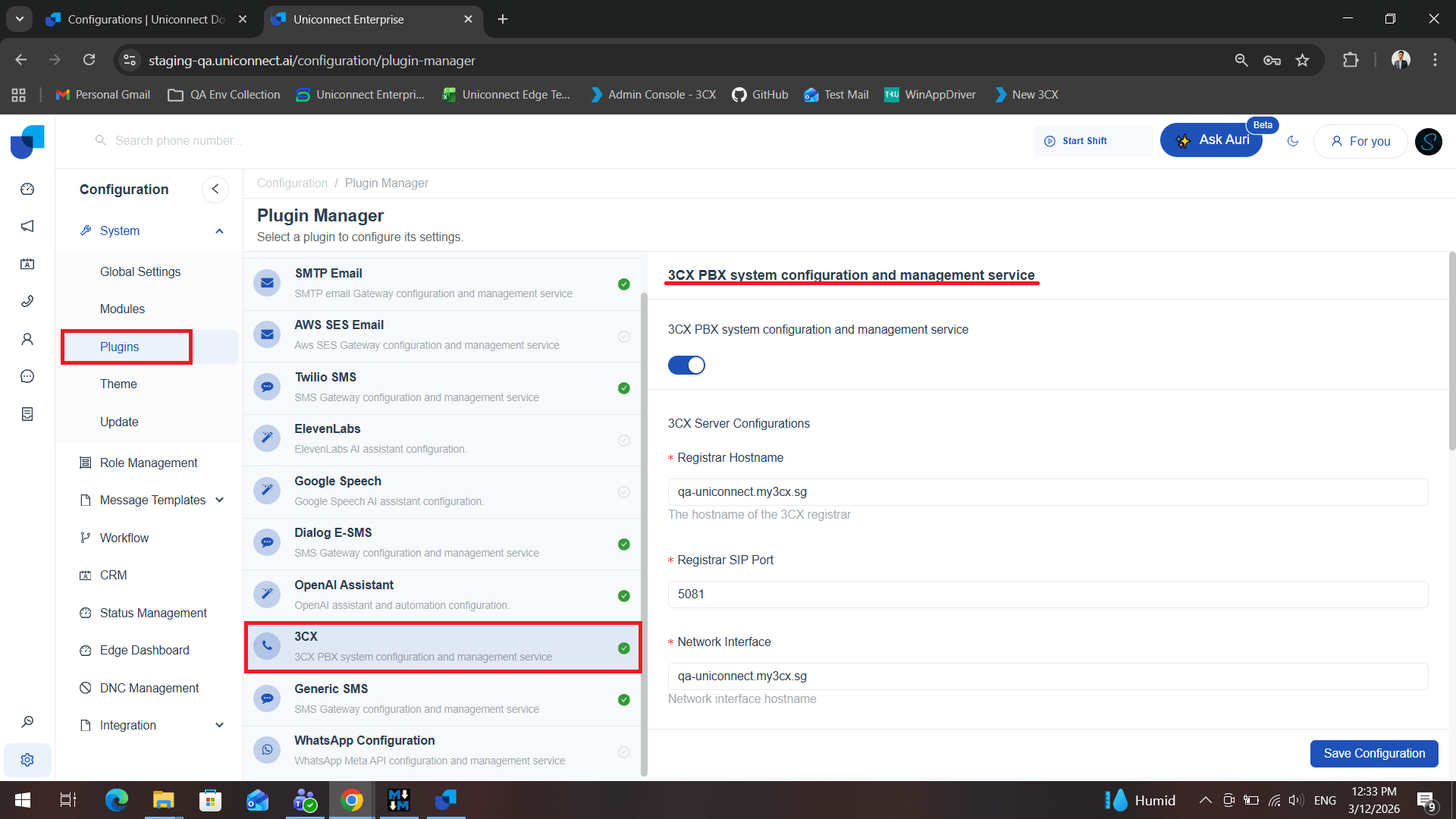
Once the plugin is properly configured, the Uniconnect AI platform will be able to connect with the 3CX telephony system, enabling agents to make and receive calls through the Uniconnect AI Edge application.
[!IMPORTANT]
The telephony system selected in the Telephony module must have the corresponding plugin properly configured. If the plugin is not configured, the telephony integration will not function correctly even if the Telephony module is enabled.
Edge Application Configurations
In addition to the platform configurations, certain settings must be configured within the Edge application itself to ensure proper connectivity and audio functionality.
Connection Settings
When the Edge application is launched for the first time, or when switching between different environments, the Uniconnect AI Server URL must be configured.

This URL allows the Edge application to establish a secure connection with the Uniconnect AI platform and access the associated system services and CRM data.
Agents must enter the correct Server URL in the connection settings before logging in to the Edge application.
Audio and Device Settings
To ensure clear and effective communication during calls, agents must configure their audio input and output devices within the Edge application.
Steps to configure audio devices:
- Open Settings in the Uniconnect AI Edge application.
- Navigate to the Device section.
- Select the preferred audio devices:
- Microphone – The input device used to capture the agent’s voice.
- Speaker/Headset – The output device used to hear the caller.
- Save the settings.
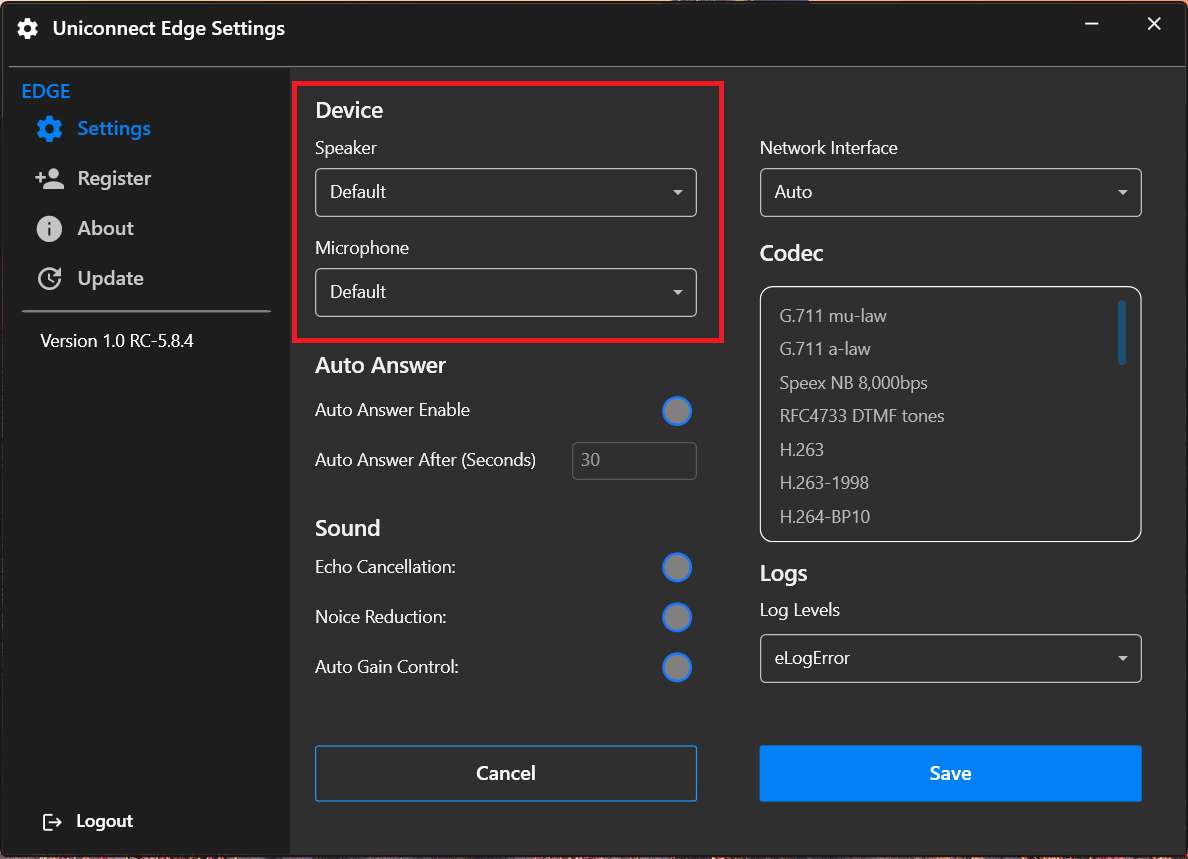
Properly configuring these audio devices helps ensure clear voice communication and improved call quality during inbound and outbound calls.