Omni Channel Communications
Introduction
The Omni Channel Communications capabilities in the Uniconnect AI Edge application allow agents to efficiently manage and control customer interactions across different communication channels. One of the key features available during voice interactions is the ability to transfer calls or create conference calls, enabling agents to redirect customers to the appropriate department or involve additional participants when necessary.
The Uniconnect AI Edge application supports multiple call handling options, including Inbound Calls, Outbount Calls, Blind Transfer, Attended Transfer, and Conference. These features help ensure that customer inquiries are handled by the most appropriate resource while maintaining a smooth and professional communication experience.
Inbound Calls
An Inbound Call is a call received to an agent from an external customer or an internal user. When an incoming call is received, the system displays an Incoming Call Interface that provides the agent with key information about the caller.
The interface typically displays:
- Caller name or phone number
- Caller avatar
- Answer button
- Decline / Reject button
This information allows the agent to quickly identify the caller before answering the call.
To handle an incoming call, the agent can click the Answer button to accept the call or click Decline / Reject button to reject the call.
Once the call is connected, the Active Call Interface is displayed. During the active call, the agent has access to several call management controls including:
- Mute – Temporarily disables the agent’s microphone.
- Hold – Places the caller on hold.
- Dial Pad – Allows the agent to enter digits during the call if required.
- Transfer – Enables the agent to transfer the call to another agent or extension.
- Conference – Allows the agent to add additional participants to the call.
- End Call button – Terminates the call.
Outbound Calls
An Outbound Call is a call initiated by the agent using the Uniconnect AI Edge softphone interface. Outbound calls can be made using the main dial pad available in the Edge application.
The dial pad provides a convenient way for agents to enter phone numbers or extensions and quickly initiate calls without leaving the main working interface.
How to make an Outbound Call
- Open the Main Dial Pad within the Edge interface.
- Enter the phone number or extension of the person you wish to call.
- Click the Call button to initiate the call.
Once the call is initiated, the system automatically updates the agent’s status to Dialing, indicating that the agent is attempting to connect with the recipient. When the recipient answers the call, the interface transitions to the Active Call Interface, allowing the agent to manage the conversation.
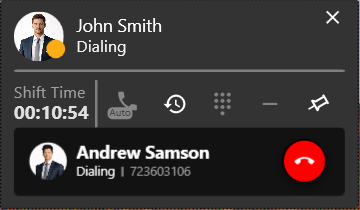
During an outbound active call, the agent has access to several call control options.
- Mute – Temporarily disables the agent’s microphone so the other party cannot hear the agent.
- Hold – Places the other party on hold while the agent performs another task or consults additional resources.
- Dial Pad – Allows the agent to enter digits during the call if required.
- Transfer – Enables the agent to transfer the call.
- Conference – Allows the agent to add additional participants and convert the call into a conference.
- End Call – Terminates the ongoing call.
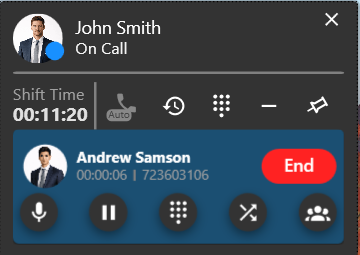
Throughout the outbound call process, the system automatically updates the agent’s availability status based on the call state. For example, the status changes to Dialing when the call is initiated and to On Call once the call is successfully connected.
Blind Transfer
A Blind Transfer allows an agent to transfer an active call directly to another extension, or number without first speaking to the receiving party. Once the call is initiated, transferring agent is disconnected from the interaction.
Steps to perform a blind transfer,
- Click transfer to open the dial pad
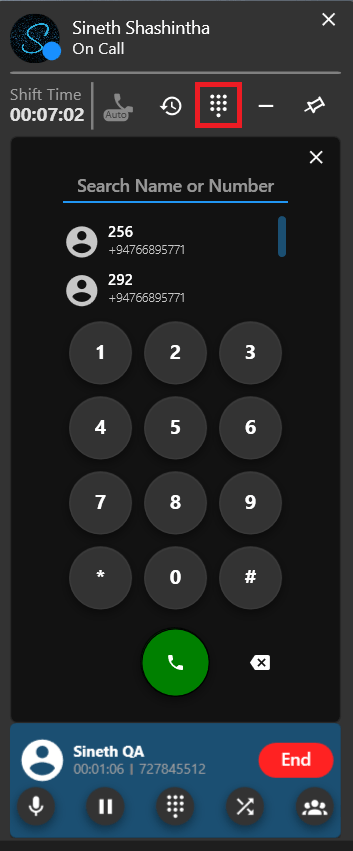
- Enter the number / extension and make the call (Once the call is make, first caller is getting on hold.)
Key characteristics of Blind Transfer
- The original caller is immediately transferred to the selected destination.
- The transferring agent does not speak with the receiving agent before the transfer.
- The transferring agent is disconnected from the call once the transfer is completed.
Attended Transfer
An Attended Transfer allows the agent to talk with second party before transferring the caller. This ensures that the receiving party understands the caller’s request before the call is handed over.
When the agent initiates an attended transfer, the original caller is placed on hold while the agent makes a second call to the intended recipient. During this time, the agent can speak with the second party and explain the caller’s situation.
The system also allows the agent to switch between the two calls if needed. This means the agent can place the second party on hold and return to the first caller to provide updates or gather additional information.
After confirming that the receiving party is ready to take the call, the agent can merge the calls to complete the transfer. Once the calls are merged, agent is disconnected from the call.
Steps to perform an Attended Transfer
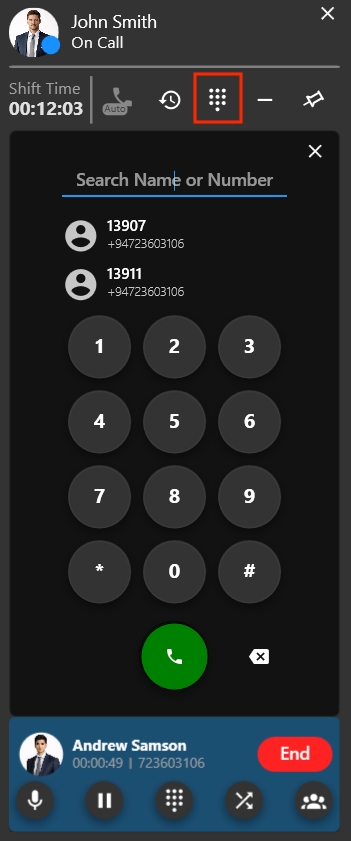
- Open the main dial pad while handling the active call.
-
Enter the destination number and initiate the call to the second party.
- At this stage, the first caller is automatically placed on hold.
- The agent can then speak with the second party to explain the situation.
- If necessary, the agent can switch between both calls, placing one party on hold while speaking with the other.
-
Once the second party confirms, the agent can merge the calls, connecting both parties together.
This approach ensures that the receiving agent is fully informed before the caller is transferred, which helps improve the overall customer experience.
Conference
The Conference feature in the Uniconnect AI Edge Application enables agents to connect multiple participants into a single call, allowing collaborative communicatio. This feature helps resolve complex customer inquiries more efficiently by enabling all relevant participants to communicate within the same interaction.
An agent can create a conference directly from an active call by selecting the Conference option available in the call control panel. This action opens the conference interface, where the agent can add additional participants to the ongoing call, effectively converting the active call into a conference session without interrupting the existing interaction. Once the additional participants are connected, all parties become part of the same conference call and can communicate simultaneously.
Steps to create a Conference
-
Click on the 'Conference' option in call control panel.
-
Once dial pad is opened, enter a number and make the call.
Within the conference interface, the agent has several controls to manage the participants effectively. Key capabilities available in the conference interface include:
-
Adding Participants – The agent can add additional participants to the conference by clicking add participants option and dialing their number.
-
Removing Participants – If a participant (including the agent) is no longer required in the discussion, the agent can remove them from the conference by clicking 'End' button of the participant / agent.
-
Rejoining Participants – When a participant is removed from the conference, a 'Rejoin' button becomes available, allowing the agent to quickly reconnect that participant if necessary.
-
Individual Participant Controls – The agent can mute or place participants on hold individually, enabling better control over the conversation and minimizing interruptions during the discussion.
-
End the Conference - The agent can end conference for all participants by clicking 'End All' button.
-
Mute Option - The agent can mute a participant to temporarily disable their microphone within the conference.
-
Hold Option - A participant can be placed on hold temporarily. When it is enabled, that participant can hear the on-hold music.
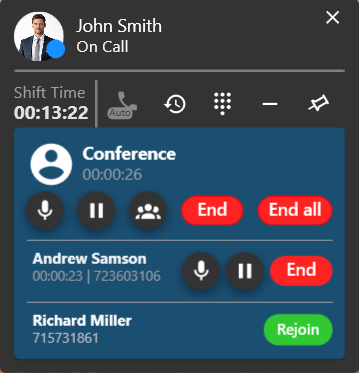
These participant level controls give agents the flexibility to manage conference interactions in a structured and organized way.