Start/End Shift
Shift management plays a critical role in ensuring smooth operations on customer engagement platforms. Clearly defined Shift Start and Shift End actions help align user activity with scheduled work hours, enabling better coordination, accurate tracking, and improved service delivery.
Shift management is supported on both Uniconnect AI Web and Uniconnect AI Edge. After logging into the system, users can start their shift.
Difference Between Shift Start/End and Login/Logout
While both Login/Logout and Shift Start/End are essential functions in Uniconnect AI, they serve different purposes and should not be used interchangeably.
Login / Logout (System Access)
- Controls access to the Uniconnect AI system
- Authenticates the user (security purpose)
- Marks the beginning and end of a system session
- A user can be logged in without actively working
Shift Start / End (Work Activity)
- Defines the user’s actual working period
- Marks when a user is available for operational tasks
- Used for tracking productivity, attendance, and performance
- Typically performed after login and before logout
Login/Logout = System Access
Shift Start/End = Work Tracking
Example Scenario
A user may log in to Uniconnect AI at 8:45 AM but start their shift at 9:00 AM. In this case:
8:45 AM – Login → System access begins
9:00 AM – Shift Start → Work tracking begins
Why This Distinction Matters
- Ensures accurate productivity measurement
- Separates idle/system time from active work time
- Improves operational visibility and reporting accuracy
Users should always:
- Log in to access the system
- Start their shift when they begin work
- End their shift when work is completed
- Log out before leaving the system
Shift Start and Shift End can be performed from both Uniconnect AI Web and Uniconnect AI Edge – Unified Agent Desktop. It is recommended to start your shift immediately after logging into the system to ensure accurate tracking of working hours and productivity.
Uniconnect AI Web:
- Log in to Uniconnect AI via your web browser.
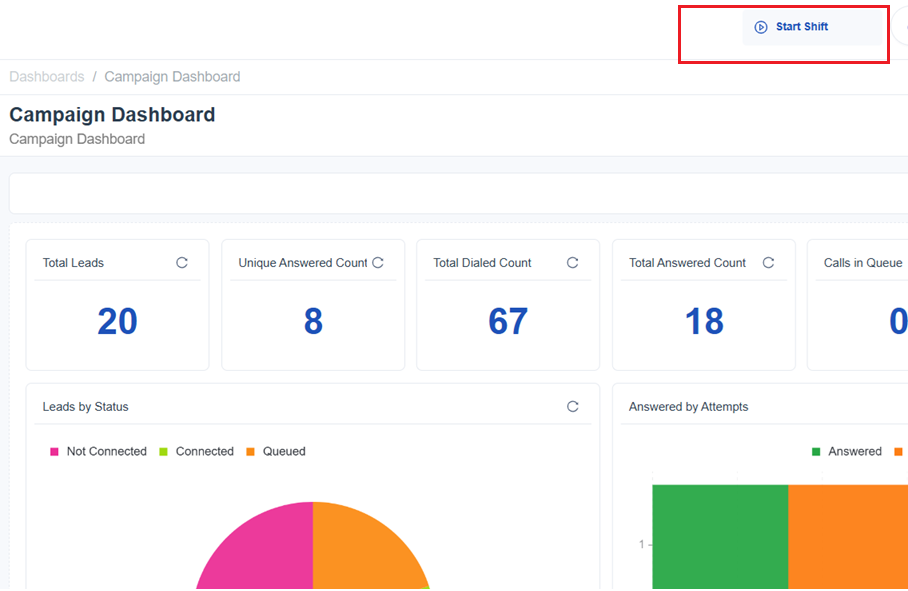
- Navigate to the Shift Panel on the top of the screen.
- Click Start Shift to begin your work session.
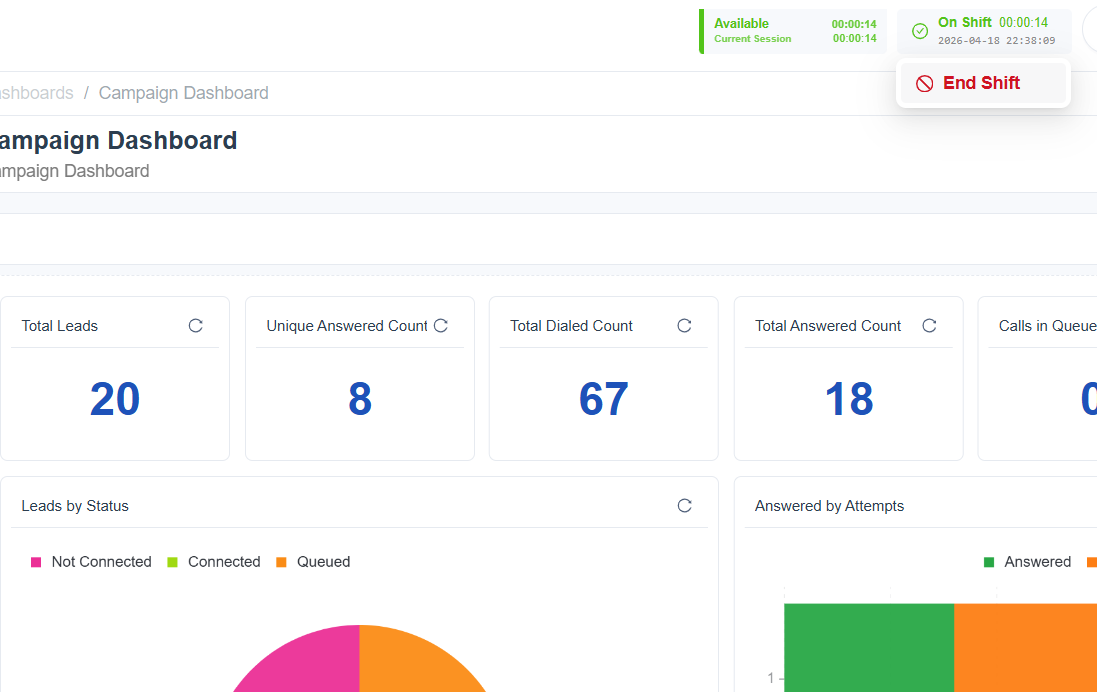
- At the end of your work period, click End Shift.
Shift Continuation and Auto Shift Management
To improve accuracy in workforce tracking and handle real-time user behavior, Uniconnect AI provides intelligent shift management features such as shift continuation, idle detection, and automatic shift handling.
Workforce Configuration
Administrators have control over shift behavior through the Status Management Configuration.
Admins can:
- Enable or disable Status Management features
- Configure Auto Shift End Threshold (in minutes)
- Configure Auto Shift Resume Threshold (in minutes)
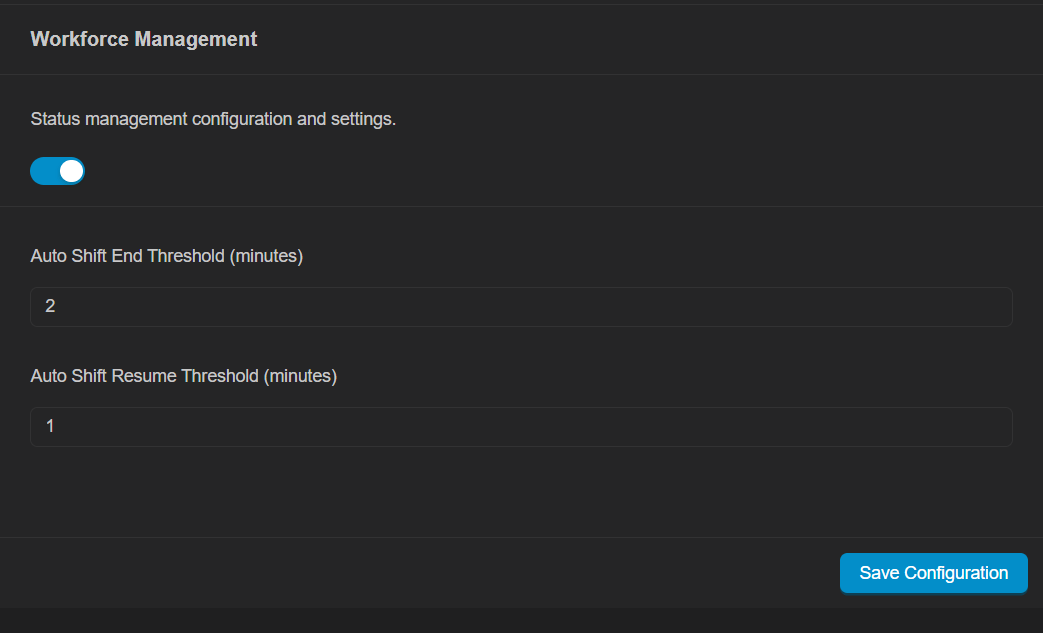
These configurations help define how the system responds to user inactivity and reconnection scenarios.
Idle Detection
The system continuously monitors agent activity based on user interactions and events.
If no activity is detected for a configured period:
- The system identifies the agent as inactive
- A notification popup is displayed:
“You have been offline for X minutes”
“Please confirm your current activity”
This ensures that inactive time is properly handled and not incorrectly counted as active working time.
Shift Continuation Options
When inactivity is detected or when an agent reconnects to the system, the user is prompted with options to manage their shift:
Continue Shift
- Resumes the current ongoing shift
- Updates the agent status back to active
- Useful when the inactivity was unintentional (e.g, short break, connection issue)
Start New Shift
- Ends the previous shift automatically
- Starts a new shift session
- Ensures accurate separation of work periods
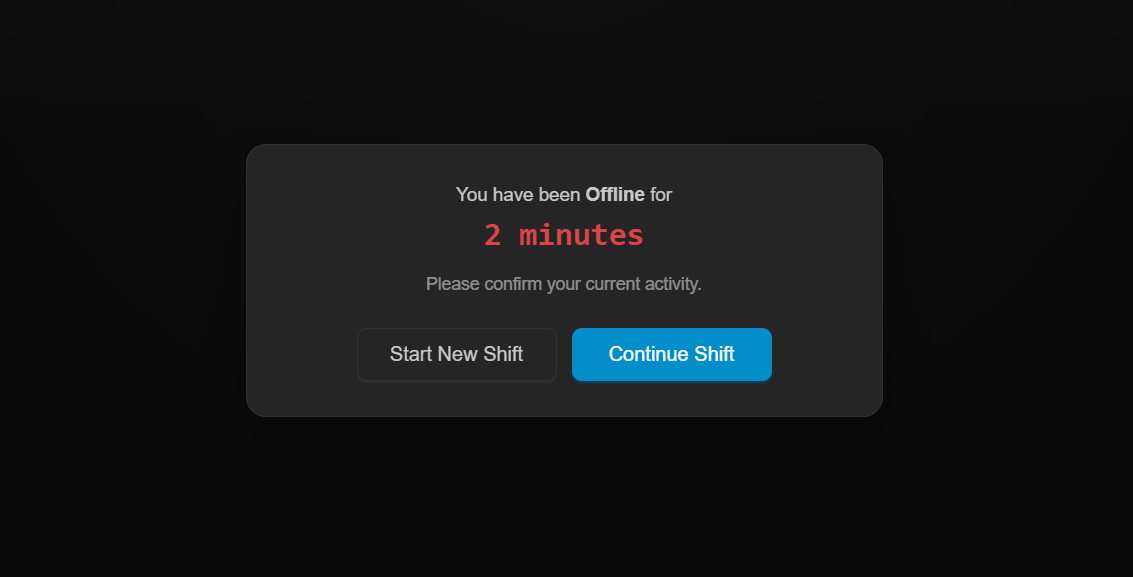
This feature provides flexibility while maintaining clean and reliable work records.
Auto Shift End
If the inactivity duration exceeds the configured Auto Shift End Threshold:
- The system will automatically end the current shift
- The agent status will be updated accordingly (e.g, set to Offline)
This prevents extended idle periods from being recorded as active work time.
Why This Feature Matters
- Prevents incorrect tracking of idle time as productive work
- Ensures accurate shift records without manual intervention
- Improves reporting accuracy and workforce visibility
- Provides flexibility for agents while maintaining system discipline
Uniconnect AI Edge (Unified Agent Desktop):
- Launch Uniconnect AI Edge and log in.
- Click Start Shift to begin your shift.

- Click End Shift once your work is completed.
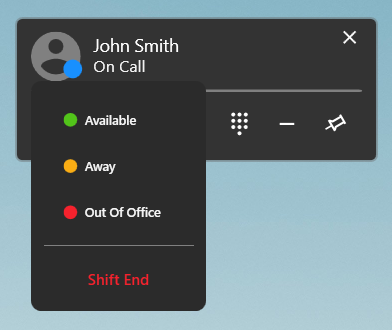
As a general best practice, users are advised to end their shift before logging out of the system. This ensures accurate tracking of work hours and provides clear visibility for workforce management and reporting.
If a user logs out without ending their shift, the shift timer will continue to run in the background. When the user logs back in, they may be prompted to either:
- Continue the ongoing shift, or
- Select and start a new shift
Following the recommended process of ending your shift before logout helps maintain clean records, prevents discrepancies in productivity data, and ensures better operational visibility.