License Details
The License Details page gives administrators a single, clear view of the organization's UNICONNECT AI license. It shows the licensed edition, current status and validity, how many accounts are in use against each limit, the license key and its timeline, the Partner contact, and every module and plugin the license enables.
Because the page reads directly from the active license, it is the first place to check before onboarding new users, planning a renewal, or contacting the Partner.
Accessing License Details
License Details is part of the Monitoring area of the platform.
- Open Monitoring from the main navigation.
- Select License Details from the Monitoring menu.
The Monitoring menu also contains System Information, Logs, CRM Imports, Automations, Active Sessions, Task Queues, Audit Logs, and Campaign Execution.
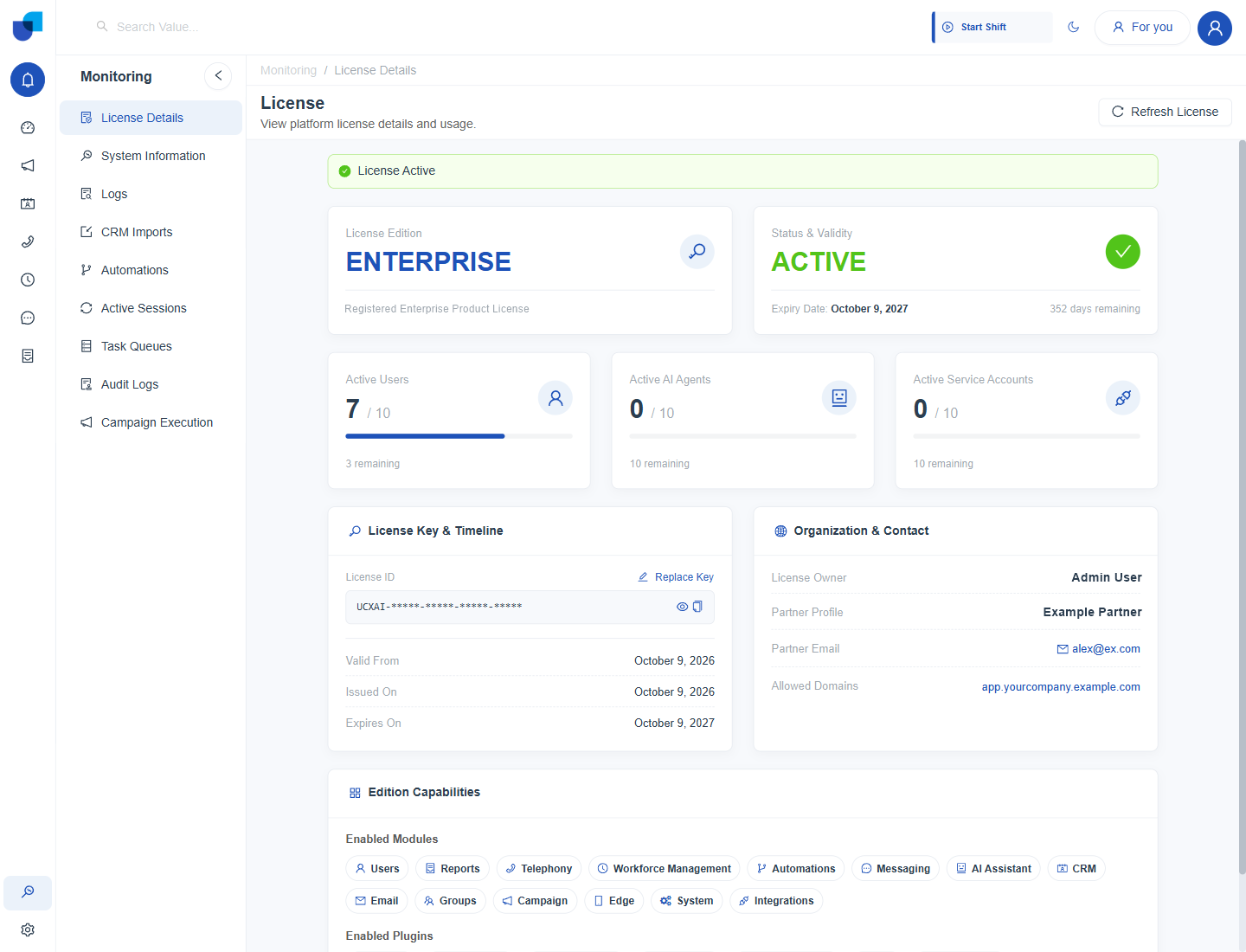 Figure 1. The License Details page, showing the license status, usage, key, Partner contact and edition capabilities.
Page Layout
The page is organized into six areas, from the overall license state at the top to the detailed capabilities at the bottom.
| Area | Purpose |
|---|---|
| License Status Banner | Confirms at a glance that the license is active. |
| License Edition and Status & Validity | Shows the licensed edition, the status, and the expiry date. |
| Usage Cards | Show Active Users, Active AI Agents, and Active Service Accounts against their limits. |
| License Key & Timeline | Shows the masked License ID and the license dates, and provides the Replace Key action. |
| Organization & Contact | Shows the license owner, Partner details, and allowed domain. |
| Edition Capabilities | Lists the enabled modules and plugins. |
License Status Banner
A banner at the top of the page summarizes the overall state of the license. When the license is valid, it reads License Active on a green background.
License Edition and Status & Validity
Two cards sit directly below the banner.
License Edition
Displays the licensed edition in large type, together with a short description of the registered product license. See UNICONNECT AI Editions for what each part of an edition covers.
e.g.
ENTERPRISE
Status & Validity
Displays the current license status, the Expiry Date, and the number of days remaining until that date.
e.g.
ACTIVEExpiry Date: October 9, 2027352 days remaining
Usage Cards
Three cards show how much of each licensed account limit is in use. Each card displays the current count against the limit, a progress bar, and the number of accounts still available.
| Card | Counts |
|---|---|
| Active Users | Human user accounts that are currently active. |
| Active AI Agents | AI Agents that are currently active. |
| Active Service Accounts | Service accounts that are currently active. |
Each type is measured against its own limit, so one card reaching its limit does not affect the others. For example, a card showing 9 / 10 has a progress bar filled to 90% and shows 1 remaining, while a card showing 0 / 10 has an empty bar and shows 10 remaining.
Tip: Check the usage cards before onboarding a new team. When a card shows
0 remaining, the licensed limit for that account type has been reached, and the seat count needs to be increased through the Partner. See Upgrade, Downgrade & Seat Count Adjustment.
License Key & Timeline
This section identifies the license and lists its key dates.
| Item | Description |
|---|---|
| License ID | The license key, masked by default for security. |
| Show / Hide icon | Reveals or hides the full License ID. |
| Copy icon | Copies the License ID so it can be shared with the Partner or support. |
| Replace Key | Opens the Update License Key dialog. See Replacing a License. |
| Valid From | The date the license becomes valid. |
| Issued On | The date the license was issued. |
| Expires On | The date the license expires. |
Info: The License ID is masked until it is revealed, so it is not exposed to anyone viewing the screen. Reveal it only when it is needed, and avoid sharing it outside the organization and its Partner.
Organization & Contact
This section records who the license belongs to and who to contact about it.
| Field | Description |
|---|---|
| License Owner | The person or organization the license is registered to. |
| Partner Profile | The Partner that manages the license on the organization's behalf. |
| Partner Email | The Partner's contact email. Use this address for edition changes, seat count changes, renewals, and replacement keys. |
| Allowed Domains | The domain the license is registered for. |
Edition Capabilities
The lower part of the page lists everything the license enables, in two groups.
Enabled Modules
The platform areas available under the license, such as Users, Reports, Telephony, Workforce Management, Automations, Messaging, AI Assistant, CRM, Email, Groups, Campaign, Edge, System, and Integrations.
Enabled Plugins
The third party integrations the license allows the organization to configure, such as OpenAI, Gemini, ElevenLabs, WhatsApp, 3CX, and the supported email, SMS, speech, and authentication providers.
If a module or plugin is not listed here, it is not part of the licensed edition and cannot be used until the edition changes.
Refreshing the License
Select Refresh License at the top right of the page to reload the latest license information. Use it after the Partner confirms a change to the license, or whenever the figures on the page need to be rechecked.
Quick Reference
| If you need to | Go to |
|---|---|
| Check the edition and expiry date | License Edition and Status & Validity cards |
| See how many seats are left | Usage cards |
| Share the license ID with the Partner | License Key & Timeline, then the Show and Copy icons |
| Find the Partner's contact details | Organization & Contact |
| Confirm a module or plugin is licensed | Edition Capabilities |
| Apply a new license key | Replace Key |