Overview
Configuration › Automation
Automations is the platform's feature for building business processes that run on their own, so the same sequence of checks and actions no longer has to be repeated by hand every time a particular situation comes up. The screen itself describes its purpose plainly: design and monitor automated business processes.
Each automated process is called a workflow. Every workflow is built from two things: a Trigger, the single condition that starts it, and a chain of further steps, Actions, Conditions, Delays, and others, that run once the trigger fires. A workflow can read and write CRM records, send messages, operate AI agents, manage telephony, and reach many other parts of the platform through those steps.
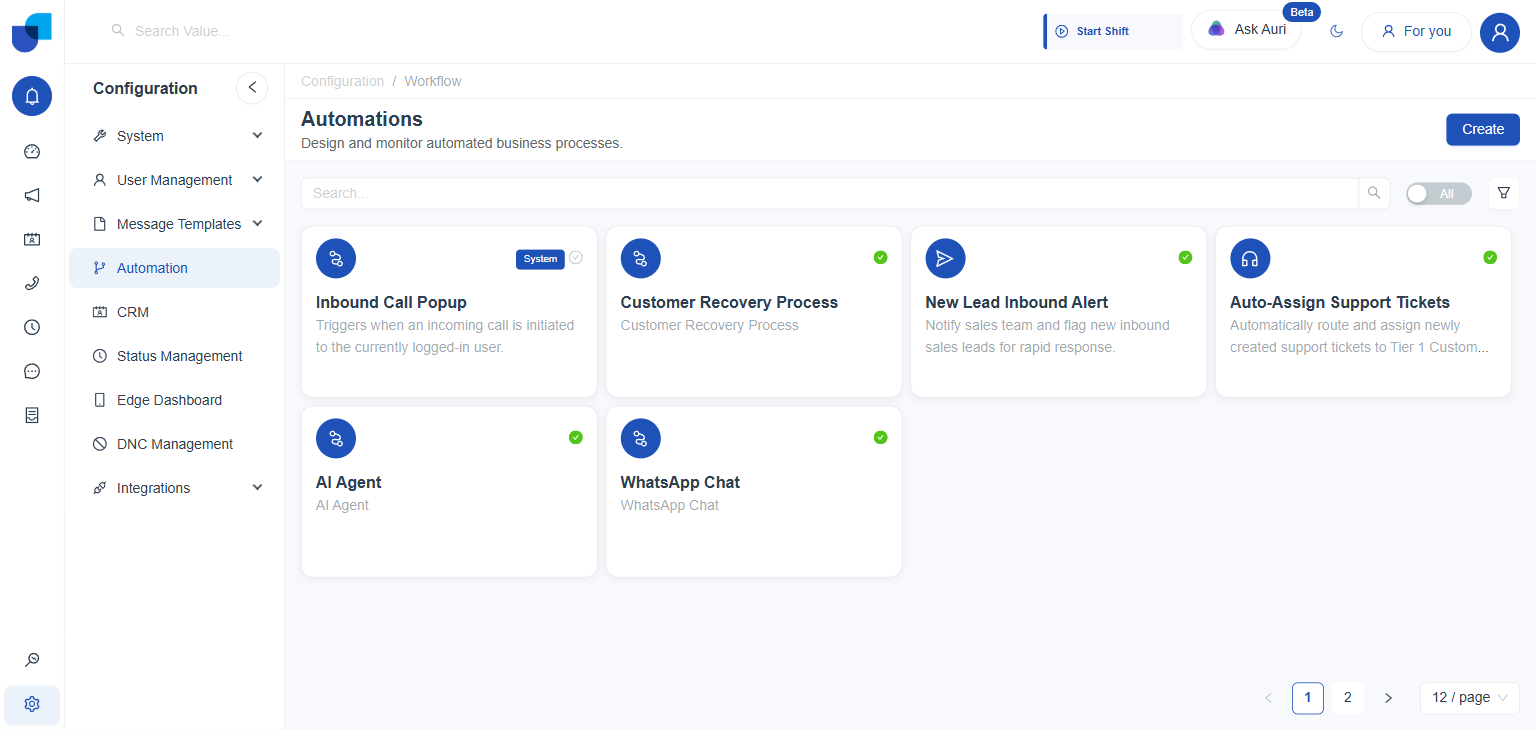
Figure 1: The Automations list. Every saved workflow appears as its own card, with a short description and a status indicator in the corner.
What a Workflow Card Shows
| ELEMENT | MEANING |
|---|---|
| Icon | A visual summary of the workflow's purpose, often matching its primary Action. |
| Title and Description | The name and purpose entered when the workflow was created. |
| Status indicator | A checkmark in the corner shows the workflow is currently active and will process incoming requests. |
| System badge | Marks a workflow that ships with the platform itself, rather than one built by the organization. It can still be opened and reviewed, though it generally cannot be edited or removed. |
Searching and Filtering
Above the card grid sit a search box, an Active or All toggle, a System Workflows Only switch, and a filter icon, all working together to narrow a long list down.
- Search: matches against a workflow's Title as it is typed.
- Active or All: set to All by default, showing every workflow regardless of state; switching to Active narrows the list down to workflows that are currently switched on.
- System Workflows Only: a separate switch, off by default, that narrows the list to workflows carrying the System badge, the ones that ship with the platform itself rather than ones built by the organization. It works alongside Active or All and the filter panel, rather than replacing either.
- Filter: opens a panel with two further conditions, Trigger Type and Status, each independent of the search box and the other two controls above.
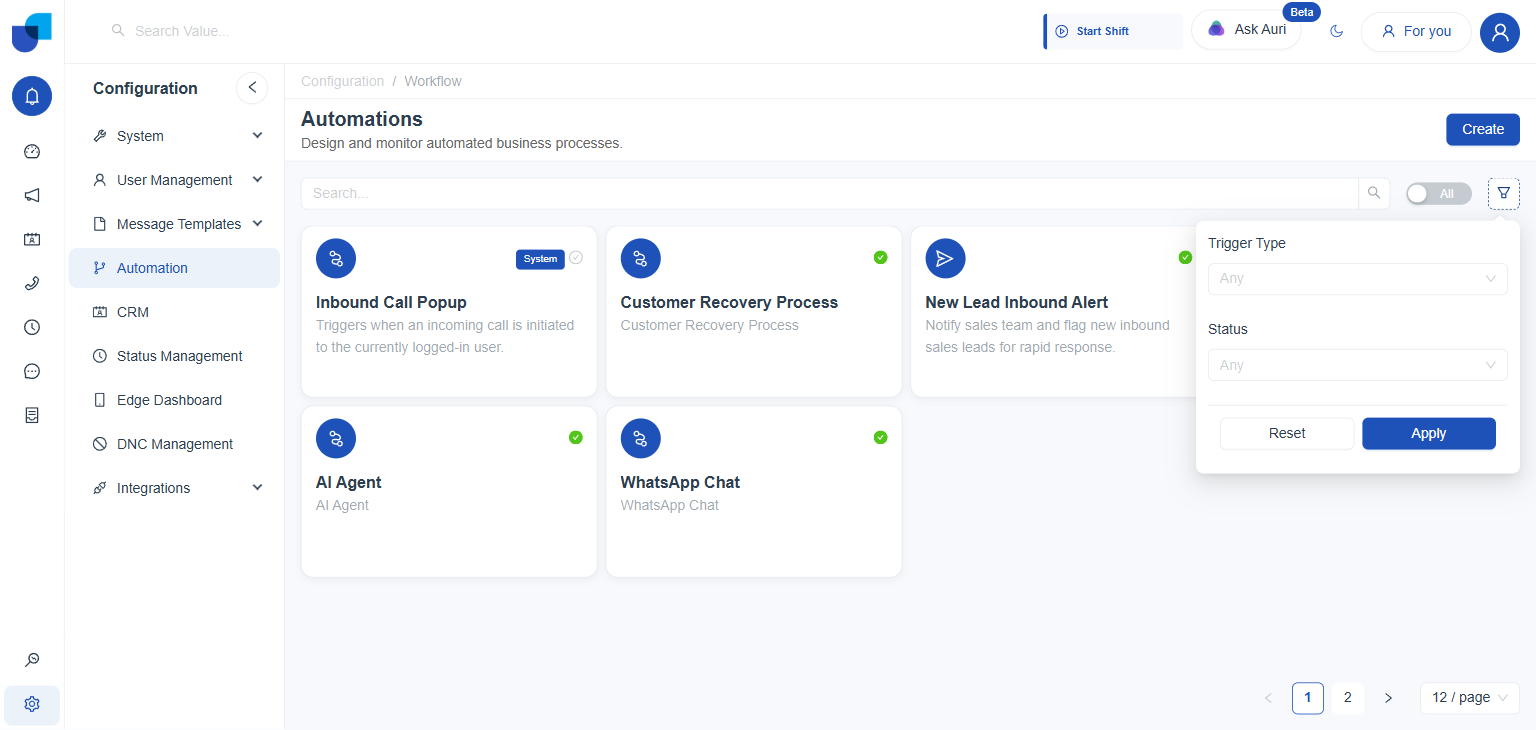
Figure 2: The filter panel. Trigger Type offers Event Based and Scheduled; Status offers the workflow's active state.
Trigger Type here just mirrors the workflow's original Event Based or Scheduled choice. That choice locks in at creation and can never change.
Where This Fits
Building a workflow is only half of Automations. Once a workflow is active, its individual runs, successes, delays, and failures alike, are tracked separately, under Monitoring rather than Configuration, together with a registry health check that flags workflows whose configuration has drifted out of step with the CRM modules they depend on. Those monitoring screens are covered in their own, separate documentation.