Schedule-Based Workflows
Configuration → Automation → a workflow → Designer
A Schedule-Based workflow runs on a recurring timetable instead of waiting for something to happen elsewhere in the system: every fifteen minutes, once a day, once a week, or on any other interval expressed as a schedule. Choosing Schedule-Based at creation changes what the workflow's Trigger node configures, replacing an event picker with a schedule builder.
Configuring the Schedule
- Open the workflow's Trigger node and click its edit icon.
Opens the Edit trigger Node panel, showing a Schedule Configuration section in place of the Module and Triggers list an Event-Based trigger would show. - Read the Current Schedule summary.
States the schedule in plain language, for example runs daily at 12:00 AM, together with the exact Cron Expression behind it. - Choose Quick Presets or Custom Schedule.
Two tabs inside the same panel; Quick Presets covers common intervals in one click, Custom Schedule builds a schedule from individual fields instead. - Click Save.
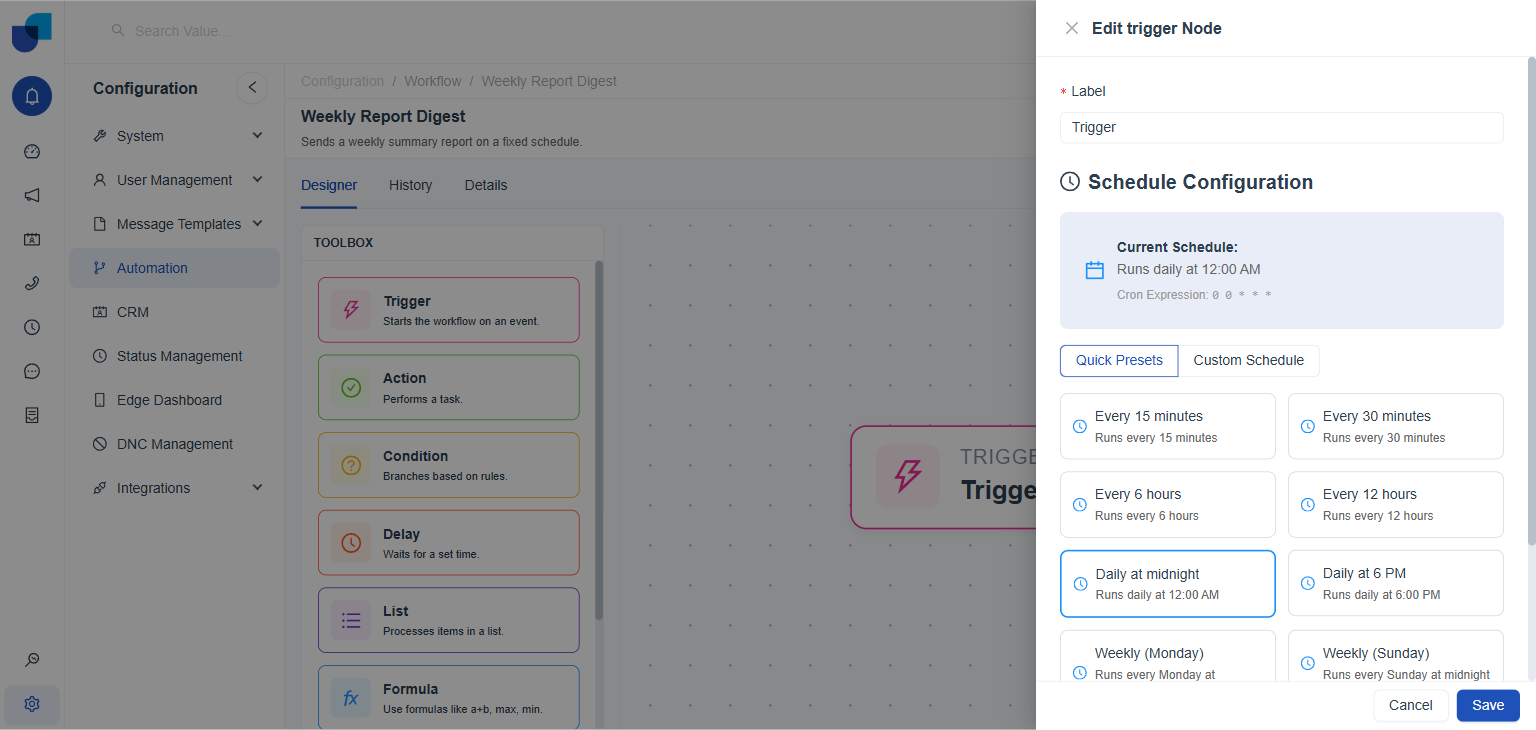
Figure 1. Schedule Configuration, open on Quick Presets. Daily at midnight is selected, shown by its blue outline, matching the Current Schedule summary above.
Switching from Quick Presets to the Custom Schedule tab silently recalculates the schedule, even before anything on the Custom Schedule form is touched. A workflow saved as Daily at midnight (cron 0 0 * * *) was confirmed to change to noon (cron 0 12 * * *) the moment Custom Schedule was opened, before Save was clicked. Always check the Current Schedule summary and Cron Expression again after opening Custom Schedule, even if you only meant to look, and before clicking Save.
Quick Presets
Ten ready made intervals cover the schedules most workflows actually need, each selectable in a single click.
| PRESET | RUNS |
|---|---|
Every 15 minutes | Every 15 minutes, around the clock. |
Every 30 minutes | Every 30 minutes, around the clock. |
Every 6 hours | Every 6 hours, around the clock. |
Every 12 hours | Every 12 hours, around the clock. |
Daily at midnight | Once a day, at 12:00 AM. |
Daily at 6 PM | Once a day, at 6:00 PM. |
Weekly (Monday) | Every Monday, at midnight. |
Weekly (Sunday) | Every Sunday, at midnight. |
Monthly (1st) | On the first day of every month. |
Yearly (Jan 1st) | On January 1st, every year. |
Custom Schedule
When none of the presets fit, Custom Schedule builds a schedule from its own fields instead, starting with a Frequency.
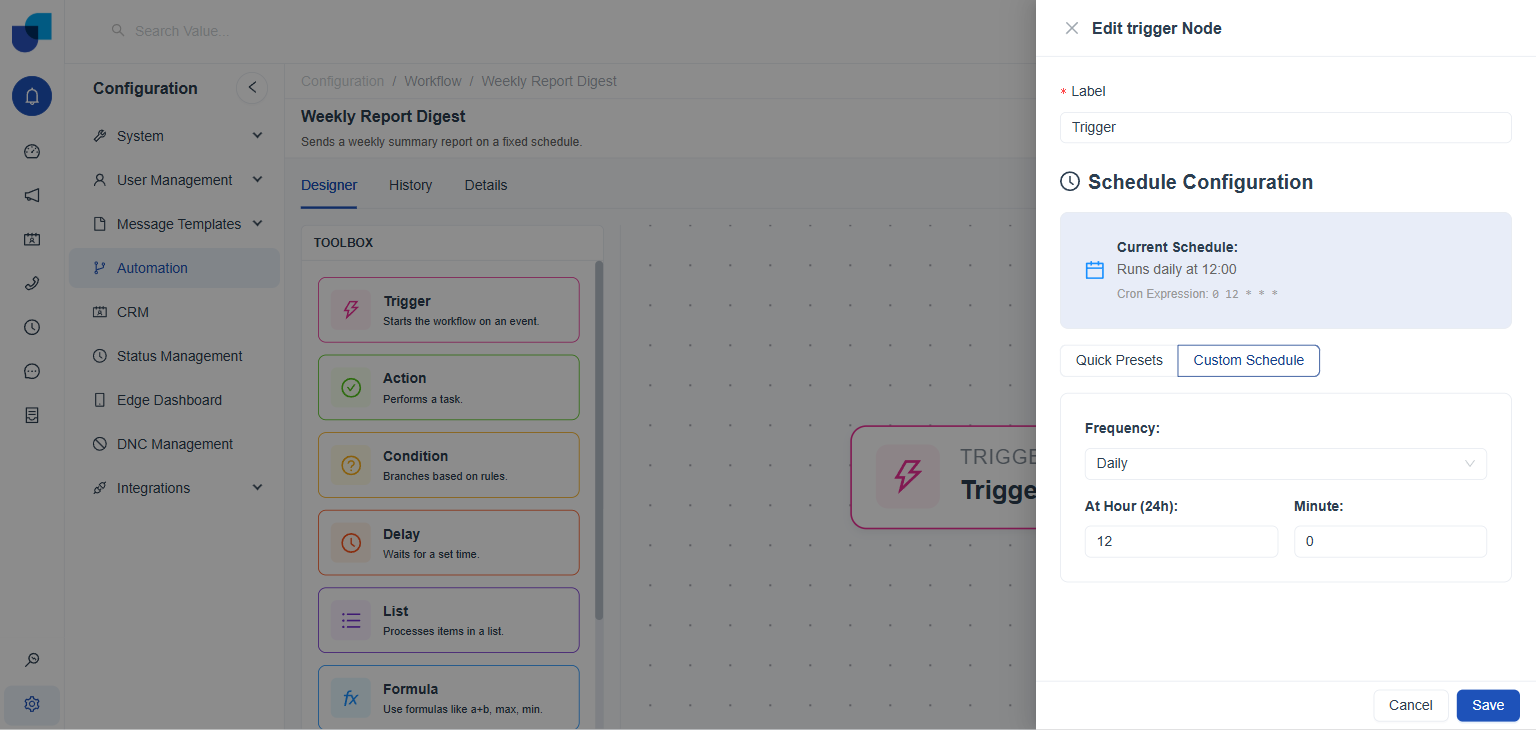
Figure 2. Custom Schedule, set to Daily, asking for the Hour and Minute the workflow should run at.
- Frequency: the base interval, such as Daily, that the remaining fields refine.
- At Hour (24h): the hour of day the workflow runs at, on a 24 hour clock.
- Minute: the minute within that hour.
Whichever method is used, Quick Presets or Custom Schedule, the result is always expressed the same way underneath: as a Cron Expression, shown in the Current Schedule summary, confirming exactly when the workflow will run next. Because switching tabs can itself change that Cron Expression (see the warning above), treat the Current Schedule summary as the thing to check, not the tab you happened to leave selected.
Date Range and Scheduled Workflows
Set Date Range, available on every workflow regardless of Trigger Type, interacts directly with a schedule. With Date Range left Disabled, a Schedule-Based workflow keeps running on its interval indefinitely, for as long as the workflow itself stays Active. With Date Range Enabled, the workflow still follows its schedule, but only fires within the Start Date and End Date set; outside that window, each scheduled run is simply skipped.
On the main Automations list, opening the filter panel and setting Trigger Type to Scheduled narrows the list down to workflows built this way, useful for reviewing every recurring process in the system at a glance.