Event-Based Workflows
Configuration → Automation → a workflow → Designer
An Event-Based workflow starts the moment something specific happens elsewhere in the system: a record is created in a CRM module, a call connects, a message arrives, and so on. It is the default Trigger Type offered when a workflow is created, and the one most workflows in the system actually use.
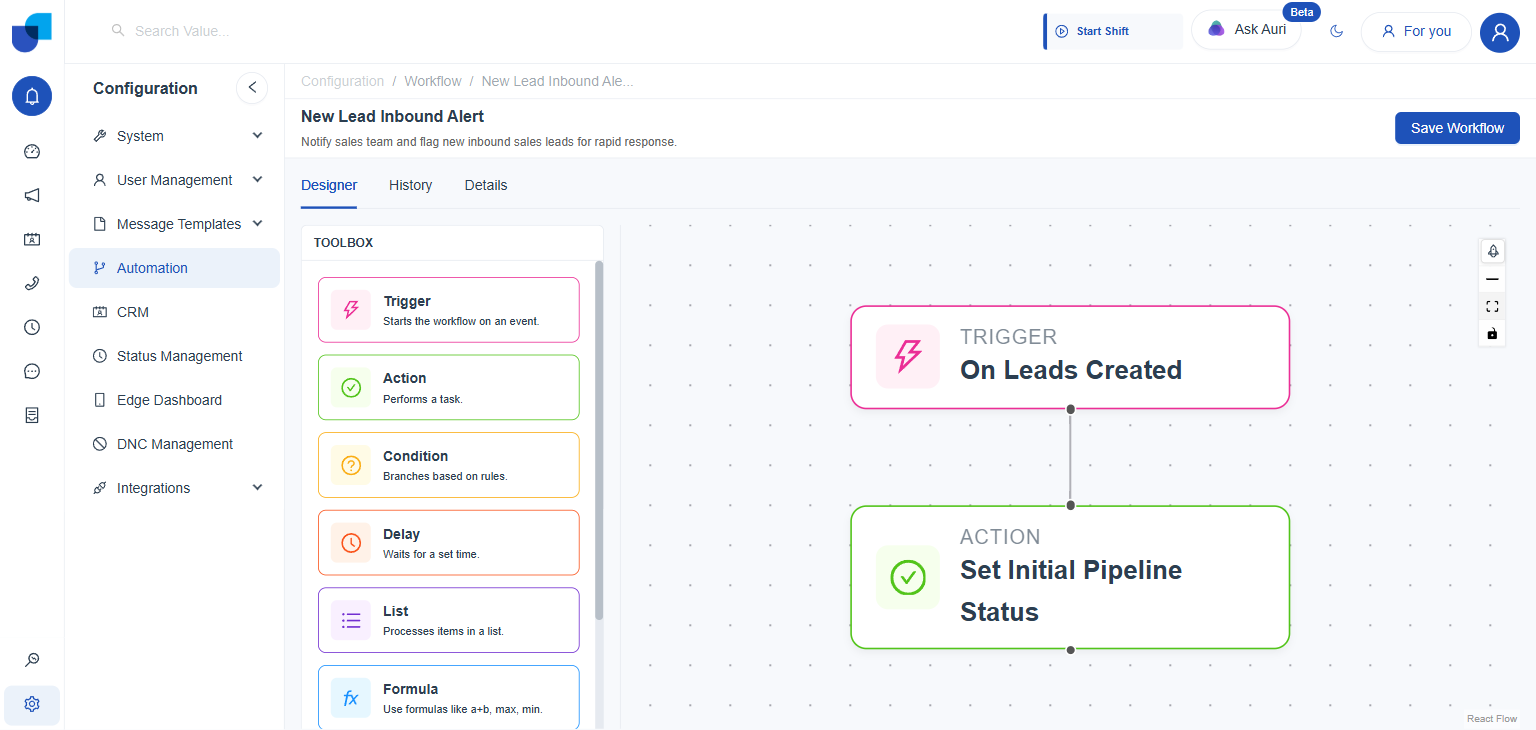
Figure 1. A real Event-Based workflow: the Trigger, On Leads Created, fires whenever a new Leads record is created, immediately running the Set Initial Pipeline Status action.
Configuring the Trigger
- Open the workflow's Trigger node and click its edit icon.
Opens the Edit trigger Node panel. - Filter by Module, or search by name.
Module chips list every module in the system, including every CRM module, plus system categories such as Telephony, Campaign, and AI Configuration. The search box filters by the trigger's own name instead. - Pick a trigger from the Triggers list.
Each entry shows its name, its module, and a short description of what fires it. - Click Save.
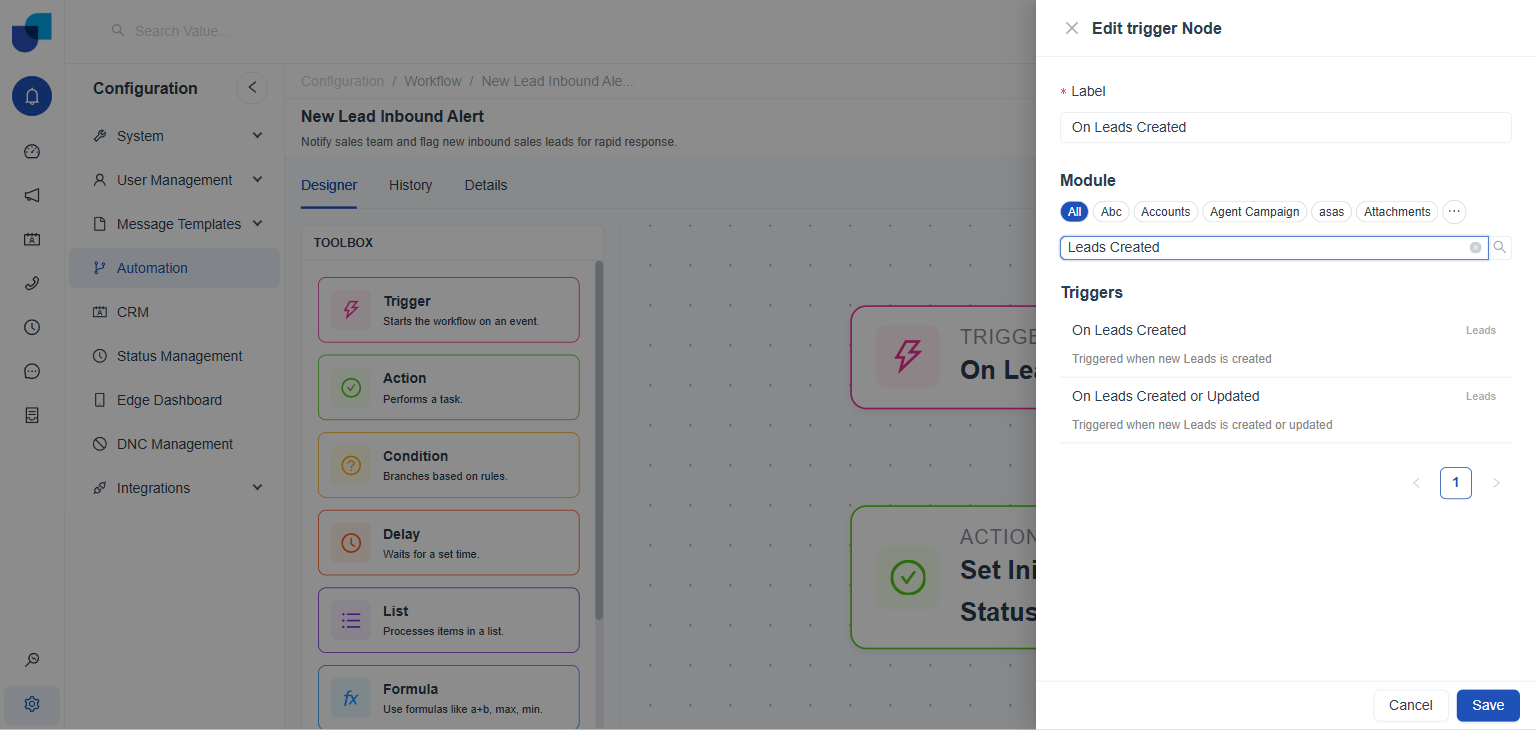
Figure 2. The Edit trigger Node panel, filtered to Leads. On Leads Created and On Leads Created or Updated are the two options this module offers.
The Trigger Catalog
The full list of available triggers is large, running across many pages, since nearly every CRM module automatically receives its own set of record based triggers. Confirmed directly in the live picker, the unfiltered catalog runs to 112 triggers across 12 pages at the default page size, so scrolling through it from the top is rarely the fastest way to find one.
| PATTERN | FIRES WHEN |
|---|---|
On [Module] Created | A new record is created in that module. |
On [Module] Updated | An existing record in that module is changed. |
On [Module] Created or Updated | Either of the two above, in one combined trigger. |
On [Module] Deleted | A record in that module is removed. |
Alongside this per-module pattern, a number of system level triggers cover events that are not tied to a single CRM module, such as telephony status changes, for example On 3CX Queue Login Status Changed and On 3CX Status Changed.
With 112 triggers spread across 12 pages, use the Module filter chips or the name search box instead of paging through the list. Filtering to a single module, or searching for a word from the trigger's name, usually lands on the right one in a single step.
Picking Created or Updated instead of the two separate triggers is useful whenever a workflow's following steps do not need to know which of the two actually happened, since it covers both in a single node rather than two parallel ones.
Finding Event-Based Workflows Later
On the main Automations list, opening the filter panel and setting Trigger Type to Event Based narrows the list down to workflows built this way, which is useful once a large number of workflows, Event-Based and Schedule-Based alike, are in place together.