Active Directory (AD) Integration User Manual
1. Overview
Feature Name
Active Directory (AD) Integration
Purpose
The Active Directory Integration plugin enables centralized user authentication and user management by connecting the system to a Microsoft Active Directory (AD) or LDAP server.
After successful integration, administrators can:
- Authenticate users using their AD credentials
- Synchronize user accounts from Active Directory
- Automatically create new users in the system
- Update existing user information when changes occur in AD
- Perform manual user synchronization whenever required
2. Prerequisites
Before configuring the plugin, ensure the following information is available:
| Parameter | Description |
|---|---|
| LDAP Server URL | AD/LDAP server address |
| AD Domain | Active Directory domain name |
| Base DN | LDAP search base |
| LDAP Account | Service account used for LDAP connection |
| LDAP Password | Password of the service account |
Example Configuration
| Field | Example |
|---|---|
| LDAP Server URL | ldap://ad.example.com:389 |
| AD Domain | example.com |
| Base DN | DC=example,DC=com |
| LDAP Account | ldapadmin |
| LDAP Password | ******** |
3. Configuring LDAP Authentication
Navigate to:
Configuration → Plugins → LDAP Authentication
The LDAP Authentication configuration screen will be displayed.
LDAP Configuration Fields
LDAP Server URL
Enter the LDAP server endpoint.
Examples:
ldap://ad.example.com:389
or
ldaps://ad.example.com:636
AD Domain
Specify the Active Directory domain name.
Example:
example.com
Base DN
Specify the Base Distinguished Name used to search users.
Example:
DC=example,DC=com
LDAP Account
Enter the LDAP bind account username.
Example:
ldapadmin
LDAP Password
Enter the password for the LDAP bind account.
Example:
********
Enable LDAP Authentication
- Enable the LDAP Authentication toggle.
- Enter all required LDAP configuration details.
- Click Save Configuration.
The system validates the connection with the Active Directory server.
4. AD Authentication Process
After successful configuration:
-
User enters username and password on the login page.
-
System sends authentication request to Active Directory.
-
Active Directory validates the credentials.
-
If authentication succeeds:
- User is granted access to the system.
-
If authentication fails:
- Login is denied.
5. User Synchronization
Purpose
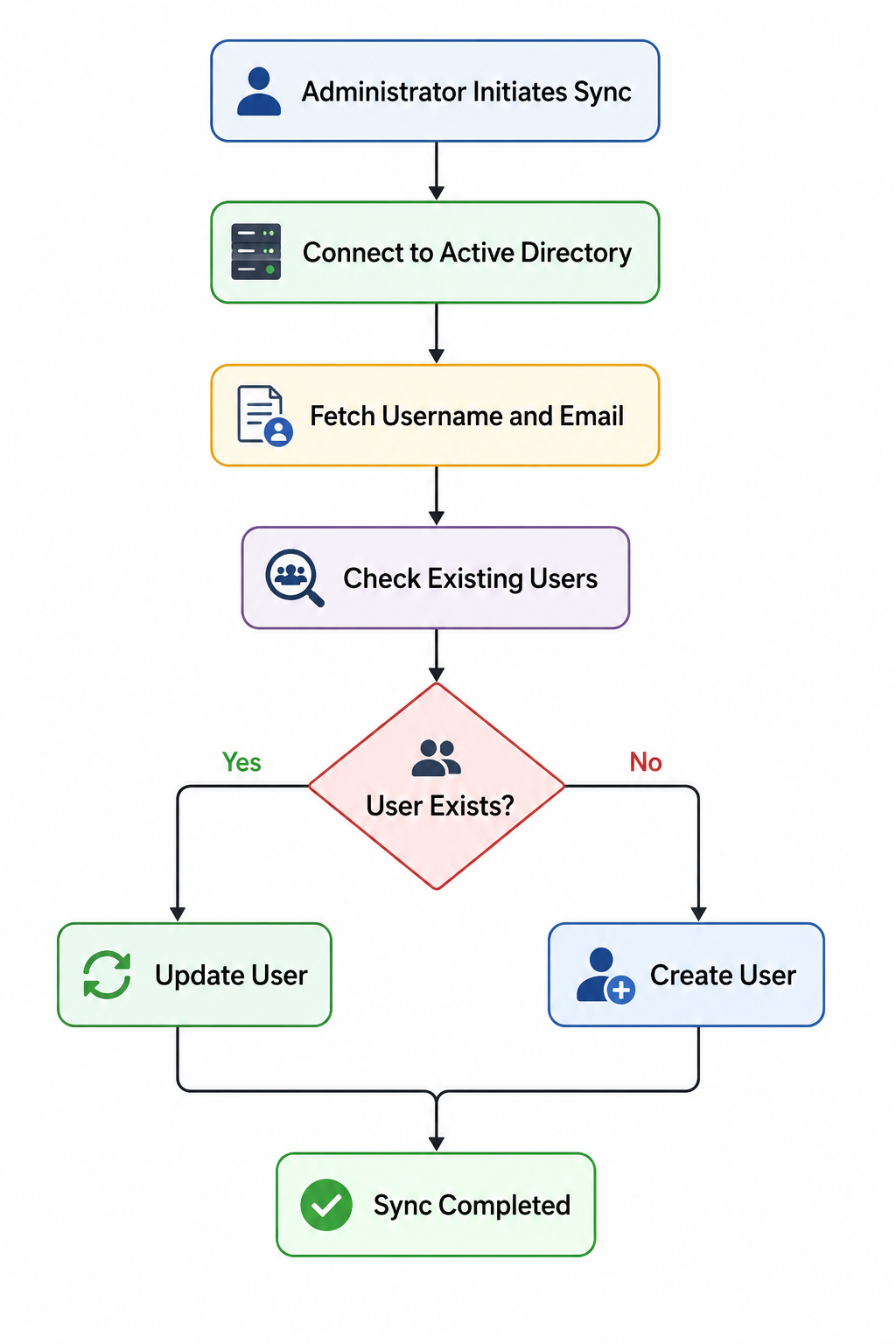
User synchronization imports user accounts from Active Directory into the system.
Synchronization can be performed only after successful AD integration.
Data Retrieved from Active Directory
The system fetches only the following user attributes:
| Active Directory Field | System Field |
|---|---|
| Username | Username |
| Email Address |
No additional user attributes are synchronized.
6. User Creation Rules
Create New User
A new user account is created when:
- Username does not exist in the system.
- Email does not exist in the system.
Result
New user account created automatically.
7. User Update Rules
Update Existing User
An existing user account is updated when:
- A matching user is found based on username or email.
And:
- Username has changed in Active Directory
or
- Email address has changed in Active Directory
Result
Existing user information is updated with latest Active Directory values.
8. Synchronization Modes
Manual Synchronization
Administrators can manually trigger synchronization at any time.
Steps
- Navigate to:
Configuration → Plugins → LDAP Authentication
- Click Sync Users.
- System connects to Active Directory.
- User records are imported and updated according to synchronization rules.
- Synchronization summary is displayed.
Example Summary
Users Found: 150
New Users Created: 12
Users Updated: 8
Failed Records: 0
9. Synchronization Workflow
10. Expected Outcomes
After successful AD integration:
- Users can log in using Active Directory credentials.
- User accounts can be synchronized from Active Directory.
- New users are automatically created during but manually need to synchronize.
- Existing users are updated when Active Directory information changes.
- Username and Email are synchronized from Active Directory.
- Administrators can manually trigger synchronization whenever required.