Configuring CRM Permissions
Configuration › User Management › Roles
Permissions determine who can view, create, edit, and delete records, and who can modify a CRM module's own configuration. Permissions are defined on a Role rather than on an individual person: a Role is built once with a complete set of permissions, and every user assigned that Role inherits exactly what it grants. This page walks through every part of it using the CRM Manager role and the Products module as the examples throughout.
Opening a Role
Every permission on this page belongs to a Role. Roles are managed from a dedicated screen, separate from the CRM module configuration pages covered elsewhere in this guide.
- Go to Configuration → User Management → Roles. Lists every Role already set up, each tagged with how many permissions it currently has, e.g. "CRM Manager, 66 permissions set." The Search field above the list filters this list by Role name.
- Click an existing Role to open it, or click Create for a new one. Creating one opens the same editor, just blank: Role Name is required, and every permission category starts at 0 permissions set.
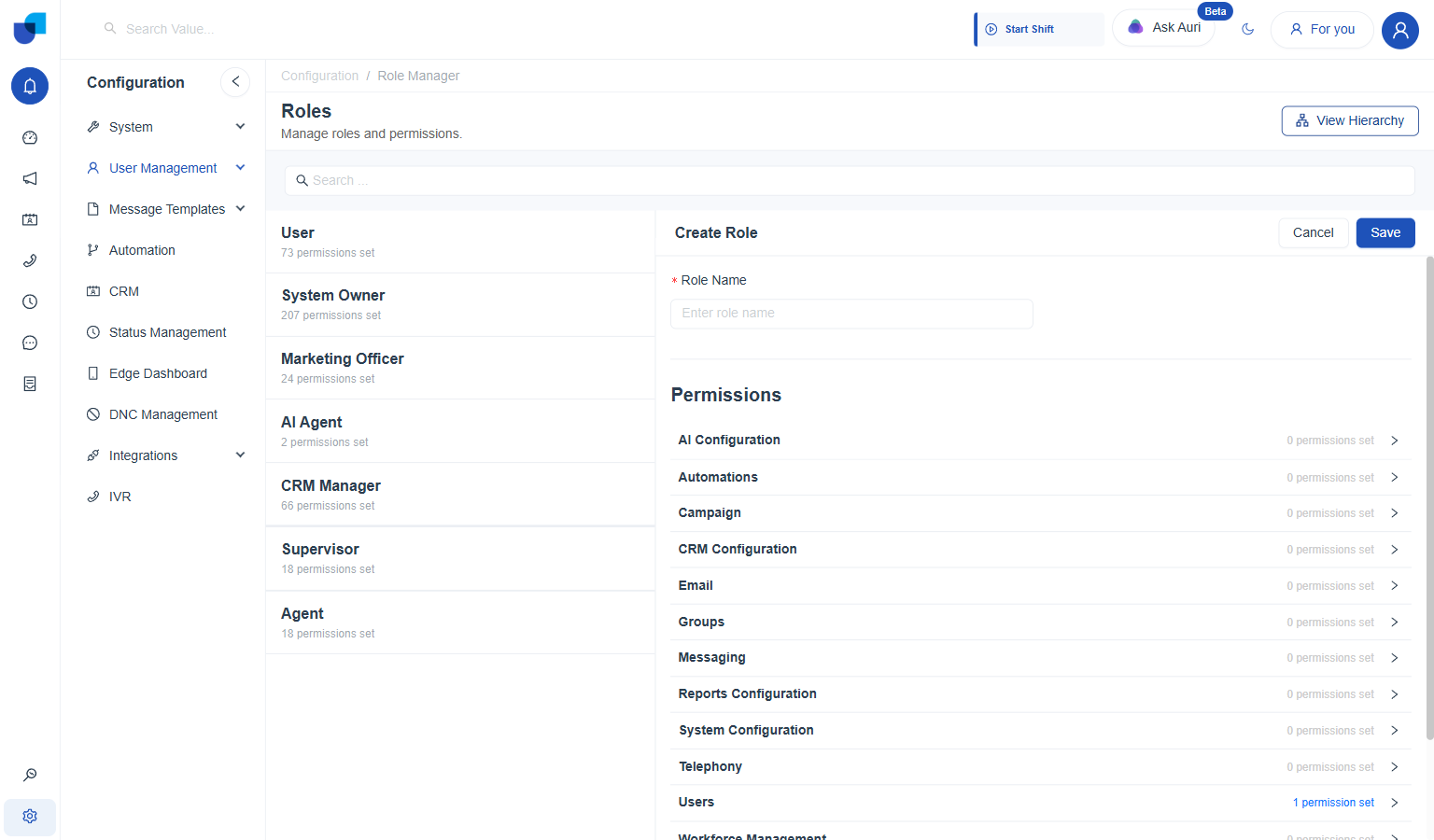
A newly created Role: no permissions are granted until explicitly configured.
- Name the Role. Role Name is the only required field; it is displayed later when this Role is assigned to a user.
- Open a permission category. Permissions are grouped into categories, AI Configuration, Automations, Campaign, CRM Configuration, Email, Groups, Messaging, Reports Configuration, System Configuration, Telephony, Users, Workforce Management, and CRM Modules. Clicking a category's row expands it in place.
- Click Save, once the permissions needed are set. Located at the top right, next to Cancel and, on an existing Role, Delete.
The two categories that govern CRM specifically, CRM Configuration and CRM Modules, are covered in full below; the remaining categories belong to other parts of the system.
CRM Configuration Permissions
Determines whether this Role can modify a CRM module's own configuration: creating new modules, module fields, and module layouts. This represents the administrative side of CRM, distinct from working with the records inside a module.
- Expand CRM Configuration. Reveals four independent Yes/No switches, all off by default on a new Role.
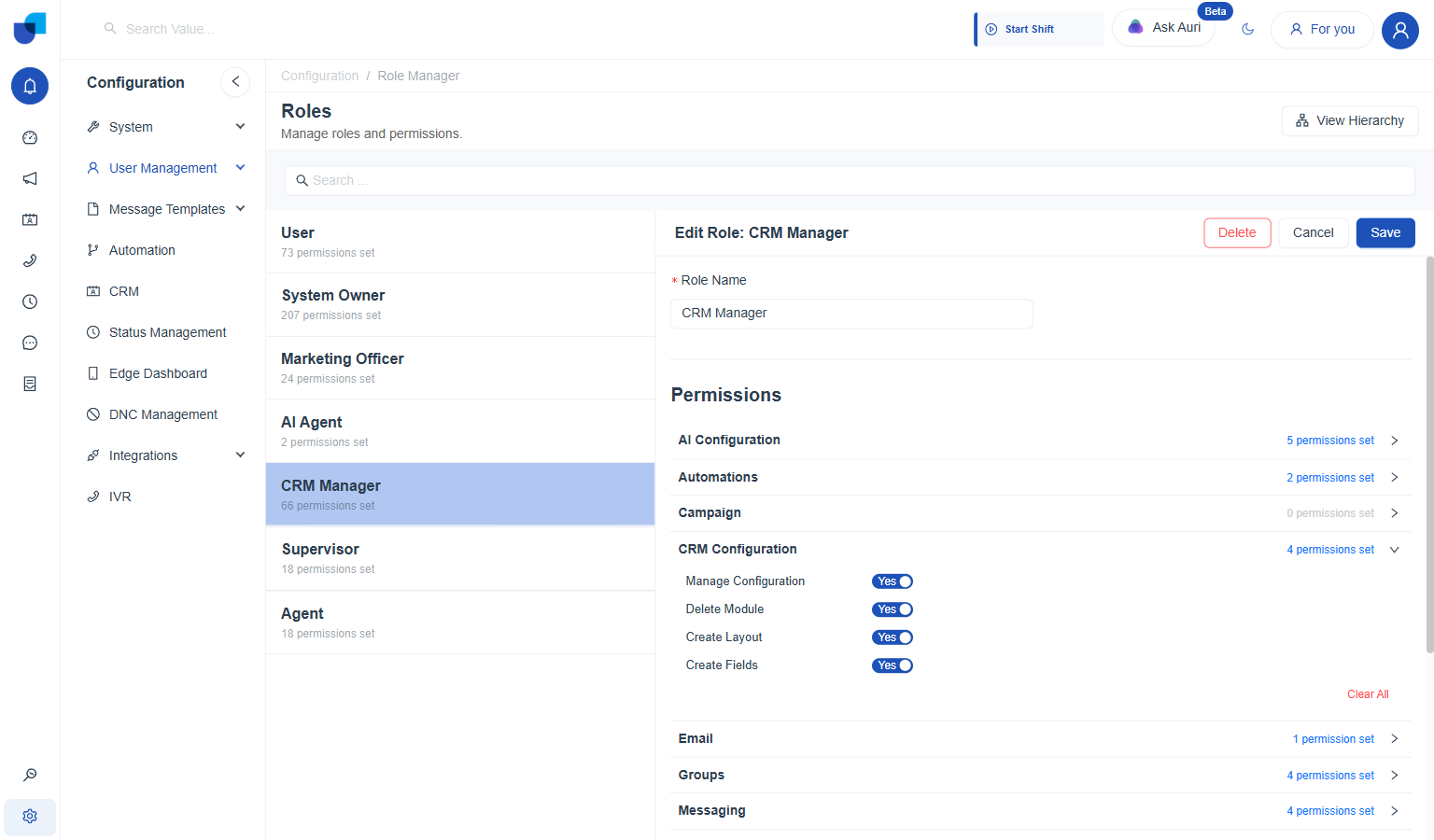
| Permission | What it allows |
|---|---|
Manage Configuration | Create a new CRM module and edit an existing one's own Module tab. |
Delete Module | Permanently delete a CRM module, fields, layouts, and all its data included. |
Create Layout | Build and save Detail Page, Index Page, Form, and Summary layouts on the Layout Builder tab. |
Create Fields | Add, edit, and remove fields on the Fields tab. |
None of these four control access to records themselves; that function belongs to CRM Module Permissions, covered below. A Role with every CRM Configuration permission enabled could still be entirely blocked from viewing or editing a single Products record.
CRM Module Permissions
Determines what this Role can do with the records inside each individual CRM module, including Products, with one row per module.
- Expand CRM Modules. Lists every CRM module as its own row, with Create, Update, View, and Delete columns, plus a Clear link and a Clear All for the whole table.
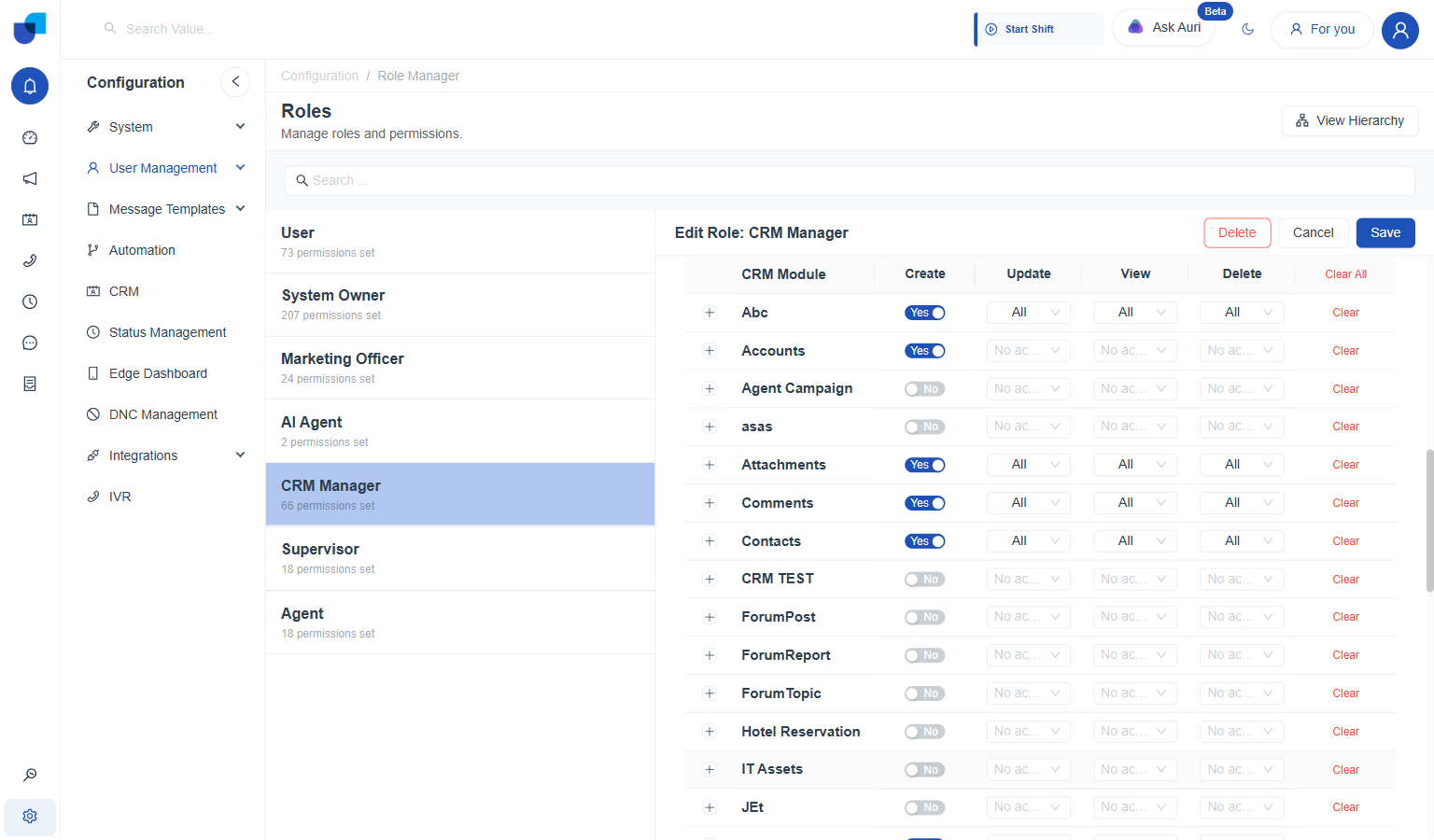
- Toggle Create for a module. A plain Yes/No switch: whether this Role can add a new record to that module at all.
- Set an access level for Update, View, and Delete. Each is its own dropdown offering three levels, in addition to remaining unset.
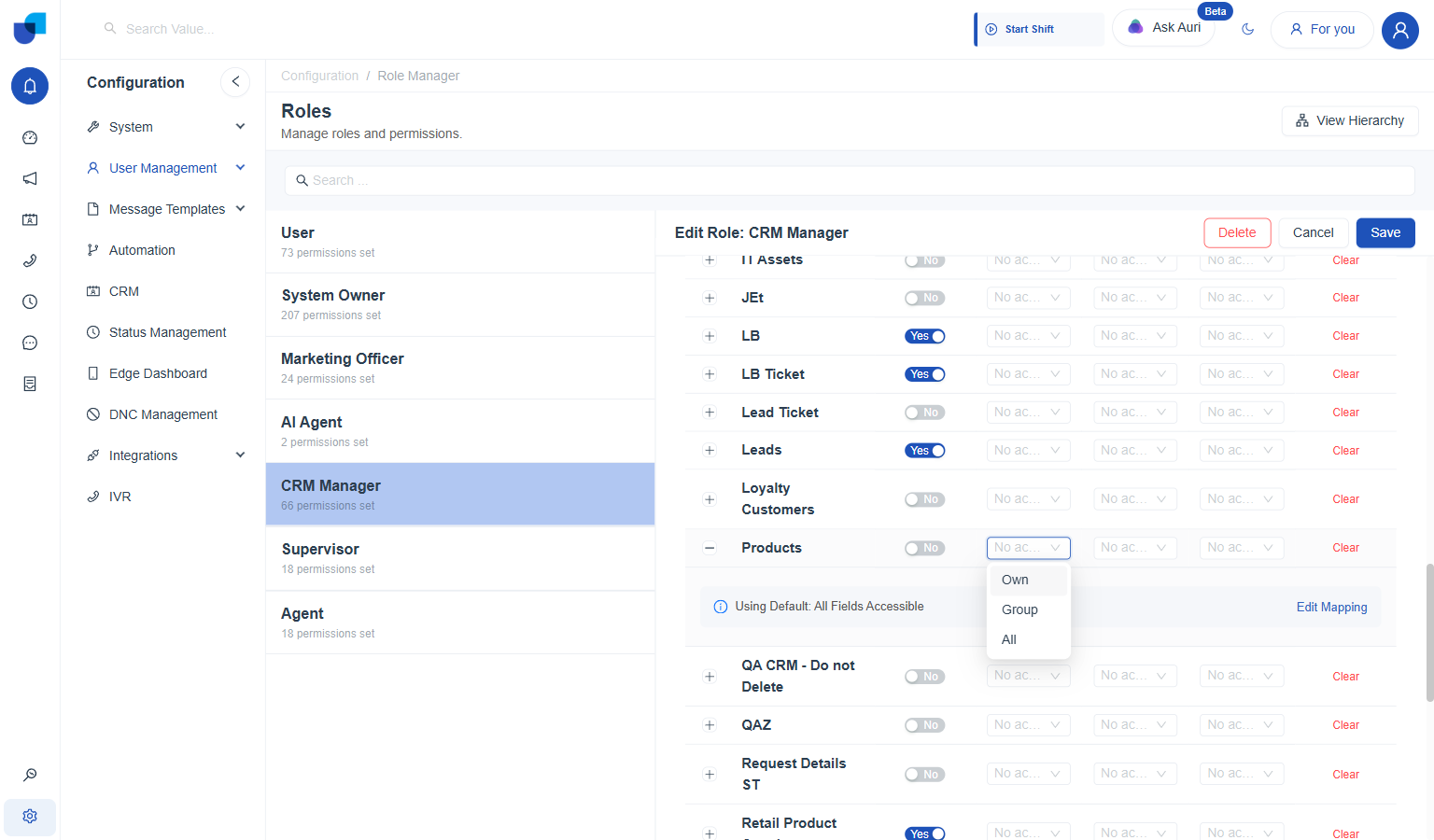
Own, Group, and All; leaving the dropdown untouched keeps it at No access.
| Access level | Meaning |
|---|---|
No access | The default, unset state; this action is not available on this module. |
Own | Only records created by this user. |
Group | Records created by anyone in this user's own Group. |
All | Every record in the module, regardless of who created it. |
- Clear a single module's permissions, if needed. The red Clear link on that row resets Create, Update, View, and Delete back to off, in one click.
- Clear every module at once, if starting over. Clear All, at the top right of the table, resets the whole CRM Modules category.
Not every module in this list uses Own, Group, All. A handful carry a simpler Yes/No switch on all four actions instead, with no field level mapping beneath those switches. Products and most custom built modules receive the full Own, Group, All treatment described above.
Field Level Permissions
Beneath each module's own row, access can be narrowed further, down to individual fields. Left alone, a module defaults to every field being fully accessible.
- Click the row's own expand arrow. Located to the left of the module name, e.g. Products. Reveals a note reading "Using Default: All Fields Accessible," with its own Edit Mapping link.
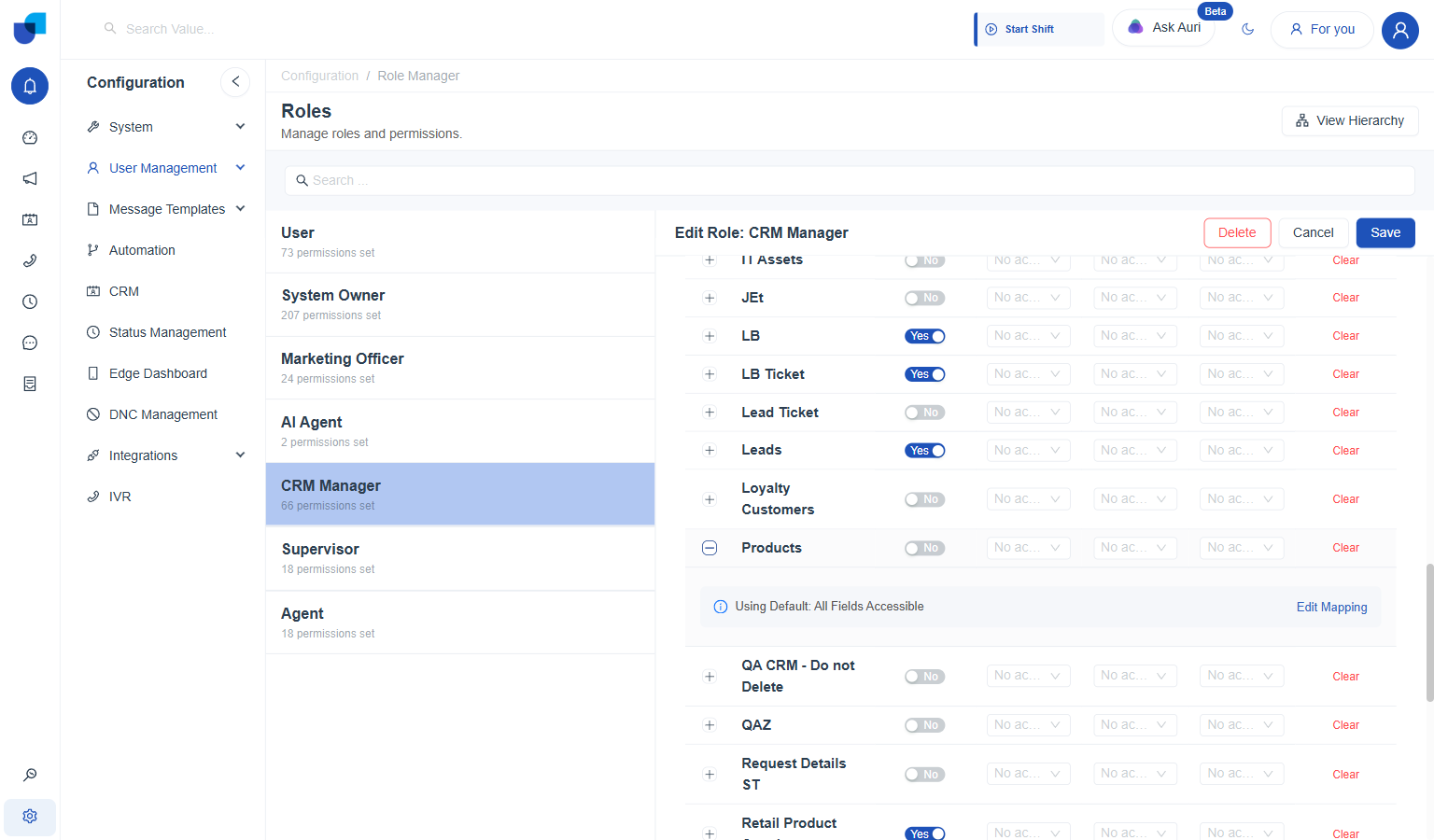
- Click Edit Mapping. Opens a second table, this time one row per field on the module instead of one row per module.
Category, Subcategory, and Primary Contact can each be set independently; system fields only offer a View level.
- Set Create, Update, and View per field. The same Yes/No switch for Create, and the same Own, Group, All dropdown for Update and View, scoped to that one field instead of the whole module. There is no field level Delete; a record is deleted in its entirety.
System fields, such as Created By, Created At, and Updated At, show a dash under Create and Update: the system populates these automatically, so there is nothing to permit there. View still applies, controlling whether this Role can see that field's value.