Overview
Campaign is the platform feature for reaching a group of contacts through an outbound channel, voice calls, SMS, WhatsApp, or email, as one organized effort rather than one contact at a time. Each organized effort is called a campaign, and every campaign has a lifecycle: it is built once in the Create Campaign wizard, scheduled, started, monitored while it runs, and adjusted along the way.
Every campaign is built from three things. A Channel is the medium it reaches contacts through. An Audience is the set of contacts it works through. A Handling and Dialing Mode decides how a voice contact is connected to an agent, an IVR flow, or an AI agent. A campaign called Loyalty Rewards Announcement is used as the running example on this page.
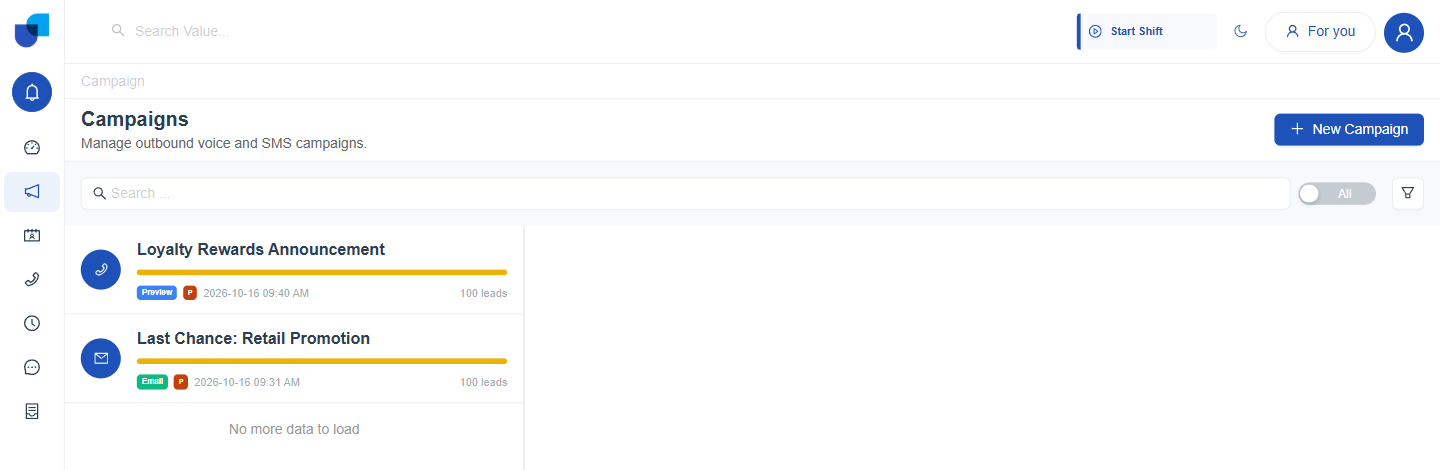
Figure 1. The Campaigns page lists every saved campaign as a card, with a New Campaign button in the top right corner.
What a Campaign Card Shows
| Element | Meaning |
|---|---|
| Icon | The campaign's channel: a phone for Voice Call, or an envelope for Email, with matching icons for SMS and WhatsApp. |
| Title | The name entered when the campaign was created. |
| Progress bar | A colored bar under the title that summarizes the campaign's lead statuses. |
| Dialing Mode badge | Preview or Power, for a Voice Call campaign. An Email campaign shows an Email badge instead. |
| Type badge | A single letter marking the campaign as Promotional (P) or Transactional (T). |
| Schedule Start | The date and time the campaign is set to begin. |
| Lead count | How many contacts the campaign's audience currently holds. |
Searching and Filtering
Above the card list sit a search box, an All or Running toggle, and a filter icon. They work together to narrow a long list down.
- Search: matches a campaign's Title as it is typed.
- All or Running: set to All by default, which shows every campaign regardless of state. Switching to Running narrows the list to campaigns currently in progress.
- Filter: opens a panel with four further conditions, Status, Channel, Created Date, and Schedule Date. Clear All resets them, Cancel closes the panel, and Apply narrows the list.
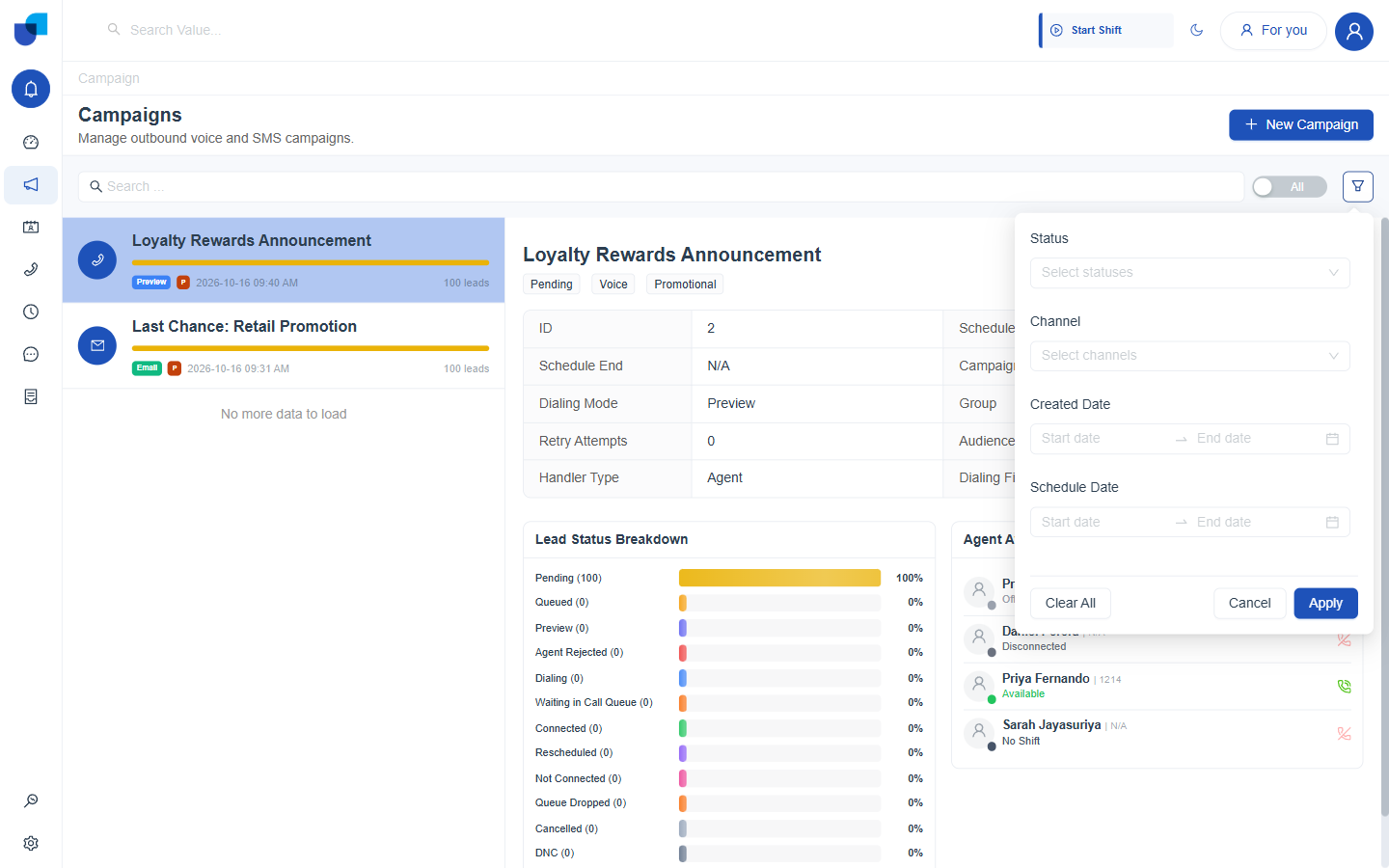
Figure 2. The filter panel opened from the filter icon, with its four conditions and the Clear All, Cancel, and Apply buttons.
Selecting a Campaign
Clicking a card opens that campaign's detail panel on the right. The header shows the campaign's title, its status, channel, and type badges, and a row of action icons that are covered in Managing Live Campaigns. Beneath it sit three areas.
- Configuration table: ID, Schedule Start, Schedule End, Campaign Created, Dialing Mode, Group, Retry Attempts, Audience Module, Handler Type, and Dialing Fields. It mirrors the choices made in the Create Campaign wizard.
- Lead Status Breakdown: every lead status with its current count and percentage of the audience. The statuses are explained in Campaign Monitoring.
- Agent Availability: the agents who can work the campaign, with their presence status. An All Agents dropdown narrows the list.
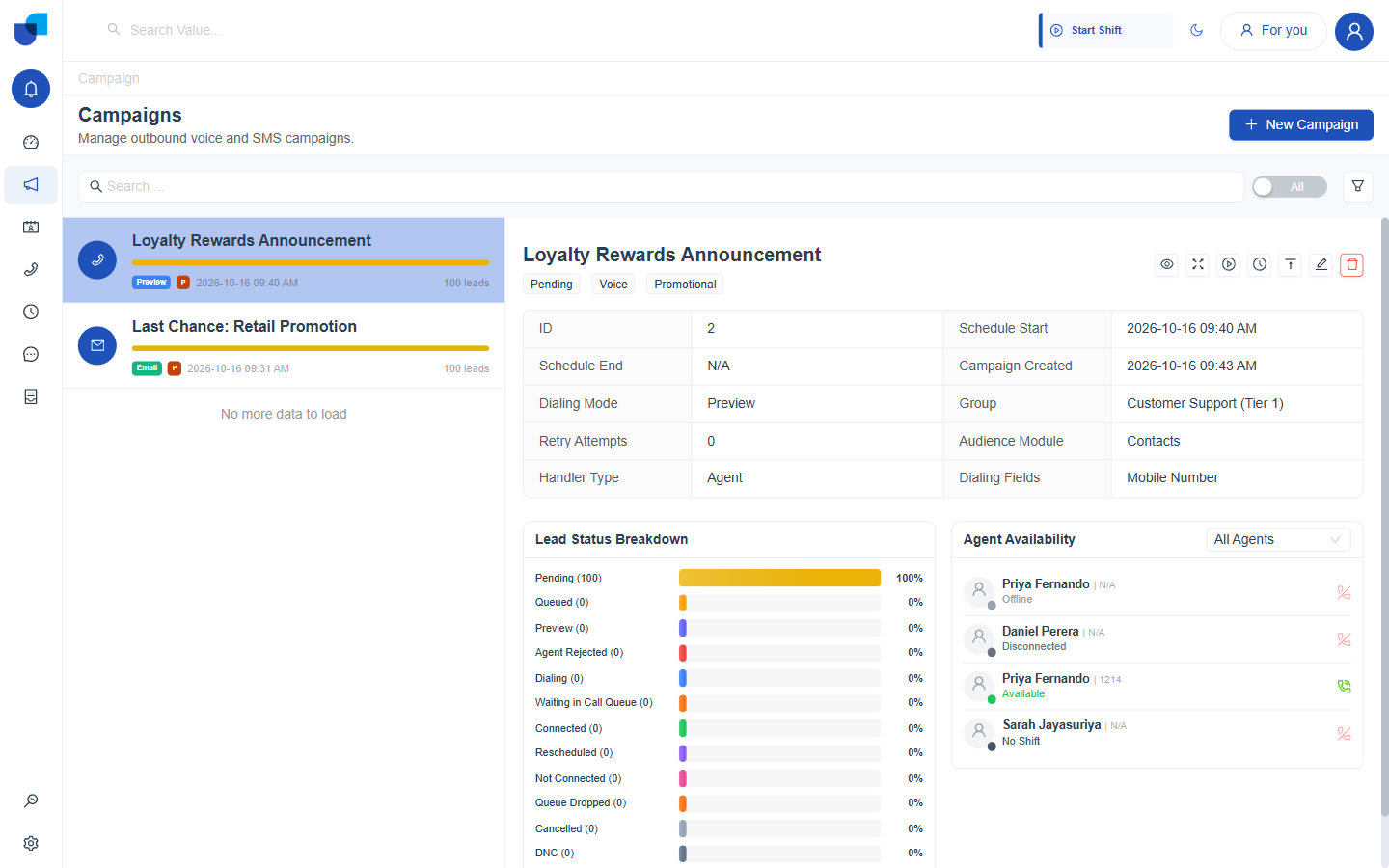
Figure 3. The detail panel for Loyalty Rewards Announcement, with its configuration table, Lead Status Breakdown, and Agent Availability.
Campaign Status
A campaign moves through a small set of states over its life. The status is the first badge in the detail panel header.
| Status | Meaning |
|---|---|
| Draft | The campaign is still in the Create Campaign wizard and has not been saved. |
| Pending | The campaign has been saved and is waiting for its Schedule Start time, or for someone to run it. |
| Started | The campaign is actively working through its audience. The list's All or Running toggle and its Status filter call this same state Running. |
| Paused | The campaign has been stopped partway through and can be resumed. |
Newly imported contacts can take a short time to appear in the lead count and in the Lead Status Breakdown after a campaign is first saved.
Where This Fits
Building a campaign is only part of the picture. The Create Campaign wizard is covered in Campaign Builder, with Campaign Channels, Dispositions, and Scheduling and Retries going deeper on individual steps. Once a campaign is active, its leads and execution history are tracked in Campaign Monitoring, and its day to day adjustments are covered in Managing Live Campaigns. Its summary figures also feed the shared Reports and Dashboards area, described in Campaign Reports and Dashboards.