Scheduling and Retries
The Schedule step controls when a campaign begins, whether it repeats on its own, and how it handles contacts it could not reach on the first attempt. It is step six of the Voice Call wizard, and step five for SMS, WhatsApp, and Email. Start and End Time, Recurring Schedule, and Retry are independent of each other and can be combined freely.
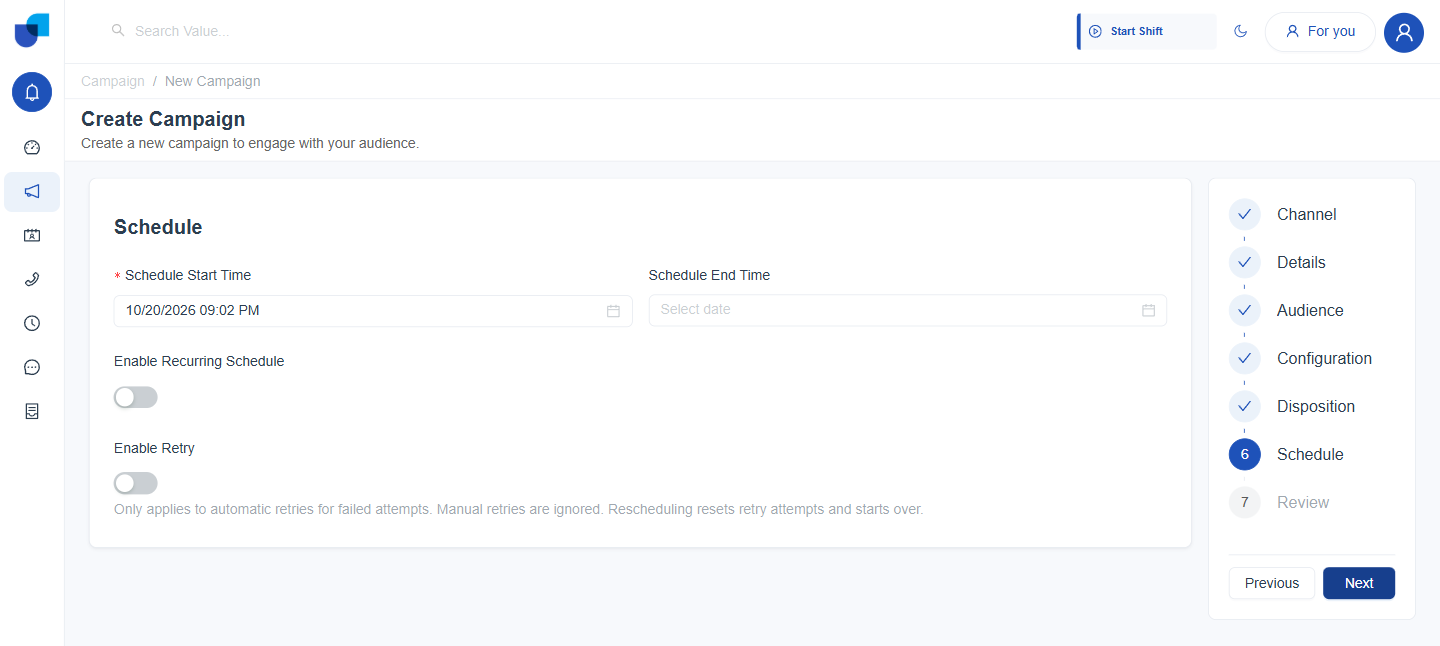
Figure 1. The Schedule step in its default state, with Recurring Schedule and Retry both switched off.
Start and End Time
| Field | Meaning |
|---|---|
| Schedule Start Time | Required, and set to the current date and time by default. The moment the campaign begins working through its audience. A campaign saved with a future Start Time stays Pending until that moment arrives. |
| Schedule End Time | Optional. The moment the campaign stops, regardless of how much of its audience it has worked through. Left blank, the campaign has no fixed end and runs until it is stopped or runs out of contacts. |
Recurring Schedule
Turning on Enable Recurring Schedule replaces Schedule End Time with Repeat Until, and reveals a Recurrence Rule section underneath.
- Turn on Enable Recurring Schedule. Schedule End Time becomes Repeat Until, the date the recurrence itself stops. After it passes, the campaign no longer restarts on its own.
- Choose how often to repeat. Daily, Weekly, or Monthly, defaulting to Daily. Each frequency reveals its own extra fields.
- Set the From and To time window. The daily window the campaign is allowed to dial within on each day it runs. It defaults to 09:00 AM to 05:00 PM.
| Repeat | Extra fields |
|---|---|
| Daily | None beyond the From and To time window. This is the state shown immediately after the toggle is turned on. |
| Weekly | A row of day checkboxes, Monday through Sunday, marking which days the recurrence runs on. Monday is ticked by default. |
| Monthly | A Day of month field, set to 1 by default, marking which day of the month the recurrence runs on. |
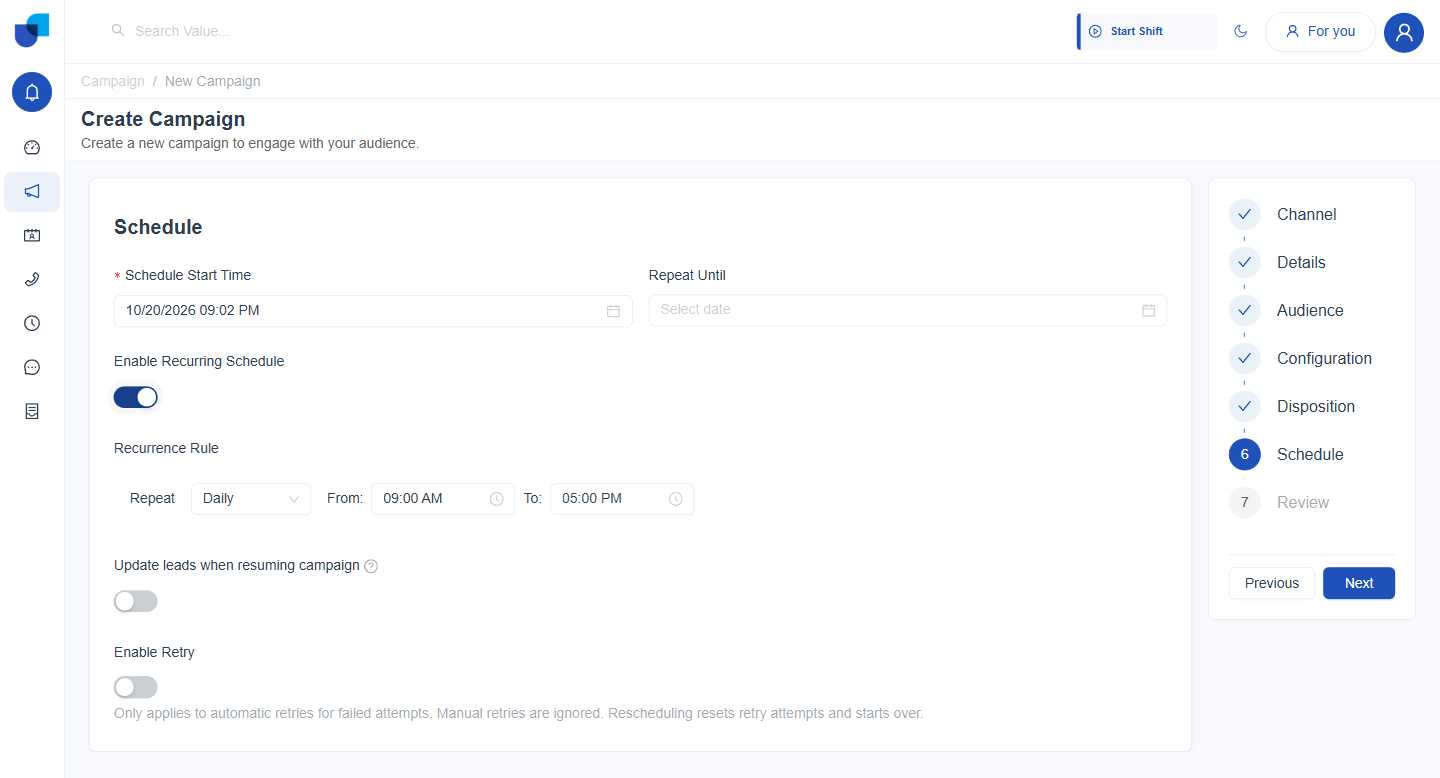
Figure 2. Enable Recurring Schedule turned on, showing the default Daily frequency with the From and To time window.
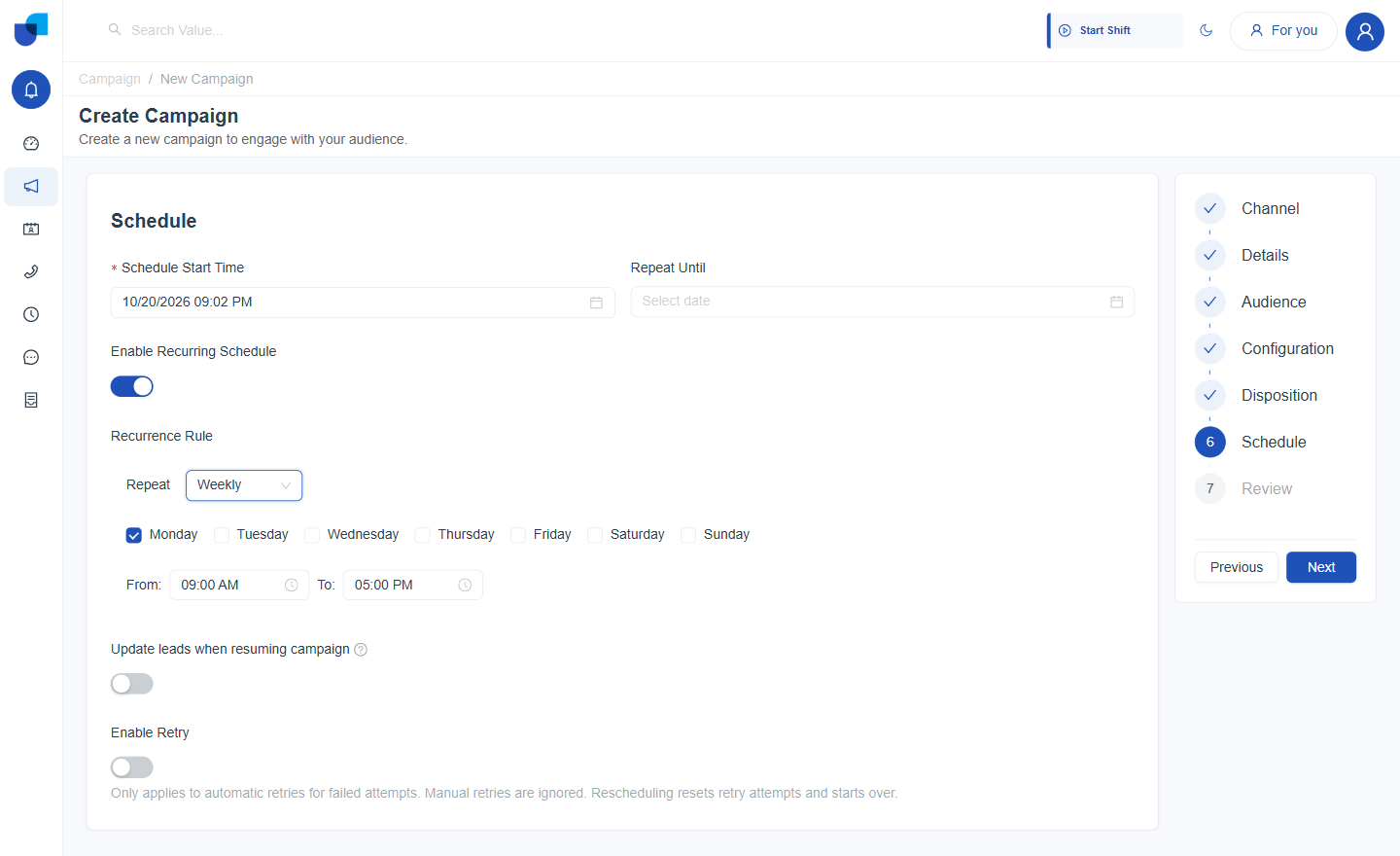
Figure 3. Repeat switched to Weekly, which reveals the day of week checkboxes above the same time window.
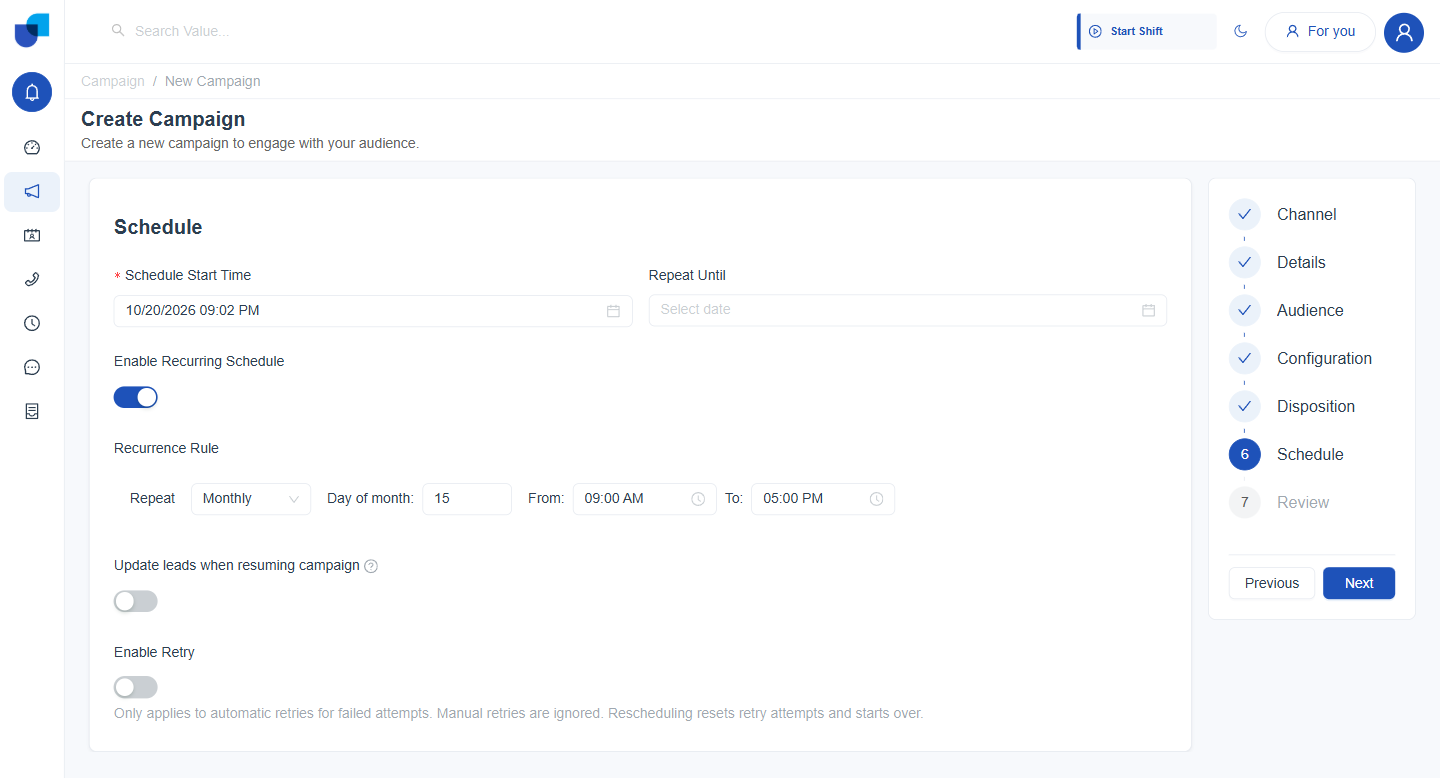
Figure 4. Repeat switched to Monthly, with Day of month set to 15 in place of the weekly checkboxes.
Turning on Enable Recurring Schedule also reveals an Update leads when resuming campaign toggle, which is off by default. Its tooltip explains that it automatically syncs and updates lead data from the CRM when the campaign is resumed.
Retry
Enable Retry governs what happens to a contact the campaign could not reach on its first attempt. The description beneath the toggle states the rule: it only applies to automatic retries for failed attempts, a manual retry is ignored, and rescheduling a campaign resets every contact's retry attempts and starts over.
- Turn on Enable Retry. Reveals two required numeric fields beneath it.
- Set the Retry Interval in minutes. The time to wait before the next retry attempt for failed calls or messages.
- Set the Max Retry Attempts. The maximum number of retries for each failed contact.
| Field | Meaning |
|---|---|
| Retry Interval (minutes) | Required. Time to wait before the next retry attempt for failed calls or messages. |
| Max Retry Attempts | Required. Maximum number of retries for each failed contact. |
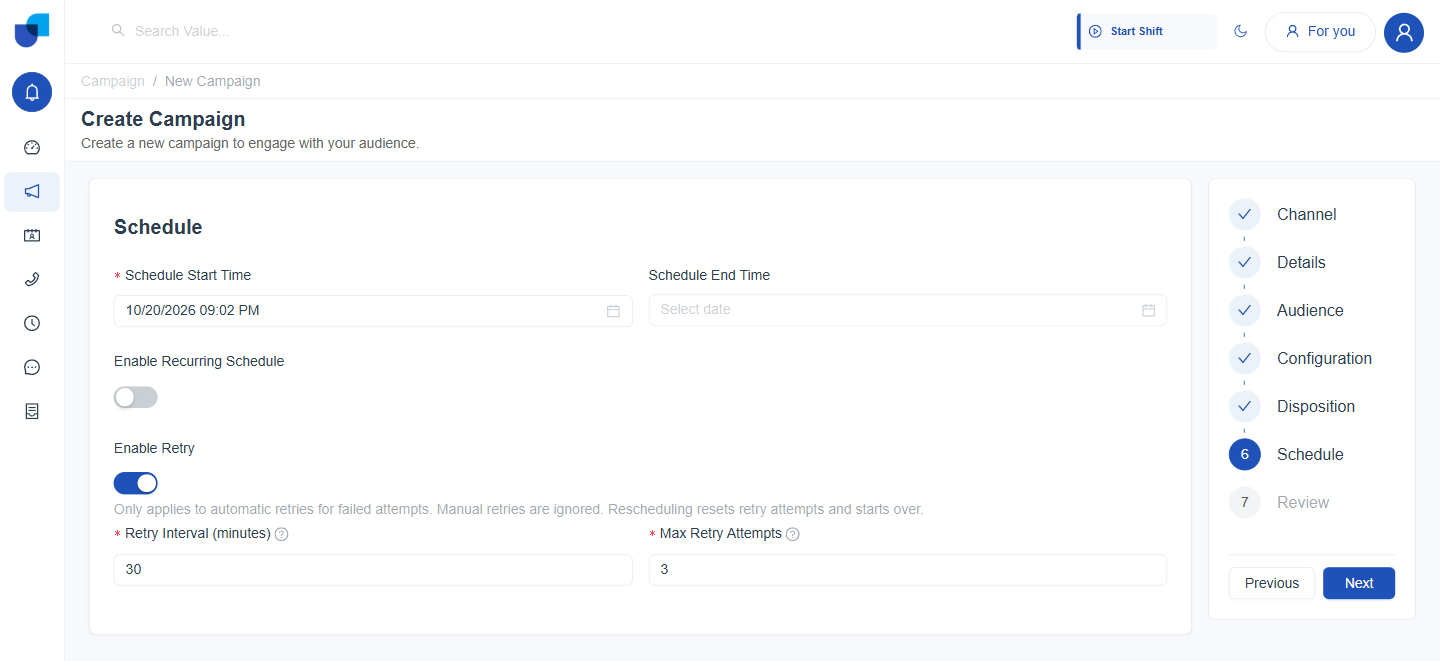
Figure 5. Enable Retry turned on, with a Retry Interval of 30 minutes and Max Retry Attempts of 3.
The Review step summarizes the retry rule in one line, for example 3 attempts at 30 minutes interval, which makes it easy to check before saving.
Retries that the campaign engine makes on its own are recorded in the Campaign Execution log. See Campaign Monitoring.