Campaign Monitoring
Two screens track a campaign once it starts running: Campaign Execution, a platform wide log of every pause, resume, and retry event, and the per campaign Leads screen, which tracks each contact's current status.
Campaign Execution
Campaign Execution is a page of its own under Monitoring, separate from any single campaign's detail panel. It lists every campaign that has run as one row, with a running log of its execution events behind an expand control.
- Open Monitoring and click Campaign Execution. Lists each campaign with Campaign ID, Campaign, Last Action, Last Status, Total, Success, Canceled, Skipped, Failed, and Last Executed.
- Expand a row. Reveals the full execution history for that campaign, one event per row.
| Column | Meaning |
|---|---|
| Total | How many execution events have been logged for the campaign. It equals Success plus Canceled plus Skipped plus Failed. |
| Success | How many events completed successfully. |
| Canceled | How many were canceled before completing. |
| Skipped | How many were skipped rather than run. |
| Failed | How many failed outright. |
An expanded row shows one line per event, with these columns.
| Column | Meaning |
|---|---|
| Action | What happened, for example MANUAL_PAUSE, MANUAL_RESUME, or SYSTEM_RETRY. |
| Cron | Shows a dash when the event did not come from a cron schedule. |
| Status | The outcome of the event. |
| Triggered By | Marks the event as manual, a user action, or system, an automatic one. |
| Triggered Reason | Why the system acted, for example NO AGENTS AVAILABLE. |
| Error | The error message, when the event failed. |
| Executed At | The date and time the event ran. |
The list is empty until a campaign has run at least once, and reads No data until then. A SYSTEM_RETRY event with the reason NO AGENTS AVAILABLE shows that the campaign engine retries on its own when no agent is free to take a call, rather than failing the attempt outright.
Lead Status
A campaign's detail panel, opened by selecting it in the Campaigns list, carries a Lead Status Breakdown. Each status is listed with its current count and its percentage of the audience. Clicking the eye icon, View Leads, opens the full Campaign Leads screen for that campaign.
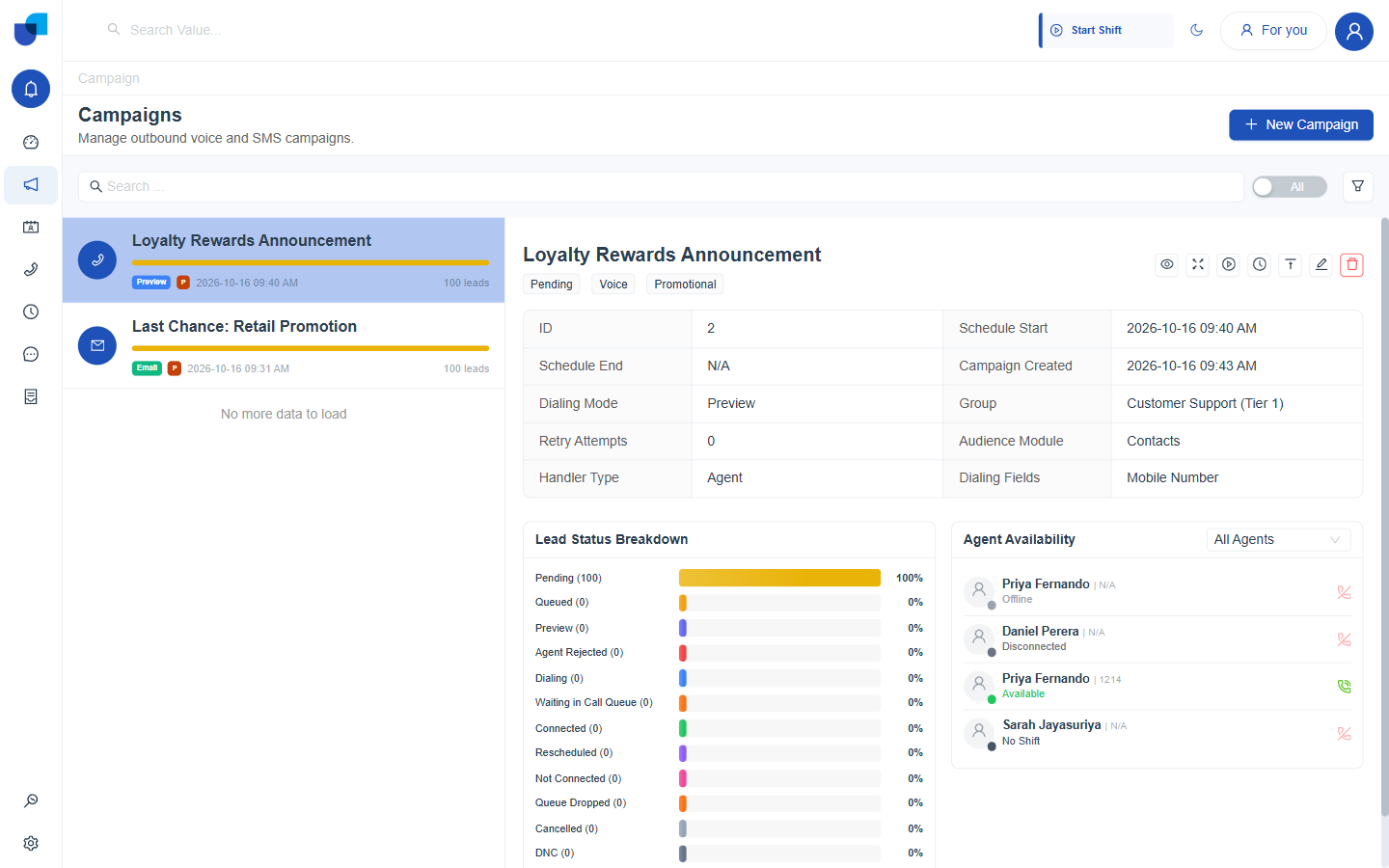
Figure 1. The Lead Status Breakdown inside a campaign's detail panel. Every status the campaign's leads can hold is listed with a live count and percentage.
| Lead Status | Meaning |
|---|---|
| Pending | Not yet picked up by the campaign engine. |
| Queued | Picked up and waiting its turn to dial. |
| Preview | Shown to an agent for review. Preview dialing mode only. |
| Agent Rejected | An agent declined to dial this contact. |
| Dialing | The call is actively being placed. |
| Waiting in Call Queue | Connected to the system but waiting for an available agent. |
| Connected | The contact and an agent, an IVR flow, or an AI Agent are on the call. |
| Rescheduled | Moved to a later time rather than dialed now. |
| Not Connected | The call was placed but did not connect. |
| Queue Dropped | Left the call queue before reaching an agent. |
| Cancelled | Removed from the campaign's work before being dialed. |
| DNC | Marked Do Not Call and excluded from dialing. See DNC Management. |
| System Failure | The attempt failed for a technical reason rather than a contact outcome. |
A single lead's own History log records the system moving it from one status to the next, for example from Queued to Dialing to Waiting in Call Queue. The log is shown on the lead's detail page, described in Managing Live Campaigns.
Campaign Leads Screen
The Campaign Leads screen lists one row per contact in the campaign. It is reached from the eye icon in the campaign's detail panel, and its header shows the campaign's title and type.
- Click a campaign in the Campaigns list. Opens its detail panel on the right.
- Click the eye icon, View Leads. Opens the Campaign Leads screen for that campaign.
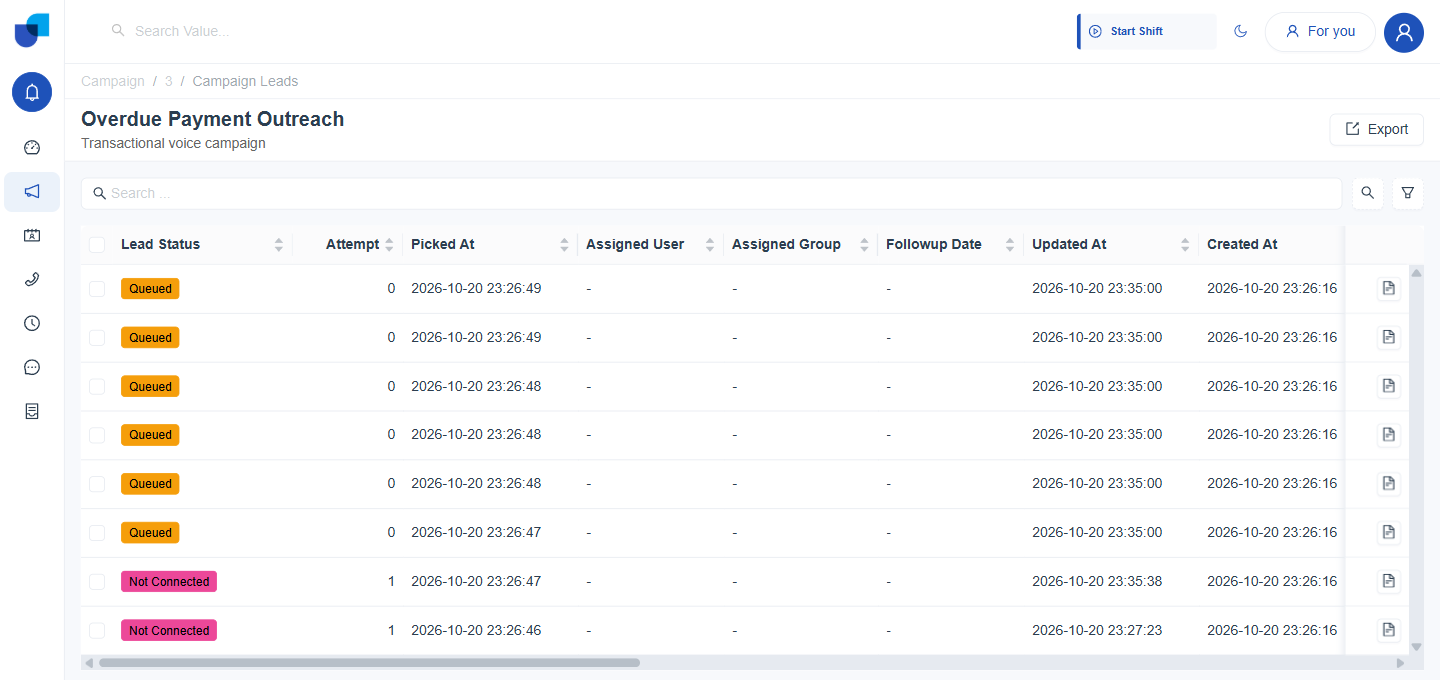
Figure 2. The Campaign Leads screen, one row per contact, each with its Lead Status, attempt count, assignment, and timestamps.
Searching, Filtering, Sorting, and Exporting Leads
| Control | What it does |
|---|---|
| Search | A plain text search box above the table. |
| Column sort | Clicking a sortable column header sorts the table by that column. |
| Filter | Opens a panel with a condition for each column, Lead Status, Attempt, Picked At, Assigned Group, Assigned User, Followup Date, and the contact's own fields such as First Name, Last Name, Email, and Mobile Number. Each condition has its own operator, such as In, Equals, Contains, or Is. Save Filter keeps a combination for reuse, Apply narrows the table, and Close dismisses the panel. |
| Export | Downloads a CSV file of the leads, named Campaign_Leads followed by the date, with no further dialog. |
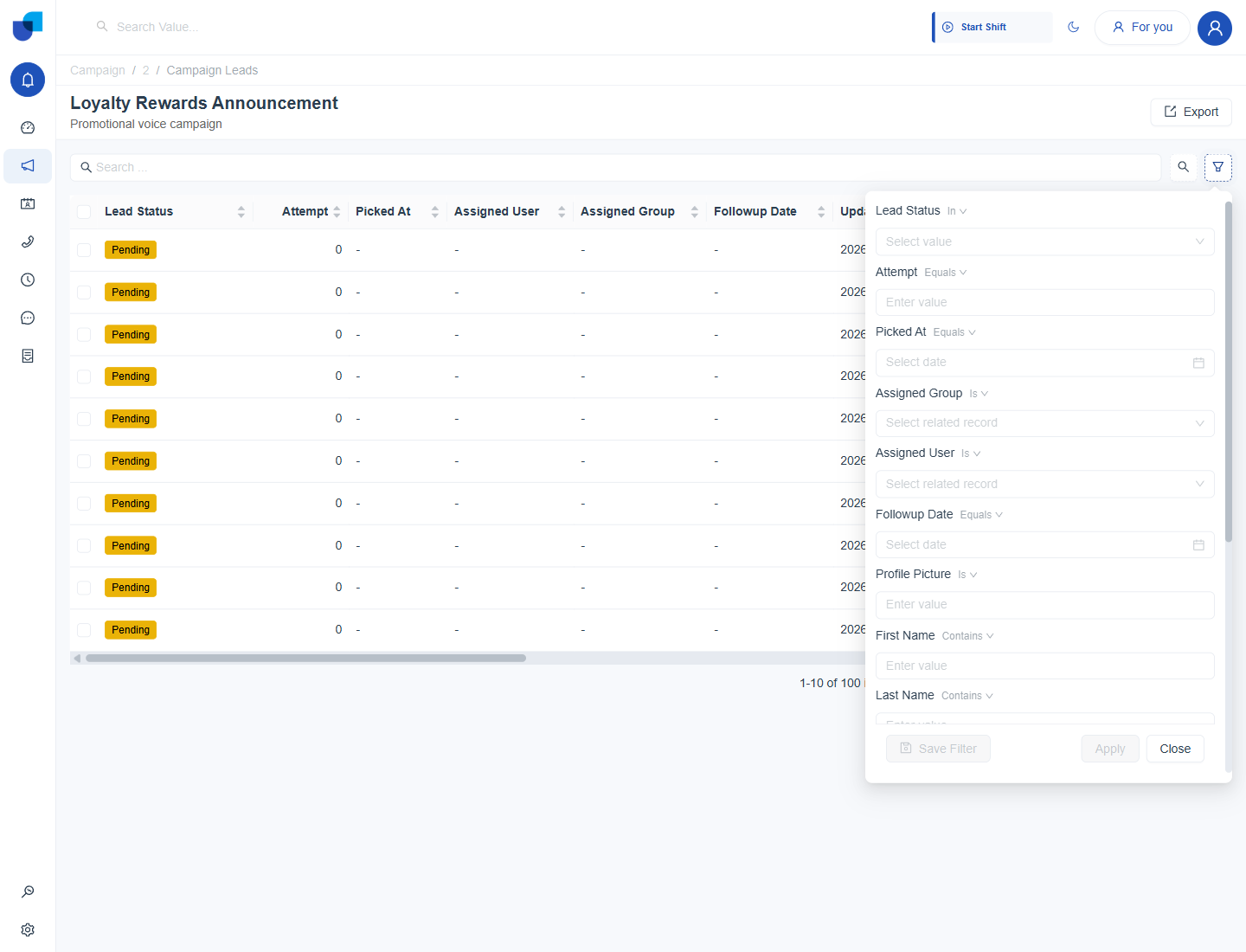
Figure 3. The Campaign Leads Filter panel, with a condition and operator for each column.
Clicking the document icon at the end of a row opens that lead's own detail page, where its Overview, related Tickets, and History are shown.