Overview
What Telephony Is
Telephony is the platform feature that carries every voice call in and out of the account: inbound, outbound, internal, campaign and conference. It sits behind the Calls screen, the softphone an agent uses while on shift, and the Campaign module's own dialer, so every one of those surfaces works against the same call records.
A single external phone system, 3CX, provides the trunks, extensions and queues. Telephony is the layer on top of it that ties a call to the right CRM record, the right agent, the right disposition and the right recording. A Collections agent named Marcus Webb, on extension 1018, is the running example used across this documentation.
What Is 3CX
3CX is an open standard, software based IP PBX phone system. It handles VoIP voice calls, video conferencing, live chat and SMS, and can be deployed on premise, in the cloud or self hosted. Its licensing is based on concurrent calls rather than per user fees, which keeps it scalable for businesses of any size. More detail is available at the 3CX website.
Key Capabilities
Once 3CX and UNICONNECT AI are connected, voice operations can be managed from inside the platform without switching between systems.
1. Single Sign On
Users can sign in to UNICONNECT AI with their existing 3CX accounts. That removes a second set of credentials and simplifies access for agents in a contact center. The option is controlled by Enable 3CX Login in 3CX Plugin Configuration.
2. Quick Call Control
Agents can start calls straight from CRM modules with one click, on any phone number stored in the system. The outbound rules in 3CX must be configured first so that calls are routed and connected correctly. See Calling from CRM. Call monitoring is also available, depending on configuration.
3. Agent Productivity and Workforce Management
Users can set their availability, such as Available, Away or Do Not Disturb, from UNICONNECT AI or from UNICONNECT AI Edge, and the change is reflected in 3CX without opening a 3CX client. The integration also supports activity tracking, performance insights and workforce optimization.
Presence status synchronization is on by default after the integration. Not every status on either side maps to a status on the other, because the mapping depends on the configuration of both systems. See Status Management with 3CX.
4. Workflow Automation with Telephony Triggers
Call events and user status changes, such as an incoming call, a missed call or a presence change, can be used as triggers in workflows. Telephony is embedded in the automation framework rather than being a separate module. See System Workflows Telephony.
5. Campaigns and UNICONNECT AI Edge
3CX is fully compatible with Voice Campaigns, so outbound calls start through 3CX without anyone opening the 3CX back end. Agents can work calls from 3CX applications or from UNICONNECT AI Edge, a Windows soft client that gives a unified agent desktop for call handling, analytics and productivity. The telephony plugin is a mandatory prerequisite for Edge and must be enabled and configured before Edge is launched.
6. Call Reports and Dashboards
Real time dashboards, historical call reports and performance analytics are available inside the platform, so there is no need to sign in to 3CX separately. Telephony data can also be combined with data from other modules for a single view of operations.
The Calls Screen
The Calls screen is Telephony's history and recordings log. Every call the account has carried appears as one row, whatever its type.
Figure 1. The Calls screen, with one row for each call and an Actions column holding recording, call path, summary and record icons.
| Column | Meaning |
|---|---|
| ID | A sequential number for the call record. |
| Start Time | When the call began. |
| Call Type | Inbound, Outbound, Internal, Campaign or Conference, shown as a colored badge. |
| Service Number | The trunk or DID number the call used. Blank for calls that never leave the account. |
| Caller | Who placed the call: an extension with the agent's name, or an external number. |
| Callee | Who received it, shown in the same format, with each leg's ring and talk time beneath it. |
| Queue Waiting | How long the caller waited in a queue before being answered. |
| Talk Time | How long the parties were connected. |
| Call Status | The final outcome, covered below. |
| Actions | Recording playback, Call Path, Call Summary and the full record. See Call Records. |
Call Types
Every call falls into exactly one of five types, the same five offered by the Call Type filter.
| Call Type | Meaning |
|---|---|
| Inbound | A call placed in from an external number to the account. |
| Outbound | A call placed out from an agent's extension to an external number. |
| Internal | A call between two extensions, including a call to a voicemail box. |
| Campaign | A call placed by the Campaign module's dialer rather than dialed manually. |
| Conference | A call that joins more than two parties on the same line. |
Call Status
Each call carries a Call Status, shown as a colored badge on its row and listed in the filter panel.
| Call Status | Meaning |
|---|---|
| Answered | The call connected and was picked up. |
| Voicemail | The call was routed to or left a voicemail box. |
| Unanswered | The call rang but nobody picked up. |
| Abandoned | The caller hung up before the call was answered. |
| Failed | The call could not be completed for a technical reason. |
| Agent Rejected | An agent declined the call rather than answering it. |
| DNC | The number was on the do not call list, so the call was blocked. |
| Cancelled | The call was called off before it was placed. |
| Preview | The call is with an agent for review, in Preview dialing mode. |
| Dialing / Connecting / Ringing | The call is being dialed, connected, or is ringing at the destination. |
| Queue Waiting / Talking / On Hold | The call is waiting for an agent, in conversation, or on hold. |
Search and Filters
Above the list sit a search box, a Live Calls toggle and a filter icon. Search matches the caller or callee. Live Calls narrows the list to calls in progress. The filter icon opens the panel below.
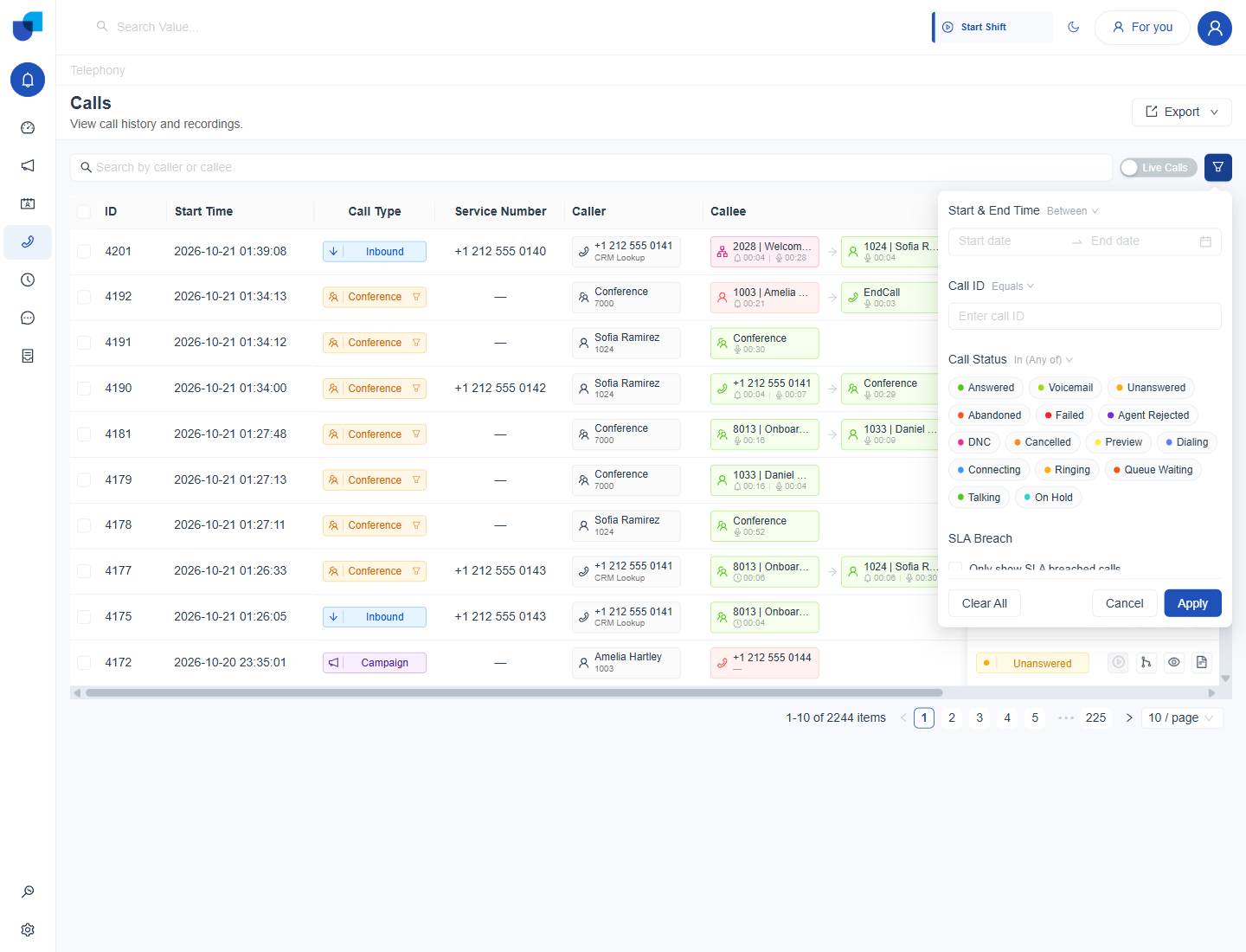
Figure 2. The filter panel, listing every Call Status value alongside the time range, call ID and SLA Breach conditions.
The panel also filters by Call Type, Service Number, Phone Number, Queues, Agents, Campaigns, Talk Time and Queue Waiting. SLA Breach narrows the list to calls that missed their service level target.
Call Summary
The eye icon in a row's Actions column opens the Call Summary, a compact panel of the technical detail behind the row.
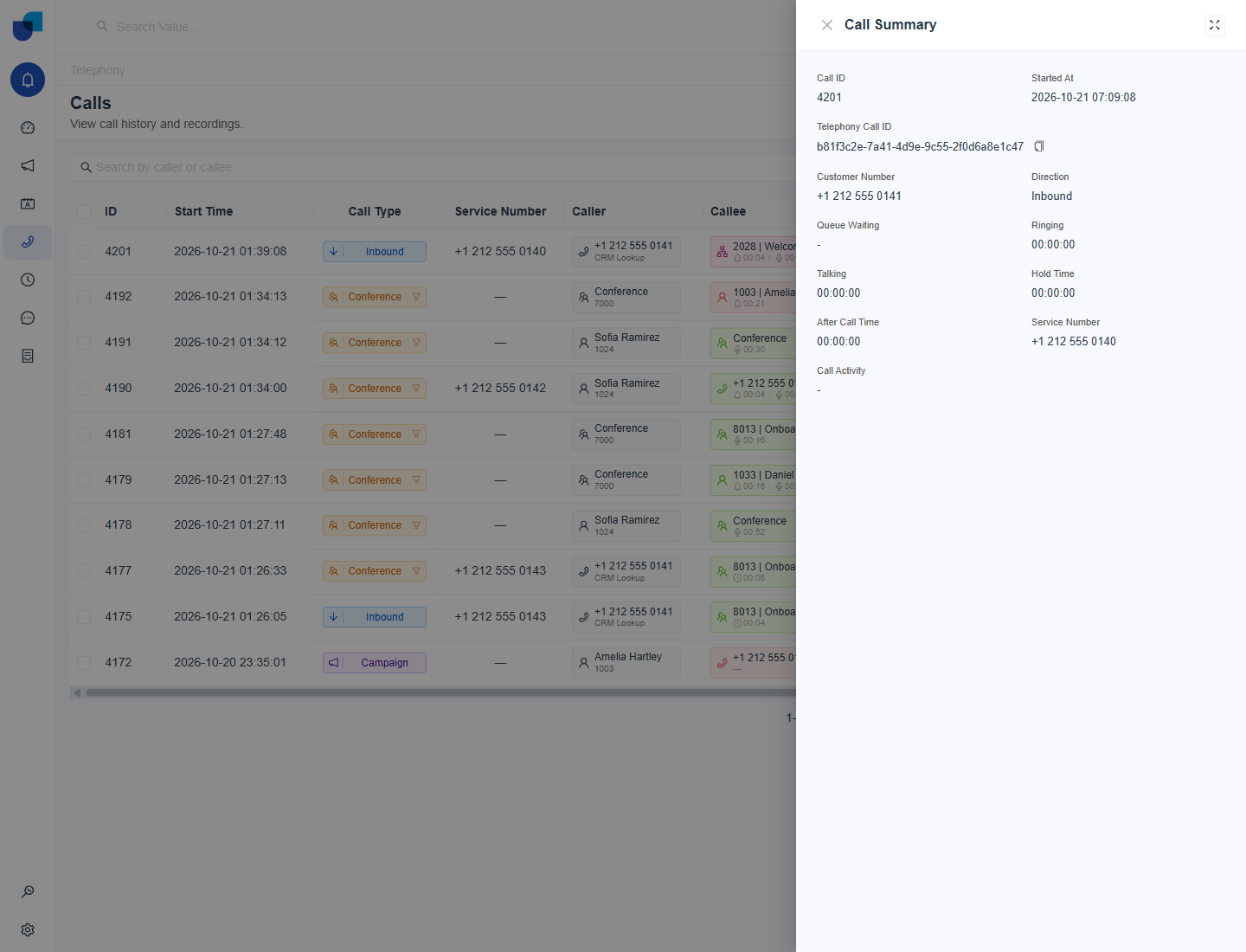
Figure 3. A Call Summary for an inbound call, breaking the call down into its identifiers, numbers and timing stages.
| Field | Meaning |
|---|---|
| Call ID | The same sequential ID shown in the list. |
| Telephony Call ID | A long unique identifier for the call, useful when support needs to trace it. |
| Customer Number / Direction | The external number on the call and whether it was inbound or outbound. |
| Queue Waiting / Ringing / Talking / Hold Time / After Call Time | The stages the call's total duration passed through. |
| Service Number / Call Activity | The trunk or DID used, and a short log of the dial. |
Planning Notes
3CX is a third party platform, and its features, APIs and integration procedures can change without notice. Review the release notes of both 3CX and UNICONNECT AI, and check compatibility before applying updates. Skipping this can lead to integration conflicts or disrupted functionality.
Switching the 3CX configuration from one 3CX instance to another, or moving to a different telephony platform, can reset the telephony related data inside UNICONNECT AI. A fresh configuration may be needed, existing telephony data may not be recoverable, and the system may need to be started again with a new dataset. Plan the change and take backups first.
The path from a new account to a first call is in Telephony Getting Started.