Group Management with 3CX Queues and Ring Groups
Configuration → User Management → Groups lists every group in the account. Two of its three group types, Queue and Ring Group, come directly from the connected 3CX server rather than being created inside UNICONNECT AI. The Sales Queue on extension 8000 and the Collections Ring Group on extension 8037 are the examples here, and Marcus Webb is a member of the queue.
The Three Group Types
| Group Type | Where it comes from | Purpose |
|---|---|---|
| Queue | Synced in from 3CX | Distributes incoming calls across the member agents who are logged in to the queue, as set by each agent's presence status. |
| Ring Group | Synced in from 3CX | Rings its member extensions for an incoming call, instead of distributing it through a queue. |
| Group | Created inside UNICONNECT AI | A plain organizational group used for access scoping across the platform. It is not specific to telephony. |
A plain Group, such as Billing and Accounts, is a shared platform concept. It is not covered further on this page.
A Queue
Selecting a queue opens an Edit panel on the right. Its heading names the group, and it carries Cancel and Update buttons.
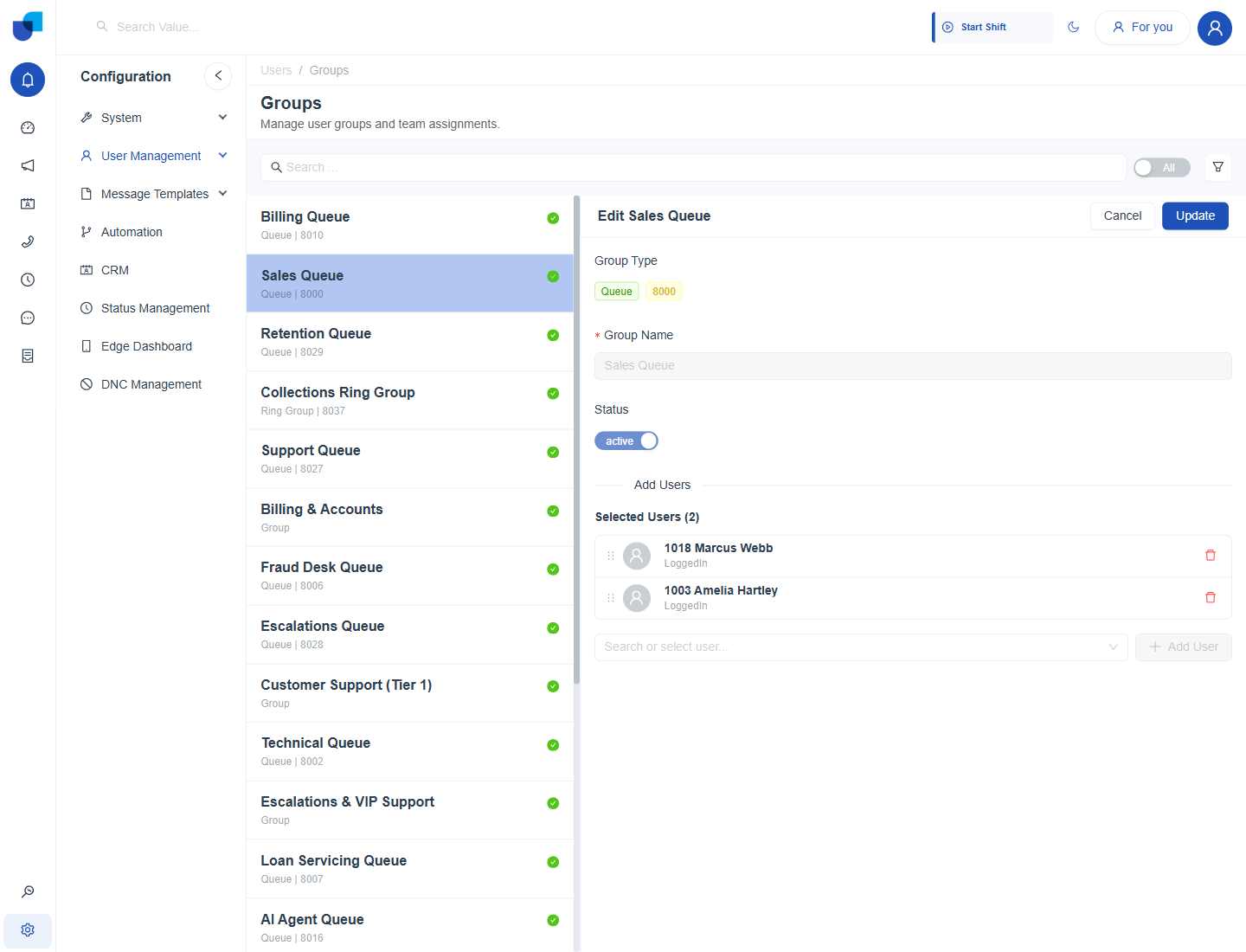
Figure 1. The Edit panel of the Sales Queue, with its 3CX extension number, its read only name and its two member agents.
| Field | Meaning |
|---|---|
| Group Type | The type, with the group's 3CX extension number beside it, for example Queue 8000. |
| Group Name | Read only for a synced queue or ring group, because the name is set on the 3CX server. |
| Status | Read only for a synced group. It reflects whether 3CX reports the group as active. |
| Selected Users | Every member, each with a status such as LoggedIn and a drag handle for reordering. |
| Search or select user / Add User | Adds another user. Add User stays disabled until a user is chosen. |
A Ring Group
A ring group opens the same panel. Its members are the extensions that ring together for an incoming call.
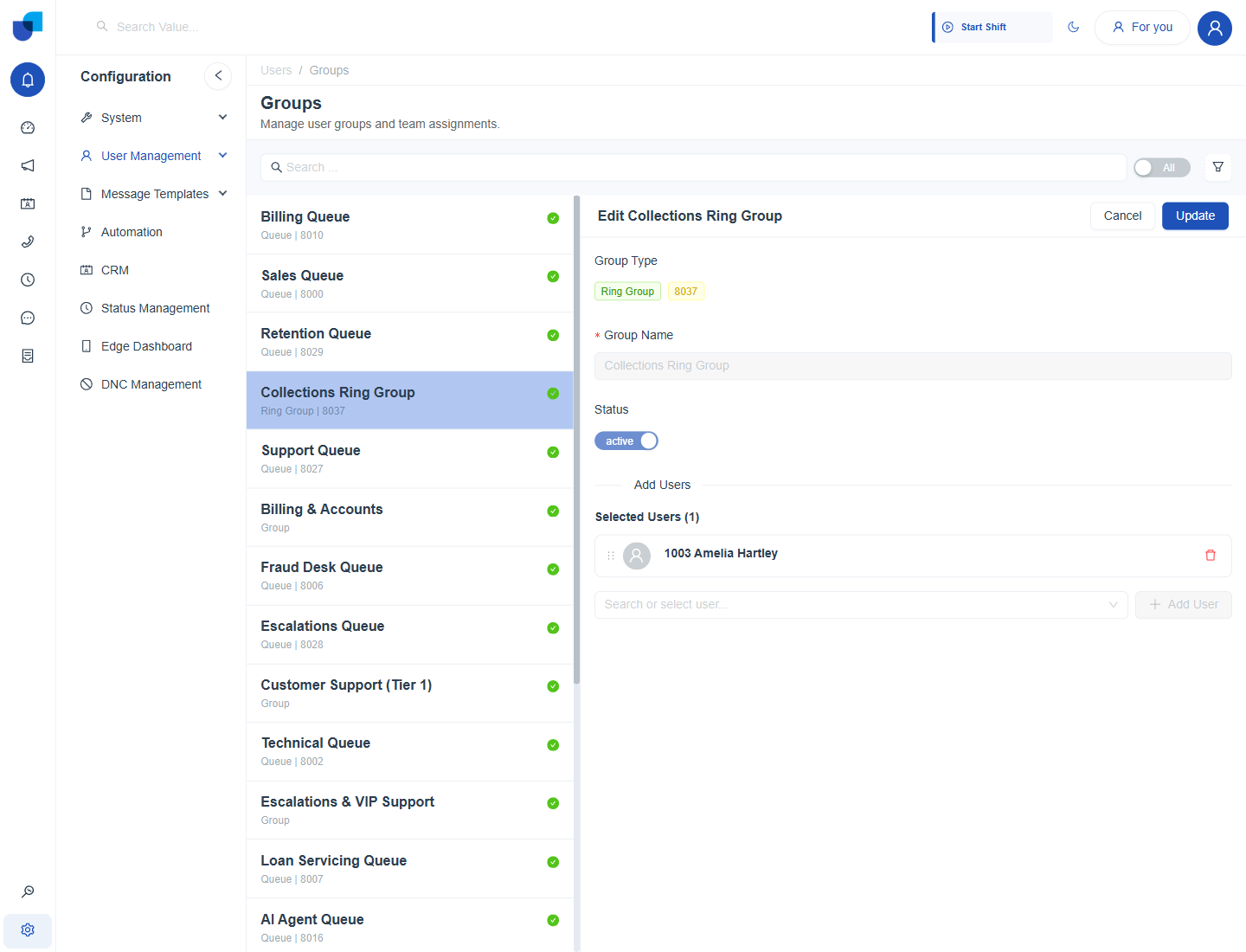
Figure 2. The Edit panel of the Collections Ring Group, which has the same layout as a queue.
Adding or Removing Members
- Open Configuration → User Management → Groups and select a queue or ring group.
- To add a member, search for a user and click Add User.
- To remove a member, click the delete icon on the user's row in Selected Users.
- To reorder members, drag a row by its handle, then click Update. Member order influences how calls are offered within the group.
The name, extension number and existence of a queue or ring group are controlled on the 3CX server. This screen lets you add or remove UNICONNECT AI users from the group, but it does not create or rename the group itself.
Where This Fits
A queue's membership is what the Campaign module's Agent Group field, the queue login behavior in Status Management with 3CX, and a call's own routing all draw on. A queue or ring group can also be assigned to an AI Agent, as described in Number Handling with AI Agent.