Getting Started
A new account reaches its first call in four stages: meet the prerequisites, connect the 3CX server, sync its extensions in as users, and have an agent go on shift. Marcus Webb, a Collections agent on extension 1018, is followed through the whole sequence.
Prerequisites
Connectivity
Deploy 3CX and UNICONNECT AI where the two systems can talk to each other without bandwidth limits. They can connect over the internet, but for the best performance, especially in large deployments, configure both so they communicate over a local area network wherever possible.
Version Compatibility
| System | Minimum requirement |
|---|---|
| 3CX | Version 20 or above, Enterprise Edition. |
| UNICONNECT AI | Version 1.1.x or above, with the Professional edition licence or higher. |
Before You Start
- Install both systems. 3CX and UNICONNECT AI must each be installed and configured to their own recommended guidelines.
- Have administrator access to the 3CX Management Console. The API access key used later is created there.
- Check the licences. 3CX needs an Enterprise licence, and UNICONNECT AI needs the Professional edition or higher.
- Confirm network connectivity between the two systems. The connection must be established and working before configuration begins.
- Check the version of each platform. Make sure both meet the minimum versions above.
- Take full backups of both systems. This is strongly recommended before any configuration is changed.
The Setup Sequence
- Connect the 3CX server. Configuration → System → Plugins → 3CX, where the host, client ID and API key are entered. See 3CX Plugin Configuration.
- Sync the 3CX extensions in as users. Configuration → User Management → 3CX. See 3CX User Sync.
- Check each user's queue and ring group membership. Configuration → User Management → Groups. This decides which calls reach which agent. See Group Management with 3CX Queues and Ring Groups.
- Have the agent start a shift and choose a presence status. Covered below, and in Status Management with 3CX.
Starting a Shift
A Start Shift control sits in the top bar on every screen of the platform, not only inside Telephony. Marcus uses it at the start of each working day.
- Click Start Shift in the top bar. An On Shift timer starts and the agent is placed in the Available presence status.
- Click the presence badge beside the shift timer to change status. A menu lists the configured statuses, such as Away, Out Of Office, Lunch and Tea Break. Each one carries its own call handling behavior.
- Click the On Shift badge and choose End Shift when the day is over. The timer stops and the agent leaves the shift.
Figure 1. The presence status menu, opened from the badge beside the shift timer once a shift has started.
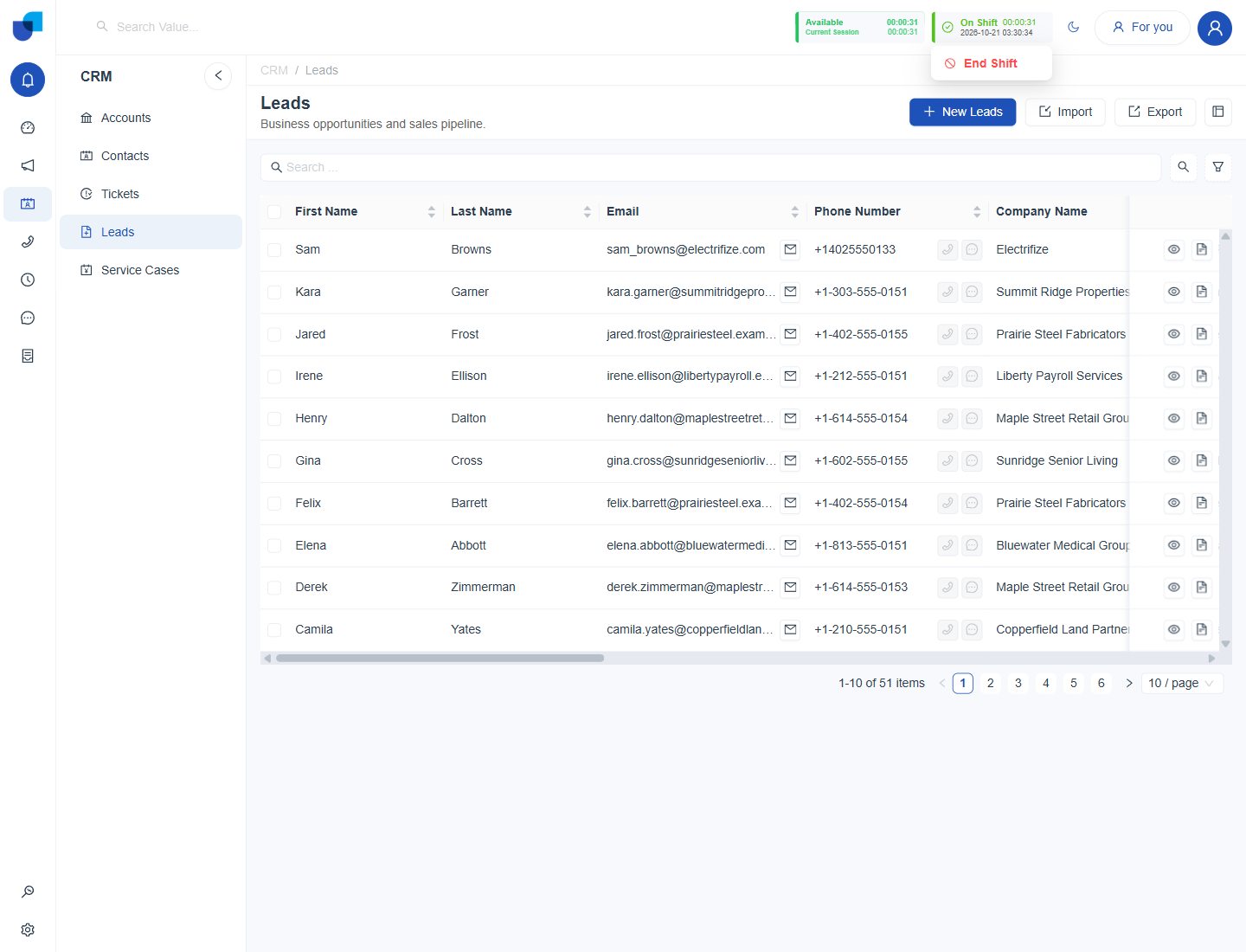
Figure 2. The End Shift option, reached by clicking the On Shift badge.
An agent becomes reachable through a queue only when their presence status has Queue Login turned on and their shift is active. A synced extension that belongs to a queue but never goes on shift does not receive queue calls.
Your First Call
With the agent on shift in a status that allows External Calls and Queue Login, calls reach and leave the extension the way any 3CX extension works. Each call becomes a row on the Calls screen, with the agent's synced name shown as the caller or callee. The click to call icons in the CRM become available once the agent has an active shift and a registered softphone, as described in Calling from CRM.
Place a first test call between two internal extensions before pointing real customer traffic at the setup. It confirms the sync, the shift and the presence settings in one step.
Where to Go Next
These four stages are the minimum for every other Telephony page. Call modules, number handling and dispositions all assume a working 3CX connection and at least one synced agent on shift. The platform's overall call history is introduced in Telephony Overview.