Calling from CRM
Any Phone field on any CRM module can be dialed from wherever that field is shown: a list, a filtered view or a record's detail panel. Agents do not need to open the Calls screen or the softphone first. Telephony shows this as a small phone icon beside the number. Marcus Webb uses it to call customers straight from a list, such as Leads.
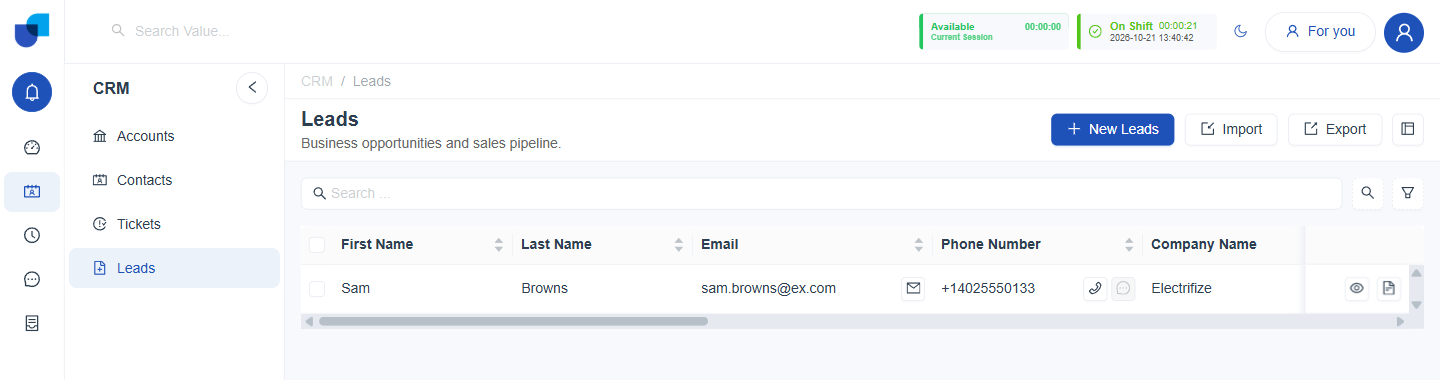
Figure 1. A list for an agent who is on shift in the Available status. The phone icon beside the number is active, and a mail icon sits beside the email.
Where the Call Icon Appears
| Location | Behavior |
|---|---|
| A module's list view | Every row with a Phone field shows the number with a phone icon and a message icon beside it. |
| A record's detail or summary panel | The same icons appear beside the Phone field's value. |
An Email field follows the same pattern with a mail icon in place of the phone and message icons.
Placing the Call
- Start your shift in a status that allows External Calls. See Telephony Getting Started.
- Click the phone icon beside the number. A Confirm Call dialog asks whether to call that number.
- Click Call to place it, or Cancel to stop. The call goes out through the connected 3CX system and appears on the Calls screen.
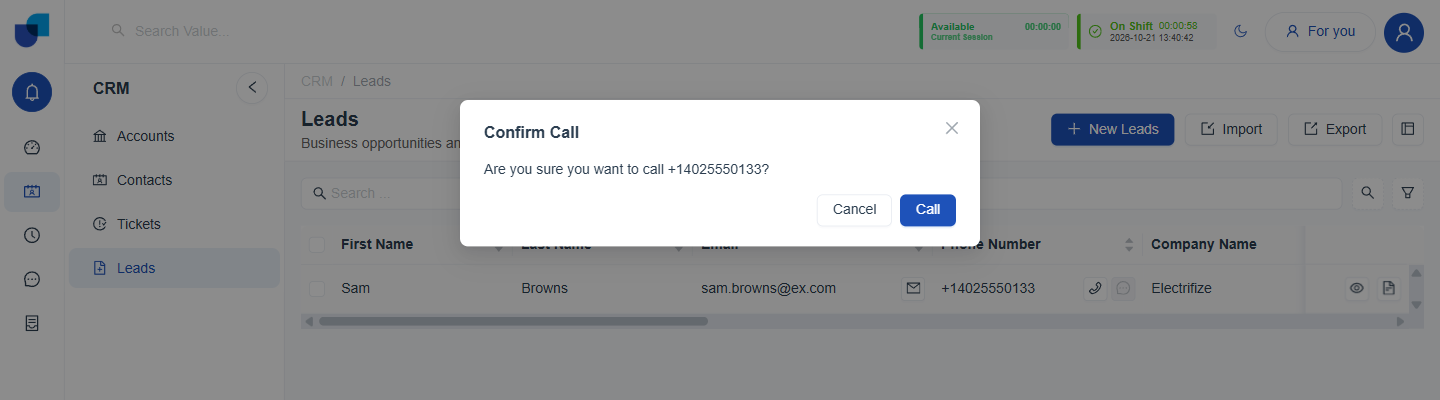
Figure 2. The Confirm Call dialog that opens after the phone icon is clicked. Cancel closes it without calling, and Call places the call.
The phone icon is greyed out and cannot be clicked until the agent has an active shift in a presence status with External Calls turned on and a registered softphone. A greyed icon is not a fault with the record.
Before relying on click to call, make sure the outbound rules are set up in 3CX. They decide how each dialed number is routed.
Where This Fits
This click to call pattern is used across the whole platform on every module that has a Phone field. It is not configured per module. The Leads module is used as the worked example in Call Options for CRM Module Leads.