Call Options for CRM Module Leads
The Leads module's Phone Number field is the worked example for the click to call pattern introduced in Calling from CRM. Marcus Webb works a list of leads, and the same icons appear in the Leads list and on a single lead's own page.
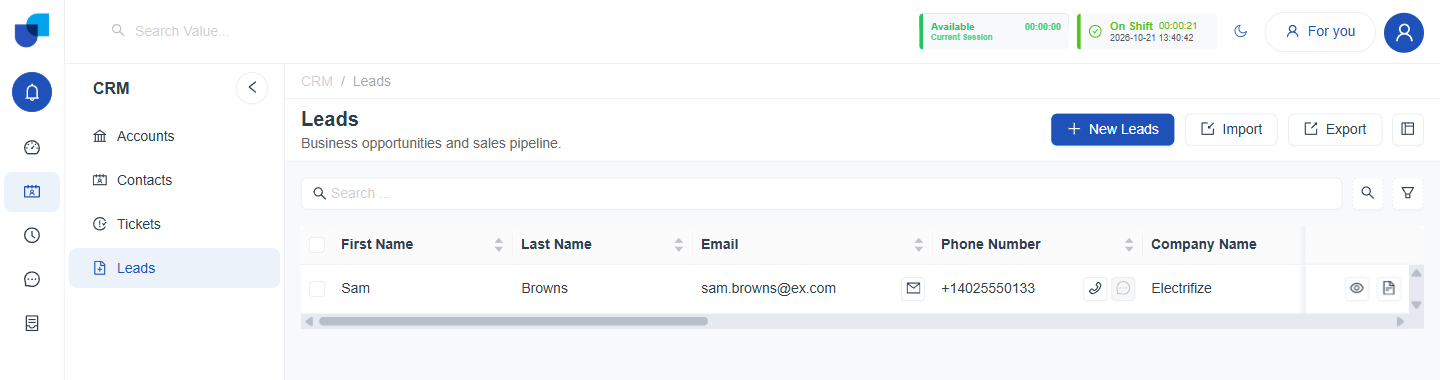
Figure 1. The Leads list for an agent on shift in the Available status. The phone icon beside the number is active, and every row carries its own phone and message icons.
The Two Icons Beside a Phone Number
| Icon | Action |
|---|---|
| Phone | Places an outbound call to this number directly from the record, after a Confirm Call prompt. |
| Message | Opens a messaging panel to this number instead of calling it. |
The Same Pattern on a Lead's Own Page
The document icon at the end of a row opens the lead's own page, with every field of that one record. The phone and message icons sit beside the Phone Number value there as well.
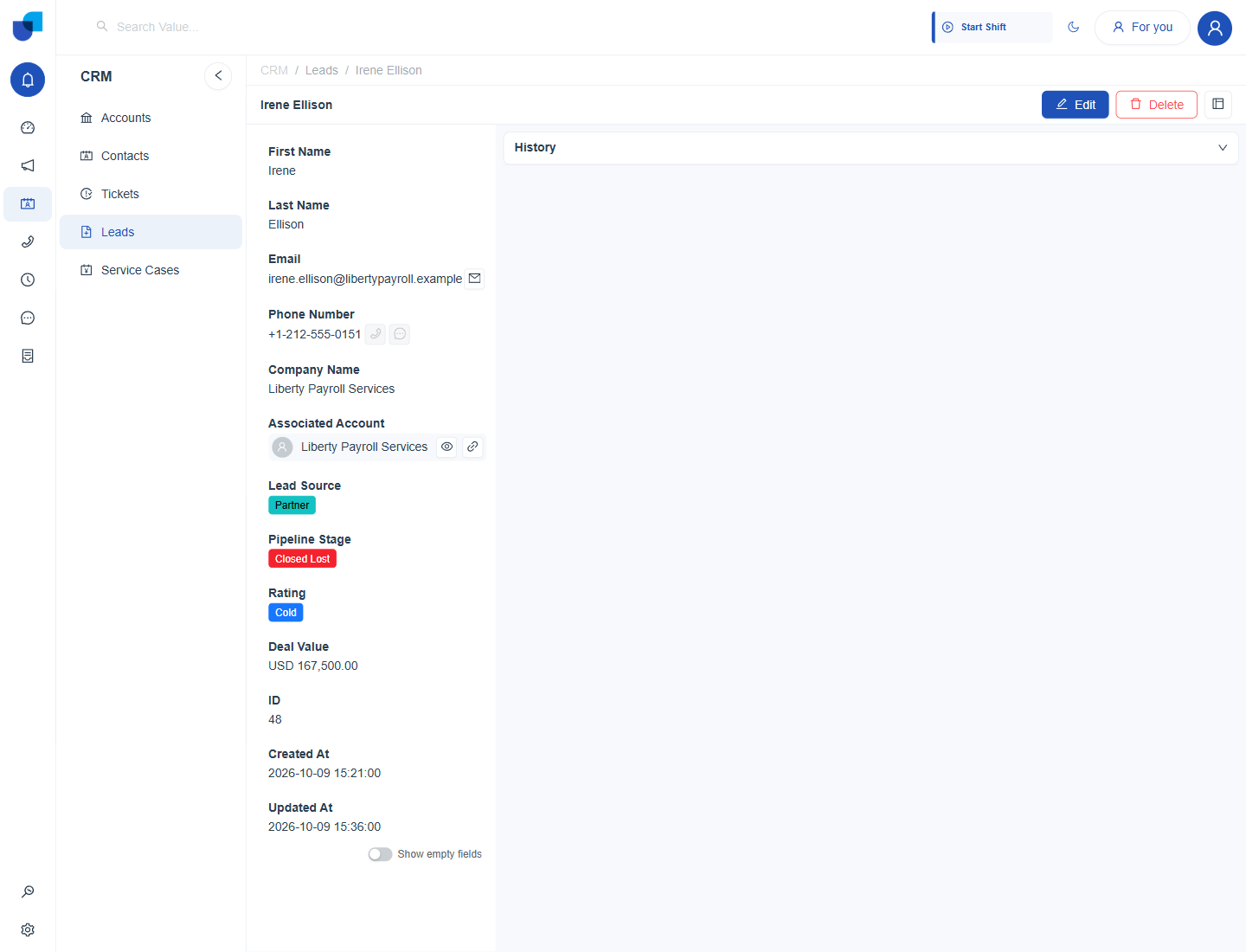
Figure 2. A single lead's page, where the phone number has the same phone and message icons seen in the list.
The phone icon stays greyed out until the agent has an active shift in a status with External Calls on and a registered softphone. This is the same prerequisite described in Telephony Getting Started and Status Management with 3CX, and it is not specific to Leads.
Work down a lead list in a fixed order, such as by Pipeline Stage, and use the message icon for leads who have not answered twice. It keeps the calling list shorter.
Where This Fits
Nothing about the Phone Number field's validation or format is changed for Telephony. That belongs to the Leads module's own field configuration. This page covers only the phone and message icons Telephony adds beside the field wherever it is shown.