Number Handling with AI Agent
An AI Agent set to Voice Agent mode can answer calls directly in place of a human extension. Which calls reach it, and where it sends a call on when it cannot finish the conversation, are both set on the agent's General tab, under Configuration → User Management → AI Agents. A billing line answered by an assistant named Billing Assistant is the example used here.
Making a Voice Agent
Execution Mode is the setting that turns a plain AI Agent into something Telephony can route a call to.
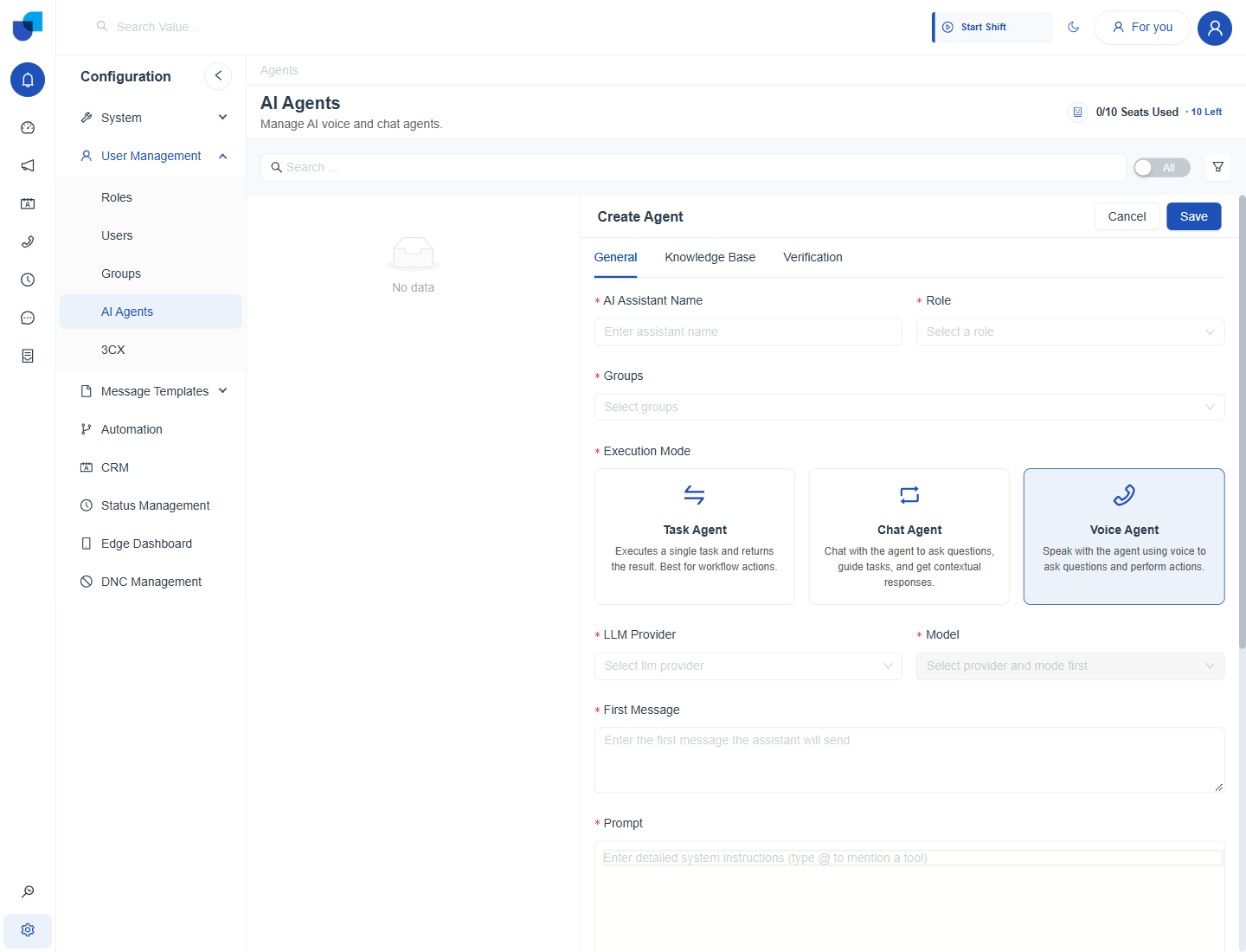
Figure 1. The General tab of a new AI Agent, with the Voice Agent card selected under Execution Mode.
| Execution Mode | Use |
|---|---|
| Task Agent | Executes a single task and returns the result. Best for workflow actions, not for calls. |
| Chat Agent | Holds a text conversation, guiding tasks and giving contextual answers. Not call related. |
| Voice Agent | Speaks with the caller to answer questions and perform actions. The only mode Telephony can connect a call to. |
The AI Agents screen also shows a seat counter, for example 0 of 10 seats used, which tracks how many AI Agent seats the licence allows.
Assigning a Number to the Agent
The Groups field is what hands a number to an AI Agent. Selecting a queue or ring group, the same groups described in Group Management with 3CX Queues and Ring Groups, means calls to that group's extension are answered by this agent.
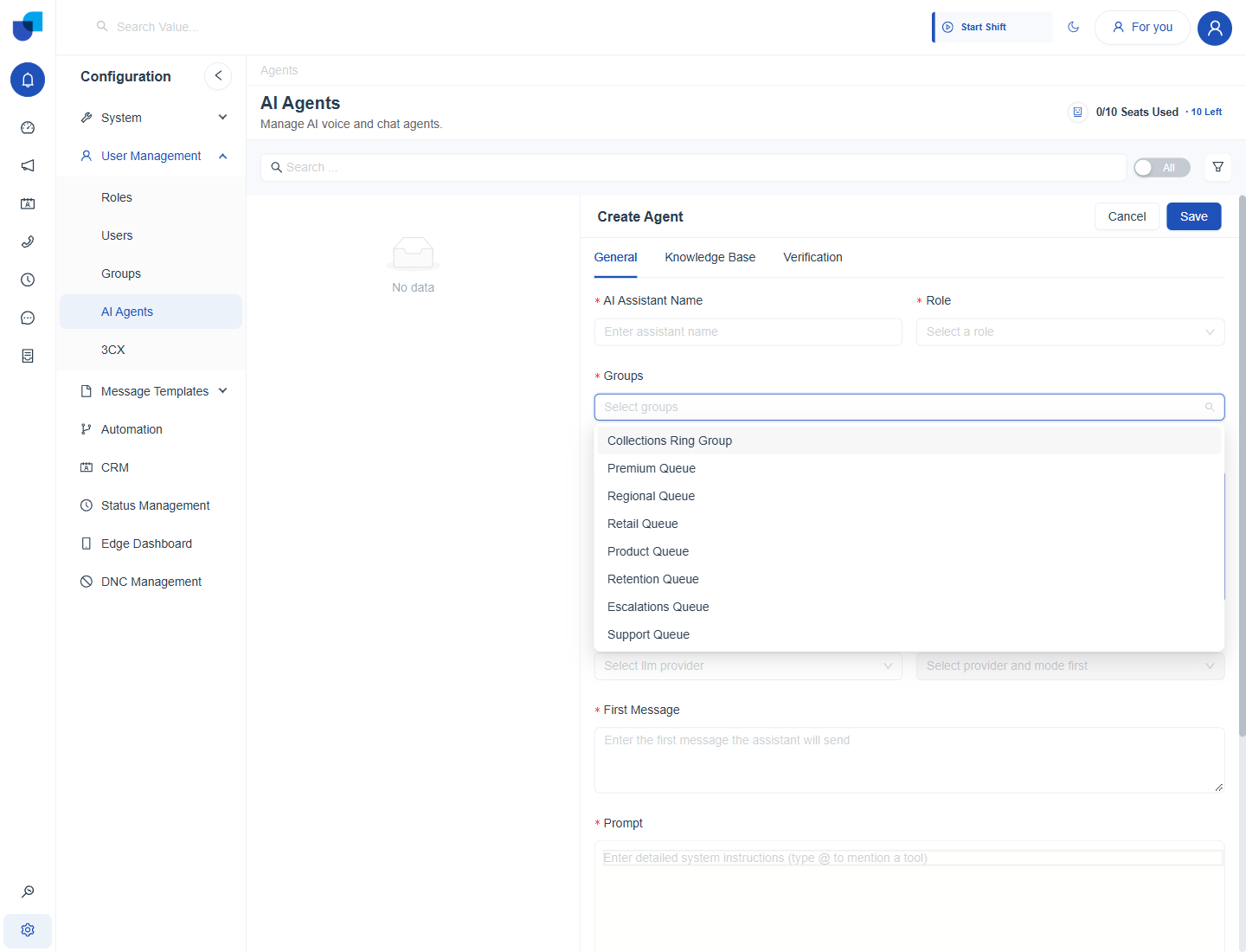
Figure 2. The Groups dropdown of an AI Agent, listing the queues and ring groups synced from 3CX.
| Field | Purpose |
|---|---|
| AI Assistant Name / Role | The agent's name and its role on the platform. |
| Groups | One or more queues or ring groups this agent answers calls for. |
| LLM Provider / Model | The AI provider and model that generate the agent's responses. The model list appears once a provider is chosen. |
| Language | The spoken language. It becomes available after a provider is chosen. |
| First Message | The exact greeting the agent opens the call with. |
| Prompt | The agent's full instructions: persona, conversational rules, and when to hand the call to a person. Typing @ mentions a tool. |
Transferring a Call On
Configure Destinations for Call Transfers, at the bottom of the General tab, gives a Voice Agent somewhere to send a call it cannot or should not finish itself.
- Scroll to Configure Destinations for Call Transfers and click Add Destination. A destination block opens.
- Choose where the call goes in Transfer To. For example an external number or an internal extension.
- Enter the number or extension.
- Write a Description telling the agent when to use this destination. For example, when the caller asks for a live agent. The agent reads this guidance in plain language rather than matching fixed keywords.
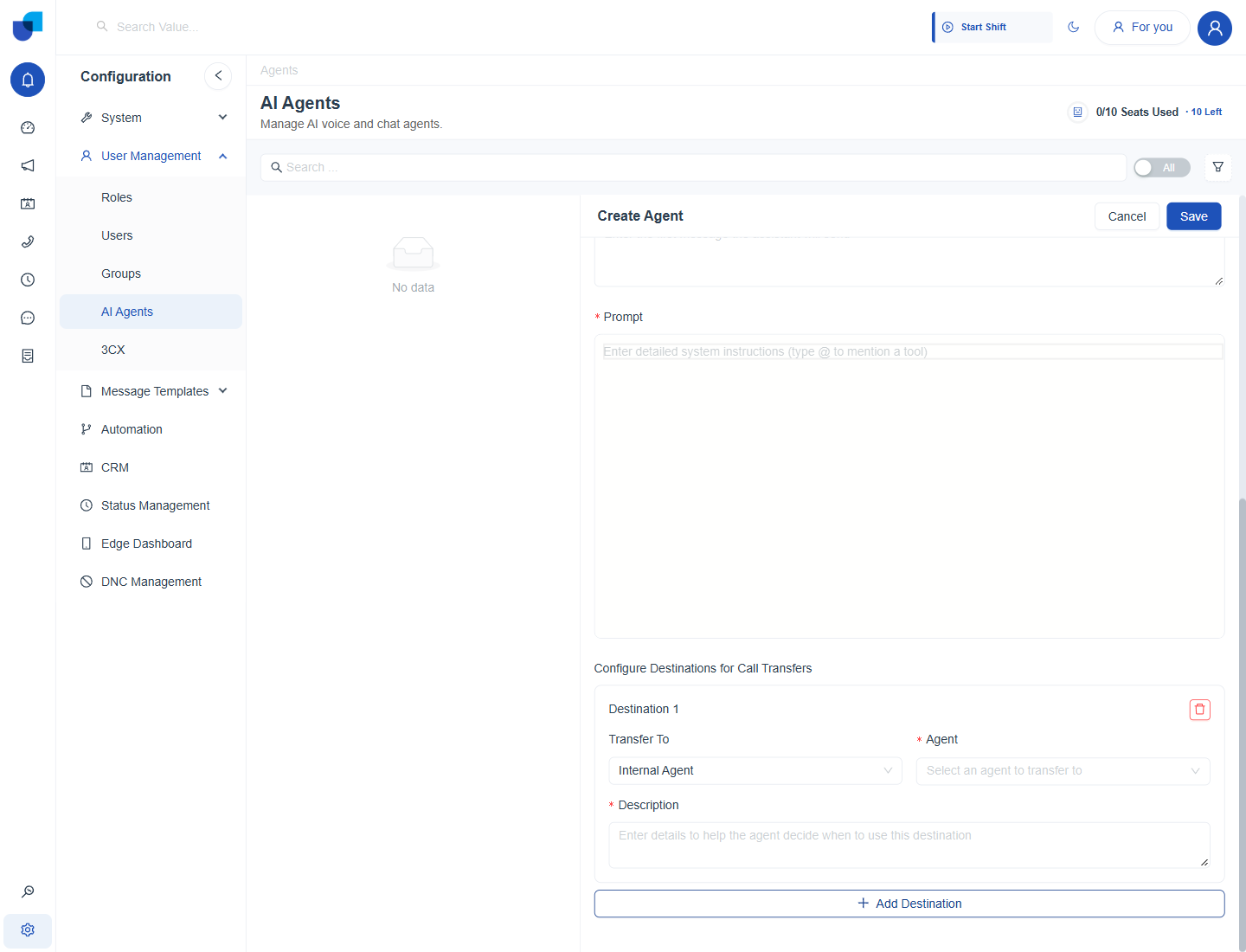
Figure 3. The transfer section at the bottom of the General tab, where destinations are added one at a time.
Add more than one destination when different requests need different people, such as one for a live agent request and another for a billing specialist. Give each a clear Description so the agent picks the right one.
Where This Fits
Everything else about an AI Agent, including its Knowledge Base and Verification tabs, belongs to the AI Agents feature itself. This page covers only the two settings that connect an agent to a phone number and let it hand a call back to a person: Groups and the transfer destinations.