Call Records
Call History
Every call handled through 3CX is stored as a record and listed on the Calls screen, newest first. Each row shows the call ID, start time, call type, service number, caller, callee, status and a set of action icons. Marcus Webb's supervisor uses it to review his collections calls at the end of the day.
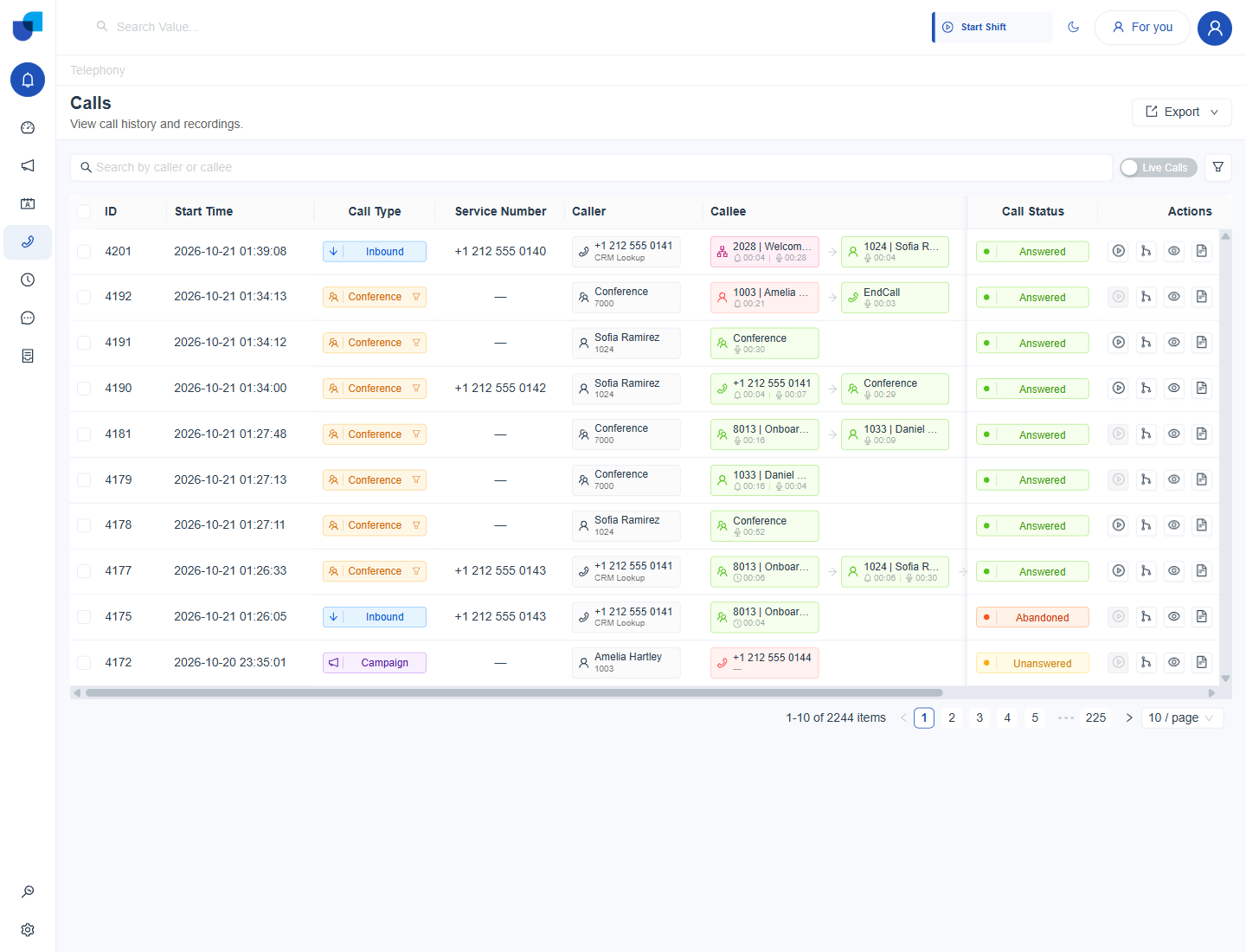
Figure 1. The Calls screen, with one row per call and the call's status and action icons at the right.
| Action icon | What it opens |
|---|---|
| Play | The recording of the call, when one exists. It is greyed out when the call was not recorded. |
| Path | The call path, a step by step timeline of where the call rang and who answered. |
| Eye | The full record of the call. |
| Document | The call summary. |
Call Recording
- Open Telephony → Calls.
- Click the play icon on the call's row. A Call Recordings window opens with a waveform and the recording's length.
- Press play to listen, or use the download icon to save the file.
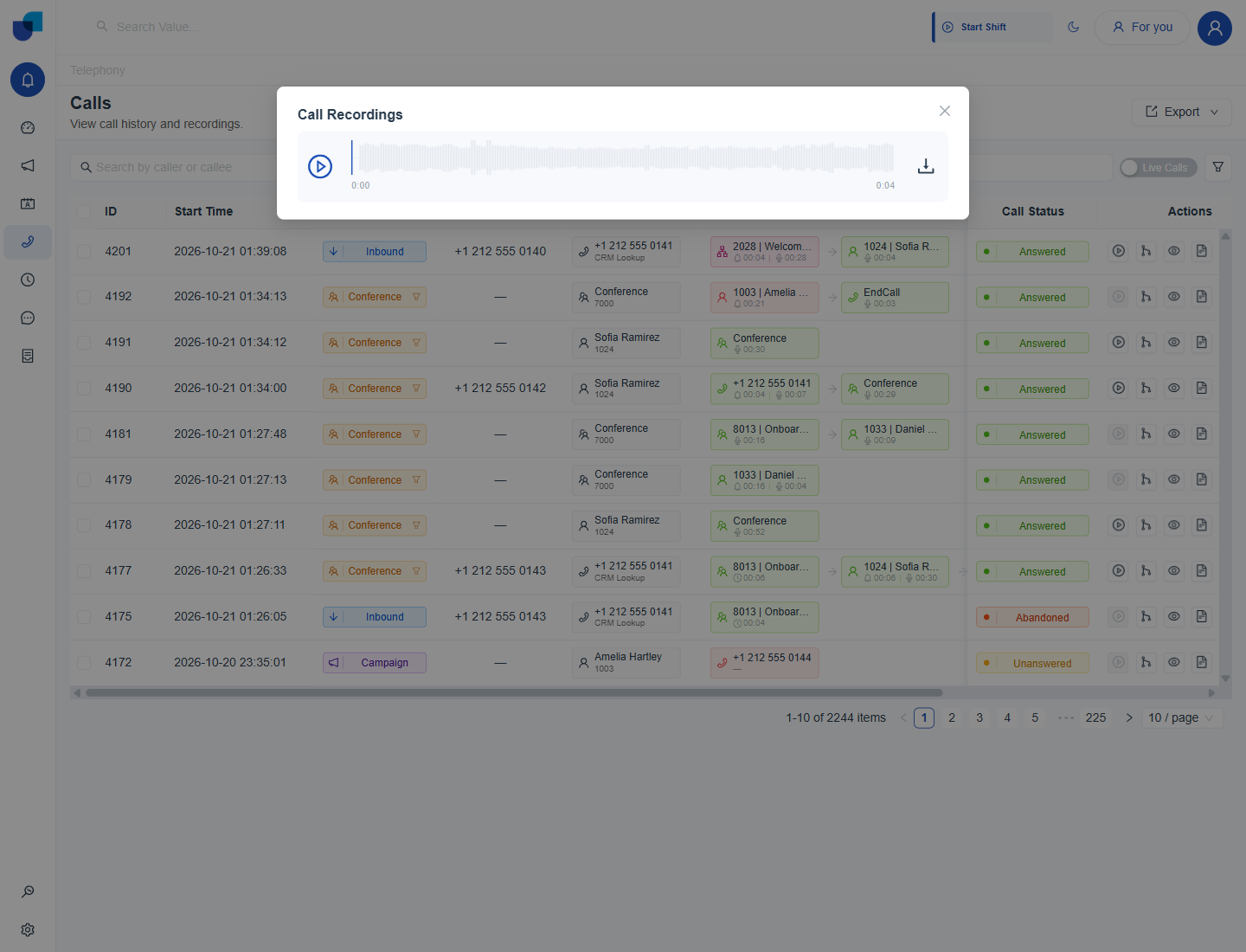
Figure 2. The Call Recordings window, opened from a row's play icon.
Listening to and downloading recordings are controlled by two separate permissions, Listen Call Recordings and Download Call Recordings. A user without them cannot open or save a recording even if the call is listed.
Call Path
The call record page shows the call's details on the left and its Call Path on the right. The path is a timeline: each block shows a status such as Ringing or Talking, the number the call came from, the extension or group it went to, and how long that leg lasted. A call that rang a queue first and was then answered by one agent shows both legs in order.
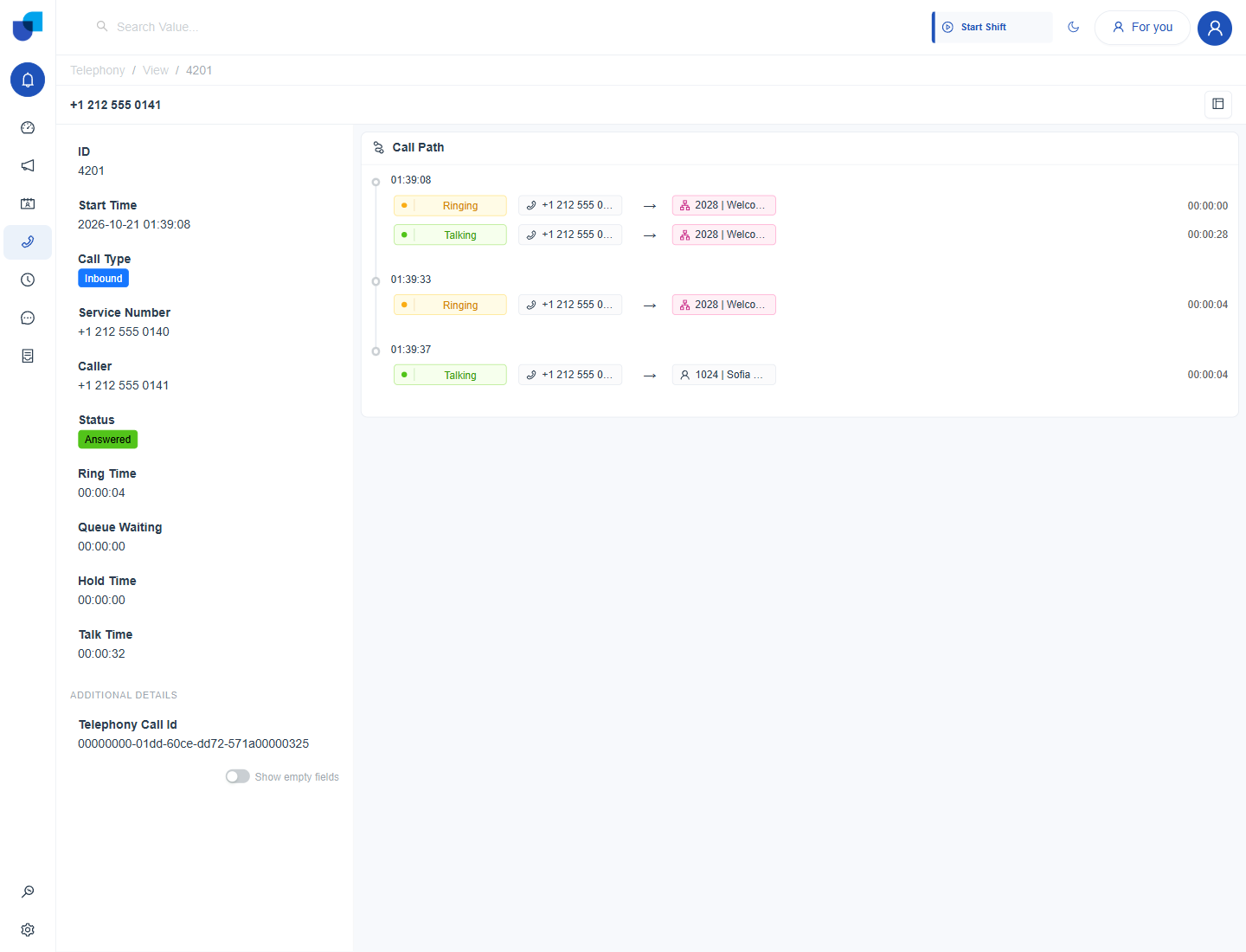
Figure 3. A call record with its Call Path. The call rang a queue, then was answered by extension 1024.
| Field | Meaning |
|---|---|
| Ring Time | How long the call rang before it was answered. |
| Queue Waiting | How long the caller waited in a queue. |
| Hold Time | How long the caller was placed on hold. |
| Talk Time | How long the call was connected. |
| Telephony Call Id | The identifier of the call on the 3CX server. Quote it when comparing a record with 3CX's own call log. |
Show empty fields, a toggle at the bottom of the left panel, reveals fields that have no value for this call, such as a transcript.
Call Filter
The search box finds calls by caller or callee. The filter button opens a panel that narrows the list further, and the Live Calls switch limits the list to calls in progress.
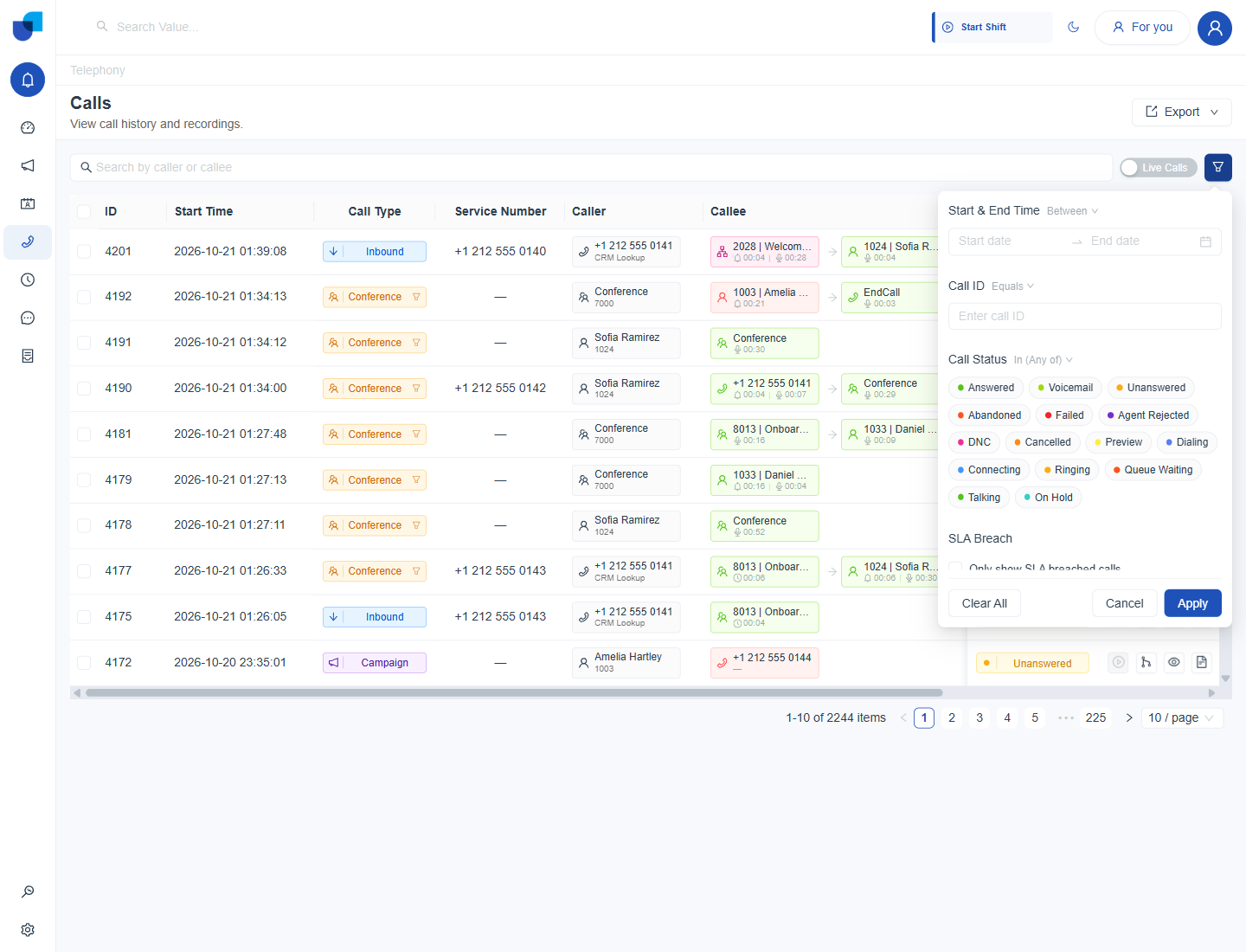
Figure 4. The filter panel. Call Status chips can be combined, and Apply updates the list.
| Filter | Use it to |
|---|---|
| Start & End Time | Limit the list to a date range. |
| Call ID | Jump to one call. |
| Call Status | Pick one or more statuses, for example Answered, Abandoned or Voicemail. |
| SLA Breach | Show only calls that breached the service level. |
To investigate missed demand, filter Call Status to Abandoned and Unanswered for one day, then open a few paths to see where callers dropped.
Who Can See What
Access Call Logs decides which calls a user sees: All, or a narrower scope set in the role. The recording permissions above apply on top of it. See System Workflows Telephony for the automations that run when a call ends.