System Workflows
What They Are
Telephony ships with a set of ready made workflows that react to call events. They are marked System on their cards in Configuration → Automation, and they keep the platform in step with what is happening on 3CX: updating user status, writing call data back to leads and popping up a record when a call arrives.
The Telephony Workflows
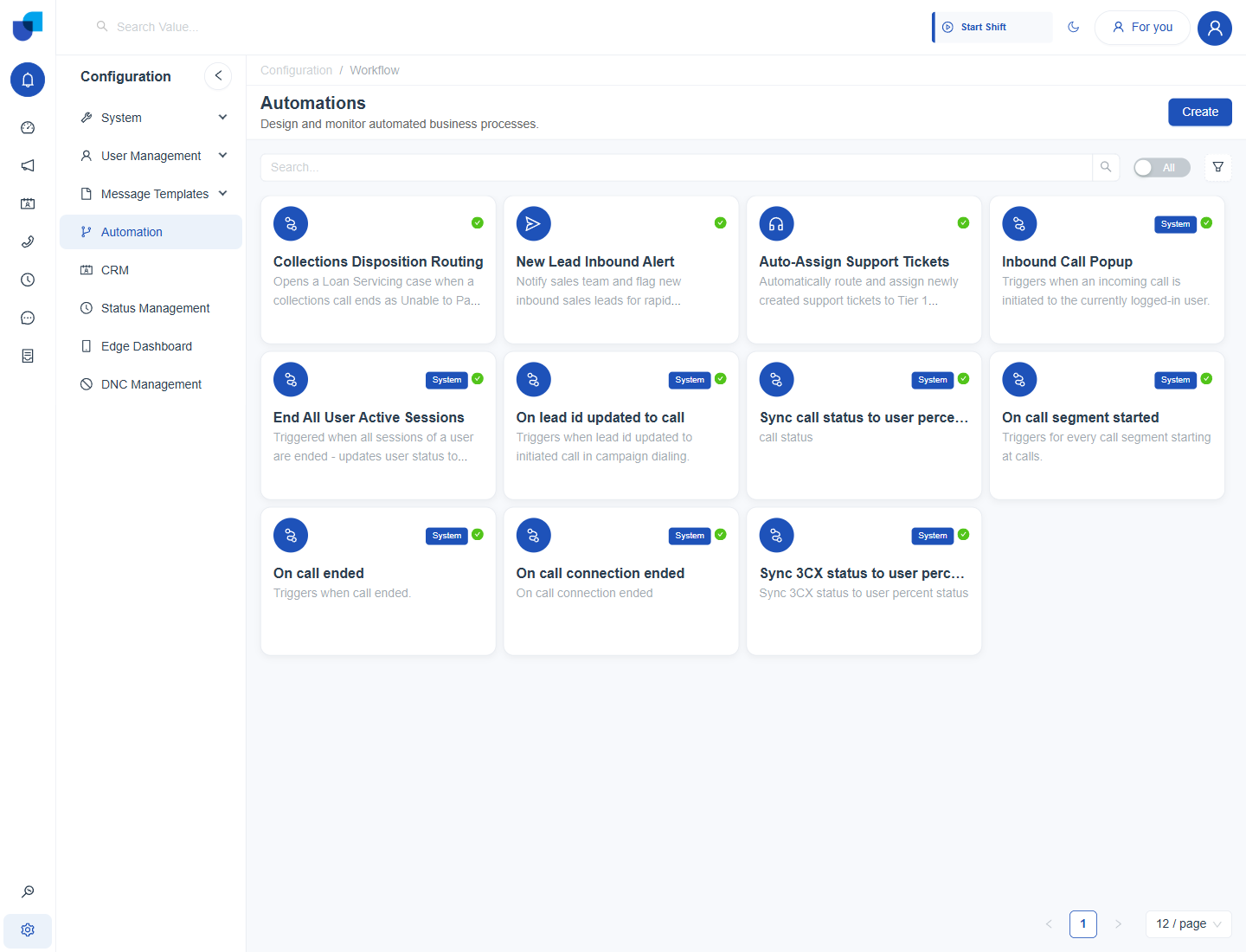
Figure 1. The Automations page. System workflows carry a System badge.
| Workflow | When it runs | What it does |
|---|---|---|
| Inbound Call Popup | When an incoming call reaches the logged in user | Opens a web page or record for that user. |
| On call segment started | Each time a call segment starts | Feeds the call into the platform's call handling. |
| On call ended | When a call ends | Updates the related lead with the outcome. |
| On call connection ended | When a call connection ends | Closes out the connection. |
| On lead id updated to call | When a lead is attached to a call in campaign dialing | Links the lead and the call. |
| Sync call status to user percent status | When a call status changes | Keeps the user's presence in step with the call. |
| Sync 3CX status to user percent status | When the 3CX presence changes | Keeps the platform status in step with 3CX. |
| End All User Active Sessions | When all of a user's sessions end | Updates the user's status. |
Inbound Call Popup
The popup workflow is the easiest to follow. A trigger, On Call Segment Started, feeds a Condition, and when the condition is true an action, Open URL Web By User ID, opens the page for the user who is receiving the call. When a customer rings Marcus Webb's extension, his screen can open on that customer's record.
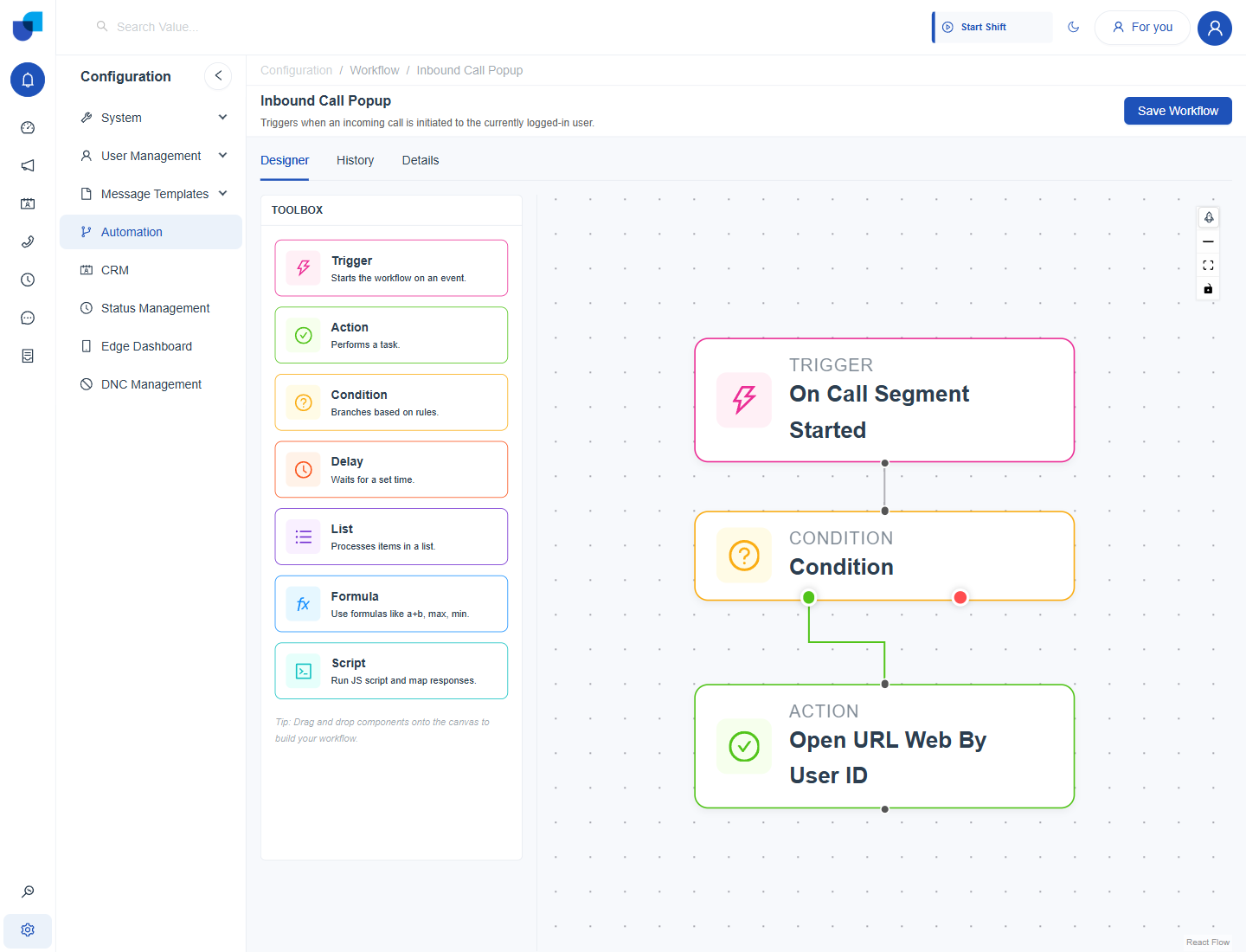
Figure 2. The Inbound Call Popup workflow in the designer: trigger, condition, then action.
On Call Ended
This workflow starts from a Call Ended trigger and branches into several conditions. Each true branch runs an Update Lead action, so the lead ends the call with the right status or field values.
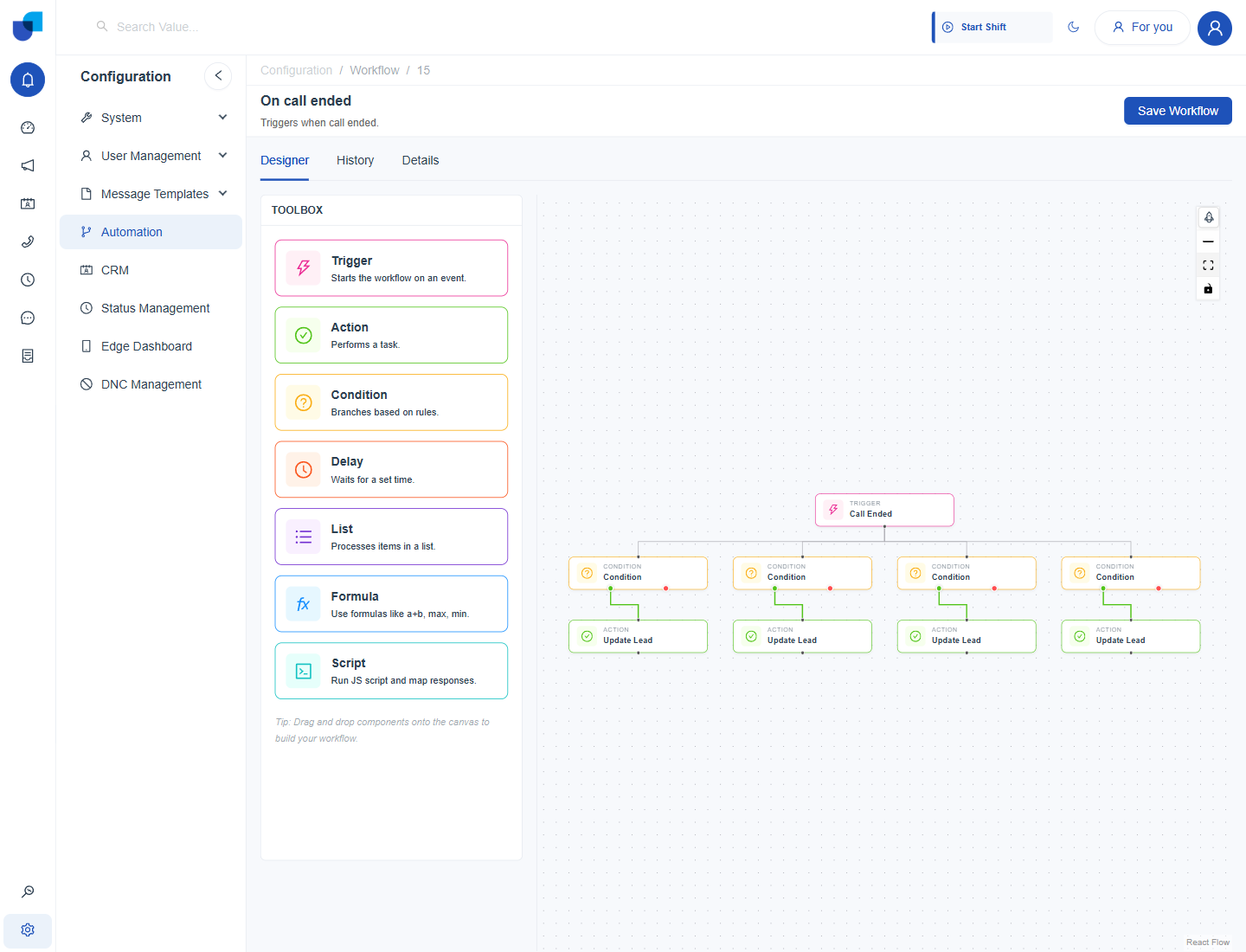
Figure 3. The On call ended workflow, with four conditions that each end in an Update Lead action.
The designer toolbox lists the building blocks: Trigger, Action, Condition, Delay, List, Formula and Script. Drag them onto the canvas to build or extend a workflow.
Working with Them
- Read before you edit. System workflows keep status, presence and lead data in step. Open one in the designer and read its History and Details tabs first.
- Add your own beside them. Create a separate workflow for your own rules, for example one that opens a follow up task after a call, instead of changing a System one.
- Check History after a change. The History tab lists runs, so you can confirm a workflow fired.
Changes to a System workflow affect every user and every call. Save a change only when you understand what the workflow feeds.