3CX User Sync
After the 3CX plugin is connected, the 3CX Users screen lists every extension that exists on the 3CX server, whether or not it already has a matching UNICONNECT AI user. This is where an extension and a platform user are linked. Marcus Webb, extension 1018, is the example used here.
The 3CX Users Screen
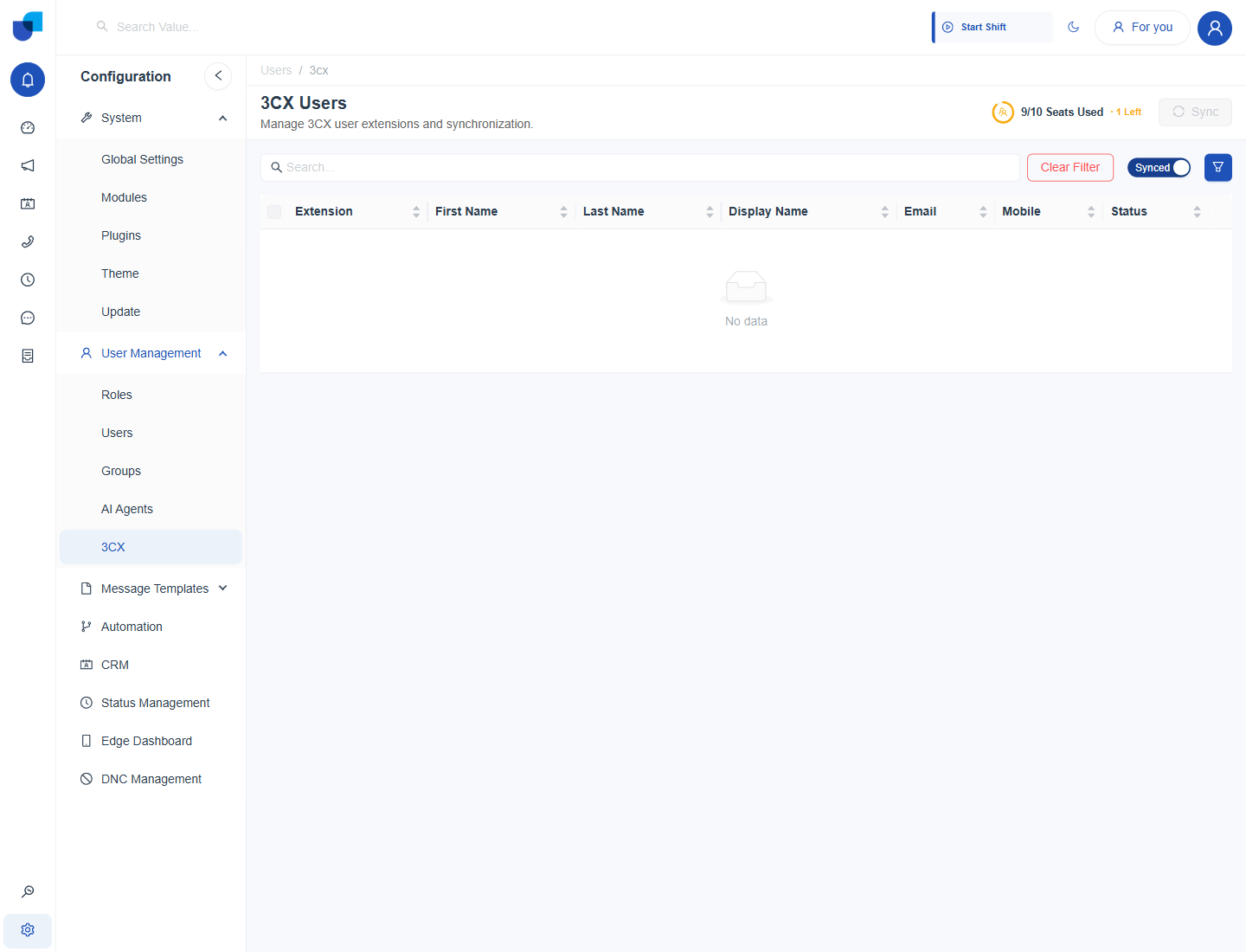
Figure 1. The 3CX Users screen, with the seat indicator, the Sync button, the Synced and All filters, and the extension table.
| Element | Meaning |
|---|---|
| Seats Used | A progress indicator counting how many licensed seats are in use, with the number left beside it, for example 9 of 10 used and 1 left. |
| Sync | Pulls the latest extension list from the 3CX server. |
| Synced / All | Narrows the list to extensions already linked to a user, or shows every extension 3CX reports. Clear Filter appears once a filter is on. |
| Extension | The numeric extension on the 3CX server, for example 1018. |
| First Name / Last Name / Display Name | The name fields set on the 3CX server. |
| The address tied to that extension in 3CX. | |
| Mobile | A mobile number recorded for the extension, used by the Ring My Mobile behavior in Status Management with 3CX. |
| Status | Synced or Not Synced, showing whether the extension already has a matching user. |
Syncing Extensions
- Open Configuration → User Management → 3CX. The list shows every extension the connected server reports with its Synced or Not Synced status.
- Click Sync. The latest extensions are pulled in from 3CX using the name, email and mobile number already on file there.
- Open Configuration → User Management → Users to see the result. Each synced extension appears as a user with its extension number beside the name.
The Data Sync Interval in the plugin also refreshes 3CX data on a schedule. Sync is for pulling new extensions in straight away, for example right after adding an agent in 3CX.
The Synced User
A synced extension appears on the Users screen. Opening Marcus Webb shows the details taken from 3CX alongside the platform's own account fields.
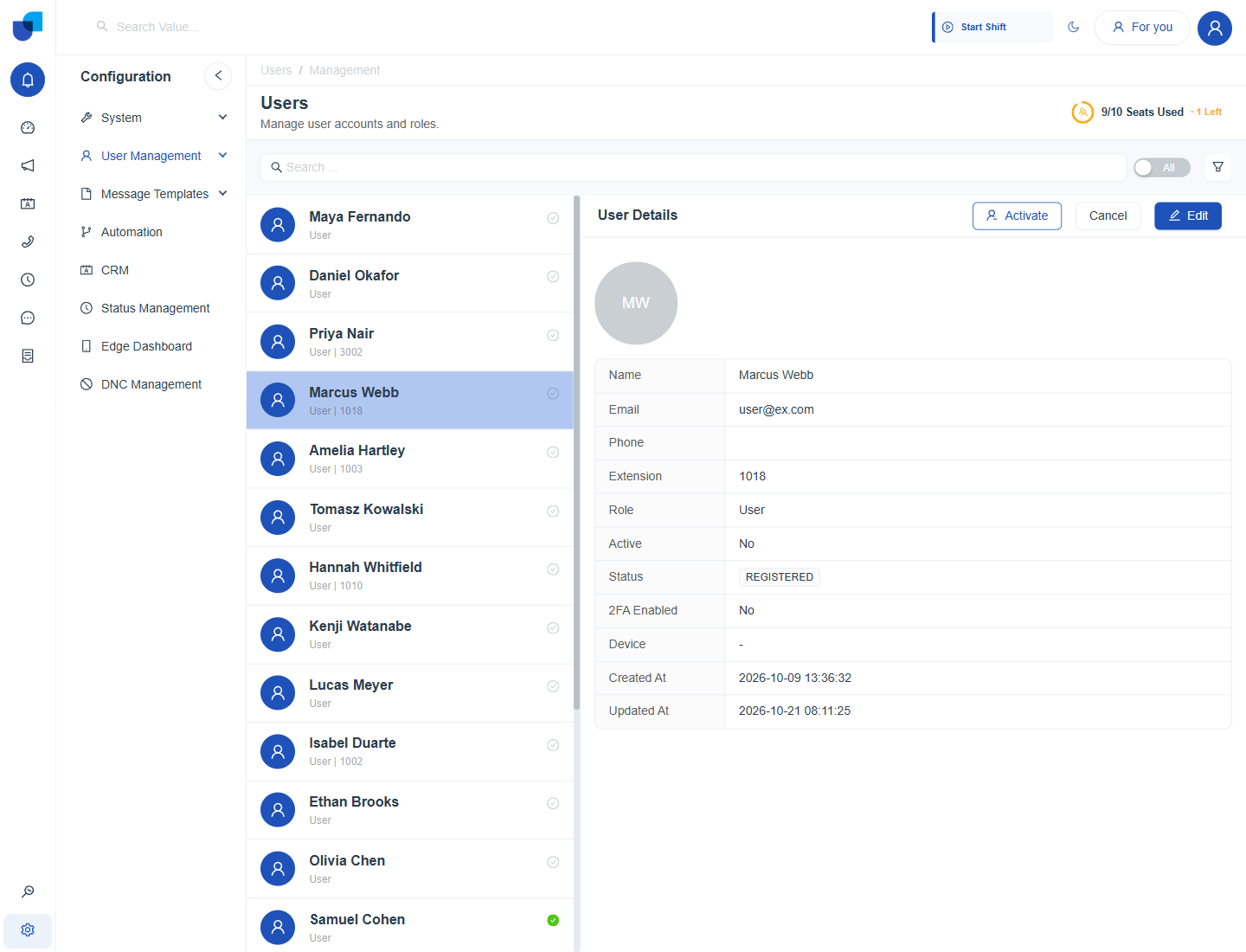
Figure 2. The User Details panel for a synced user. The Status of REGISTERED and Active of No show an extension that is synced but not yet activated.
| Field | Meaning |
|---|---|
| Name / Email / Phone | Identity details carried over from the 3CX extension. |
| Extension | The 3CX extension number that links calls to this person. |
| Role | The permission role assigned to the user, such as User or System Owner. |
| Active | Whether the user is active on the platform. Activate switches a synced user on. |
| Status | The sync state of the account, for example REGISTERED for a user created from an extension. |
| 2FA Enabled / Device | Whether two factor sign in is on, and the device registered for the user. |
Seats
The seat counter appears on both the 3CX Users screen and the Users screen. It reflects the licensed seats and how many are already used, so it is the place to check before activating more agents.
Activating a user uses a licensed seat. When the counter shows no seats left, additional users cannot be activated until a seat is freed or the licence is extended.
Where This Fits
A synced extension is what lets a call show up against a named agent on the Calls screen, in Workforce Monitor, and in the softphone the agent signs in to. Creating or editing users more broadly is part of User Management. The next step after syncing is checking group membership in Group Management with 3CX Queues and Ring Groups.