SMS Gateway Configuration
1. Introduction
The SMS Gateway Configuration module enables integration with external messaging providers such as Generic SMS APIs, Dialog E-SMS, and Twilio, allowing users to send SMS notifications, alerts, and campaign messages directly from the system.
This setup requires two main steps:
- Configure the SMS plugin (Generic SMS / Dialog E-SMS / Twilio)
- Activate SMS from Module Configuration
2. Configuration Overview
| Step | Description |
|---|---|
| Step 1 | Configure SMS Plugin |
| Step 2 | Activate Messaging Module |
| Step 3 | Start using SMS features |
3. Configure SMS Plugins
Step 1
Navigation:
Configuration → Plugins → Select SMS Plugin
Available Plugins:
- Generic SMS
- Dialog E-SMS
- Twilio SMS
Required Actions:
- Enable the plugin
- Configure required fields based on the selected provider
3.1 Generic SMS Configuration
Input Fields Explanation:
-
The Gateway Name is a unique identifier used to recognize the SMS provider within the system (e.g., Notify).
-
The API URL is the endpoint provided by the SMS service provider to send messages (e.g., https://app.notify.lk/api/v1/send).
-
The HTTP Method defines how the request is sent to the API, commonly set to POST.
-
The Auth Type specifies the authentication method required by the API (e.g., None, Basic, Bearer Token).
Example Configuration:
| Field | Example Value |
|---|---|
| Gateway Name | Notify |
| API URL | https://app.notify.lk/api/v1/send |
| HTTP Method | POST |
| Auth Type | None |
3.2 Dialog E-SMS Configuration
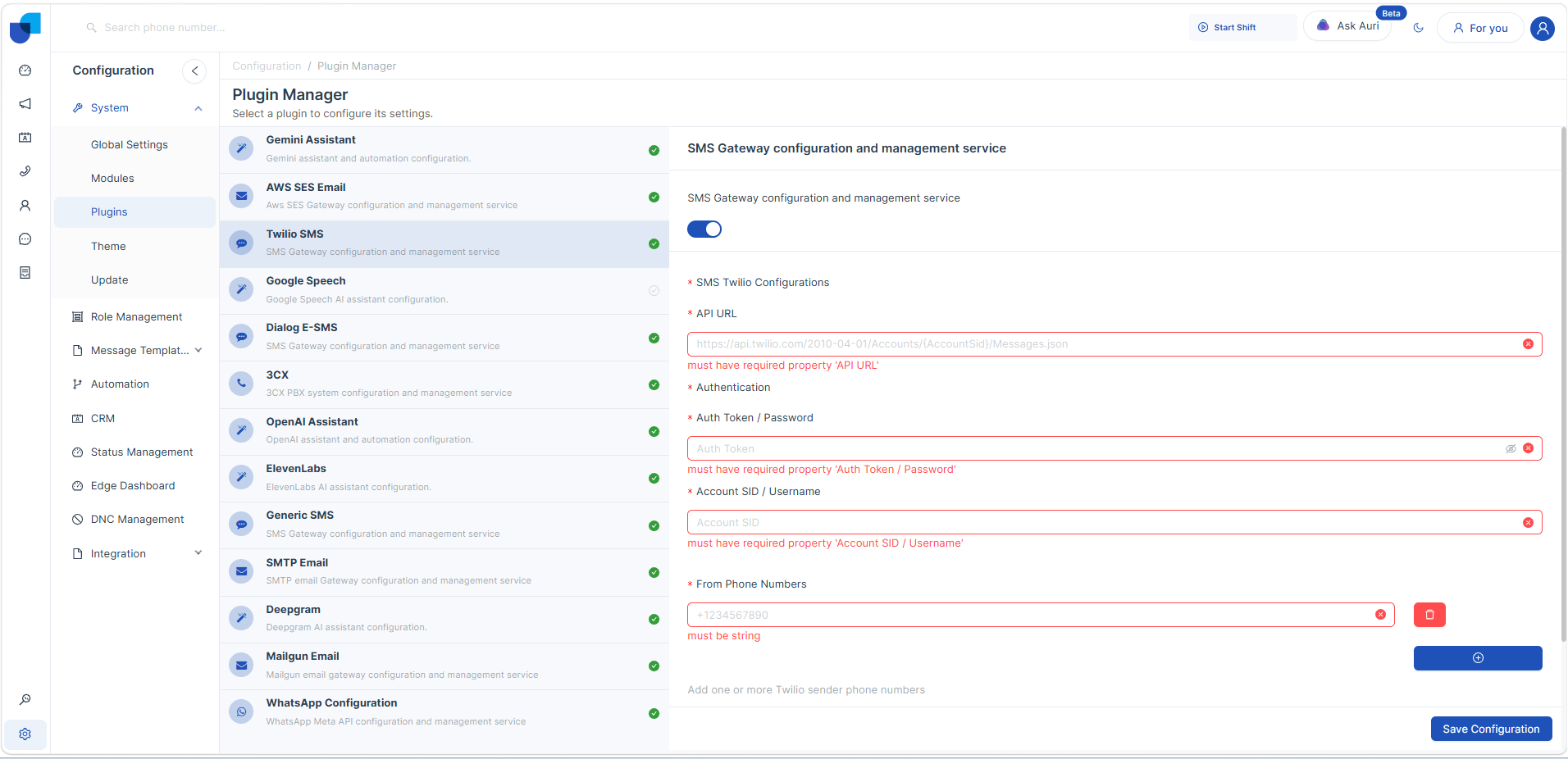
Input Fields Explanation:
-
The Sender Masks define the name displayed to recipients when an SMS is received (e.g., Simsyn).
-
The Username is provided by Dialog for authentication purposes.
-
The Password is provided by Dialog to securely authenticate requests.
Example Configuration:
| Field | Example Value |
|---|---|
| Sender Mask | Simsyn |
| Username | simsyn |
| Password | ******** |
3.3 Twilio SMS Configuration
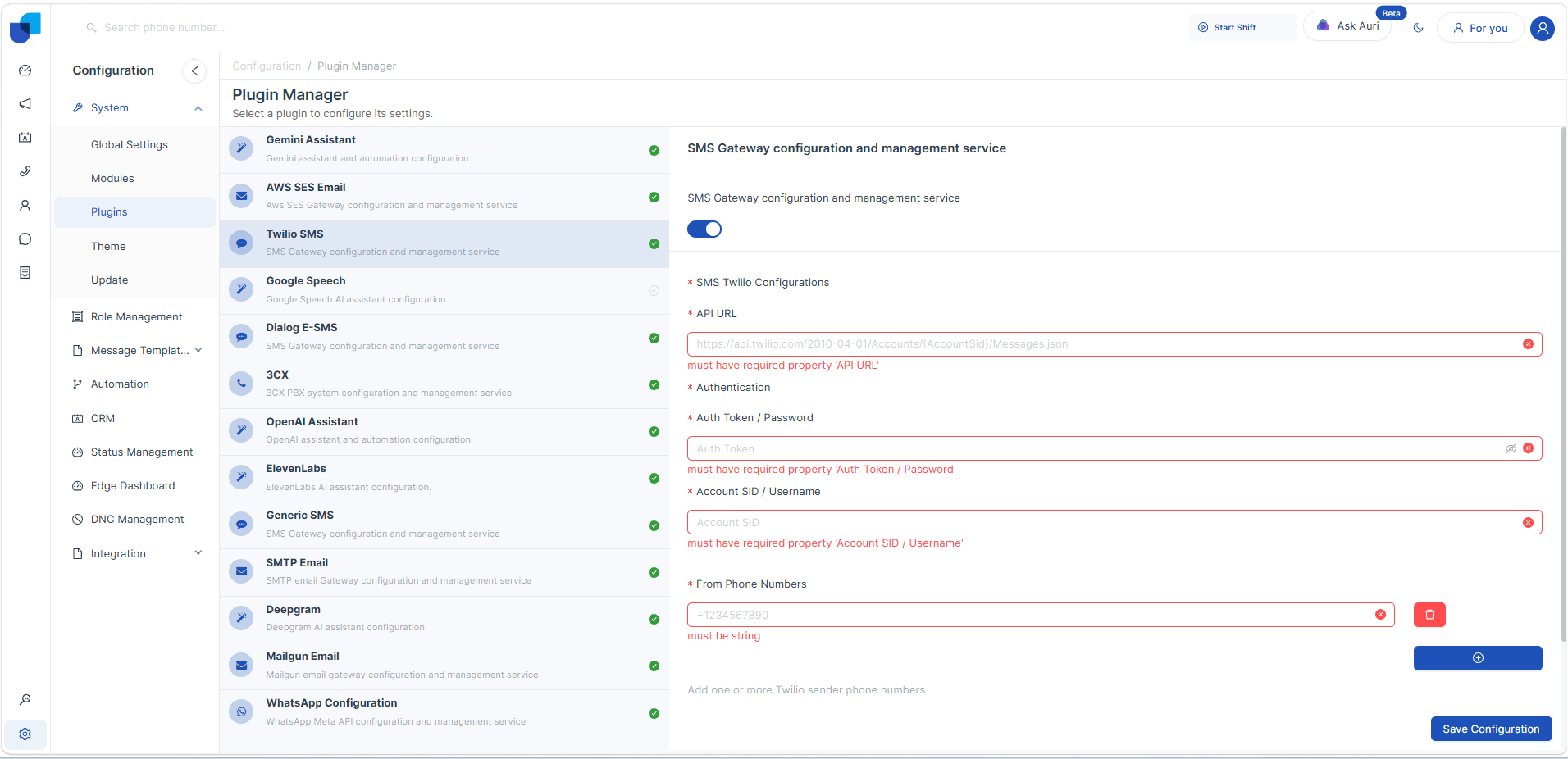
Input Fields Explanation:
-
The API URL is the Twilio messaging endpoint used to send SMS (e.g., https://api.twilio.com/2010-04-01/Accounts/{AccountSID}/Messages.json).
-
The Auth Token / Password is the authentication token obtained from the Twilio account.
-
The Account SID / Username is the unique identifier for the Twilio account.
-
The From Phone Numbers are the registered Twilio numbers used to send SMS (e.g., +1234567890).
Validation Rules:
- All required fields must be completed
- Phone numbers must include country code
- Missing or incorrect values will trigger validation errors
Example Configuration:
| Field | Example Value |
|---|---|
| API URL | https://api.twilio.com/.../Messages.json |
| Auth Token | ******** |
| Account SID | ACxxxxxxxxxxxx |
| From Number | +1234567890 |
4. Activate Messaging Module
Step 2
Navigation:
Configuration → Modules
4.1 Enable Messaging Option
Field: Messaging Option (Toggle)
Description: Activates SMS functionality within the selected module.
Configuration:
- ON → Enables SMS features
- OFF → Disables SMS functionality
4.2 Select SMS Provider
Field: SMS Configuration (Dropdown)
Available Options:
- Generic SMS
- Dialog E-SMS
- Twilio SMS
Description: This field links the configured SMS plugin to the selected module. Only configured plugins will appear in the dropdown.
How to Configure:
- Click the dropdown
- Select a configured SMS plugin
- Ensure the plugin is configured before selection
4.3 Save Configuration
Action: Save Configuration Button
Description: Applies and stores all module-level SMS settings.
Behavior:
- Activates SMS functionality
- Links selected plugin with module
- Enables message sending capability
6. Using SMS Functionality
Once SMS is activated:
Available actions include:
- Sending SMS notifications
- Triggering SMS through workflows
- Sending alerts from CRM modules
- Supporting communication in campaigns
Dependency: SMS functionality will NOT work unless:
- Plugin is configured
- Messaging option is enabled
- SMS provider is selected