WhatsApp Configuration
1. Introduction
The WhatsApp Configuration module enables integration with WhatsApp Meta API, allowing the system to send and receive WhatsApp messages for notifications, customer communication, and campaign messaging.
This setup requires two main steps:
- Configure the WhatsApp plugin (Meta API)
- Activate WhatsApp from Module Configuration
2. Configuration Overview
| Step | Description |
|---|---|
| Step 1 | Configure WhatsApp Plugin |
| Step 2 | Activate Messaging Module |
| Step 3 | Start using WhatsApp features |
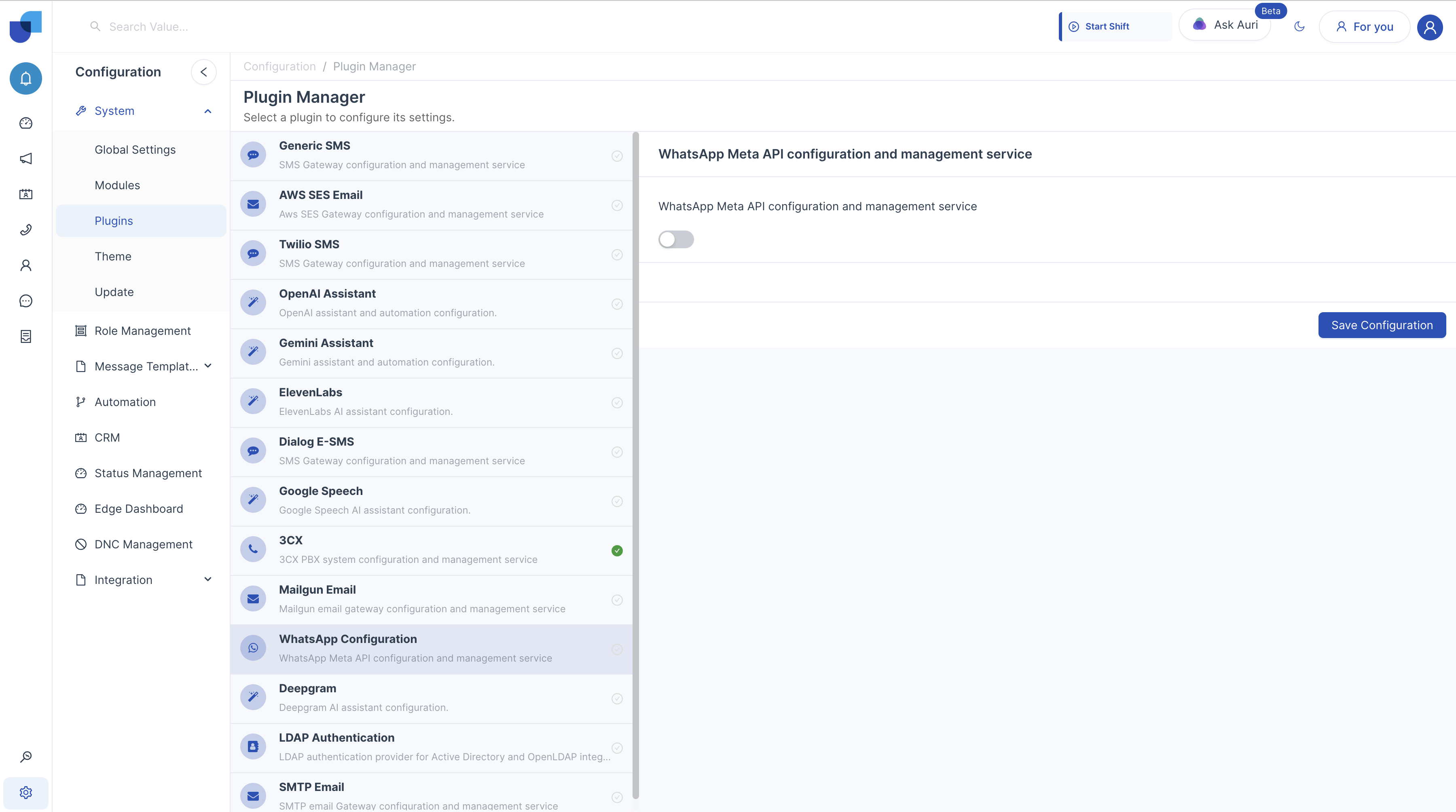
3. Configure WhatsApp Plugin
Step 1
Navigation:
Configuration → Plugins → WhatsApp Configuration
Required Actions:
- Enable the plugin
- Configure all required WhatsApp Meta API fields
- Save configuration
3.1 WhatsApp Meta API Configuration
Input Fields Explanation:
-
The App ID is the unique identifier of the application created in the Meta Developer Dashboard. Example:
1127910932679769 -
The App Secret is a secure key generated in the Meta Developer Dashboard used for authentication.
-
The Business ID is the identifier of the Meta Business Account linked to WhatsApp services. Example:
86634096537644 -
The Access Token is used to authenticate API requests. This can be a temporary or permanent token generated from Meta.
-
The Verify Token is used during webhook verification to validate communication between Meta and the system. Example:
verify_me -
The Webhook URL is the endpoint where Meta sends event notifications (incoming messages, delivery updates). Example:
https://your-domain/api/whatsapp/webhook
Validation Rules:
- All required fields must be completed
- Access Token must be valid and active
- Webhook URL must be publicly accessible
- Verify Token must match the value configured in Meta
4. Activate Messaging Module
Step 2
Navigation:
Configuration → Modules
4.1 Enable Messaging Option
Field: Messaging Option (Toggle)
Description: Activates messaging functionality including WhatsApp within the selected module.
Configuration:
- ON → Enables messaging features
- OFF → Disables messaging functionality
4.2 Select WhatsApp Provider
Field: Messaging Configuration (Dropdown)
Available Option:
- WhatsApp Configuration (Meta API)
Description: This field links the configured WhatsApp plugin to the module. Only configured plugins will appear in the dropdown.
How to Configure:
- Click the dropdown
- Select WhatsApp Configuration
- Ensure plugin is configured before selection
4.3 Save Configuration
Action: Save Configuration Button
Description: Applies and stores module-level WhatsApp settings.
Behavior:
- Activates WhatsApp messaging
- Links module with WhatsApp plugin
- Enables message sending capability
5. End-to-End Activation Flow
Step 1: Configure WhatsApp Plugin Step 2: Enable Messaging Option Step 3: Select WhatsApp Configuration Step 4: Save Configuration WhatsApp Messaging Activated
6. Using WhatsApp Functionality
Once WhatsApp is activated:
Available actions include:
- Sending WhatsApp messages to customers
- Triggering messages through workflows
- Sending alerts and notifications
- Supporting campaign-based communication
Dependency: WhatsApp functionality will NOT work unless:
- Plugin is configured
- Messaging option is enabled
- WhatsApp provider is selected