Campaign Lead Top-Up Guide
1. Introduction
The Lead Top-Up feature allows adding more leads to an existing campaign after it has already been created or is running.
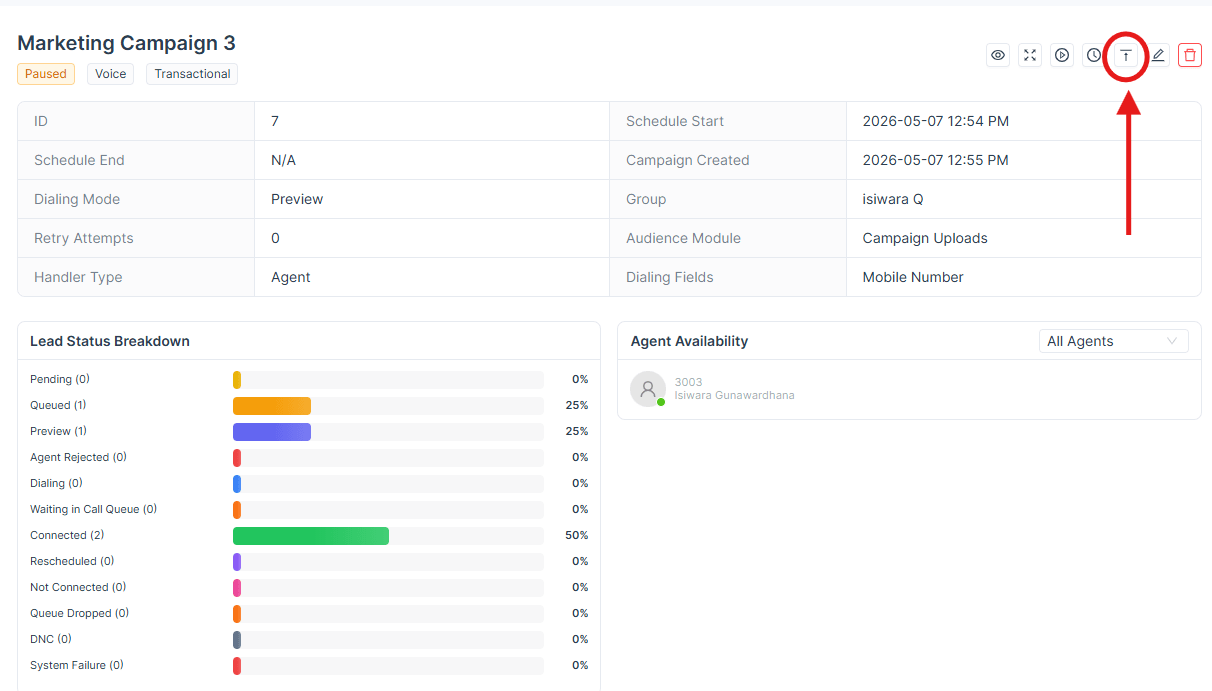
This helps continue campaigns without creating a new one.
Leads can be added using:
- CSV Upload
- CRM Module
2. Top-Up Using CSV
Description
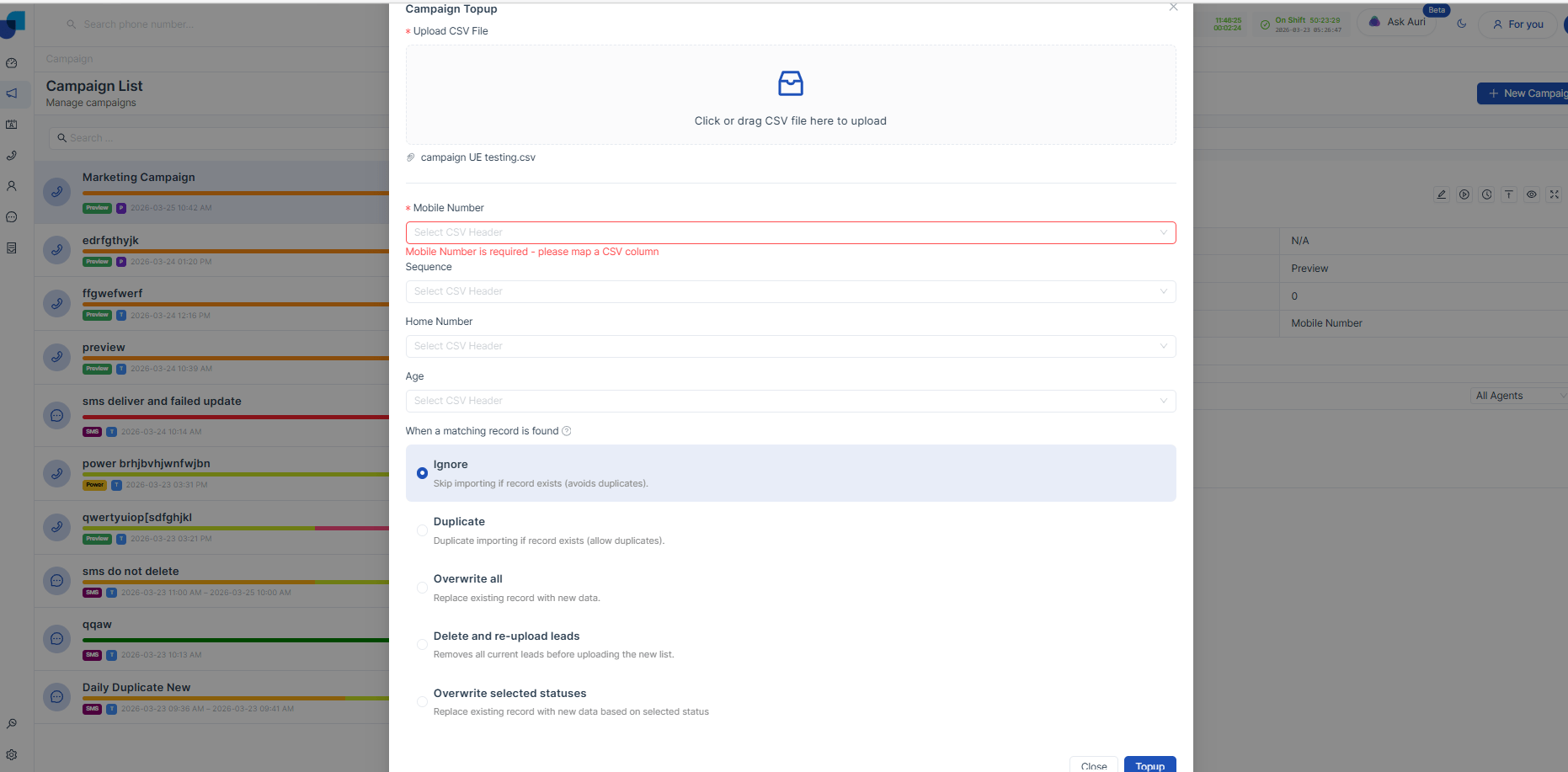
If the campaign was initially created using a CSV file, additional leads can be uploaded again using another CSV file.
Steps
- Click Top-Up option in the campaign
- Upload a new CSV file
- Map fields with Lead Module configuration
- Confirm upload
Field Mapping
- Field mapping is mandatory during top-up
- Must align with:
- Phone number (mandatory)
- Standard fields (Name, Email)
- Custom fields
Behavior
- New leads are added to the existing campaign
- Existing leads remain unchanged unless overwrite options are selected
3. Top-Up Using CRM Module
Description
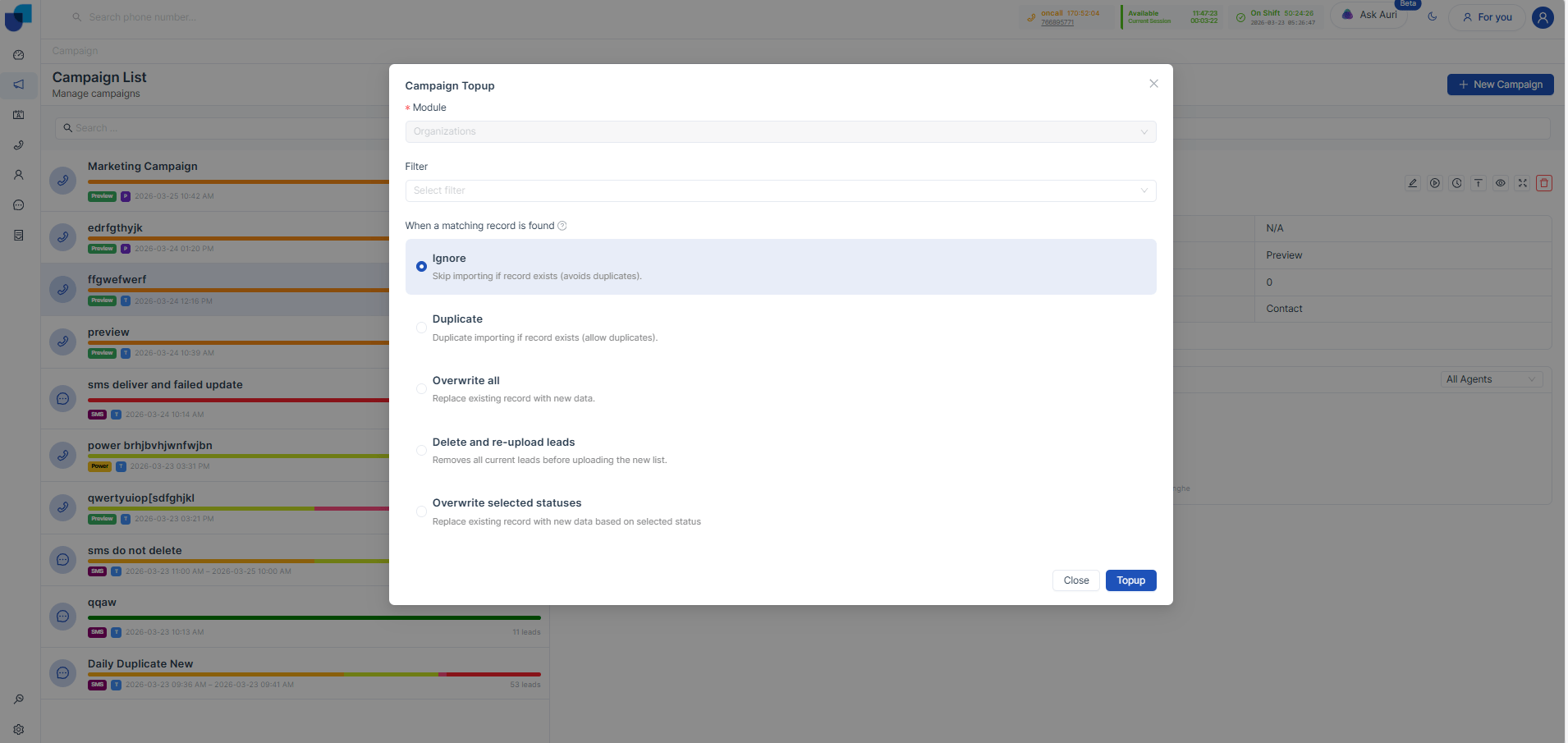
If the campaign is created using a CRM module, only the same CRM module can be used for top-up.
Steps
- Click Top-Up
- Select the same CRM module (e.g., Leads, Contacts)
- Apply filters (optional):
- Status
- Tags
- Created Date
- Preview leads
- Import
Behavior
- Different filters can be applied to fetch new leads
- Leads are linked to the campaign
- No need for CSV upload
4. Top-Up Options (Data Handling Rules)
During top-up, users can define how duplicate or existing records should be handled.
Ignore
- Skips records that already exist
- Prevents duplicate entries
Duplicate
- Imports records even if they already exist
- Allows duplicate leads
Overwrite All
- Replaces existing lead data with new data
- Updates all matching records
Delete and Re-upload Leads
- Removes all current leads in the campaign
- Uploads a completely new lead list
Overwrite Selected Statuses
- Updates only leads with specific statuses
- Other leads remain unchanged