CLI (Caller Line Identification) Configuration Guide
1. Introduction
CLI (Caller Line Identification) defines which phone number is displayed to the customer when a call is made from a campaign.
This helps:
- Control caller identity
- Use different numbers for different campaigns
- Manage call distribution
2. CLI Selection Step
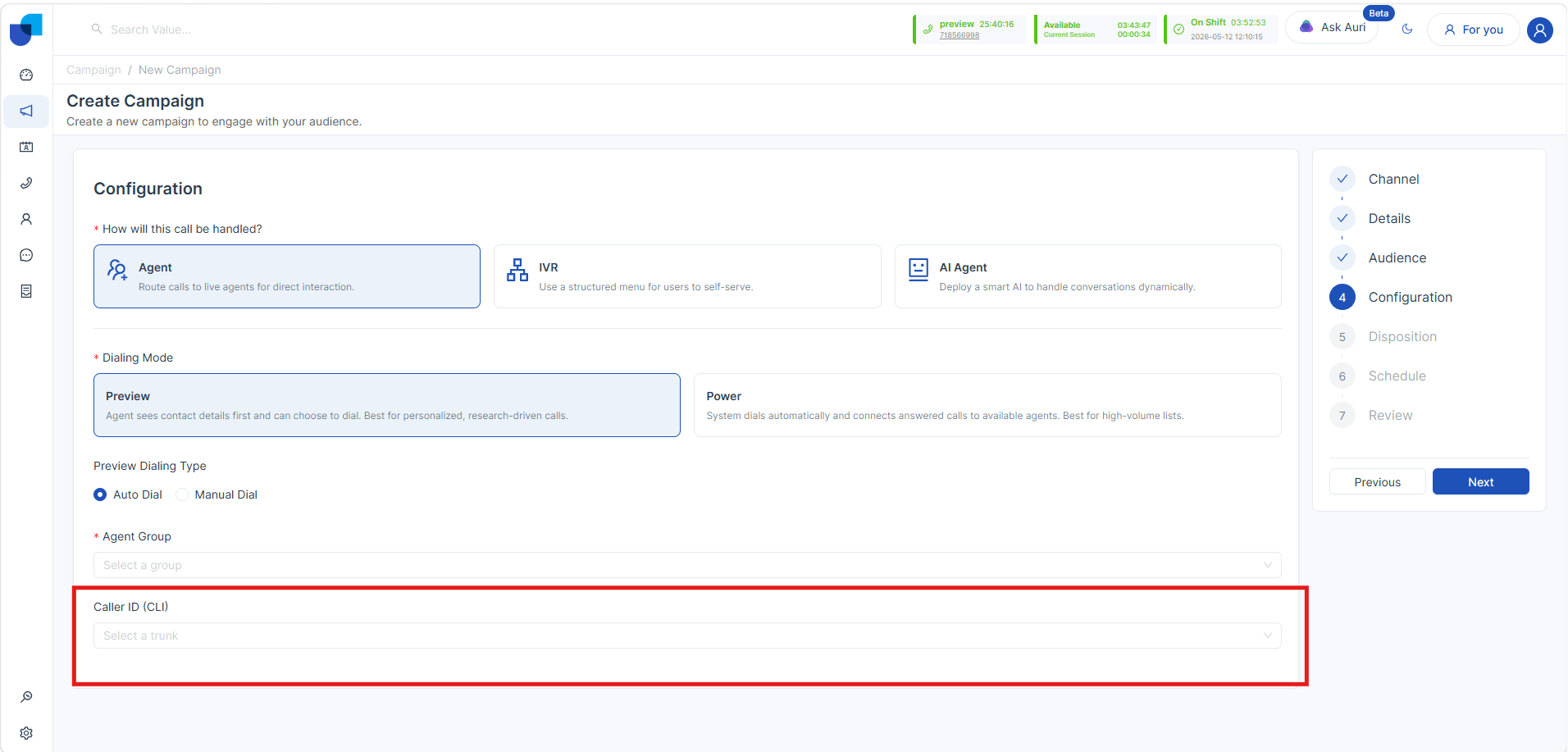
Navigation:
Configuration → Campaign Setup
Description:
- CLI selection is available during campaign configuration
- CLI numbers are fetched dynamically from the assigned 3CX number pool
Behavior:
- Only available numbers are shown
- User can select one or multiple numbers
3. CLI Configuration Modes
There are three ways to configure CLI:
3.1 Single Number Mode

Description:
- Only one CLI number is selected
Behavior:
- Same number is used for all outbound calls
Example:
Selected CLI: +94 77 123 4567
All customers will see:
+94 77 123 4567
3.2 Multiple Numbers (Shuffle Mode)

Description:
- Multiple CLI numbers are selected
Behavior:
- System randomly selects a CLI number for each call
- Numbers are rotated automatically
Example:
Selected CLIs:
+94 77 111 1111
+94 77 222 2222
+94 77 333 3333
Call 1 → +94 77 111 1111
Call 2 → +94 77 222 2222
Call 3 → +94 77 333 3333
3.3 No Selection (Default Mode)
Description:
- No CLI is selected
Behavior:
- System uses the default 3CX outbound number
Example:
No CLI selected → System uses default number configured in 3CX
4. Display and Storage
Behavior:
- Selected CLI mode is saved in campaign configuration
- Selected numbers are stored with the campaign
- CLI details are displayed in Campaign Summary before launch
5. Execution Logic
How CLI Works During Campaign Execution
-
Single Mode
- Same CLI used for all calls
-
Multiple Mode
- System randomly selects CLI per call
-
No Selection
- Default 3CX number is used
6. Key Points to Remember
- CLI controls what number customer sees
- Multiple CLI helps distribute calls
- Default CLI is used if nothing is selected
- CLI selection does not affect call flow (Preview/Power)