Custom Status Configuration
Agent Status Management
Create the statuses your agents choose from, and set the time limits that supervisors monitor.
What a Status Is
A status tells everyone what an agent is doing. UNICONNECT AI includes a standard set, and you can add your own. The Status Manager lists them on the left, with each status's call handling summarized under its name, and a form on the right. The example on this page adds a Coaching Session status that User B's team uses for one to one coaching.
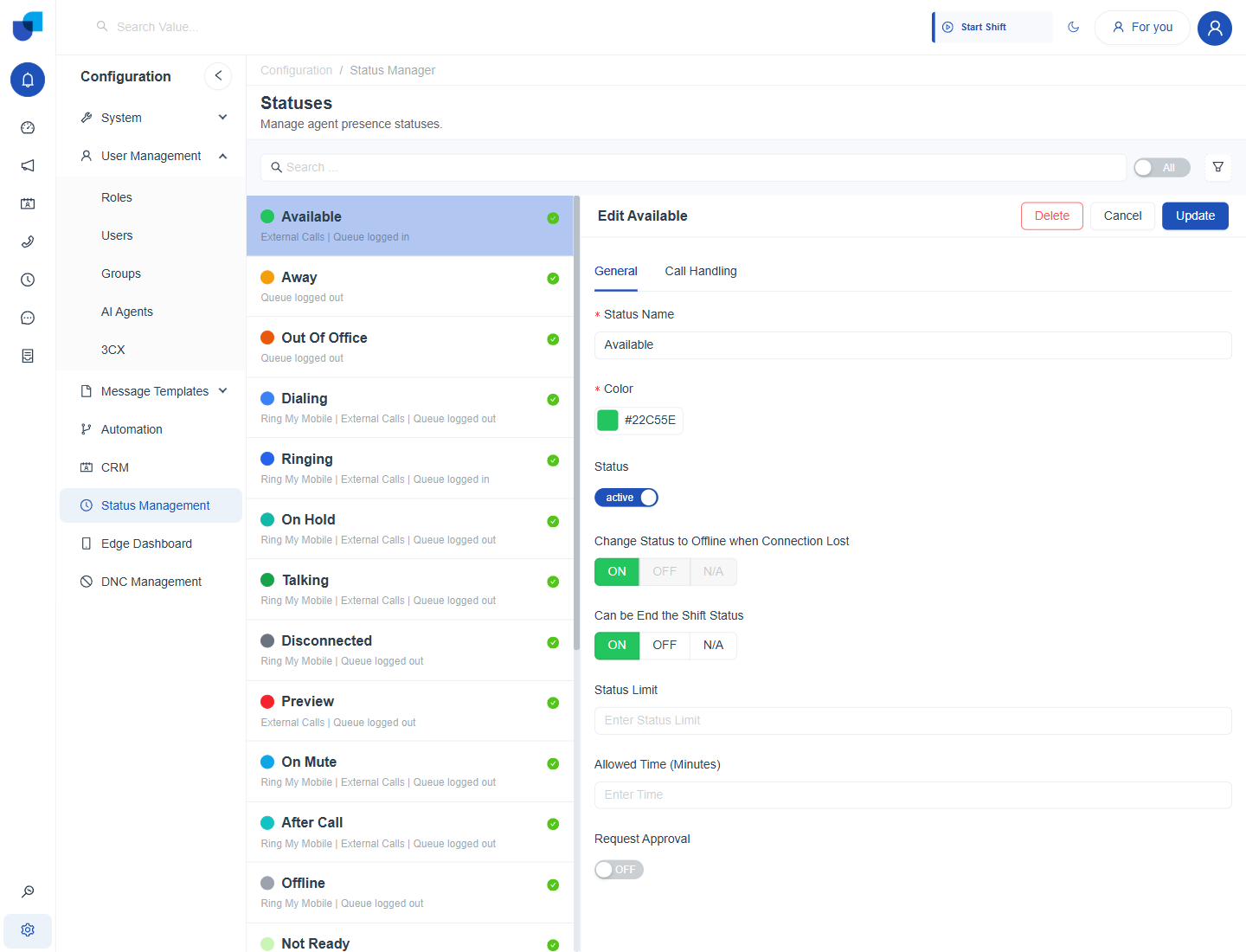
Figure 1. The General tab of the Available status, showing every setting a status can carry.
The General Tab
| Field | What it does |
|---|---|
| Status Name | Required. The name agents and supervisors see. |
| Color | Required. The color shown beside the status in lists, filters and the Presence column. |
| Status | Active or inactive. An inactive status is no longer offered to agents. |
| Change Status to Offline when Connection Lost | ON, OFF or N/A. When ON, an agent whose connection drops is moved to Offline. |
| Can be End the Shift Status | ON, OFF or N/A. When ON, an agent can end the shift while in this status. |
| Allowed Time (Minutes) | The status limit. Staying longer counts as a breach. |
| Request Approval | When ON, an agent must request this status and a supervisor approves it. |
Info: The two ON, OFF or N/A options let a status either set the behavior or leave it alone. N/A means the status does not set that option, so the agent's earlier setting stays as it was.
Create a Status
- Open Configuration → Status Management and click Create.
- Enter Coaching Session as the Status Name.
- Choose a Color. Pick one that is easy to tell apart from the other statuses on the Workforce Monitor.
- Leave Status on active.
- Set Can be End the Shift Status to OFF. Agents should finish a coaching session before ending their shift.
- Enter 30 as the Allowed Time and switch Request Approval ON.
- Open the Call Handling tab and set the call options, then click Save. See Status Call Handling.
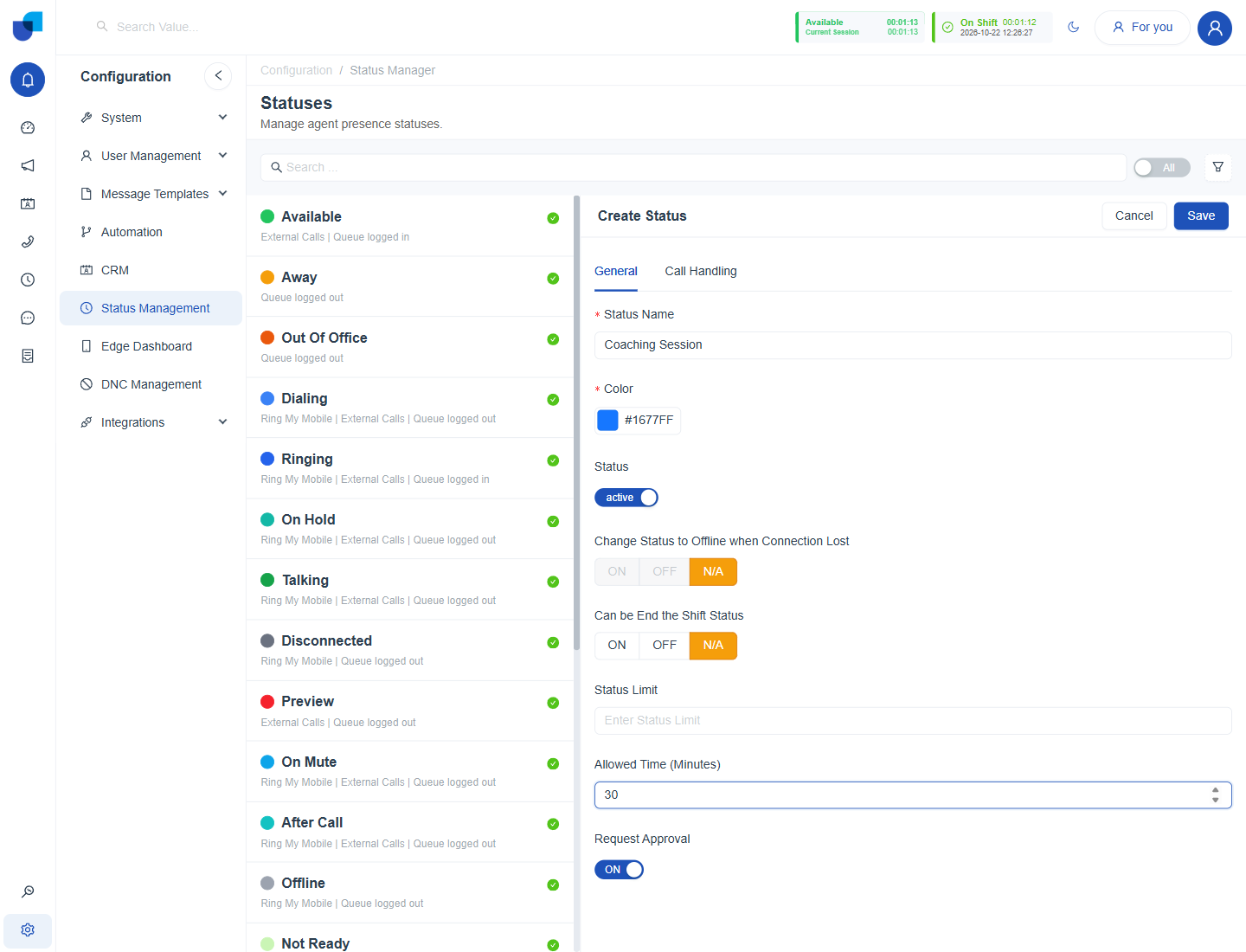
Figure 2. The Create Status form for Coaching Session with a 30 minute limit and Request Approval on.
Status Limits and Approval
The two settings that drive supervision are the allowed time and Request Approval. A limit has no effect on the agent's screen by itself. It marks the agent as a breach on the Workforce Monitor once the time is exceeded. Request Approval changes the flow: the agent asks, the request appears under the Requests filter, and a supervisor with Approve Break Requests acts on it. See Break Requests.
Info: The allowed time is optional. A status with no allowed time, such as Available, has no limit and never appears under the Breeches filter.
Edit, Deactivate and Delete
- Edit. Select a status in the list, change the form and click Update.
- Deactivate. Set Status to inactive to retire a status but keep the history that used it.
- Delete. The Delete button removes the status. Prefer deactivating when reports already refer to it.
Important: Deleting a status removes it for every agent. Deactivate it instead when past shifts and reports still refer to it, because a deactivated status keeps its history.