Monitoring Agents
Workforce Monitor
Use the Workforce Monitor to see every agent's shift, status and groups on one screen.
The Workforce Monitor
Open Workforce Monitor from the main menu. The page is titled Workforce and described as a place to monitor agent status and shift compliance. User B uses it to look after the Collections team.
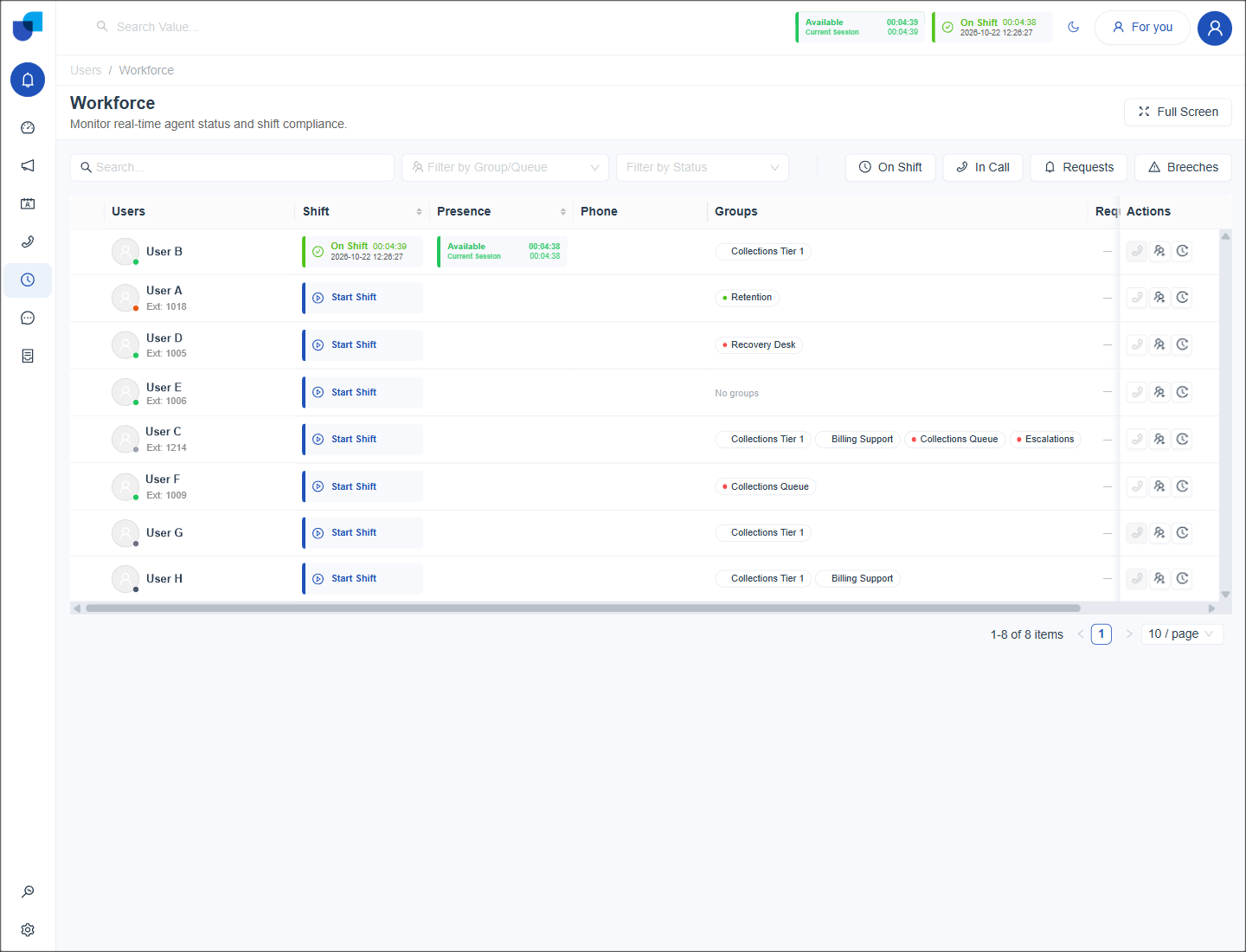
Figure 1. The Workforce Monitor showing eight agents, with User B on shift and the others waiting to start.
Reading the Columns
| Column | What it shows |
|---|---|
| Users | The agent's name, extension and a small dot that reflects connection state. |
| Shift | A green On Shift block with the running shift time and start date and time, or a Start Shift button when the agent is not working. |
| Presence | The current status, a Current Session label and a timer that counts how long the agent has been in it. Click it to change the status. See Force Status Change. |
| Phone | Call information for the agent's extension. |
| Groups | The groups and queues the agent belongs to, shown as tags. |
| Requests | Pending break, leave or hand raise requests from the agent. A dash means there are none. |
| Actions | Three buttons, described below. |
The Shift and Presence columns can be sorted. Use the search box above the table to find an agent by name.
Info: The timer in the Presence column counts the time in the current status and starts again at every change. This is the figure that the Status Limit is measured against.
Row Actions
| Button | What it does |
|---|---|
| Make Call | Calls the agent's extension. It is available when the supervisor is on shift in a status that allows external calls. |
| Manage User Groups | Opens a dialog to add or remove the agent's groups and queues. See Group Management. |
| Activity Logs | Opens the agent's shifts and status timeline. See Activity Logs. |
Full Screen
Click Full Screen at the top right to give the table the whole display. This view suits a wall monitor. Filters and quick filters stay available.
A Supervisor's Routine
- Open the Workforce Monitor at the start of the shift. Check that the expected agents have started their shifts.
- Filter by your group. Choose Collections Tier 1 in the Group/Queue filter so only your team remains.
- Check Breeches and Requests during the day. These two filters show who needs attention.
- Open Activity Logs when an agent's time needs explaining.