Starting and Ending a Shift
Shift Management
An agent's working day in UNICONNECT AI begins with Start Shift and finishes with End Shift.
What a Shift Is
A shift records the time an agent is at work, and every status change inside it. Calls, call icons beside phone numbers and the agent's presence all depend on an active shift. This page follows User A through a Collections shift.
Start a Shift
- Sign in as User A.
- Click Start Shift in the page header. The button sits at the top right, beside the theme switch.
- Confirm the header. It now shows a status badge with a timer and an On Shift block with the start date and time.
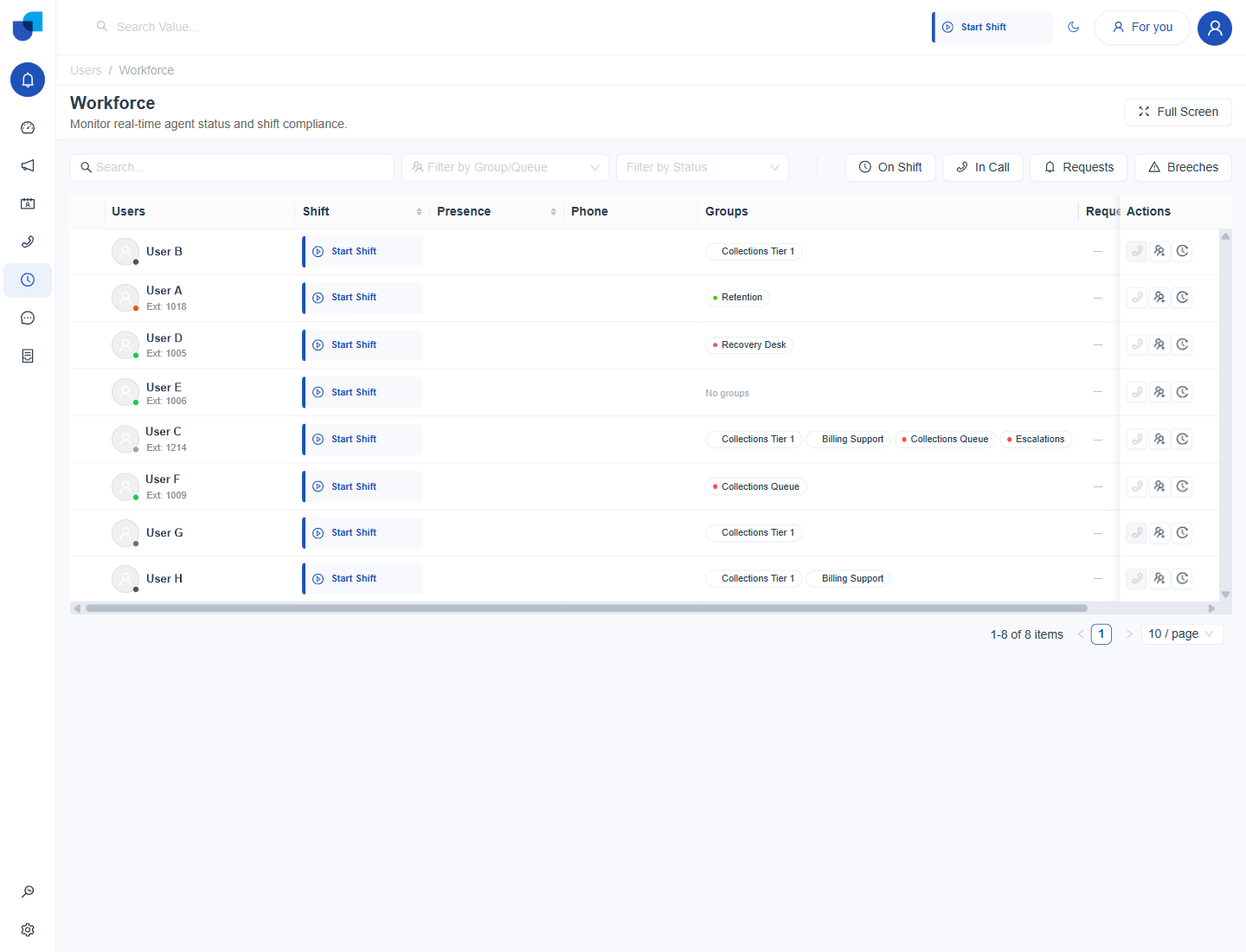
Figure 1. The Start Shift button in the page header before the shift begins.
The shift begins in a status such as Available. The Workforce Monitor now shows the agent with a green On Shift block, the shift time and the presence status.
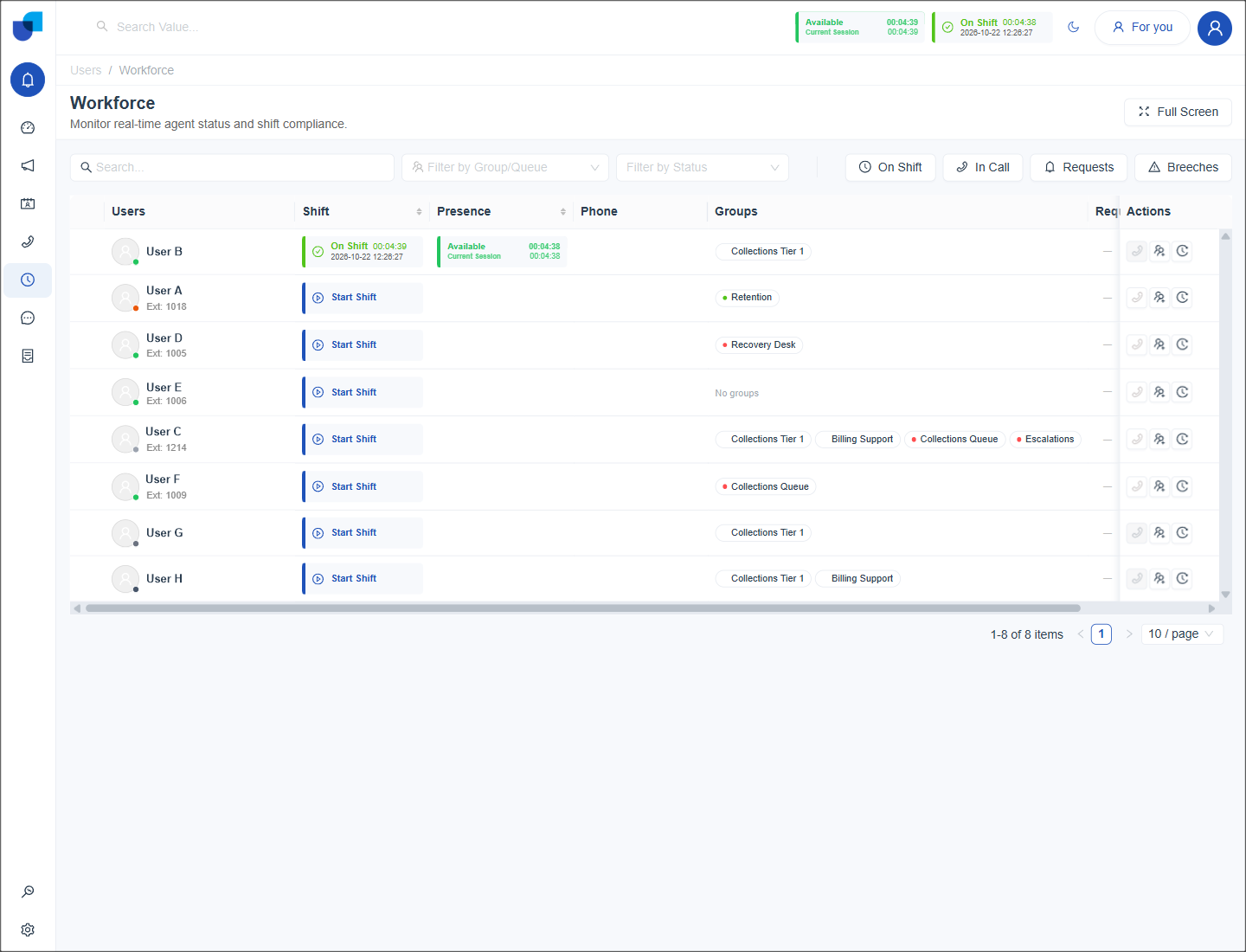
Figure 2. The Workforce Monitor after a shift starts, with the On Shift block and the Available status in the agent's row.
Change Status During a Shift
Click the status badge in the header to open the list of statuses. Choose the one that matches what you are doing, such as Tea Break or Lunch. The timer restarts with each change.
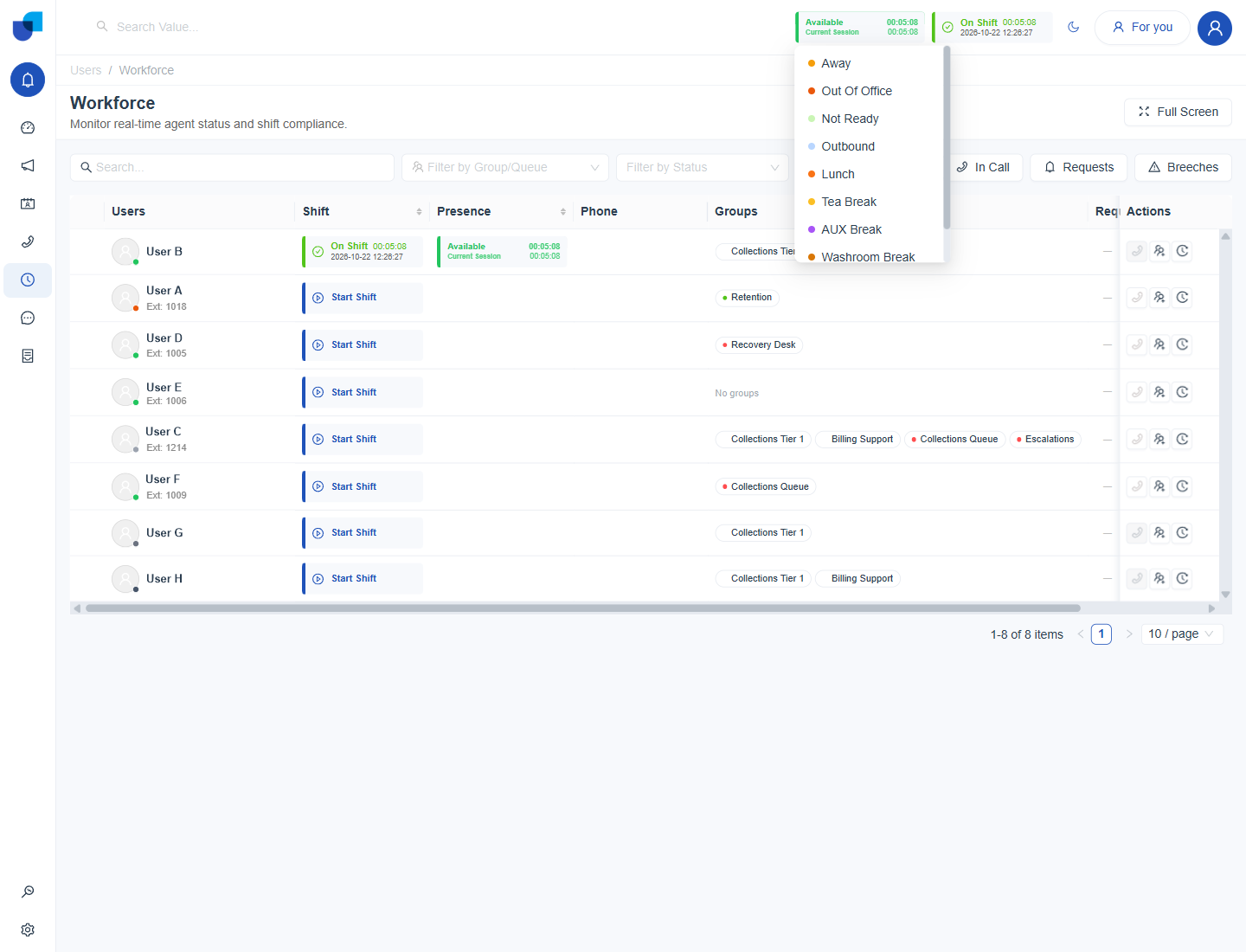
Figure 3. The status list opened from the header badge, with break related statuses such as Lunch and Tea Break.
Info: A status with Request Approval switched on is requested, not selected. See Break Requests.
End a Shift
- Click the On Shift block in the header.
- Choose End Shift. The menu shows it in red.
- Check the header. The Start Shift button returns, and the agent drops off the On Shift filter.
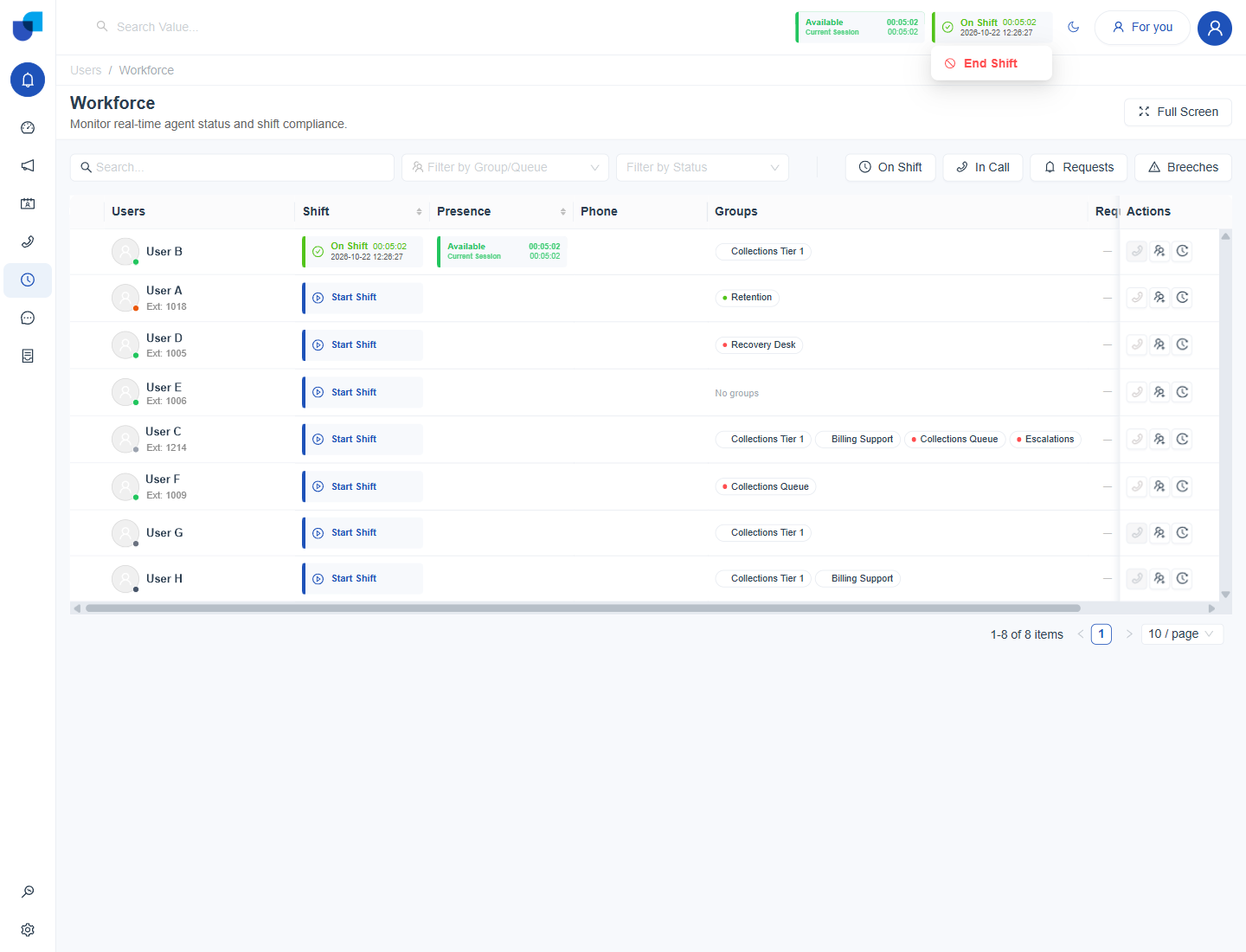
Figure 4. The End Shift option, which appears when the On Shift block in the header is clicked.
Rules to Know
- End in an allowed status. A shift can end only from a status that has Can be End the Shift Status switched on.
- Calls follow the status. Queue calls and external calls depend on the Call Handling settings of the current status.
- History is kept. Each shift and its status timeline can be reviewed under Activity Logs.
Important: Always end the shift when work finishes. A shift left open keeps counting time, and the Activity Summary Report includes it.