Force Status Change
Shift Management
Change an agent's presence status from the Workforce Monitor.
What It Does
Force Status Change lets a supervisor move an agent into another status. In the Presence column, the status badge of an agent who is on shift opens the list of statuses. In this example User B moves an agent from Available to Not Ready so that no new calls arrive while a customer issue is resolved.
Change a Status
- Open the Workforce Monitor and find the agent. The agent must be on shift, so the Presence column shows a status.
- Click the status badge in the Presence column. A list opens with Away, Out Of Office, Not Ready, Outbound, Lunch, Tea Break, AUX Break, Washroom Break and others.
- Choose the new status.
- Check the row. The badge shows the new status with a timer that starts again.
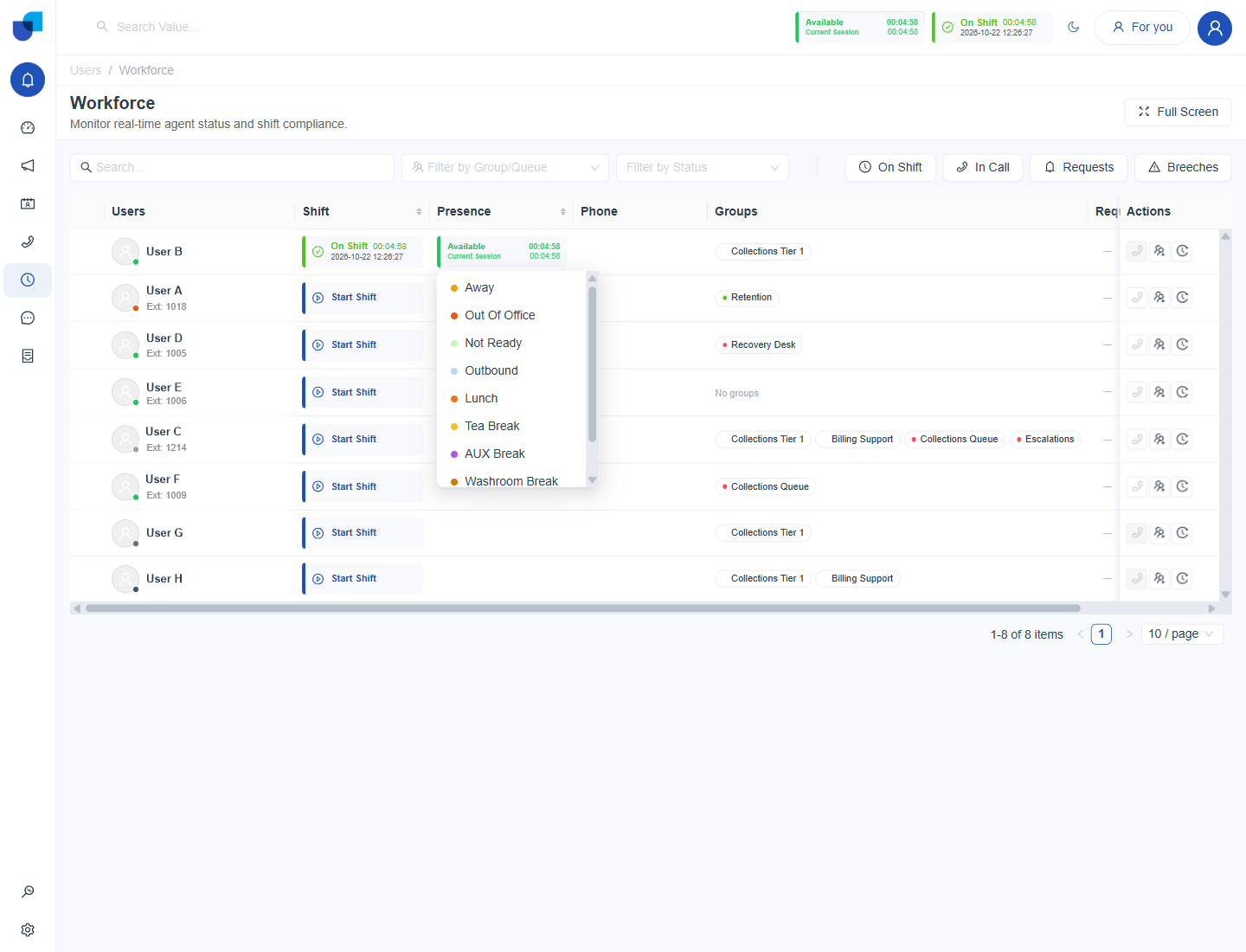
Figure 1. The status list opened from an agent's Presence column on the Workforce Monitor.
Important: A forced status applies its own Call Handling settings immediately. Moving an agent to a status with Queue Login OFF stops queue calls from reaching that agent until the status changes again.
Permission and Scope
The role permission is called Force Status Changed. Its scopes work the same way as Force Shift Start.
| Scope | Who the supervisor can change |
|---|---|
| Own | Only themselves. |
| Group | Agents who share a group with the supervisor. |
| All | Any agent. |
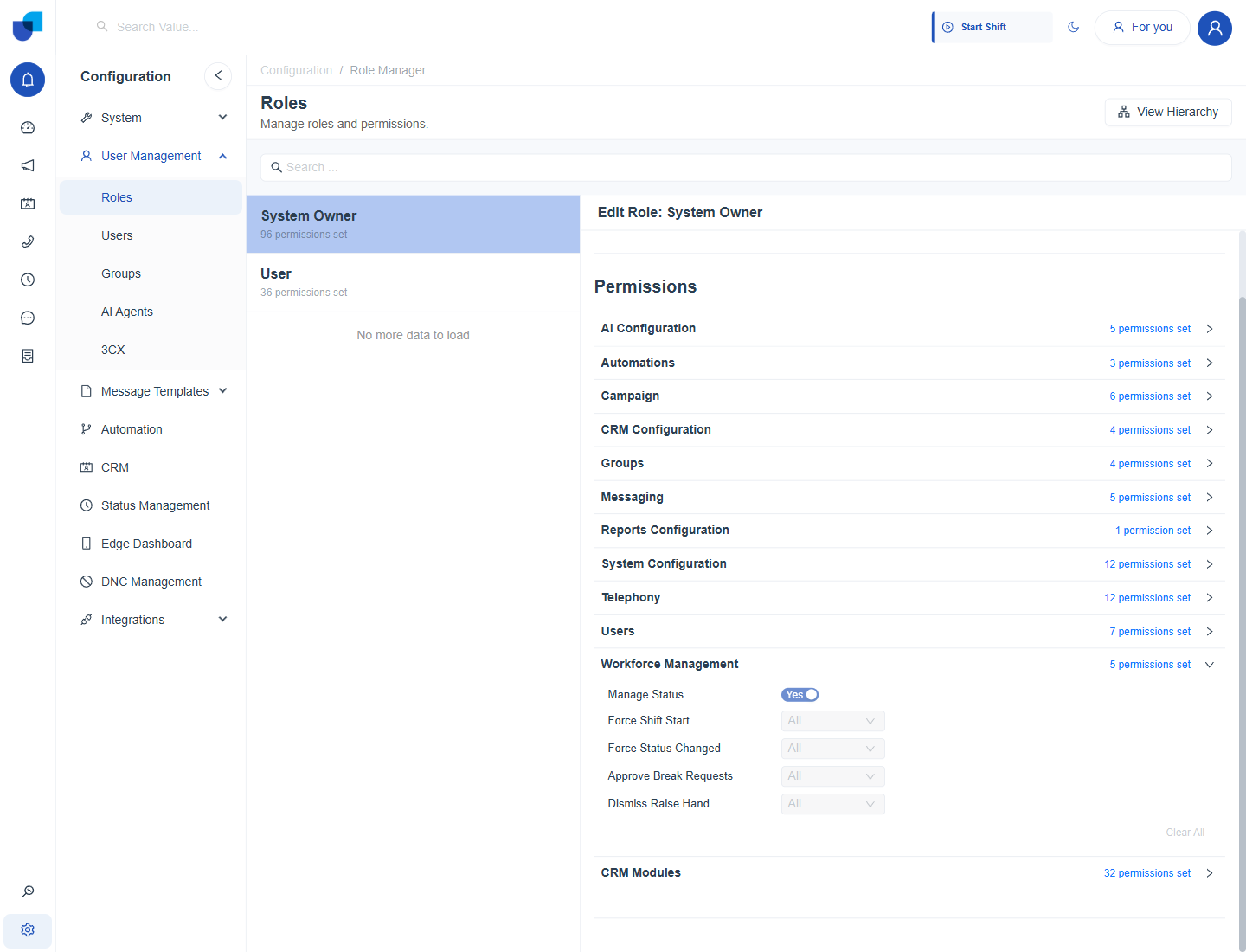
Figure 2. The Workforce Management permissions in the role editor, including Force Status Changed.
What Changes
- Call handling. The new status applies its own Call Handling settings, so calls may start or stop reaching the agent.
- Timers. The Presence timer restarts, and any status limit is measured from the change.
- History. The change is recorded in the agent's timeline under Activity Logs and in the Activity Report.