Force Shift Start
Shift Management
Start a shift for an agent from the Workforce Monitor when the agent cannot do it themselves.
What It Does
Normally an agent starts their own shift. Force Shift Start lets a supervisor do it for them. Each agent who is off shift shows a Start Shift button in the Shift column of the Workforce Monitor. A supervisor with the right permission can use it. In this example User B starts a shift for User A, who has signed in but whose screen did not offer the button.
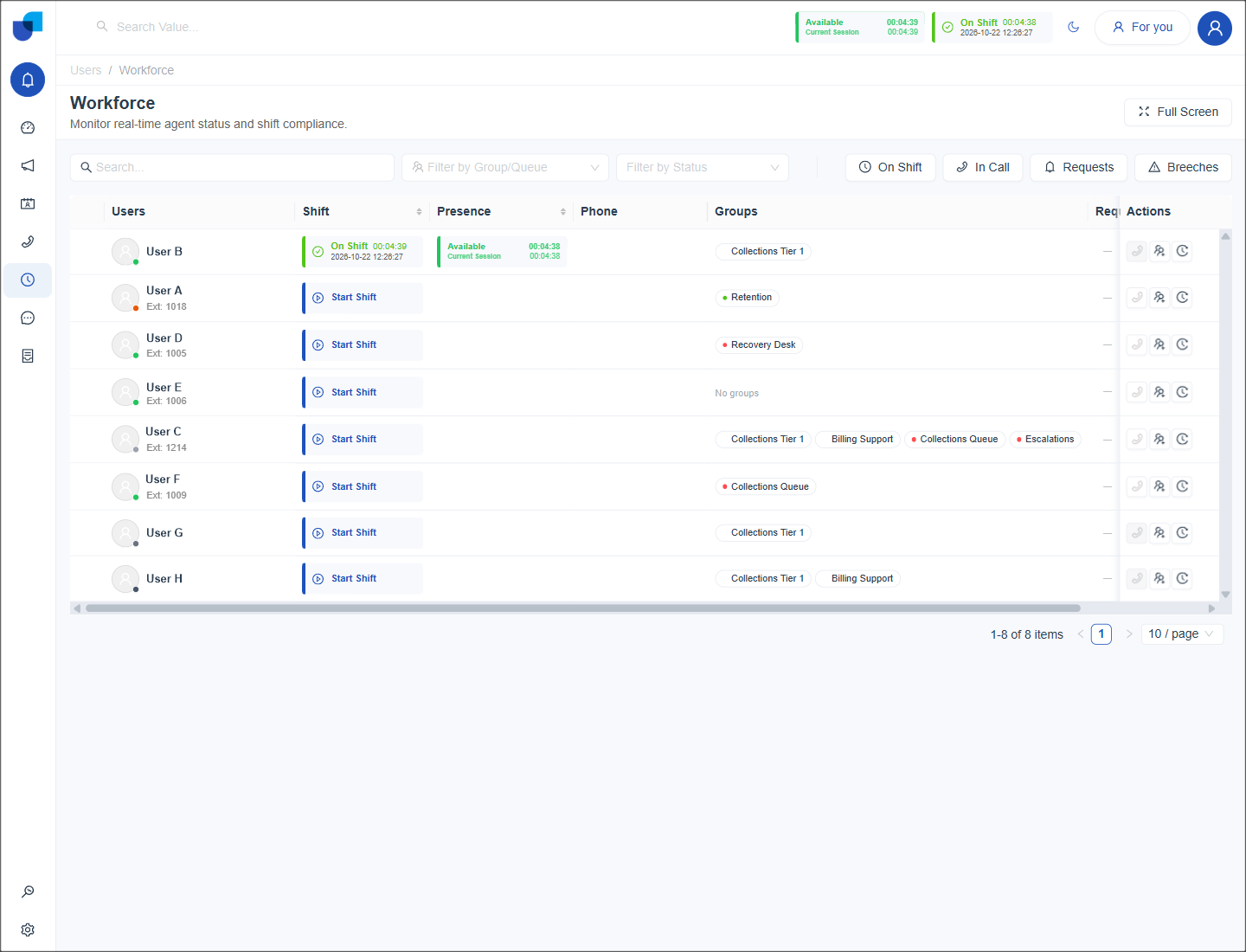
Figure 1. The Shift column, where every agent who is not working has a Start Shift button.
Start a Shift for an Agent
- Open the Workforce Monitor.
- Find User A. Use the search box or the Group/Queue filter.
- Click Start Shift in the Shift column.
- Check the row. It now shows the On Shift block and a presence status.
Important: A forced shift starts the agent's shift time and makes the agent eligible for calls straight away. A forced shift is recorded like any other shift in Activity Logs and in the reports.
Permission and Scope
Force Shift Start is a role permission with three scopes. Pick the narrowest one that works.
| Scope | Who the supervisor can start a shift for |
|---|---|
| Own | Only themselves. |
| Group | Agents who share a group with the supervisor. |
| All | Any agent. |
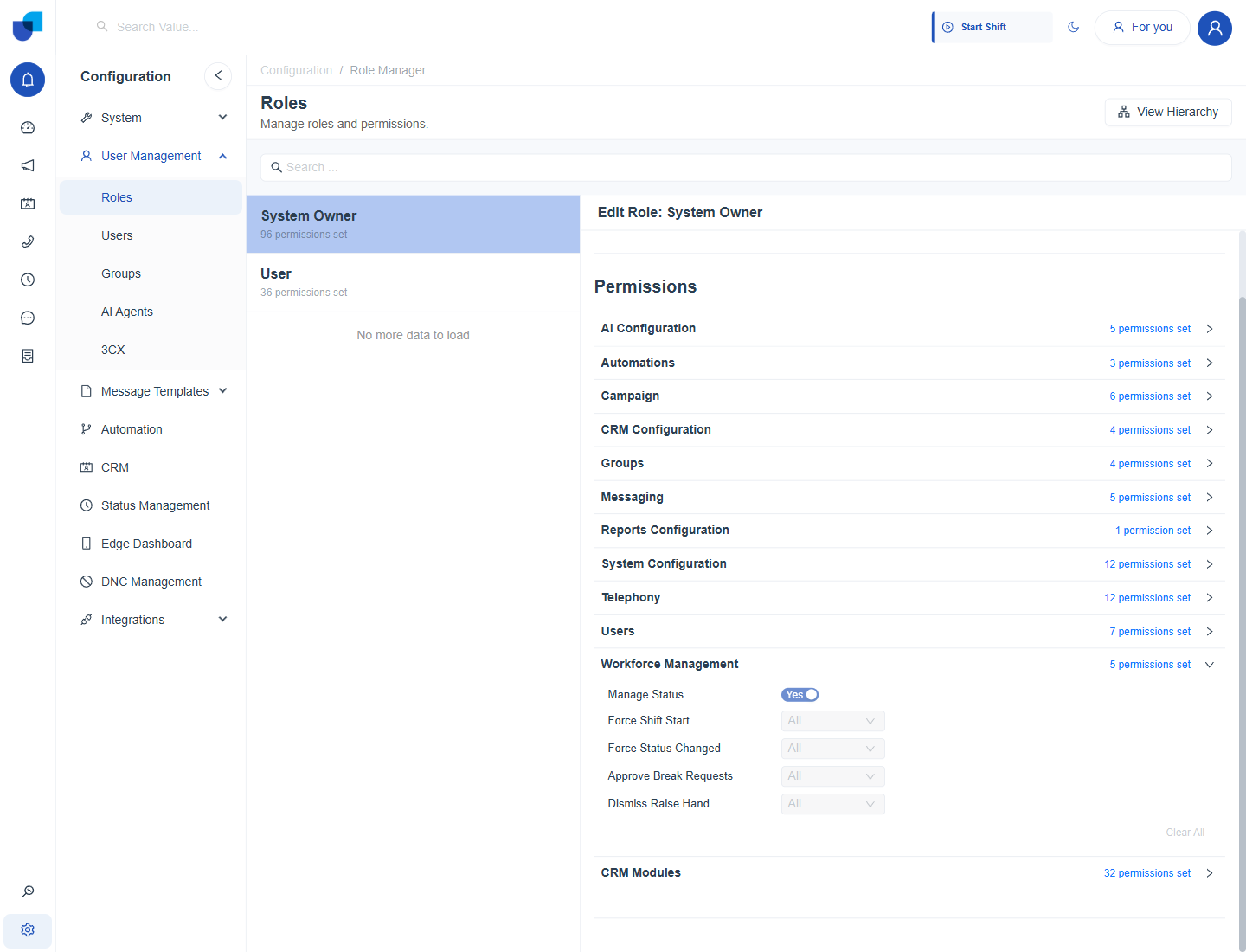
Figure 2. The scope list for a Workforce Management permission, with Own, Group and All as choices.
When to Use It
- An agent signed in but cannot reach the Start Shift button.
- A shift was ended by mistake and work continues.
- An agent starts work away from a computer and a supervisor records it.