Raise Hand
Workforce Monitor
A quick way for an agent to ask a supervisor for help, and for the supervisor to answer.
What Raise Hand Is
Raise Hand lets an agent signal that they need attention without leaving the call or screen they are on. The signal is shown to supervisors as a request. In this example User A raises a hand while handling a difficult account, and User B sees it on the Workforce Monitor.
How a Supervisor Sees It
A raised hand is counted with the other pending requests. It appears in the Requests column on the agent's row and when the Requests quick filter is on. The filter description reads, show pending break or leave or hand raise requests.
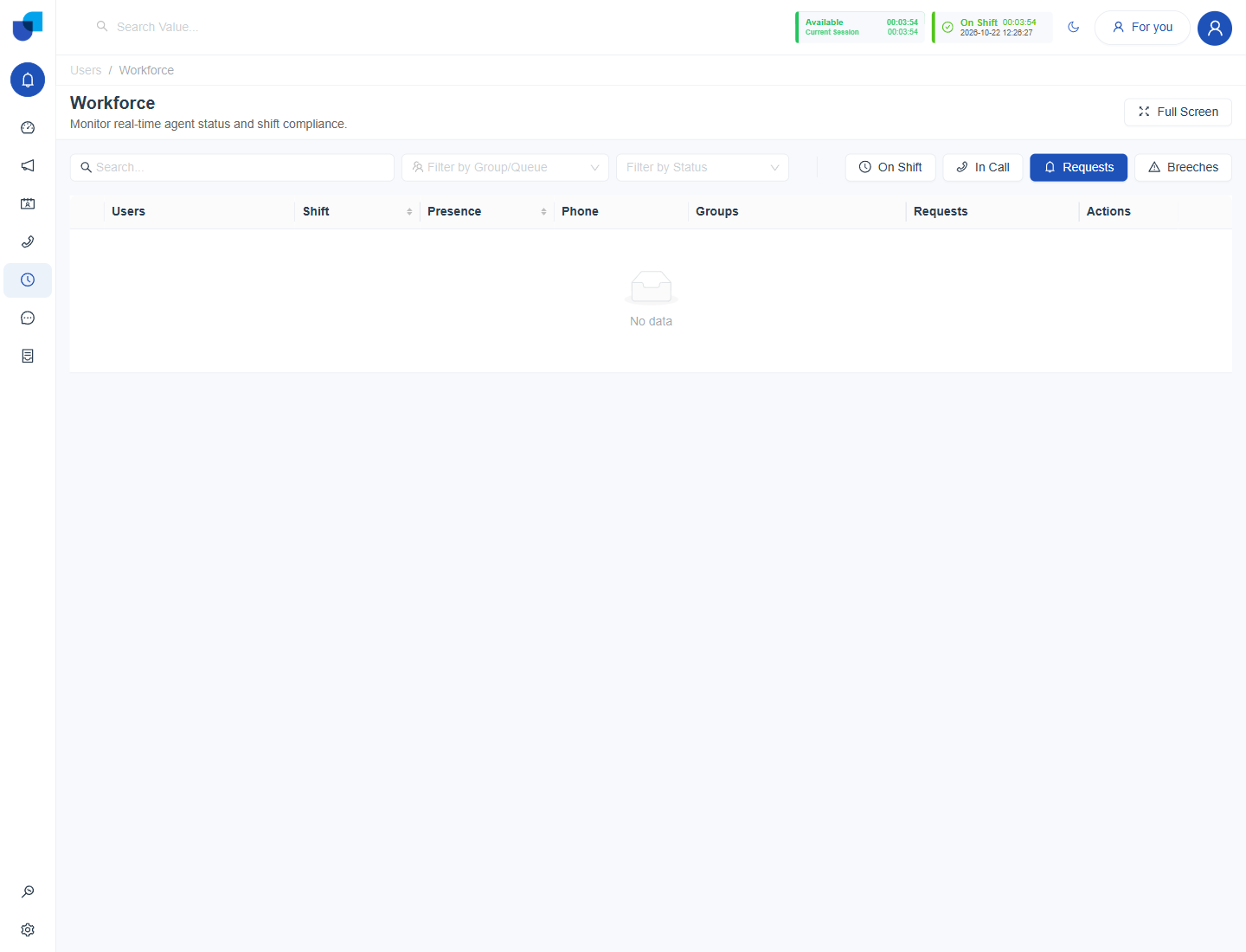
Figure 1. The Requests quick filter, which gathers break, leave and hand raise requests in one list.
Info: A raised hand is a signal, not a status change. The agent stays in their current status while the supervisor responds, so no limit or call handling setting changes.
Respond to a Raised Hand
- Click Requests on the Workforce Monitor.
- Find User A and read the request.
- Help the agent. Use Make Call in the Actions column to ring the agent's extension, or speak to them on the floor.
- Dismiss the raised hand when the issue is handled. Dismissing clears it from the Requests list.
Who Can Dismiss
Dismissing needs the Dismiss Raise Hand permission, with a scope of Own, Group or All. A supervisor with Group scope sees and dismisses raised hands for agents in the same groups. See Workforce Permissions.