Group Management
Workforce Monitor
Change the groups and queues an agent belongs to without leaving the Workforce Monitor.
Groups and Queues
A group is a team defined in UNICONNECT AI, such as Collections Tier 1 or Billing Support. A queue is a call queue, shown with its number, such as Collections Queue 8001. An agent can belong to several of each. The Groups column of the Workforce Monitor lists them as tags, and the Group/Queue filter uses them. The example on this page is User C on extension 1214, who covers several teams.
Manage an Agent's Groups
- Open the Workforce Monitor and find User C.
- Click Manage User Groups in the Actions column. A dialog titled Manage Groups opens with the agent's name and extension.
- Review Assigned Groups. Each entry shows a name and whether it is a Group or a Queue, with the queue number.
- Add an entry. Use the search box to find a group or queue, choose Group or Queue with the filter button beside it, and click the plus button.
- Remove an entry. Click the red bin icon beside it.
- Click Save.
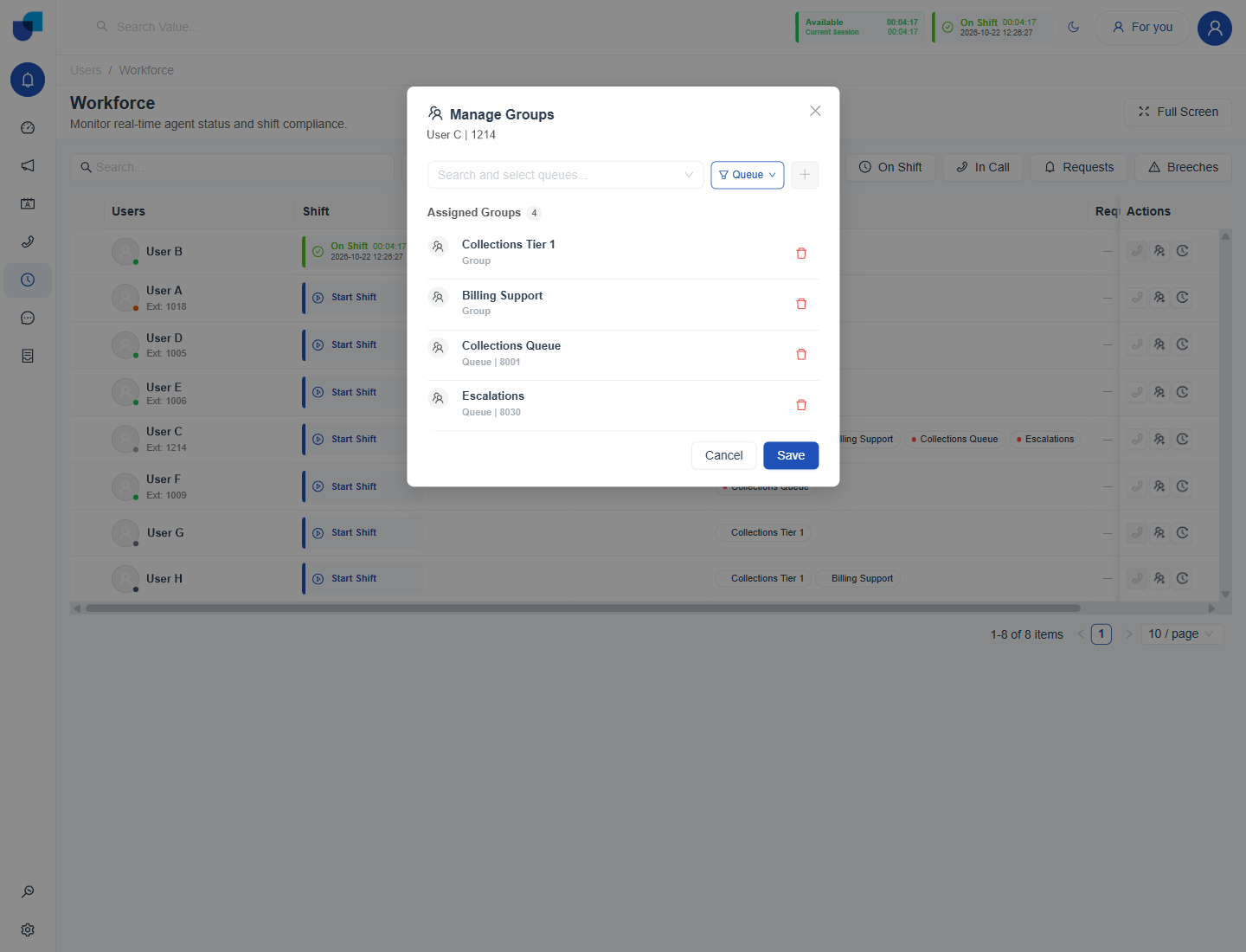
Figure 1. The Manage Groups dialog for User C, who is assigned to two groups and two queues.
Important: Removing an agent from a queue changes call routing as soon as it is saved, because calls to that queue stop reaching the agent. Groups only organize agents for filters, scope and reports, while queues carry calls.
What Changes When You Save
- The Workforce Monitor. The Groups column and the Group/Queue filter reflect the change.
- Queue membership. Adding a queue places the agent in that call queue. Removing it takes the agent out, so calls to the queue no longer reach them.
- Reports. Reports that filter by group, such as Activity Summary, use the new membership.
Where Groups Are Created
The Manage Groups dialog only assigns existing groups and queues. To create or edit a group, use Configuration → User Management → Groups. Queues that come from the telephone system are described in Group Management with 3CX Queues and Ring Groups.
Info: The role that opens this dialog needs the Groups permissions to change membership. See Workforce Permissions.