Activity Logs
Monitoring
Open any agent's shifts and see the status timeline for each one.
Open an Agent's Activity Logs
- Open the Workforce Monitor.
- Click the clock button, Activity Logs, in the agent's Actions column. A panel opens on the right, titled Activity Logs with the agent's name. This page uses User B.
- Choose a shift on the left.
- Read the timeline and the summary.
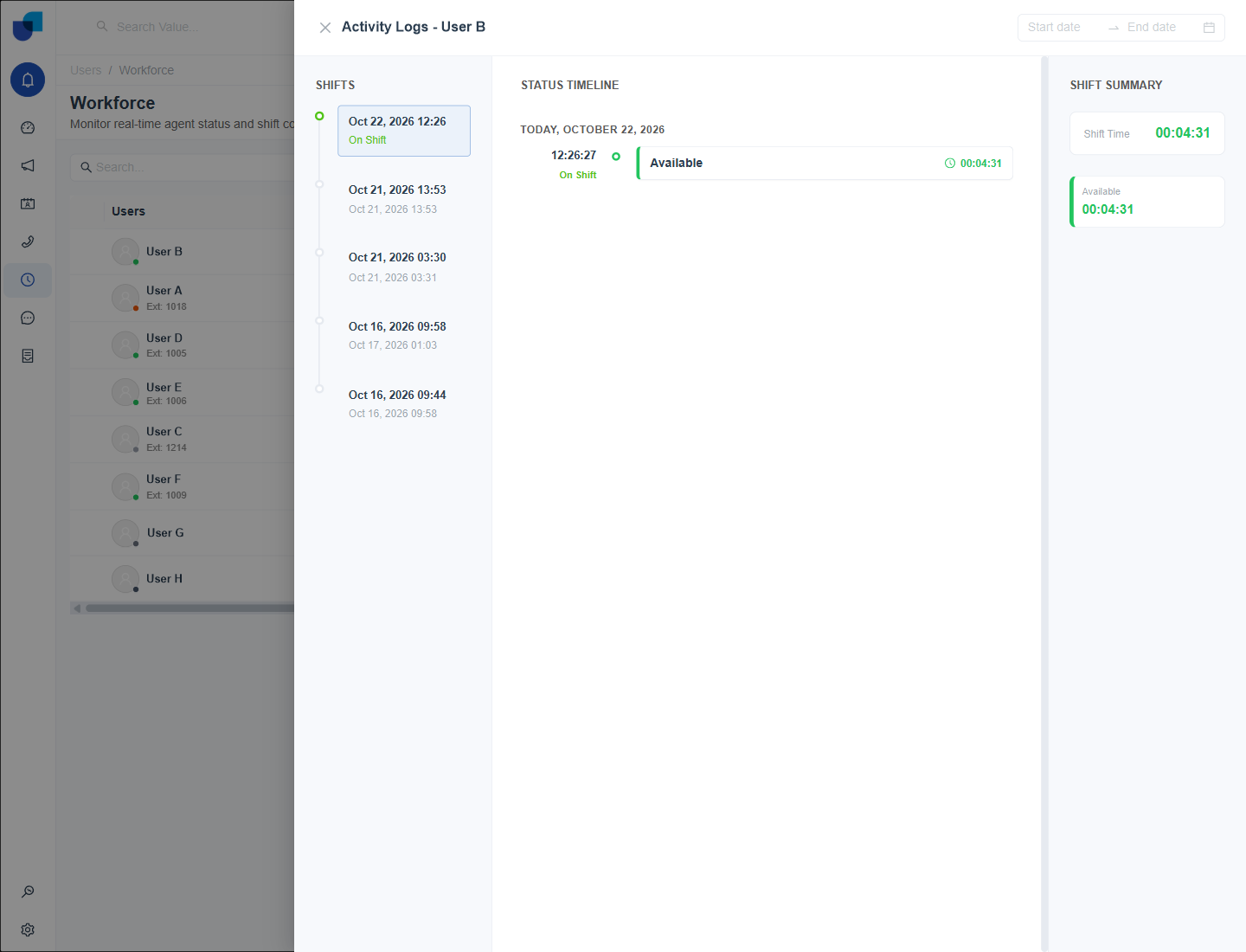
Figure 1. The Activity Logs panel for User B, with the shifts, a status timeline and a shift summary.
The Three Panels
| Panel | What it shows |
|---|---|
| Shifts | Each shift with its start and end time. The current shift is marked On Shift in green. Older shifts show their start and end. |
| Status Timeline | The statuses in the selected shift in order, each with its start time and how long it lasted. |
| Shift Summary | The total shift time and the time spent in each status. |
Filtering by Date
The Start date and End date fields at the top right limit the shifts listed. Use them to look at one week instead of every shift.
Info: Activity Logs shows one agent at a time. For a whole team or several days, the three reports in Workforce Reports and Dashboards give the same information in one table.
When to Use It
- Explaining a breach. Open the shift and see how long the agent stayed in a status.
- Checking a forced change. A status moved by a supervisor appears in the timeline.
- Reviewing a day. The Shift Summary adds the time for the whole shift.