Global Settings
Platform wide values: regional format, security and OTP limits, file storage, logging, retention and export limits.
Regional Settings
Phone country code, time zone and phone number length.
The Three Regional Values
Regional settings tell the platform how to read phone numbers and which clock to use. In this example the platform is used from New York, so the United States country code and the Eastern time zone are set.
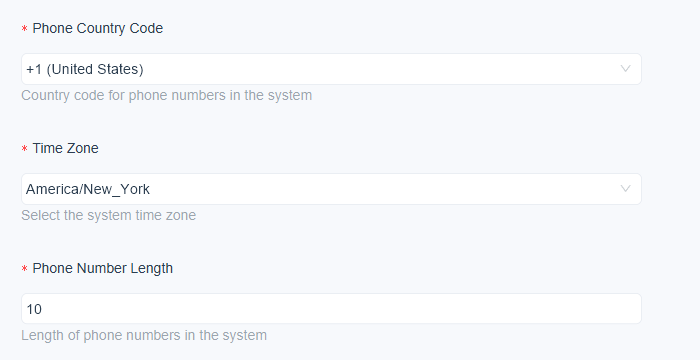
Figure 1. The regional fields of Global Settings: Phone Country Code set to +1 (United States), Time Zone set to America/New_York and Phone Number Length set to 10.
| Setting | What it does | Example |
|---|---|---|
| Phone Country Code | The country code added to phone numbers that are entered without one. | +1 (United States) |
| Time Zone | The time zone of the whole system. Report times, schedules, campaign windows and shift times follow it. | America/New_York |
| Phone Number Length | The number of digits of a phone number, without the country code. | 10 |
Change the Values
- Open Configuration, System, Global Settings.
- Choose the Phone Country Code from the list.
- Choose the Time Zone from the list.
- Type the Phone Number Length.
- Click Save Configuration at the bottom of the page.
Change the time zone before you start scheduling campaigns or shifts. Existing schedules are read in the new time zone after the change.
Check one imported contact after the change. Its phone number should show the new country code.
Security and OTP Settings
One time password limits and Two Factor Authentication.
One Time Password Limits
A one time password protects sign in and password reset. Three settings limit how it can be used. The defaults stop a person from guessing codes.
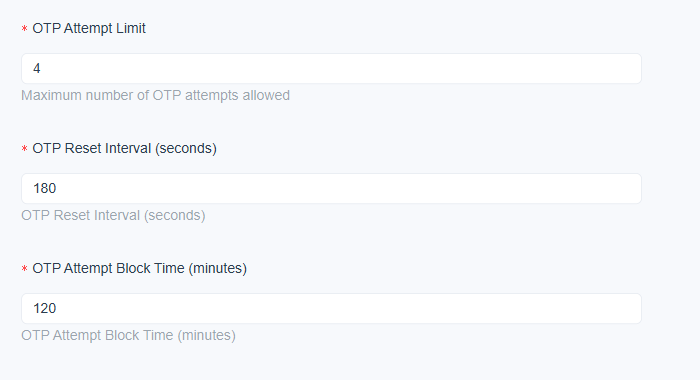
Figure 2. The one time password settings: an attempt limit of 4, a reset interval of 180 seconds and a block time of 120 minutes.
| Setting | What it does | Example |
|---|---|---|
| OTP Attempt Limit | The most wrong codes a person may enter before being blocked. | 4 |
| OTP Reset Interval (seconds) | How long a code stays valid before it needs to be requested again. | 180 |
| OTP Attempt Block Time (minutes) | How long a person stays blocked after reaching the attempt limit. | 120 |
A shorter reset interval is safer. A longer one is kinder to people with slow mail or SMS delivery.
Two Factor Authentication
Two Factor Authentication adds a second step to sign in. It is switched on for each person, not for the whole platform. Protect the supervisor accounts first.
- Open Configuration, User Management, Users.
- Select the person in the list. The User Details panel shows a 2FA Enabled field with Yes or No.
- Click Edit.
- Tick Enable 2FA under Two Factor Authentication.
- Click Save.
The one time password limits above also apply to the second step. Roles and users are described in Monitoring Permissions.
File Storage and Uploads
The upload size limit and the place where files are stored.
Maximum Upload Size
People attach files to records, campaigns and messages. If customers send scanned documents, check that the limit is large enough but not wasteful.

Figure 3. The Max File Upload Size (MB) setting, set to 10 megabytes.
| Setting | What it does | Example |
|---|---|---|
| Max File Upload Size (MB) | The largest size of one uploaded file, in megabytes. It applies to forms that send files. | 10 |
Raise the limit only when a real file needs it. Large uploads use more storage and take longer.
File Storage
File Storage Configuration decides where uploaded files are kept.
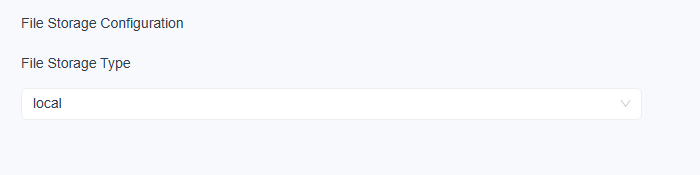
Figure 4. The File Storage Configuration group, with File Storage Type set to local, which keeps files on the server.
| Setting | What it does | Example |
|---|---|---|
| File Storage Type | The place where files are stored. Local keeps them on the server disk. | local |
When files are kept locally, include the storage folder in your backup plan and watch the free disk space. See the hardware guidance in System Requirements.
Logging and Performance
The log level, workflow concurrency and slow query logging.
Log Level
The log level decides how much the platform writes to its logs. The recommended level records general information without filling the disk.

Figure 5. The Log Level setting, set to Info, General information (recommended).
| Setting | What it does | Example |
|---|---|---|
| Log Level | Only messages at the chosen level or above are recorded. If Trace is chosen, everything is recorded. | Info, General information (recommended) |
Raise the detail only while you investigate something, and return to the recommended level afterwards.
Performance Settings
Two more settings tune how workflows and the database behave.
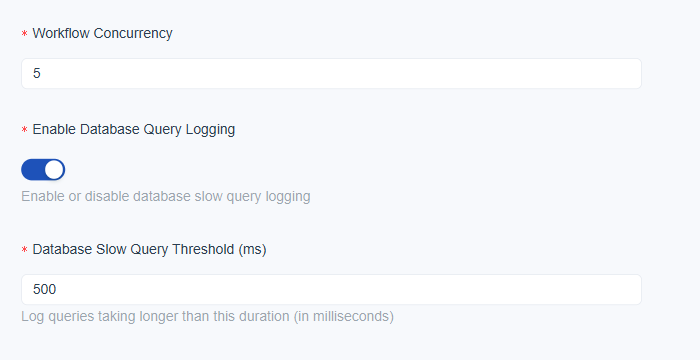
Figure 6. The performance settings: a workflow concurrency of 5, database query logging turned on and a slow query threshold of 500 milliseconds.
| Setting | What it does | Example |
|---|---|---|
| Workflow Concurrency | How many workflow runs the platform processes at the same time. | 5 |
| Enable Database Query Logging | A switch. When it is on, database queries that take too long are logged. | On |
| Database Slow Query Threshold (ms) | The time after which a query counts as slow and is logged. | 500 |
Slow query entries appear in the log files that Monitoring shows. See Audit Logs for the neighbouring audit trail.
Retention, Purge and Export Limits
How long workflow logs are kept and how large an export can be.
Workflow Log Purge
Every workflow run leaves an execution log. To keep the database small, the platform deletes old logs automatically. Thirty days covers a month end review.
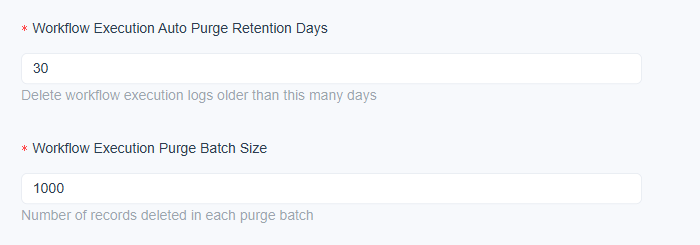
Figure 7. The workflow purge settings: logs older than 30 days are deleted, 1000 records at a time.
| Setting | What it does | Example |
|---|---|---|
| Workflow Execution Auto Purge Retention Days | Workflow execution logs older than this many days are deleted. | 30 |
| Workflow Execution Purge Batch Size | How many records are deleted in each purge run. | 1000 |
Deleted execution logs cannot be restored. Choose a retention period that satisfies the internal review rules of your organization.
Report Export Limit
Reports and widgets can be exported to a file. The export limit keeps one export from becoming too heavy.

Figure 8. The Report Export Limit setting, set to 1000 records.
| Setting | What it does | Example |
|---|---|---|
| Report Export Limit | The most records that one export of a report or widget can contain. | 1000 |
If people often reach the limit, ask them to narrow the report with filters before raising the number.