Audit Logs
See who changed what, and when.
What Audit Logs Records
Open Monitoring → Audit Logs. The page shows the system audit trail and activity history. Every create, update and delete of a record, setting or session is written as a row, with the user who made the change. The example on this page works out who added a new agent.
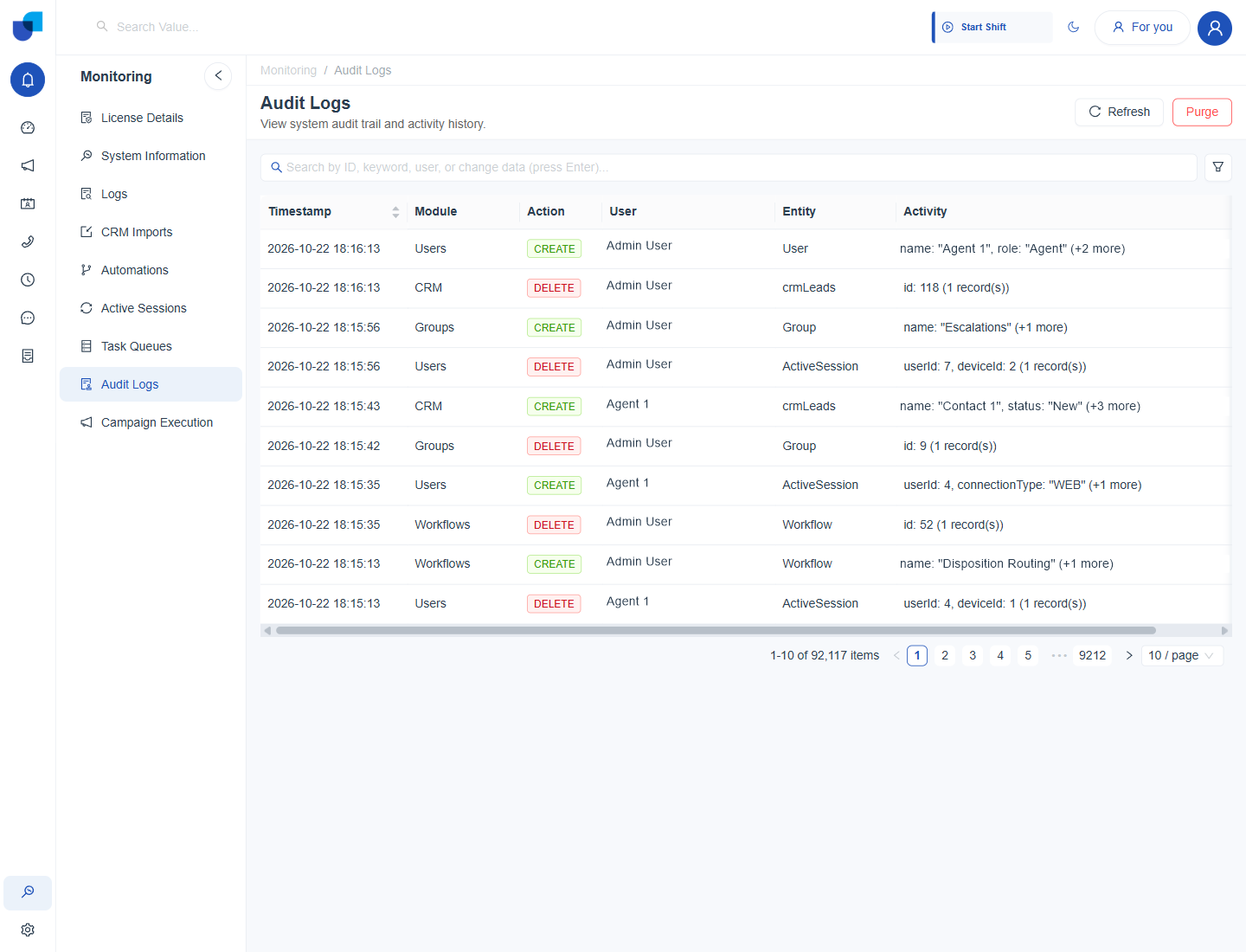
Figure 1. The Audit Logs page, with the most recent changes listed first.
Reading a Row
| Column | What it shows |
|---|---|
| Timestamp | The date and time of the change. Click the arrows to sort. |
| Module | The part of the platform that was changed, such as Users, CRM, Groups or Workflows. |
| Action | CREATE, UPDATE, DELETE or UPSERT, shown as a colored label. UPSERT means a record was created or updated in one step, for example when a permission is saved. |
| User | The person who made the change. |
| Entity | The type of record that changed, such as User, Group or Workflow. |
| Activity | A short summary of the fields that changed, such as a name and a role, followed by how many more fields changed. |
The footer shows how many rows match, the page numbers and the page size. The log can hold many thousands of rows, so use the search box to find one.
Searching
The search box accepts an ID, a keyword, a user name or text from the change data. Press Enter to run the search. The filter button at the right of the box opens more options.
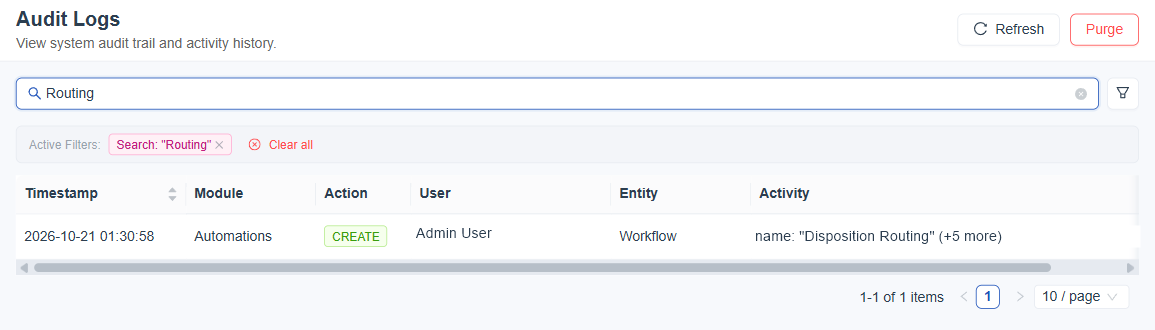
Figure 2. A search for Routing, with the Active Filters chip above the single matching row.
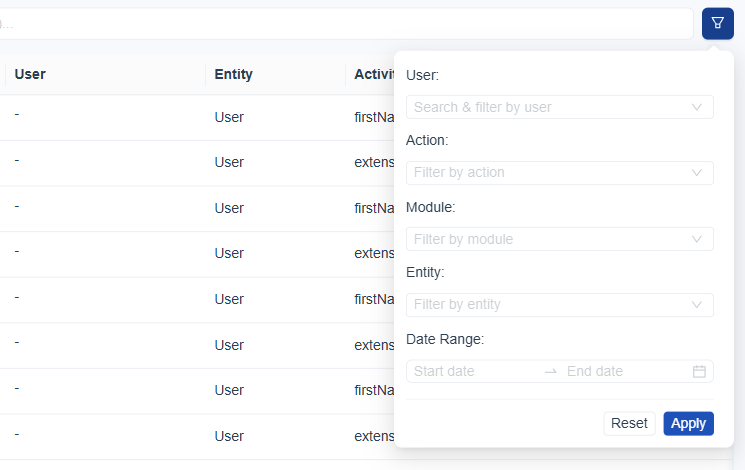
Figure 3. The filter panel, with User, Action, Module, Entity and Date Range.
The filter panel narrows the list by User, Action, Module, Entity and a Date Range. Click Apply to use the filters, and Reset to clear them. Each active filter appears as a chip above the table, with Clear all beside it.
Search covers the Activity text, so you can search for the name of a record to see every change made to it. A search for a user name returns the row that created that user, and every row where that person made a change.
Example: Who Added an Agent
- Open Audit Logs and click the search box.
- Type the name of the new agent and press Enter.
- Find the row with Module Users, Action CREATE and Entity User. The User column shows the administrator who added the agent.
- Read the Activity column. It shows the name and the role that were set.
Refresh and Purge
Refresh reloads the list. Purge removes stored audit entries, and it is available only to roles that have the Log Purge permission.
Purging audit entries cannot be undone. Export or download what you need first, and keep audit entries long enough to meet your own record keeping rules.