Task Queues
Watch the background jobs that run behind the platform.
What Task Queues Shows
Open Monitoring → Task Queues. The page lets you monitor the background task queues and their jobs. Work that does not need to happen while a person waits, such as running a workflow or syncing data from the telephone system, is placed in a queue and handled in the background. The example on this page is the workflow execution queue.
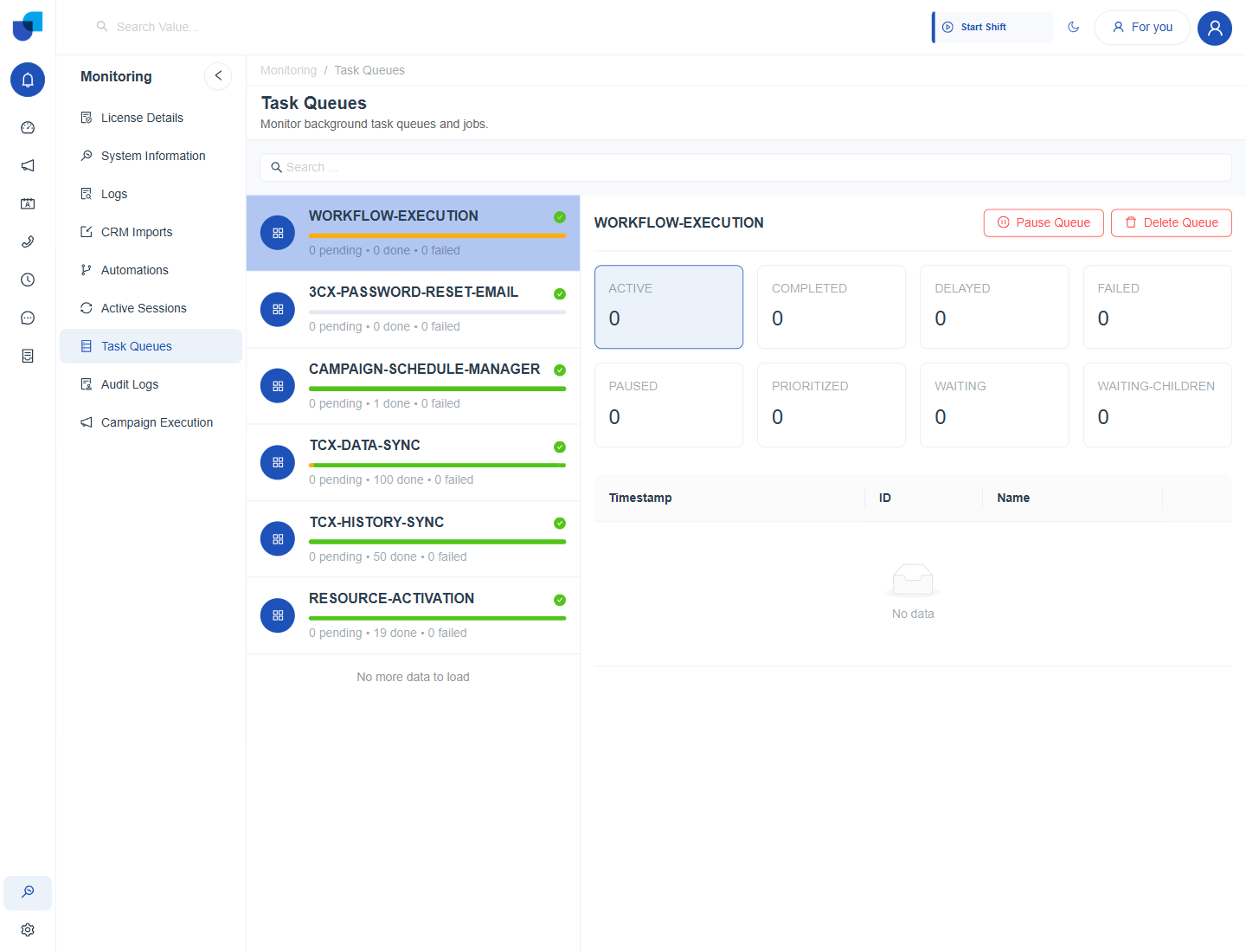
Figure 1. The Task Queues page, with the workflow execution queue selected and its states shown on the right.
The Queue List
Each queue has a name, a status tick, a progress bar and a line of counts: pending, done and failed. A search box above the list finds a queue by name.
| Queue | What it handles |
|---|---|
| WORKFLOW-EXECUTION | Runs the steps of workflows, including their delays. |
| 3CX-PASSWORD-RESET-EMAIL | Sends the emails that reset a 3CX password. |
| CAMPAIGN-SCHEDULE-MANAGER | Starts and stops campaigns at their scheduled times. |
| TCX-DATA-SYNC | Synchronizes data from the telephone system. |
| TCX-HISTORY-SYNC | Synchronizes call history from the telephone system. |
| RESOURCE-ACTIVATION | Activates resources such as users and extensions. |
A Queue's Detail
Click a queue to see its jobs by state. Eight cards show the count in each state, and a table below lists the jobs with their timestamp, ID and name.
| State | Meaning |
|---|---|
| ACTIVE | Jobs being worked on now. |
| COMPLETED | Jobs that finished. |
| DELAYED | Jobs that are waiting for a set time before they run, such as the wait step of a workflow. |
| FAILED | Jobs that stopped with an error. |
| PAUSED | Jobs held because the queue is paused. |
| PRIORITIZED | Jobs that were given priority over others. |
| WAITING | Jobs ready to run, waiting for a free worker. |
| WAITING-CHILDREN | Jobs that wait for the smaller jobs they started. |
A job in the DELAYED state is not stuck. It is waiting for its scheduled time, for example the delay step of a workflow, and it moves to ACTIVE when the time arrives.
Pause and Delete
Two buttons sit at the top right of a queue's detail. Pause Queue stops workers from taking new jobs until you resume. Delete Queue removes the queue.
Pausing a queue stops the work that depends on it. Pausing the workflow queue, for example, stops automations from running until it is resumed. Delete Queue removes the queue and its jobs, so use it only when you are sure the jobs are no longer needed.